Microsoft 365 Insider Blog:
Hi, Microsoft 365 Insiders! I’m Lev Solodkin, a Senior Product Manager on the Excel team. I’m excited to share a new Microsoft 365 Copilot feature in Excel for Windows that can improve how you write formulas with proactive suggestions.
Faster formula writing with formula completion in Excel for Windows
Writing formulas in Excel can be difficult, intimidating, and time-consuming, even for experienced users. Between selecting the right function, referencing the correct cells, and ensuring the syntax is accurate, there’s ample opportunity for mistakes. Many of you shared that searching for explanations and examples, troubleshooting errors, and trying to remember the exact formula structure can slow down your workflows.With formula completion in Excel, you’re now able to create accurate formulas faster and with greater confidence! Powered by state-of-the-art AI models, this feature proactively suggests and autocompletes formulas as soon as you type “=” by referencing the context of your workbook, including headers and nearby cells, formulas, and tables.
How it works
- In Excel for Windows, select the cell in which you want to enter a formula.
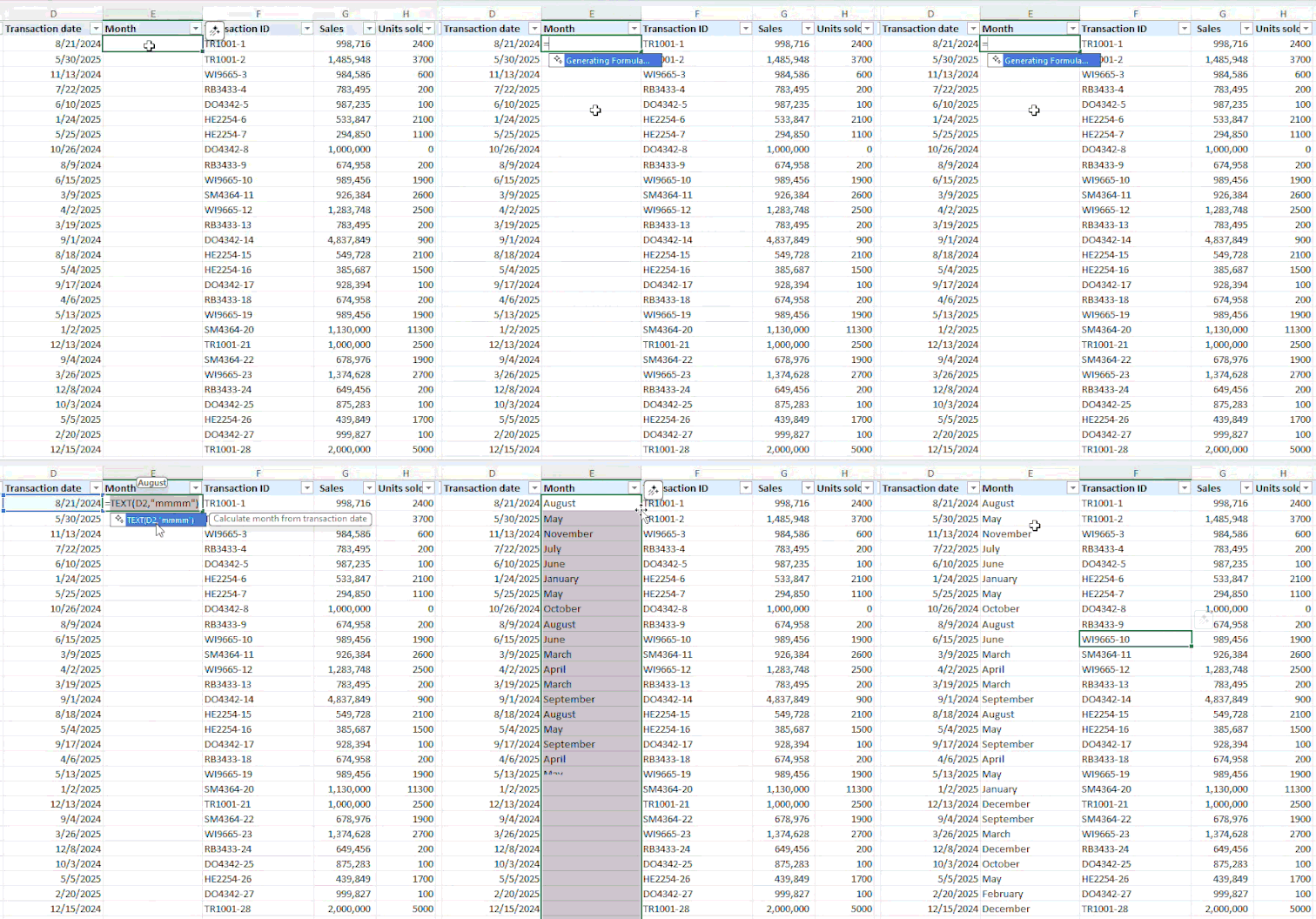
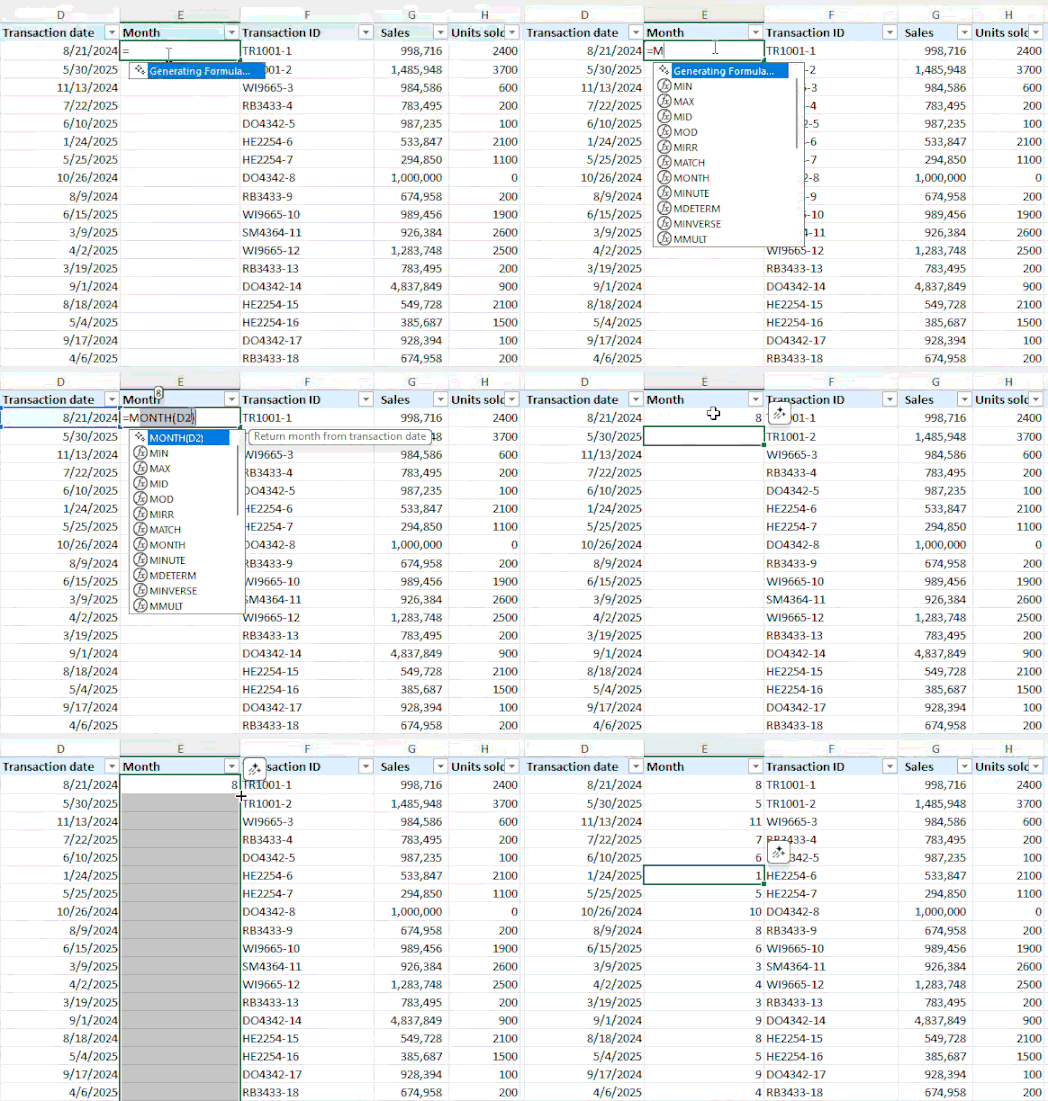
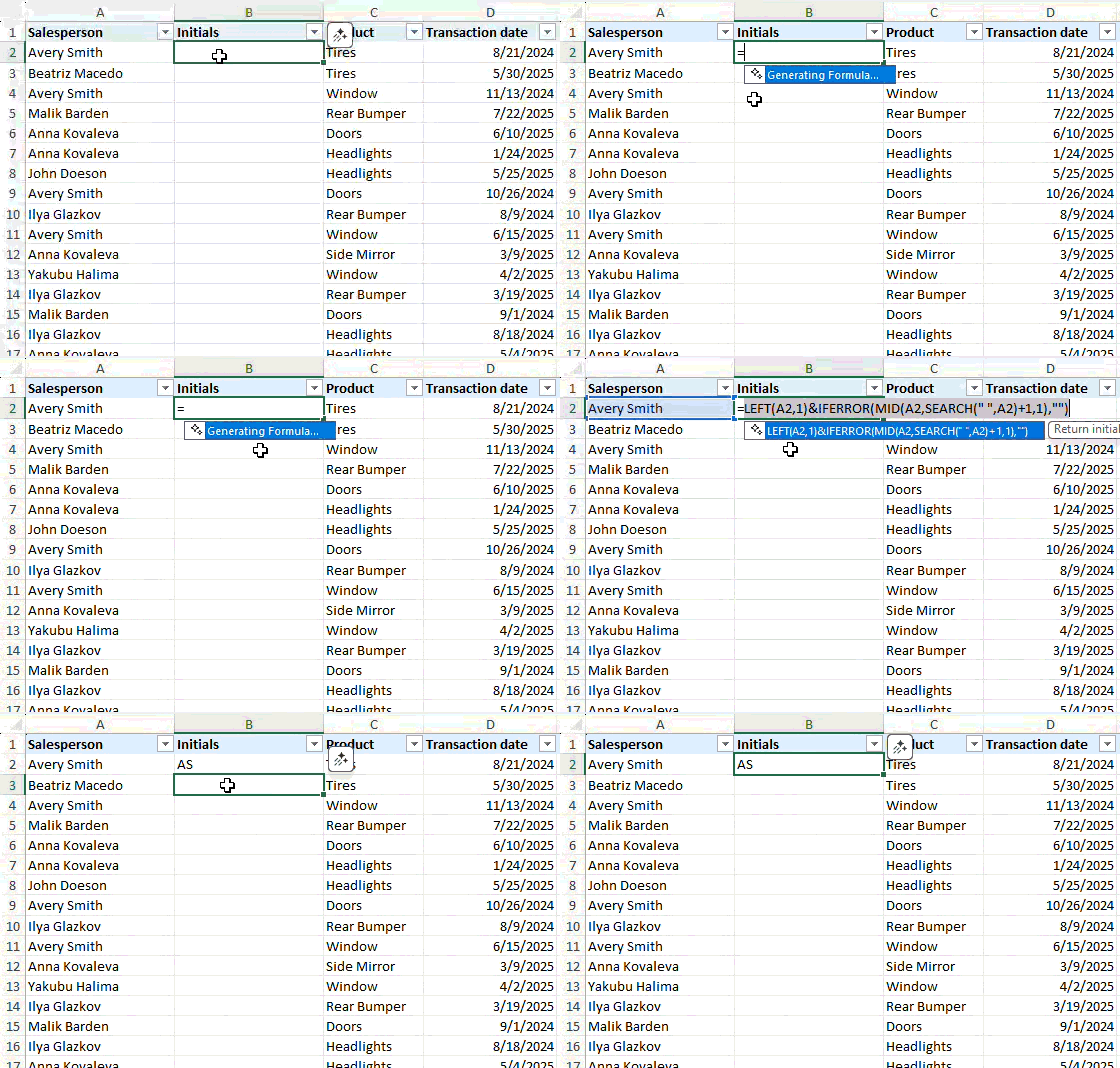
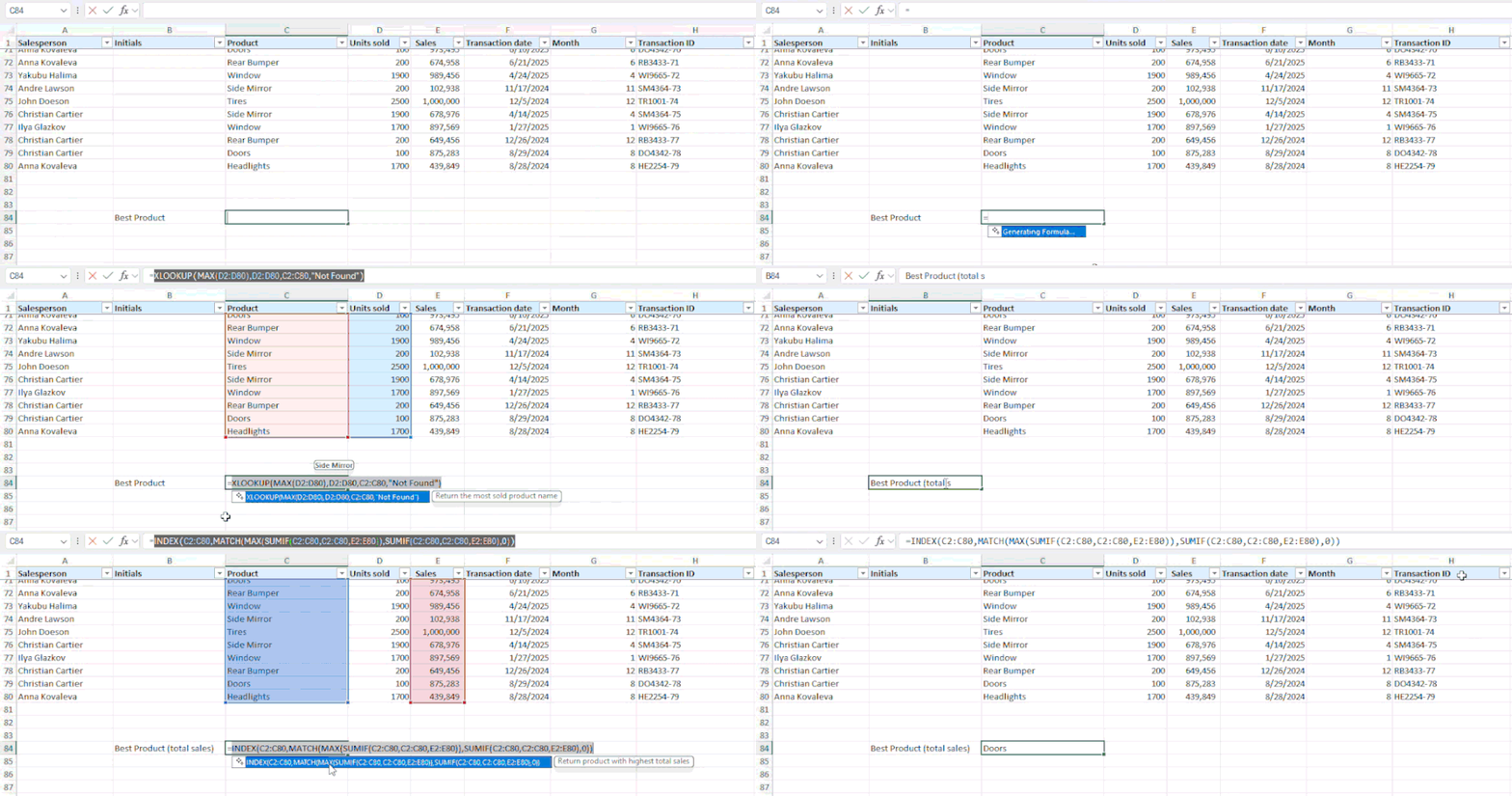
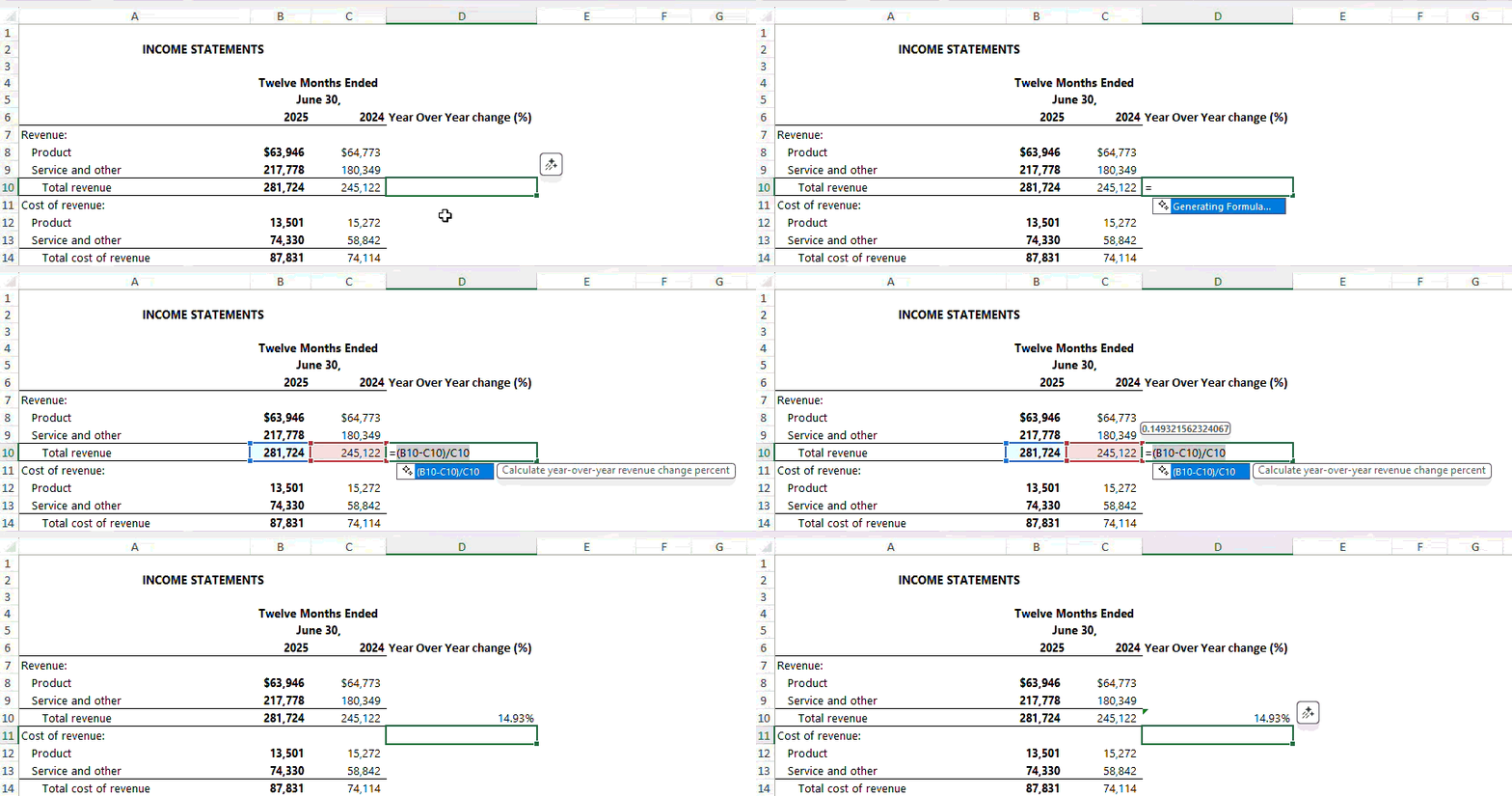
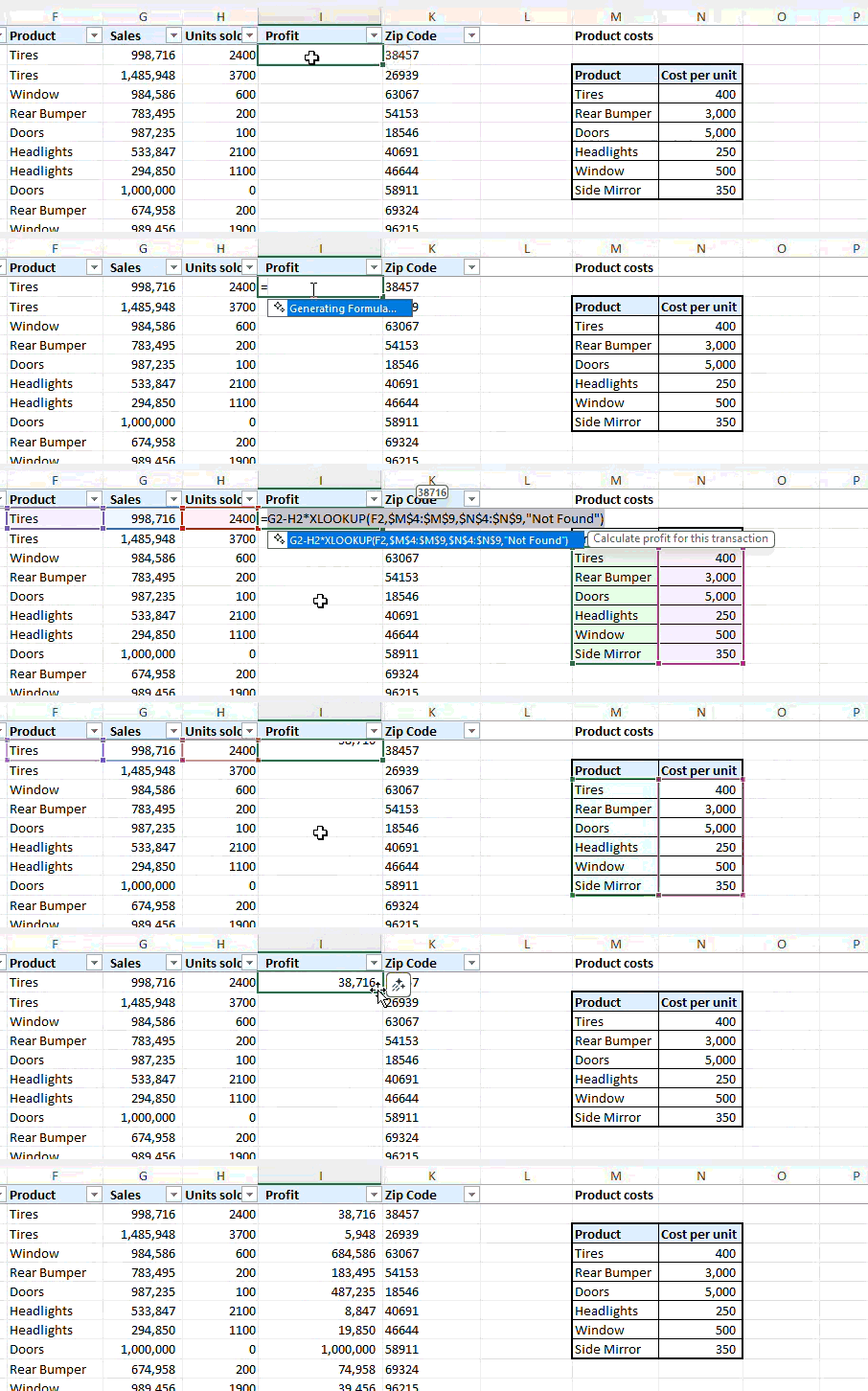
- Type = and notice a formula completion suggestion appears alongside a preview of the result and a short description in natural language of the formula’s intent.
Tips and tricks
- Formula completion updates its suggestions in real time as more characters are entered until an appropriate match is found.
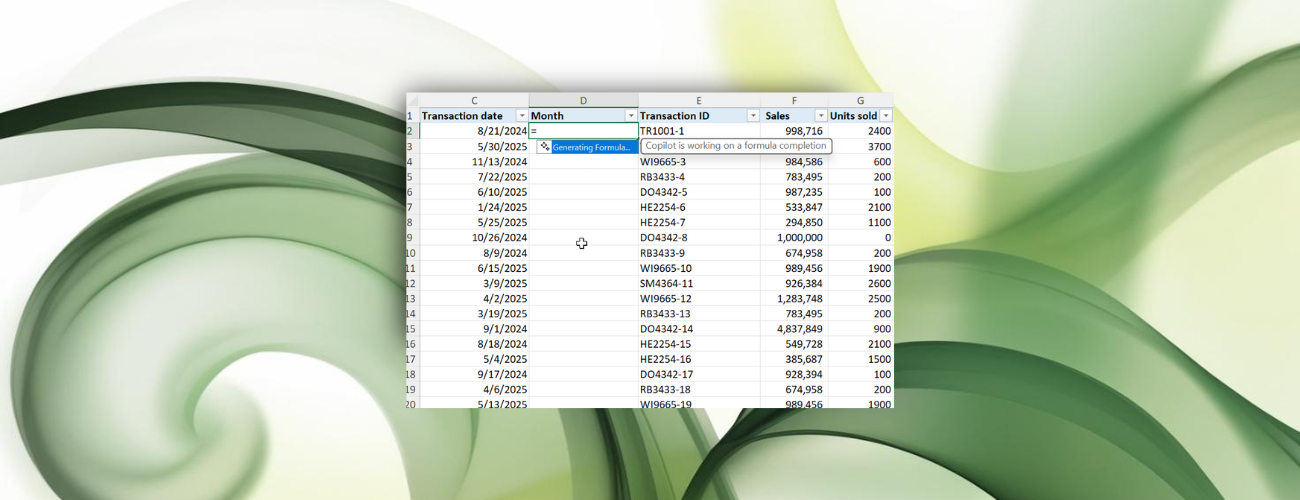
- Copilot’s suggestions may take a moment to load. As Copilot generates the formula, a progress indicator will be displayed along the lower border of the cell.
- Formula completion works best when your worksheet includes descriptive labels and headers that help provide context.
- If you’re struggling to find the correct formula, refine the context by including additional details in adjacent cells or headers.
Scenarios to try
Copilot can suggest formulas of varying complexity for different data structures:- Calculate year-over-year change for your latest financial statements.
- Calculate profit for individual transactions, even if some of the required information is in a different range or table.
- Extract ZIP codes using a REGEX function.
- Get help with tasks that require dynamic array formulas.
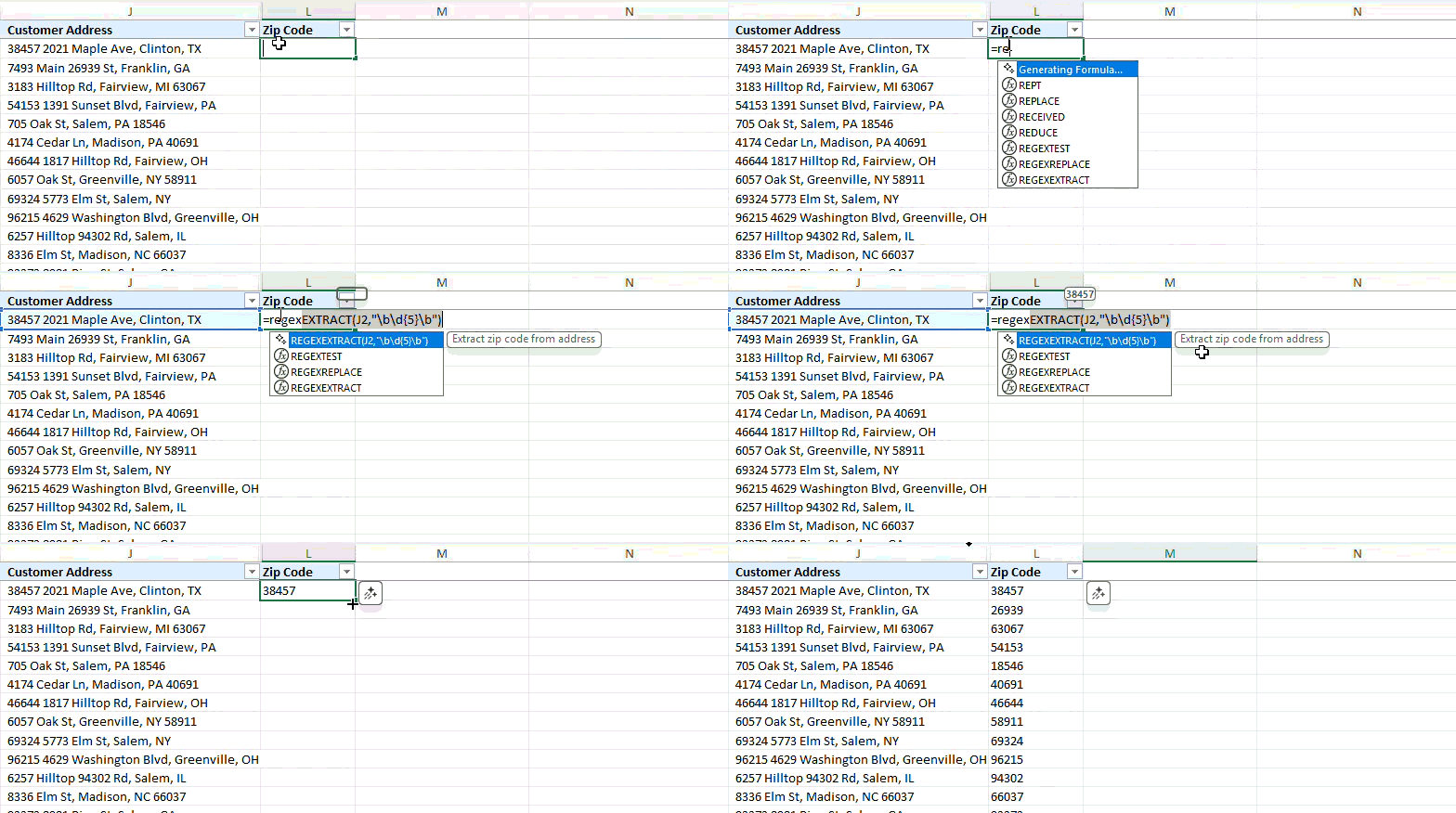
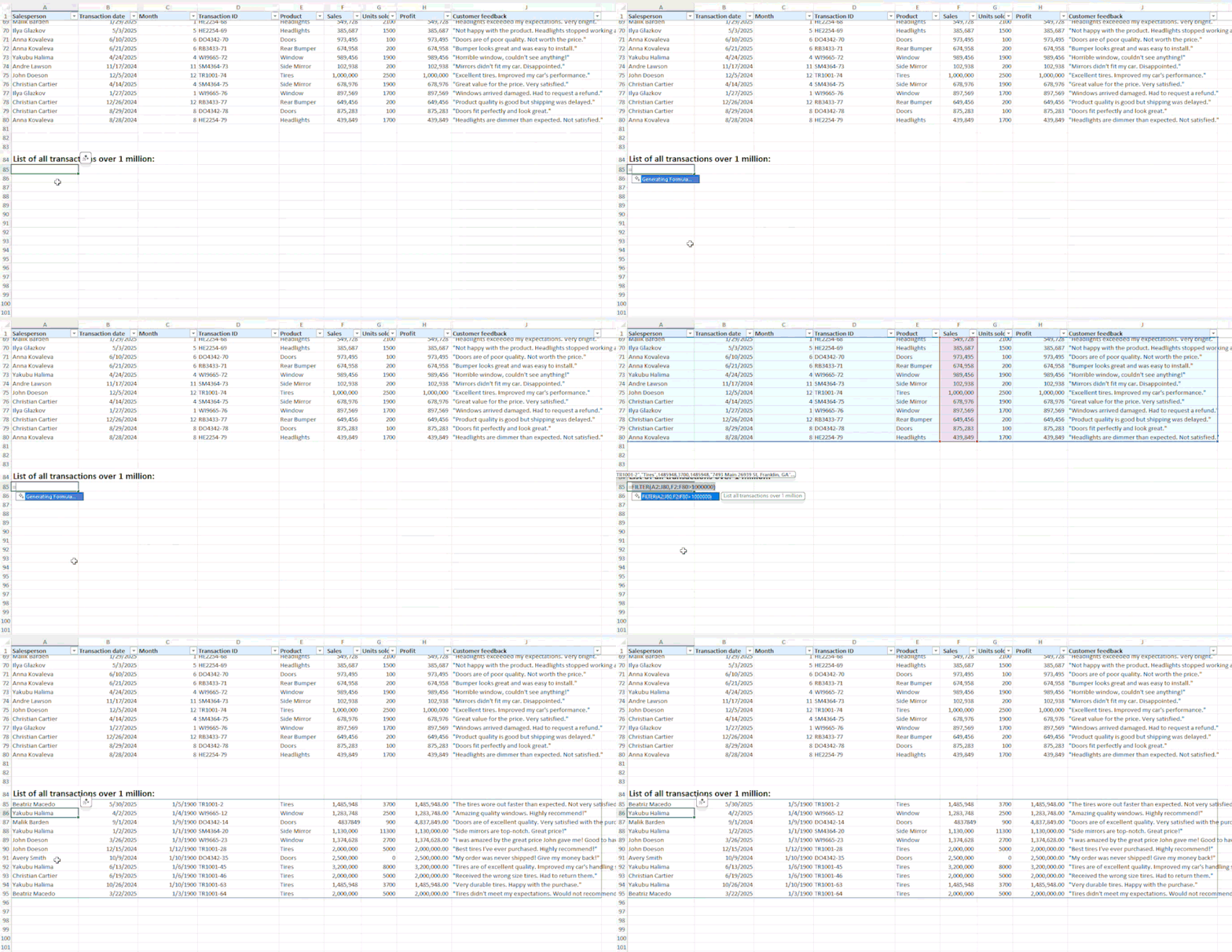
Known limitations
- Formula completion does not currently provide suggestions for formulas that reference other worksheets. Support for this feature may be included in future updates.
- If you’d rather not see formula completion suggestions in Excel, an easy opt-out option will be available soon.
Availability
Formula completion is available to Excel for Windows users with a Microsoft 365 Copilot license (get more details on licenses for businesses) and running Version 2510 (Build 19311.20000).Feedback
We appreciate your insights regarding formula completion! Do you consider it beneficial for your work? Does it integrate effectively into your workflow? Are there any capabilities you feel are lacking that you would like to see implemented? You can share your feedback with us by selecting the Feedback button in the upper right-hand corner of Excel for Windows, and then selecting Give a compliment, Report a problem, or Make a suggestion.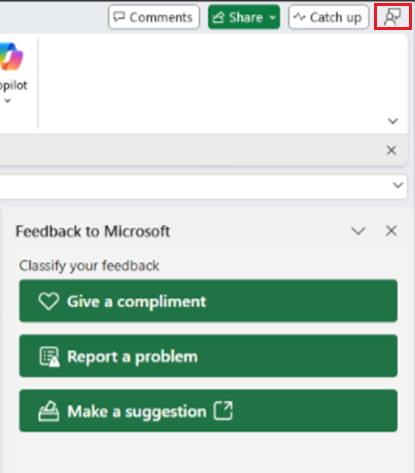
Source:
Faster formula writing with formula completion in Excel for Windows
Powered by state-of-the-art AI models, formula completion in Microsoft Excel for Windows autocompletes formulas when you type = by referencing the context of...
 techcommunity.microsoft.com