File History Backup only shows one Drive C:


Douglas G

New member
Local time
7:15 AM
Posts
3
OS
Windows 11
My file history backup only does my C: drive. I have no choice to do my D: drive.
My old Windows 10 PC would let me select anything on my D: drive.
I backup to an external USB 3.0 SSD.
Seems kind of strange.
 
Windows Build/Version
25H2

My Computer My Computer

At a glance

Windows 1116 gig
OS
Windows 11
Computer type
PC/Desktop
Manufacturer/Model
ASUS
Motherboard
ASUS
Memory
16 gig
Hard Drives
C: SSD and D: SSD
Per Microsoft
  • Windows 11 limits File History to default libraries (Documents, Pictures, etc.) on the C: drive only
  • You can’t add custom folders from other drives through the File History UI anymore

You can technically bypass this though… by creating a library that includes your D: folders.

New > Library > Name it “D Drive Backup” > Right-click the new library > Properties > Include a folder > add your D: drive folder

It will now be backed up via File History back up as part of your libraries.
 

My Computer My Computer

At a glance

Windows 11 Pro
OS
Windows 11 Pro
dacrone, That worked for me in a roundabout way. I found No NEW> Library on my PC.
But I did go to my D: drive and under more I added a Library to my Documents folder. That seems to have worked.
The library did not show up in my Documents folder. D: did show up in my File System Backup.
Thanks
 

My Computer My Computer

At a glance

Windows 1116 gig
OS
Windows 11
Computer type
PC/Desktop
Manufacturer/Model
ASUS
Motherboard
ASUS
Memory
16 gig
Hard Drives
C: SSD and D: SSD
dacrone, That worked for me in a roundabout way. I found No NEW> Library on my PC.
But I did go to my D: drive and under more I added a Library to my Documents folder. That seems to have worked.
The library did not show up in my Documents folder. D: did show up in my File System Backup.
Thanks
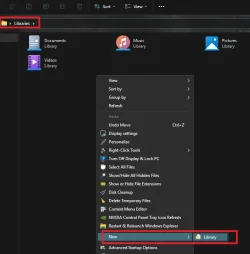
terrific. sorry, i was on mobile when posted that. if you go to Libraries in File Explorer by clicking the small left > in the address bar, then just right click inside the Libraries directory, you can select New > Library. (just for future reference)

1761688386207.webp
 

My Computer My Computer

At a glance

Windows 11 Pro
OS
Windows 11 Pro
Per Microsoft


You can technically bypass this though… by creating a library that includes your D: folders.

New > Library > Name it “D Drive Backup” > Right-click the new library > Properties > Include a folder > add your D: drive folder

It will now be backed up via File History back up as part of your libraries.
Do you mind if I add a little of my question to this? I was researching because I was having problems with my File History. I never saw this before that I can remember, but on recent Windows update and install of 24H2 I got a message to restart my File History, but following instructions failed with the selected drive. I read and tried to change the drive to another, but I have a question first of all. Does the destination File History drive have to be NTFS formatted? The one I wanted to use has plenty of room but is xFAT. I may have to buy a new drive if I have to format it NTFS.
 

My Computer My Computer

At a glance

Windows 11 Pro 24H2 Build 26100.494612th Gen Intel Core i7-1270032 GBIntel UHD Graphics 770
OS
Windows 11 Pro 24H2 Build 26100.4946
Computer type
PC/Desktop
Manufacturer/Model
self built
CPU
12th Gen Intel Core i7-12700
Motherboard
MSI Pro Z690-A DDR4 (MS-7D25)
Memory
32 GB
Graphics Card(s)
Intel UHD Graphics 770
Sound Card
Intel HD Audio
Monitor(s) Displays
Insignia-TV
Screen Resolution
3840-2160
Hard Drives
9, different varieties and types
Internet Speed
1 GIG Fiber optic
Browser
Chrome
Antivirus
Webroot
Please help. I wanted to post a new question after searching for comparable posts, but I get a message saying I don't have sufficient privileges to post. What do I need to do? My last post was in December 2025.
 

My Computer My Computer

At a glance

Windows 11 Pro 24H2 Build 26100.494612th Gen Intel Core i7-1270032 GBIntel UHD Graphics 770
OS
Windows 11 Pro 24H2 Build 26100.4946
Computer type
PC/Desktop
Manufacturer/Model
self built
CPU
12th Gen Intel Core i7-12700
Motherboard
MSI Pro Z690-A DDR4 (MS-7D25)
Memory
32 GB
Graphics Card(s)
Intel UHD Graphics 770
Sound Card
Intel HD Audio
Monitor(s) Displays
Insignia-TV
Screen Resolution
3840-2160
Hard Drives
9, different varieties and types
Internet Speed
1 GIG Fiber optic
Browser
Chrome
Antivirus
Webroot
Back
Top Bottom