Solved garlin's PowerShell scripts for updating Secure Boot CA 2023


There really isn't a true guide, because each BIOS can be different with the many BIOS types that Dell has supported over the years.
But here's a quick rundown:

1. If you're not sure, reset back to factory defaults for Secure Boot. This is a "known good" starting place.

2. Check if your Dell has an option for Custom (or User) mode. Anything but Standard (or Factory). Select that option. Some BIOS'es will require the user to set an Admin password before unlocking additional options.

3. Leave Secure Boot off, start Windows. Run the update script. Since you have an unsupported PC, it will start with the less intrusive option of copying the KEK CA 2023 cert to the EFI volume.
Code:
Update-UEFI.bat

4. Return to BIOS. If you have a KEK enrollment menu, use it to select the system drive (if you're not sure, play around until you see a folder named "EFI"). Under the EFI folder will be a "Certs" subfolder. Try to load the KEK CA 2023 cert file from there. There might be multiple copies, but they're all the same file renamed because some BIOS'es are picky about the filename extension.

Depending on your Dell BIOS, this may not work. It depends if the cert file format is accepted by this BIOS version. Some Dell's do not.

5. If you're successfully, restart Windows and run the script again. It will try to finish the rest of the update.

6. If your BIOS rejected the file, we proceed to the next phase and Delete All Keys. Restart Windows and run the script again.

That's about it. Assuming your Dell isn't too bad, either the manual KEK enrollment works or clearing the factory keys will work.
 

My Computer My Computer

At a glance

Windows 7
OS
Windows 7
This process seems to be endless, do this do that...On one of my laptops somewhere in the process the machine would not boot
I disabled secure boot and still no go...I dunno if a fresh install of Windows will fix it or make it worse
 

My Computer My Computer

At a glance

windows 11Intel i5-10600kf32gb corsair vengerance proAMD RX 6500XT
OS
windows 11
Computer type
PC/Desktop
Manufacturer/Model
Antec/Case
CPU
Intel i5-10600kf
Motherboard
GIGABYTE Z590 UD AC
Memory
32gb corsair vengerance pro
Graphics Card(s)
AMD RX 6500XT
Sound Card
onboard
Monitor(s) Displays
40" Hisense
Hard Drives
Samsung 850
Samsung 870
Seagate 2TB
PSU
EVGA GQ 750
This process seems to be endless, do this do that...On one of my laptops somewhere in the process the machine would not boot
I disabled secure boot and still no go...I dunno if a fresh install of Windows will fix it or make it worse
Some old laptops can't be updated due to BIOS limitations. For those you'll have to reset back to factory defaults, and leave them alone.

The problems are from the BIOS or the NVRAM memory capacity. It doesn't matter what Windows you're running. Basically you'll have to eventually leave Secure Boot off if you want to keep operating W11 past October 2026.
 

My Computer My Computer

At a glance

Windows 7
OS
Windows 7
Some Info concerning the HP Z440 Workstation.
So far I hadn't found any info as to why the HP Z440 workstation is temporarily blocked from getting the new secure boot certificates, apart from its age (came to market around 2014).

Now, in this link HP clearly states that all HP Commercial Notebooks, Desktops and Workstation computers may suffer from a bitlocker recovery loop on updating the certs: see https://support.hp.com/us-en/document/ish_14914515-14914500-16
AS I have no bitlocker activated on my HP Z440 workstation, I never encountered this error, when updating with the new secure boot certificates.

On top of that, they also state that all HP models before or in 2017 do not get any secure boot certificate updates in the form of bios or other updates. See https://support.hp.com/us-en/document/ish_13070353-13070429-16 under the section "Support for HP Commercial PCs outside of service life".
Basically leaving many computers in the dust.
 
Last edited:

My Computer My Computer

At a glance

windows 11
OS
windows 11
Some Info concerning the HP Z440 Workstation.
So far I hadn't found any info as to why the HP Z440 workstation is temporarily blocked from getting the new secure boot certificates, apart from its age (came to market around 2014).

Now, in this link HP clearly states that all HP Commercial Notebooks, Desktops and Workstation computers may suffer from a bitlocker recovery loop on updating the certs: see https://support.hp.com/us-en/document/ish_14914515-14914500-16
AS I have no bitlocker activated on my HP Z440 workstation, I never encountered this error, when updating with the new secure boot certificates.

On top of that, they also state that all HP models before or in 2017 do not get any secure boot certificate updates in the form of bios or other updates. See https://support.hp.com/us-en/document/ish_13070353-13070429-16 under the section "Support for HP Commercial PCs outside of service life".
Basically leaving many computers in the dust.
if all other methods to update the secure boot certs have failed have you tried mosby's secure boot update

or you could try this method before mosby's method

and see how you get on.
best of luck Steve ..
 

My Computers My Computers

  • At a glance

    Windows 11 HomeRyzen 7 5825u64GB DDR4 3200Ryzen 7 5825u
    OS
    Windows 11 Home
    Computer type
    PC/Desktop
    Manufacturer/Model
    HP 24" AiO
    CPU
    Ryzen 7 5825u
    Motherboard
    HP
    Memory
    64GB DDR4 3200
    Graphics Card(s)
    Ryzen 7 5825u
    Sound Card
    RealTek
    Monitor(s) Displays
    24" HP AiO
    Screen Resolution
    1920 x 1080 @60 Hz
    Hard Drives
    1TB WD Blue SN580 M2 SSD Partitioned.
    2x 1TB USB HDD External Backup/Storage.
    PSU
    90W external power brick
    Case
    24" All in One
    Cooling
    Default Air Cooling
    Keyboard
    HP WiFi UK extended
    Mouse
    HP WiFi 3 Button
    Internet Speed
    1GB full fibre
    Browser
    Edge & Firefox
    Antivirus
    AVG Internet Security/Windows Defender
    Other Info
    Mainly Open Source Software
  • At a glance

    Ubuntu 22.04.5 LTSi5 7200u16GB DDR4Intel
    Operating System
    Ubuntu 22.04.5 LTS
    Computer type
    Laptop
    Manufacturer/Model
    Dell 13" Latitude 2017
    CPU
    i5 7200u
    Motherboard
    Dell
    Memory
    16GB DDR4
    Graphics card(s)
    Intel
    Sound Card
    Intel
    Monitor(s) Displays
    13" Dell Laptop
    Hard Drives
    250GB Crucial 2.5" SSD
    Mouse
    Generic WiFi 3 button
    Internet Speed
    WiFi only
    Browser
    Firefox
    Antivirus
    ClamAV TK
    Other Info
    Mainly Open Source Software
Not at home today...
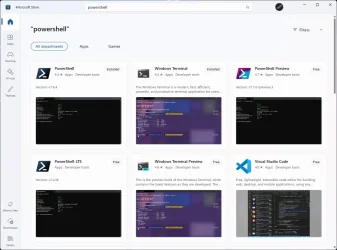
But it sure looks like MStore Powershell is still present
Go to MStore, Library (bottom left), and search for "power"
Is there still a powershell ? If so, uninstall directly from MStore and restart PC
PS: You probably have Power Automate, but that's something else, don't worry about it
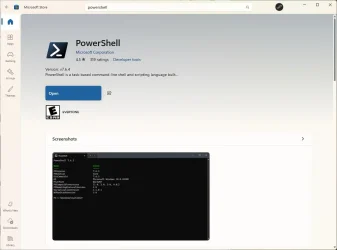
Is this what you are talking about? If so, how do I uninstall it from MS Store? All I see is a button to open it, nothing to uninstall it.

Power.webp

Open.webp
 

My Computers My Computers

  • At a glance

    Windows 11 Pro 25H2i7-8565U16GBIntel UHD Graphics 620
    OS
    Windows 11 Pro 25H2
    Computer type
    Laptop
    Manufacturer/Model
    Lenovo T490 (2020 Hardware)
    CPU
    i7-8565U
    Motherboard
    20N20028US
    Memory
    16GB
    Graphics Card(s)
    Intel UHD Graphics 620
    Sound Card
    Realtec Audio
    Monitor(s) Displays
    ASUS VE248
    Screen Resolution
    1920 X 1080
    Hard Drives
    Samsung SSD 970 PRO 512GB NVMe
    Internet Speed
    Frontier fiber 1GB
    Browser
    Chrome, Firefox, Edge
    Antivirus
    Norton 360 Deluxe Plus
    Other Info
    Supported hardware, upgraded from Windows 10 Pro to Windows 11 Pro version 24H2 on 06/01/2025 using the Windows 11 ISO file. Used the enablement package to upgrade to version 25H2 on 10/07/2025. Secure boot enabled. Secure Boot CA 2023 updated.
  • At a glance

    Windows 11 Pro 25H2i7-4770 (with SSE4.2, and POPCNT)16GBIntel HD Graphics 4600
    Operating System
    Windows 11 Pro 25H2
    Computer type
    PC/Desktop
    Manufacturer/Model
    Lenovo ThinkCentre M83 (2014 Hardware)
    CPU
    i7-4770 (with SSE4.2, and POPCNT)
    Motherboard
    10AL000GUS
    Memory
    16GB
    Graphics card(s)
    Intel HD Graphics 4600
    Sound Card
    Realtec High Definition Audio
    Monitor(s) Displays
    ASUS VE248
    Screen Resolution
    1920 X 1080
    Hard Drives
    Samsung SSD 860 PRO 1TB SATA
    Internet Speed
    Frontier fiber 1GB
    Browser
    Chrome, Firefox, Edge
    Antivirus
    Norton 360 Deluxe Plus
    Other Info
    Unsupported hardware, upgraded from Windows 10 Pro (TPM 1.2 & unsupported CPU, but does have SSE4.2, and POPCNT) to Windows 11 Pro version 24H2 on 06/15/2025. Added Registry Key HKEY_LOCAL_MACHINE\SYSTEM\Setup\MoSetup – AllowUpgradesWithUnsupportedTPMOrCPU=1 to allow installation using the Windows 11 ISO file. Used the enablement package to upgrade to version 25H2 on 10/08/2025. Secure boot enabled. Secure Boot CA 2023 updated.
Now, in this link HP clearly states that all HP Commercial Notebooks, Desktops and Workstation computers may suffer from a bitlocker recovery loop on updating the certs: see https://support.hp.com/us-en/document/ish_14914515-14914500-16
AS I have no bitlocker activated on my HP Z440 workstation, I never encountered this error, when updating with the new secure boot certificates.
Well, it's HP stumbling over their own feet / security precautions.

Sure Start Secure Boot Keys Protection checks for (possibly) unwanted changes to the certificates, and if it detects such changes it copies the original certificates back... But that means the boot config is changed in an unexpected way and therefor Bitlocker is requesting the key- the the machine boots again.
Next reboot MS tries to change the keys again, HP Sure Start again "repairs" them at next boot and Bitlocker again thinks 'changed boot config- let's request the recovery key'
and so on and so on...

I doubt that your HP Z440 workstation already has HP Sure Start.

And that is not comparable to a firmware error. Every subsystem for itself basically works as expected and designed....
 

My Computer My Computer

At a glance

W10
OS
W10
Some Info concerning the HP Z440 Workstation.
So far I hadn't found any info as to why the HP Z440 workstation is temporarily blocked from getting the new secure boot certificates, apart from its age (came to market around 2014).

Now, in this link HP clearly states that all HP Commercial Notebooks, Desktops and Workstation computers may suffer from a bitlocker recovery loop on updating the certs: see https://support.hp.com/us-en/document/ish_14914515-14914500-16
AS I have no bitlocker activated on my HP Z440 workstation, I never encountered this error, when updating with the new secure boot certificates.

On top of that, they also state that all HP models before or in 2017 do not get any secure boot certificate updates in the form of bios or other updates. See https://support.hp.com/us-en/document/ish_13070353-13070429-16 under the section "Support for HP Commercial PCs outside of service life".
Basically leaving many computers in the dust.
I updated an HP-Envy desktop with a 2014 BIOS with the @garlin scripts, it went seamlessly. I used Rufus for the basic install so I didn't have to deal with TPU 2 issues and to bypass the Microsoft account crap. Once it was installed, I fired up the BIOS and set the Secure Boot to Custom mode and ran the scripts.

1785421879812.webp
 

My Computers My Computers

  • At a glance

    Win 11 Pro 25H2, Build 26200.8973Intel Core i5 1450064GB DDR4GeForce RTX 4060
    OS
    Win 11 Pro 25H2, Build 26200.8973
    Computer type
    PC/Desktop
    Manufacturer/Model
    Home Brew
    CPU
    Intel Core i5 14500
    Motherboard
    Gigabyte B760M G P WIFI
    Memory
    64GB DDR4
    Graphics Card(s)
    GeForce RTX 4060
    Sound Card
    Chipset Realtek
    Monitor(s) Displays
    LG 45" Ultragear, Acer 24" 1080p
    Screen Resolution
    5120x1440, 1920x1080
    Hard Drives
    Crucial P310 2TB 2280 PCIe Gen4 3D NAND NVMe M.2 SSD (O/S)
    Silicon Power 2TB US75 NVMe PCIe Gen4 M.2 2280 SSD (backup)
    Crucial BX500 2TB 3D NAND (2nd backup)
    Seagate 4TB Ironwolf, rotating HDD archive files
    External off-line backup Drives: 2 NVMe 4TB drives in external enclosures
    PSU
    Thermaltake Toughpower GF3 750W
    Case
    LIAN LI LANCOOL 216 E-ATX PC Case
    Cooling
    Lots of fans!
    Keyboard
    Microsoft Comfort Curve 2000
    Mouse
    Logitech G305
    Internet Speed
    Verizon FiOS 1GB
    Browser
    Firefox
    Antivirus
    Malware Bytes & Windows Defender Security
  • At a glance

    Win 11 Pro 25H2, Build 26200.8894Intel Core i5 1440032GB DDR5Intel 700 Embedded GPU
    Operating System
    Win 11 Pro 25H2, Build 26200.8894
    Computer type
    PC/Desktop
    Manufacturer/Model
    Home Brew
    CPU
    Intel Core i5 14400
    Motherboard
    Gigabyte B760M DS3H AX
    Memory
    32GB DDR5
    Graphics card(s)
    Intel 700 Embedded GPU
    Sound Card
    Realtek Embedded
    Monitor(s) Displays
    27" HP 1080p
    Screen Resolution
    1920x1080
    Hard Drives
    Crucial P310 2TB 2280 PCIe Gen4 eD NAND PCIe SSD
    Samsung EVO 990 2TB NVMe Gen4 SSD
    Samsung 2TB SATA SSD
    PSU
    Thermaltake Smart BM3 650W
    Case
    Okinos Micro ATX Case
    Cooling
    Fans
    Keyboard
    Microsoft Comfort Curve 2000
    Mouse
    Logitech G305
    Internet Speed
    Verizon FiOS 1GB
    Browser
    Firefox
    Antivirus
    Malware Bytes & Windows Defender Security
  • Nimo N171 17" Laptop, (Intel i3-1215U, 16GB RAM, 2TB NVMe, Win11 Pro)
    Acemagic Vista Mini PC V1 (Intel N150, 16GB RAM, 1TB NVMe, Win11 Pro)
    HP ENVY h8-1540t, (24GB RAM, 2TB SSD, 2TB HDD, Win11 Pro)
if all other methods to update the secure boot certs have failed have you tried mosby's secure boot update

or you could try this method before mosby's method

and see how you get on.
best of luck Steve ..
Steve, The secure boot cert update of my HP Z440 worked very well with the scripts of Garlin. If you go back far enough in this thread, you can read my posts about it.

T2s50: no, my HP Z440 does NOT have "Sure Start". Sure Start began after the HP Z440 series came out.
 

My Computer My Computer

At a glance

windows 11
OS
windows 11
Honestly, I get the feeling someone at HP suggested adding the Z440 to the "Temporarily Paused" category out of genuine concern. Because it implies the vendor's support team is working a known issue. If the PC model has a unfixable problem, they would ask MS to quickly move it to "Not Supported" (really blocked).

When a PC model is too old and everyone (HP and MS) is playing the "too cute" game, they can stick those models under "More Data Needed". It's a convenient way of hiding models that will never get BIOS updates or signed KEK files. "More Data Needed" works for them because it's neither a confirmation, nor a denial on the future.

Since the Z440 is Paused, only HP can ask MS to move it out of the category. Either the firmware elves are taking a long time, or HP dropped the ball and forgot/doesn't care enough to ask MS to change its category. For that old a system, it's probably the latter case.
 

My Computer My Computer

At a glance

Windows 7
OS
Windows 7
Yeah, I do believe HP doesn't care enough. The Z440 series is end of life, and hence they do not bother.
 

My Computer My Computer

At a glance

windows 11
OS
windows 11
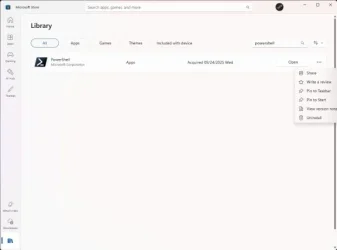
Is this what you are talking about? If so, how do I uninstall it from MS Store? All I see is a button to open it, nothing to uninstall it.

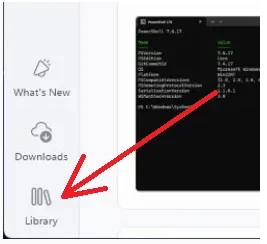
No, bottom left Library, there you can see all the software you have installed from MStore.

1785431182378.webp

  1. So find Powershell in MStore library and uninstall, all of them if you have more then one
    Use this search to search in your apps, not the search at the top of the window which searches the whole store
    1785431935350.webp

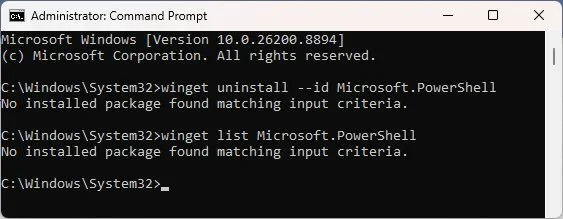
  2. uninstall winget version if still present ("winget uninstall --id Microsoft.PowerShell")
  3. make sure no other version is installed ("winget list Microsoft.PowerShell")
  4. restart computer
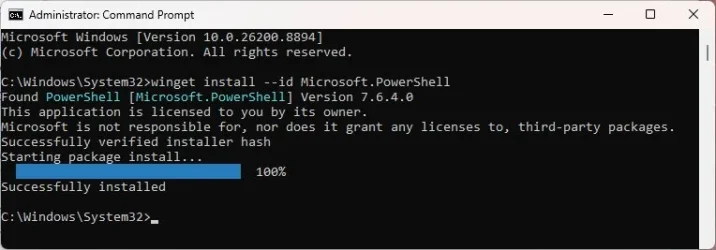
  5. install winget version ("winget install --id Microsoft.PowerShell")
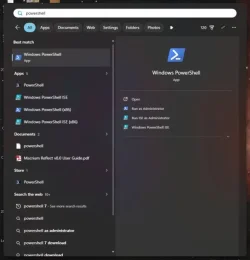
  6. if you do a search for "powershell" from Start menu, you should have this, and run it as Administrator.

    1785271717633.webp


  7. Test again...
 
Last edited:

My Computer My Computer

At a glance

Windows 11
OS
Windows 11
There really isn't a true guide, because each BIOS can be different with the many BIOS types that Dell has supported over the years.
But here's a quick rundown:
3. Leave Secure Boot off, start Windows. Run the update script. Since you have an unsupported PC, it will start with the less intrusive option of copying the KEK CA 2023 cert to the EFI volume.
Update-UEFI.bat
4. Return to BIOS. If you have a KEK enrollment menu, use it to select the system drive (if you're not sure, play around until you see a folder named "EFI"). Under the EFI folder will be a "Certs" subfolder. Try to load the KEK CA 2023 cert file from there. There might be multiple copies, but they're all the same file renamed because some BIOS'es are picky about the filename extension.
Hopefully, sharing my experience with my DELL machines can shed some light on this:
XPS 8930:
Unsupported: I followed the steps outlined by Garlin, especially deleting all the keys. I manually "Appended" the KEK, which was successful. I left it in custom mode with Secure Boot off, rebooted, and ran Update-UEFI.bat. After another reboot, I turned Secure Boot back on. Note: I understand these machines have different BIOS versions, so I proceeded knowing full well the risks involved.
Inspiron 3650:
Unsupported:

DO NOT SHIP:
I followed Garlin's steps, especially deleting all the keys and double-checking them one by one (yes, it was an uphill battle).
The "Append" option threw a "failed" error on the KEK, so I chose the option to "replace" the KEK. Note: Fully understanding the risk myself, and as Garlin mentioned, I started playing around with the options. I didn't have much of a choice since this is an unsupported machine.
The rest of the process was the same: I left it in custom mode, Secure Boot off, rebooted, ran Update-UEFI.bat, rebooted again, and turned Secure Boot back on. Note: I knew these BIOS versions were different, so I proceeded at my own risk.
OptiPlex 3050:
Unsupported:

Followed Garlin's exact recommendations:
  • Disable Secure Boot.
  • Delete all keys.
  • Restart Windows. Run the update script, it should recognize you are in Setup Mode (no certs).
  • Run the check script again. You should see KEK CA 2023 listed.
  • Re-enable Secure Boot.
The "Append" option threw a "failed" error on the KEK, so I chose the "from file" option for the KEK instead.
The rest of the steps were identical: custom mode, Secure Boot off, reboot, run Update-UEFI.bat, reboot, and Secure Boot on. Note: All three machines have entirely different BIOS menus.
The first two Dells triggered "Boot Violations". To be honest, I panicked a little bit, which is exactly why I joined the forum to follow Garlin's thread.
I hope this provides a little guidance along the way. Just keep in mind that even though BIOS layouts differ, the necessary options are usually there—at least they were on mine.
 

My Computer My Computer

At a glance

Edition Windows 11 Home Version 25H2 InstalledIntel(R) Core(TM) i7-8700 CPU @ 3.20GHz (3.19...24.0 GB (23.8 GB usable)NVIDIA GeForce GT 1030 (2 GB) Intel(R) UHD Gr...
OS
Edition Windows 11 Home Version 25H2 Installed
Computer type
PC/Desktop
Manufacturer/Model
DELL XPS 8930
CPU
Intel(R) Core(TM) i7-8700 CPU @ 3.20GHz (3.19 GHz)
Motherboard
Dell Inc. 0DF42J (U3E1) %1 Chipset
Memory
24.0 GB (23.8 GB usable)
Graphics Card(s)
NVIDIA GeForce GT 1030 (2 GB) Intel(R) UHD Graphics 630 (128 MB)
Sound Card
Intel Display Audio Realtek Audio, NVIDIA High Definition Audio
Screen Resolution
Current Resolution 1920x1080 pixels Work Resolution 1920x1032 pixels
Hard Drives
Samsung SSD 860 QVO 2TB
ST1000DM003-9YN162
Keyboard
Device Kind Keyboard Device Name HID Keyboard Device Vendor Unknown Location USB Input Device
Mouse
Device Kind Mouse Device Name HID-compliant mouse Vendor Primax Electronics Location USB Input Device
Browser
Firefox
Antivirus
McAfee
Wow.

I had tried all the advice on the net, and just couldn't get my Dell XPS 9360 to accept the KEK.

Until I tried your script.

As you describe in your post above, I disabled secure boot, deleted all keys, and ran your script. Bingo!

Thanks so very much.

Maybe include the text from your post at the top of the thread and/or on Github? It's an excellent start point for a newcomer. Just add a reminder to have a Bitlocker recovery key available.
 

My Computer My Computer

At a glance

Windows 11
OS
Windows 11
Computer type
Laptop
Manufacturer/Model
Dell XPS 13 9360
Hopefully, sharing my experience with my DELL machines can shed some light on this:
XPS 8930:
Unsupported: I followed the steps outlined by Garlin, especially deleting all the keys. I manually "Appended" the KEK, which was successful. I left it in custom mode with Secure Boot off, rebooted, and ran Update-UEFI.bat. After another reboot, I turned Secure Boot back on. Note: I understand these machines have different BIOS versions, so I proceeded knowing full well the risks involved.
Inspiron 3650:
Unsupported:

DO NOT SHIP:
I followed Garlin's steps, especially deleting all the keys and double-checking them one by one (yes, it was an uphill battle).
The "Append" option threw a "failed" error on the KEK, so I chose the option to "replace" the KEK. Note: Fully understanding the risk myself, and as Garlin mentioned, I started playing around with the options. I didn't have much of a choice since this is an unsupported machine.
The rest of the process was the same: I left it in custom mode, Secure Boot off, rebooted, ran Update-UEFI.bat, rebooted again, and turned Secure Boot back on. Note: I knew these BIOS versions were different, so I proceeded at my own risk.
OptiPlex 3050:
Unsupported:

Followed Garlin's exact recommendations:
  • Disable Secure Boot.
  • Delete all keys.
  • Restart Windows. Run the update script, it should recognize you are in Setup Mode (no certs).
  • Run the check script again. You should see KEK CA 2023 listed.
  • Re-enable Secure Boot.
The "Append" option threw a "failed" error on the KEK, so I chose the "from file" option for the KEK instead.
The rest of the steps were identical: custom mode, Secure Boot off, reboot, run Update-UEFI.bat, reboot, and Secure Boot on. Note: All three machines have entirely different BIOS menus.
The first two Dells triggered "Boot Violations". To be honest, I panicked a little bit, which is exactly why I joined the forum to follow Garlin's thread.
I hope this provides a little guidance along the way. Just keep in mind that even though BIOS layouts differ, the necessary options are usually there—at least they were on mine.
Thanks for your detailed report. To be fair, a number of "unsupported" PC's can be probably be safely updated by hand.

Most older Dell's fit into that category. Dell was one of the first PC makers to actively support Linux, and still offers PC's with Ubuntu. The reason this is important is because most distro's want you to use their own Secure Boot keys. Which means Dell BIOS'es are designed to flexible.

Though one drawback is figuring out the menu screens since there's at least 5 different Dell BIOS types. /sigh
 

My Computer My Computer

At a glance

Windows 7
OS
Windows 7
Some Info concerning the HP Z440 Workstation.
So far I hadn't found any info as to why the HP Z440 workstation is temporarily blocked from getting the new secure boot certificates, apart from its age (came to market around 2014).

Now, in this link HP clearly states that all HP Commercial Notebooks, Desktops and Workstation computers may suffer from a bitlocker recovery loop on updating the certs: see https://support.hp.com/us-en/document/ish_14914515-14914500-16
AS I have no bitlocker activated on my HP Z440 workstation, I never encountered this error, when updating with the new secure boot certificates.

On top of that, they also state that all HP models before or in 2017 do not get any secure boot certificate updates in the form of bios or other updates. See https://support.hp.com/us-en/document/ish_13070353-13070429-16 under the section "Support for HP Commercial PCs outside of service life".
Basically leaving many computers in the dust.

I have two ZBook workstations made around 2015 and they both took the CA 2023 certificates. Both need no further action.
 

My Computers My Computers

  • At a glance

    Windows 11 Education For 25H2Intel® Core i7 5500u8 GBIntel HD Family Graphics 5500 AMD Firepro 4150M
    OS
    Windows 11 Education For 25H2
    Computer type
    Laptop
    Manufacturer/Model
    HP ZBook G2
    CPU
    Intel® Core i7 5500u
    Motherboard
    HP
    Memory
    8 GB
    Graphics Card(s)
    Intel HD Family Graphics 5500 AMD Firepro 4150M
    Sound Card
    Realtek High Audio
    Hard Drives
    1 TB SSD
    Mouse
    HP USB Mouse
    Antivirus
    Windows Defender
  • At a glance

    Windows 11 Pro For Workstations 25H2Xeon 1535m v632 GBAMD Quadro Pro 4100
    Operating System
    Windows 11 Pro For Workstations 25H2
    Computer type
    Laptop
    Manufacturer/Model
    HP Zbook G4
    CPU
    Xeon 1535m v6
    Motherboard
    HP
    Memory
    32 GB
    Graphics card(s)
    AMD Quadro Pro 4100
    Sound Card
    Bang and Olufson Audio
    Hard Drives
    1TB SSD
    Mouse
    HP USB Mouse
    Antivirus
    Windows Defender
Thanks for your detailed report. To be fair, a number of "unsupported" PC's can be probably be safely updated by hand.

Most older Dell's fit into that category. Dell was one of the first PC makers to actively support Linux, and still offers PC's with Ubuntu. The reason this is important is because most distro's want you to use their own Secure Boot keys. Which means Dell BIOS'es are designed to flexible.

Though one drawback is figuring out the menu screens since there's at least 5 different Dell BIOS types. /sigh
Indeed. Just as a side note, when I panicked while updating the first two PCs, it was before I read your thread. I read through the whole thread trying to find similarities and decided to sign up. It’s like telling my mind to clear out all the mental noise, setting aside preconceived notions and a "nuclear option" mentality, and start following the method religiously. Again, thanks man.
 

My Computer My Computer

At a glance

Edition Windows 11 Home Version 25H2 InstalledIntel(R) Core(TM) i7-8700 CPU @ 3.20GHz (3.19...24.0 GB (23.8 GB usable)NVIDIA GeForce GT 1030 (2 GB) Intel(R) UHD Gr...
OS
Edition Windows 11 Home Version 25H2 Installed
Computer type
PC/Desktop
Manufacturer/Model
DELL XPS 8930
CPU
Intel(R) Core(TM) i7-8700 CPU @ 3.20GHz (3.19 GHz)
Motherboard
Dell Inc. 0DF42J (U3E1) %1 Chipset
Memory
24.0 GB (23.8 GB usable)
Graphics Card(s)
NVIDIA GeForce GT 1030 (2 GB) Intel(R) UHD Graphics 630 (128 MB)
Sound Card
Intel Display Audio Realtek Audio, NVIDIA High Definition Audio
Screen Resolution
Current Resolution 1920x1080 pixels Work Resolution 1920x1032 pixels
Hard Drives
Samsung SSD 860 QVO 2TB
ST1000DM003-9YN162
Keyboard
Device Kind Keyboard Device Name HID Keyboard Device Vendor Unknown Location USB Input Device
Mouse
Device Kind Mouse Device Name HID-compliant mouse Vendor Primax Electronics Location USB Input Device
Browser
Firefox
Antivirus
McAfee
Maybe include the text from your post at the top of the thread and/or on Github? It's an excellent start point for a newcomer. Just add a reminder to have a Bitlocker recovery key available.
I have a bare bones guide in the README_UEFI.TXT, which could be expanded with that text.

If you run the update script, it will temporarily suspend BitLocker for one reboot (following MS's guidance) whenever it applies any certs. I will have the script also suspend BitLocker when it copies the cert file to the EFI volume. Just in case the manual enrollment works, and you forgot to suspend or disable BitLocker before starting.

The suspension will clear when the reboot counter drops to zero.
 

My Computer My Computer

At a glance

Windows 7
OS
Windows 7
Indeed. Just as a side note, when I panicked while updating the first two PCs, it was before I read your thread. I read through the whole thread trying to find similarities and decided to sign up. It’s like telling my mind to clear out all the mental noise, setting aside preconceived notions and a "nuclear option" mentality, and start following the method religiously. Again, thanks man.
Some BIOS'es apparently can get temporarily "stuck" (for the lack of a better word) and may require two or more cycles of reseting to factory defaults and applying new certs.

One analogy to explain what happens is like your SSD and TRIM. For performance reasons, most SSD's defer some post-write cleanup operations for later as not to slow down the user. When the system is presumably idle, Windows will inform the SSD it's a good time to execute TRIM and clear out the pending backlog.

A few BIOS firmwares have similar strategy when dealing with new writes, they defer cleanup of erased data until later (presumably after the next OS reboot cycle). Some cycles of trying to apply new cert data might end in temporary "corruption", but another cycle of resetting back to factory and repeating the process will kick the firmware back into a better state.

Unfortunately, some BIOS'es can't recover from a bad state – which is why we have the "you've been warned" process added on. A lot of solidly built BIOS'es should be updateable, but you won't know if you have one of those bad BIOS'es unless someone's gone before you and already bricked their PC.

Every shared story will help another user with the same PC model decide whether they should take the risk. (y)
 

My Computer My Computer

At a glance

Windows 7
OS
Windows 7
No, bottom left Library, there you can see all the software you have installed from MStore.

View attachment 178024

  1. So find Powershell in MStore library and uninstall, all of them if you have more then one
    Use this search to search in your apps, not the search at the top of the window which searches the whole store
    View attachment 178027

  2. uninstall winget version if still present ("winget uninstall --id Microsoft.PowerShell")
  3. make sure no other version is installed ("winget list Microsoft.PowerShell")
  4. restart computer
  5. install winget version ("winget install --id Microsoft.PowerShell")
  6. if you do a search for "powershell" from Start menu, you should have this, and run it as Administrator.

    1785271717633.webp


  7. Test again...
1. Only 1 PowerShell found in MS Store, so I uninstalled it.

1PowerShell.webp

2. & 3. No other winget versions found.

NoWingetVersion.webp

4. Restarted system.

5. Installed winget version.

WingetVersionInstalled.webp

6. PowerShell 7 (x64) not seen on start menu.

StartMenu.webp

If I click on the first PowerShell under Best match and run as Administrator, I get this:

BestMatch.webp

Under the Apps 5 category, if I click on that PowerShell and Run as Administrator, I get this:

Apps5.webp

Something is wrong. Now what?
 
Last edited:

My Computers My Computers

  • At a glance

    Windows 11 Pro 25H2i7-8565U16GBIntel UHD Graphics 620
    OS
    Windows 11 Pro 25H2
    Computer type
    Laptop
    Manufacturer/Model
    Lenovo T490 (2020 Hardware)
    CPU
    i7-8565U
    Motherboard
    20N20028US
    Memory
    16GB
    Graphics Card(s)
    Intel UHD Graphics 620
    Sound Card
    Realtec Audio
    Monitor(s) Displays
    ASUS VE248
    Screen Resolution
    1920 X 1080
    Hard Drives
    Samsung SSD 970 PRO 512GB NVMe
    Internet Speed
    Frontier fiber 1GB
    Browser
    Chrome, Firefox, Edge
    Antivirus
    Norton 360 Deluxe Plus
    Other Info
    Supported hardware, upgraded from Windows 10 Pro to Windows 11 Pro version 24H2 on 06/01/2025 using the Windows 11 ISO file. Used the enablement package to upgrade to version 25H2 on 10/07/2025. Secure boot enabled. Secure Boot CA 2023 updated.
  • At a glance

    Windows 11 Pro 25H2i7-4770 (with SSE4.2, and POPCNT)16GBIntel HD Graphics 4600
    Operating System
    Windows 11 Pro 25H2
    Computer type
    PC/Desktop
    Manufacturer/Model
    Lenovo ThinkCentre M83 (2014 Hardware)
    CPU
    i7-4770 (with SSE4.2, and POPCNT)
    Motherboard
    10AL000GUS
    Memory
    16GB
    Graphics card(s)
    Intel HD Graphics 4600
    Sound Card
    Realtec High Definition Audio
    Monitor(s) Displays
    ASUS VE248
    Screen Resolution
    1920 X 1080
    Hard Drives
    Samsung SSD 860 PRO 1TB SATA
    Internet Speed
    Frontier fiber 1GB
    Browser
    Chrome, Firefox, Edge
    Antivirus
    Norton 360 Deluxe Plus
    Other Info
    Unsupported hardware, upgraded from Windows 10 Pro (TPM 1.2 & unsupported CPU, but does have SSE4.2, and POPCNT) to Windows 11 Pro version 24H2 on 06/15/2025. Added Registry Key HKEY_LOCAL_MACHINE\SYSTEM\Setup\MoSetup – AllowUpgradesWithUnsupportedTPMOrCPU=1 to allow installation using the Windows 11 ISO file. Used the enablement package to upgrade to version 25H2 on 10/08/2025. Secure boot enabled. Secure Boot CA 2023 updated.
Back
Top Bottom