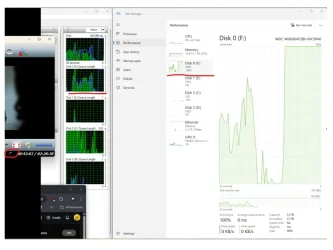
Solved HDD spikes to 100% usage activity and video freezes


If we rule out the disk, then most likely your media player settings are not optimal and the videos play through the CPU, that is with software decoding without hardware acceleration from the graphics card. The CPU cannot cope and stutters. Are you sure Windows Update is not working in the background? Maybe Windows Defender does some scan? Disable both and check again. Last suspect some spyware consuming resources. Check with Superantispyware and remove all results.
I'll try playing the video using VLC again without changing any options (hardware-accelerated decoding is on Automatic), but this time a totally different HDD in my system (E drive instead of F). I am hoping by doing this, i can 100% rule out a HDD issue or a even SATA cable issue. Unless there's some weird compatibility issue between this drive and my system

I would be stunned if the replacement drive is faulty as well (and 3 SATA cables).

As for windows update, it shouldn't be because i disable automatic update and my OS drive is a SSD.


At the time of writing this, i was running malware scans on both F, E drive while playing movie from my E drive; despite 100% activity and processes does show Malwarebytes is using my disk, i am not having video freezing issues even though it is more resource intensive.
Previous image of task manager when video froze using VLC + F drive: HDD spikes to 100% usage activity and video freezes

SMR drive? I intensely hate their mere existence, but Idk if they're prone to experience problems watching video, that doesn't involve writing. They're structurally bad at recording disk images. These drives should be happier with an assorted and "random" writing load (at least not a lot worse than normal HDDs, all are slow in random loads by nature), but writing an entire track and just afterwards the contiguous one time after time thousands or millions of times in a row isn't their thing.

At reading I wouldn't expect differences with a normal drive (I believe SMR is just as "fine" reading as CMR), and the video playing bar is very low for any modern disk.
according to the HDD model specs, it is CMR.

I am also wondering since the data on my F drive/WD6004FZBX was cloned using Marcum Reflect, could corruption of data be a potential cause of freezing video?
 

My Computer

System One

  • OS
    11, (10 as a test secondary)
    Computer type
    PC/Desktop
    CPU
    AMD Ryzen 9 7950X3D
    Motherboard
    MSI MPG X670E CARBON WIFI
    Memory
    Kingston FURY Beast 32 GB (2 x 16 GB) DDR5-5600 CL36
    Graphics Card(s)
    RTX 5080
    Hard Drives
    C drive: Samsung SSD 870 EVO 4TB (win 11)
    C Drive: Hitachi HTS545032B9A300 (win 10)
    -WD WD1002FAEX 1tb
    -Seagate ST3160812AS 160 gb
    PSU
    SeaSonic PRIME 1300 Gold 1300 W 80+ Gold
    Case
    Phanteks Enthoo Pro Tempered Glass ATX Full Tower Case
    Cooling
    Noctua NH-D15S
I am also wondering since the data on my F drive/WD6004FZBX was cloned using Marcum Reflect, could corruption of data be a potential cause of freezing video?

You said above you couldn't locate spots in which the videos could be corrupted.

My MiniPC is stable but occasionally I've had verify failures when doing disk images. Never in any of my desktops, except in one around year 2011 when attempting a nearly stable overclock (I always do images with compression).

A verify failure is like this: Reflect reads my 40 GB Win11 image at about 100 MB/s from the USB HDD I store them, so the verify lasts about 7 minutes (I'm reading that 4K HDR can stream at about 11 MB/s at 60 fps, and 1080p at 1.5 MB/s at 60 fps), and say after 5'12" verifying okay (at the said 11 MB/s speed it would be in the position 47'16", and at 1.5 MB/s the position is 5h 46'40") it finds an error that likely consists in a single "1" being a "0" or vice-versa (the file has like 343,597,383,700 bits), and deletes the image b/c it's unacceptable in this context. But a several hours video with this error should only have a slight defect.

Doing a Windows disk image is a good test for the hw, but it isn't good at what you need more now: separate things (and I suspect your Windows image is a lot larger than my 40 GB with your 4TB disk for Windows, my Windows disk has like 240 GB and only about 70 GB occupied). A disk (and the cable and the corresponding part of the motherboard) can be tested without a video if you have problems with videos (I'm not convinced your previous disk was needing a replacement, for example if you suspect about a cable try it in a disk that you know works). Once you're sure about the disk, and everything else except the videos, you start with a video you're sure about, written to your Windows disk and with the correct player and correct settings (I know nearly nothing there), otherwise you will never know if it's the video, the player or the settings. Once you succeed you do the final test: same video, same secondary disk and cable, same player and same settings all at once.
 

My Computer

System One

  • OS
    Windows 11
    Manufacturer/Model
    MeLE Quieter 2Q (fanless miniPC)
    CPU
    Celeron J4125 (10th gen)
    Memory
    8GB DDR4
    Monitor(s) Displays
    Samsung SyncMaster T260
    Screen Resolution
    1920x1200
    Hard Drives
    256GB eMMC (Windows)
    2TB USB3 HDD Toshiba (Data)
If you play the same video from the new disk with the same app (VLC), same settings and doesn't stutter, then it might be the disk. As said in a previous post, 100% health doesn't always mean the disk is perfect. I have seen disk with 100% health but too slow which indicates some problem. Health checks for bad sectors and other factors. What if the disk surface is perfect but the reading mechanism is faulty so it reads too slow or makes too many mistakes that the error correction function works all the time and slows the reading process? Anyway, I think you solved it. The new disk has no issues and the videos play smoothly. Hardware Acceleration in Auto (VLC) should automatically use any acceleration available from your graphics card. It also depends on the video format. Older graphics cards can accelerate only AVC videos, newer can also accelerate HEVC and AV1 videos.
 
Last edited:

My Computers

System One System Two

  • OS
    Windows 11 Pro 23H2 (5699), 25H2 (8655)
    Computer type
    Laptop
    Manufacturer/Model
    Acer Extensa 5630EZ
    CPU
    Mobile DualCore Intel Core 2 Duo T7250, 2000 MHz
    Motherboard
    Acer Extensa 5630
    Memory
    4GB
    Graphics Card(s)
    Mobile Intel(R) GMA 4500M (Mobile 4 series)
    Sound Card
    Realtek ALC268 @ Intel 82801IB ICH9 - High Definition Audio Controller
    Monitor(s) Displays
    1
    Screen Resolution
    1280x800
    Hard Drives
    Samsung SSD 850 EVO 250GB SATA Device (250 GB, SATA-III)
    Internet Speed
    VDSL 50 Mbps
    Browser
    MICROSOFT EDGE
    Antivirus
    WINDOWS DEFENDER
    Other Info
    Legacy MBR installation, no TPM, no Secure Boot, no WDDM 2.0 graphics drivers, no SSE4.2, cannot get more unsupported ;) This is only my test laptop. I had installed Windows 11 here before upgrading my main PC. For my main PC I use everyday see my 2nd system specs.
  • Operating System
    Windows 11 Pro v25H2 (build 26200.8655)
    Computer type
    PC/Desktop
    Manufacturer/Model
    Custom-built PC
    CPU
    Intel Core-i7 3770 3.40GHz s1155 (3rd generation)
    Motherboard
    Asus P8H61 s1155 ATX
    Memory
    2x Kingston Hyper-X Blu 8GB DDR3-1600
    Graphics card(s)
    GIGABYTE GeForce RTX 3050 WINDFORCE OC V2 6GB (GV-N3050WF2OCV2-6GD)
    Sound Card
    Realtek HD audio (ALC887)
    Monitor(s) Displays
    Sony Bravia KDL-19L4000 19" LCD TV via VGA
    Screen Resolution
    1440x900 32-bit 60Hz
    Hard Drives
    WD Blue SA510 2.5 1000GB SSD as system disk, Western Digital Caviar Purple 4TB SATA III (WD40PURZ) as second
    PSU
    Thermaltake Litepower RGB 550W Full Wired
    Case
    SUPERCASE MIDI-TOWER
    Cooling
    Deepcool Gamma Archer CPU cooler, 1x 8cm fan at the back
    Keyboard
    Mitsumi 101-key PS/2
    Mouse
    Sunnyline OptiEye PS/2
    Internet Speed
    100Mbps
    Browser
    Microsoft Edge, Mozilla Firefox
    Antivirus
    Microsoft Windows Defender
    Other Info
    Legacy BIOS (MBR) installation, no TPM, no Secure Boot, WDDM 3.0 graphics drivers, WEI score 7.4
If you play the same video from the new disk with the same app (VLC), same settings and doesn't stutter, then it might be the disk. As said in a previous post, 100% health doesn't always mean the disk is perfect. I have seen disk with 100% health but too slow which indicates some problem. Health checks for bad sectors and other factors. What if the disk surface is perfect but the reading mechanism is faulty so it reads too slow or makes too many mistakes that the error correction function works all the time and slows the reading process? Anyway, I thing you solved it. The new disk has no issues and the videos play smoothly.
I thought I solved it yesterday. But it happened today again. So back to the drawing board.

So it appears it doesn't happen when I play the file from a totally different drive that I know it's good.


To recap, this is what I've tried, still the same issue on this 6 TB HDD:
  • plug and replug psu and sata cables
  • Tried 3 different sata cable
  • Updated my VLC player
  • Tried SMPlayer
  • tried 3 different movie
  • Ensured HDD was not fragmented
  • Ensured it passed SMART, chkdsk, full media scan, and surface scan
  • Exchanged the HDD (what's a chance both HDD was faulty from like a bad batch? Both had the same date from what I remember)
  • Scanned for malware
  • Ran SFC and Dism

So I'll continue troubleshooting..
 

Attachments

  • Screenshot_20260101-161031~2.webp
    Screenshot_20260101-161031~2.webp
    38.6 KB · Views: 1

My Computer

System One

  • OS
    11, (10 as a test secondary)
    Computer type
    PC/Desktop
    CPU
    AMD Ryzen 9 7950X3D
    Motherboard
    MSI MPG X670E CARBON WIFI
    Memory
    Kingston FURY Beast 32 GB (2 x 16 GB) DDR5-5600 CL36
    Graphics Card(s)
    RTX 5080
    Hard Drives
    C drive: Samsung SSD 870 EVO 4TB (win 11)
    C Drive: Hitachi HTS545032B9A300 (win 10)
    -WD WD1002FAEX 1tb
    -Seagate ST3160812AS 160 gb
    PSU
    SeaSonic PRIME 1300 Gold 1300 W 80+ Gold
    Case
    Phanteks Enthoo Pro Tempered Glass ATX Full Tower Case
    Cooling
    Noctua NH-D15S
Those HDD spikes to 100% can be really annoying, especially when they interrupt video playback. Since you've already tried the obvious fixes and your HDD passes SMART tests, here are a few more things to investigate:

1. Check Task Manager during these spikes to see which specific process is causing the high disk usage. Sometimes Windows Update, Windows Search, or antivirus scans can cause these spikes.

2. Try disabling Windows Search indexing temporarily to see if that's the culprit. You can do this by going to Services and stopping "Windows Search".

3. Check your power settings - make sure your HDD isn't set to turn off too aggressively, which can cause stuttering when it spins back up.

4. Since it's a new WD Black drive, check if there's firmware updates available for it.

5. Monitor the drive temperature - even new drives can have cooling issues that cause performance problems.

Let me know what you find in Task Manager during the spikes!
 

My Computer

System One

  • OS
    windows 11
Do you have MediaInfo installed? You can download it as standalone or as part of K-Lite codec. You right-click on a video, select MediaInfo and you see detailed properties. You can then copy-paste and post here to let us judge how "tough" is the video you try to play (high bitrate, complex codec etc) and give more advice.


My Computers

System One System Two

  • OS
    Windows 11 Pro 23H2 (5699), 25H2 (8655)
    Computer type
    Laptop
    Manufacturer/Model
    Acer Extensa 5630EZ
    CPU
    Mobile DualCore Intel Core 2 Duo T7250, 2000 MHz
    Motherboard
    Acer Extensa 5630
    Memory
    4GB
    Graphics Card(s)
    Mobile Intel(R) GMA 4500M (Mobile 4 series)
    Sound Card
    Realtek ALC268 @ Intel 82801IB ICH9 - High Definition Audio Controller
    Monitor(s) Displays
    1
    Screen Resolution
    1280x800
    Hard Drives
    Samsung SSD 850 EVO 250GB SATA Device (250 GB, SATA-III)
    Internet Speed
    VDSL 50 Mbps
    Browser
    MICROSOFT EDGE
    Antivirus
    WINDOWS DEFENDER
    Other Info
    Legacy MBR installation, no TPM, no Secure Boot, no WDDM 2.0 graphics drivers, no SSE4.2, cannot get more unsupported ;) This is only my test laptop. I had installed Windows 11 here before upgrading my main PC. For my main PC I use everyday see my 2nd system specs.
  • Operating System
    Windows 11 Pro v25H2 (build 26200.8655)
    Computer type
    PC/Desktop
    Manufacturer/Model
    Custom-built PC
    CPU
    Intel Core-i7 3770 3.40GHz s1155 (3rd generation)
    Motherboard
    Asus P8H61 s1155 ATX
    Memory
    2x Kingston Hyper-X Blu 8GB DDR3-1600
    Graphics card(s)
    GIGABYTE GeForce RTX 3050 WINDFORCE OC V2 6GB (GV-N3050WF2OCV2-6GD)
    Sound Card
    Realtek HD audio (ALC887)
    Monitor(s) Displays
    Sony Bravia KDL-19L4000 19" LCD TV via VGA
    Screen Resolution
    1440x900 32-bit 60Hz
    Hard Drives
    WD Blue SA510 2.5 1000GB SSD as system disk, Western Digital Caviar Purple 4TB SATA III (WD40PURZ) as second
    PSU
    Thermaltake Litepower RGB 550W Full Wired
    Case
    SUPERCASE MIDI-TOWER
    Cooling
    Deepcool Gamma Archer CPU cooler, 1x 8cm fan at the back
    Keyboard
    Mitsumi 101-key PS/2
    Mouse
    Sunnyline OptiEye PS/2
    Internet Speed
    100Mbps
    Browser
    Microsoft Edge, Mozilla Firefox
    Antivirus
    Microsoft Windows Defender
    Other Info
    Legacy BIOS (MBR) installation, no TPM, no Secure Boot, WDDM 3.0 graphics drivers, WEI score 7.4
Those HDD spikes to 100% can be really annoying, especially when they interrupt video playback. Since you've already tried the obvious fixes and your HDD passes SMART tests, here are a few more things to investigate:

1. Check Task Manager during these spikes to see which specific process is causing the high disk usage. Sometimes Windows Update, Windows Search, or antivirus scans can cause these spikes.

2. Try disabling Windows Search indexing temporarily to see if that's the culprit. You can do this by going to Services and stopping "Windows Search".

3. Check your power settings - make sure your HDD isn't set to turn off too aggressively, which can cause stuttering when it spins back up.

4. Since it's a new WD Black drive, check if there's firmware updates available for it.

5. Monitor the drive temperature - even new drives can have cooling issues that cause performance problems.

Let me know what you find in Task Manager during the spikes!
I installed a secondary OS (Win 10) with minimal software, still the same issue. So i don't think its a software issue.

1. If i recalled, the last time it happened on Windows 11 was also "System". picture below is when it froze too. F drive is the one where my file is playing off of and freezes. This timed it happened 54 mins in.
1767418060131.webp

2. According to Indexing options, the Drive in question is not included indexing.

3. I turned off the option of turning off HDD (set it to 0). no difference between 60 minutes

4. According to WD, you can't update the firmware. i tried Kitfox, no update option.

5. it's 29 C.


Do you have MediaInfo installed? You can download it as standalone or as part of K-Lite codec. You right-click on a video, select MediaInfo and you see detailed properties. You can then copy-paste and post here to let us judge how "tough" is the video you try to play (high bitrate, complex codec etc) and give more advice.


Ones 4k ~6GB and 1080p 2gb. Issue can happen on both file, so i don't think it's the bitrate/codec itself etc.. Since it can happen anywhere during the duration, so when i troubleshoot, i play the video continuously without pausing until it happens (which happens every time so far)

Issue doesn't seem to happen when I play the file from a totally different drive that I know it's good. I'll try this again.

1767418242378.webp


I'm going to do something to this new drive again before the return period is up next week, either third times a charm or a full refund and buy Seagate for example..
 

My Computer

System One

  • OS
    11, (10 as a test secondary)
    Computer type
    PC/Desktop
    CPU
    AMD Ryzen 9 7950X3D
    Motherboard
    MSI MPG X670E CARBON WIFI
    Memory
    Kingston FURY Beast 32 GB (2 x 16 GB) DDR5-5600 CL36
    Graphics Card(s)
    RTX 5080
    Hard Drives
    C drive: Samsung SSD 870 EVO 4TB (win 11)
    C Drive: Hitachi HTS545032B9A300 (win 10)
    -WD WD1002FAEX 1tb
    -Seagate ST3160812AS 160 gb
    PSU
    SeaSonic PRIME 1300 Gold 1300 W 80+ Gold
    Case
    Phanteks Enthoo Pro Tempered Glass ATX Full Tower Case
    Cooling
    Noctua NH-D15S
I cannot see a disk failure here.

When logging in to do this post (I mean about the same time, coincidentally), I noticed the system was laggy and (after logging in) the page was very slow updating on scrolling. If I had had less patience I would have pressed the case reset button and blamed it on my disks, Firefox, the RAM, Windows or the motherboard disk controller among others.

This is a Windows 7 computer with a RAID of 2 HDDs as disk, I know this disk is a lot slower than an SSD at doing certain things (like booting up or attending some random situations, not way meaning here that SSDs are infinitely fast and nothing will deviate them from finishing in 0 seconds).

I saw I had 3 pending readings on elevenforum. I decided to duplicate the browser tab and review them. In this new tab the scrolling, screen updating etc was perfectly fine. So I closed the original tab and I'm using this one. Idk now if the snarl-up was of the entire system, Windows, Firefox or only the closed tab.

A disk is very simple, specially an HDD where the stored content is always in the same physical location. Imo your disk is fine but if you think otherwise you need to test it with serious disk tools, like a surface scan. There isn't a "this disk is defective for the videos" situation. Either the disk works fine and it will do whatever it can do, or it has a defect that could be noticed by any software.

I once was suggested to do a surface scan with Windows offline, and so I did. With a non Windows disk I'd expect that, if Windows is online instead, the surface scan result would be correct (like the blindly logging in told above, even with 1 corrected character) but it could have disk high activity peaks at lower pace, or even stopped some seconds.
 

My Computer

System One

  • OS
    Windows 11
    Manufacturer/Model
    MeLE Quieter 2Q (fanless miniPC)
    CPU
    Celeron J4125 (10th gen)
    Memory
    8GB DDR4
    Monitor(s) Displays
    Samsung SyncMaster T260
    Screen Resolution
    1920x1200
    Hard Drives
    256GB eMMC (Windows)
    2TB USB3 HDD Toshiba (Data)
How much RAM this system has? By today standards anything less than 8GB is marginally adequate and leads to frequent disk access because of the page file. Do it's not the disk, it's the RAM that's not enough. The second disk might be a little faster so the computer doesn't stutter when using the page file (when copying parts of the video from the disk to the SSD where the page file is).
 

My Computers

System One System Two

  • OS
    Windows 11 Pro 23H2 (5699), 25H2 (8655)
    Computer type
    Laptop
    Manufacturer/Model
    Acer Extensa 5630EZ
    CPU
    Mobile DualCore Intel Core 2 Duo T7250, 2000 MHz
    Motherboard
    Acer Extensa 5630
    Memory
    4GB
    Graphics Card(s)
    Mobile Intel(R) GMA 4500M (Mobile 4 series)
    Sound Card
    Realtek ALC268 @ Intel 82801IB ICH9 - High Definition Audio Controller
    Monitor(s) Displays
    1
    Screen Resolution
    1280x800
    Hard Drives
    Samsung SSD 850 EVO 250GB SATA Device (250 GB, SATA-III)
    Internet Speed
    VDSL 50 Mbps
    Browser
    MICROSOFT EDGE
    Antivirus
    WINDOWS DEFENDER
    Other Info
    Legacy MBR installation, no TPM, no Secure Boot, no WDDM 2.0 graphics drivers, no SSE4.2, cannot get more unsupported ;) This is only my test laptop. I had installed Windows 11 here before upgrading my main PC. For my main PC I use everyday see my 2nd system specs.
  • Operating System
    Windows 11 Pro v25H2 (build 26200.8655)
    Computer type
    PC/Desktop
    Manufacturer/Model
    Custom-built PC
    CPU
    Intel Core-i7 3770 3.40GHz s1155 (3rd generation)
    Motherboard
    Asus P8H61 s1155 ATX
    Memory
    2x Kingston Hyper-X Blu 8GB DDR3-1600
    Graphics card(s)
    GIGABYTE GeForce RTX 3050 WINDFORCE OC V2 6GB (GV-N3050WF2OCV2-6GD)
    Sound Card
    Realtek HD audio (ALC887)
    Monitor(s) Displays
    Sony Bravia KDL-19L4000 19" LCD TV via VGA
    Screen Resolution
    1440x900 32-bit 60Hz
    Hard Drives
    WD Blue SA510 2.5 1000GB SSD as system disk, Western Digital Caviar Purple 4TB SATA III (WD40PURZ) as second
    PSU
    Thermaltake Litepower RGB 550W Full Wired
    Case
    SUPERCASE MIDI-TOWER
    Cooling
    Deepcool Gamma Archer CPU cooler, 1x 8cm fan at the back
    Keyboard
    Mitsumi 101-key PS/2
    Mouse
    Sunnyline OptiEye PS/2
    Internet Speed
    100Mbps
    Browser
    Microsoft Edge, Mozilla Firefox
    Antivirus
    Microsoft Windows Defender
    Other Info
    Legacy BIOS (MBR) installation, no TPM, no Secure Boot, WDDM 3.0 graphics drivers, WEI score 7.4
I cannot see a disk failure here.

When logging in to do this post (I mean about the same time, coincidentally), I noticed the system was laggy and (after logging in) the page was very slow updating on scrolling. If I had had less patience I would have pressed the case reset button and blamed it on my disks, Firefox, the RAM, Windows or the motherboard disk controller among others.

This is a Windows 7 computer with a RAID of 2 HDDs as disk, I know this disk is a lot slower than an SSD at doing certain things (like booting up or attending some random situations, not way meaning here that SSDs are infinitely fast and nothing will deviate them from finishing in 0 seconds).

I saw I had 3 pending readings on elevenforum. I decided to duplicate the browser tab and review them. In this new tab the scrolling, screen updating etc was perfectly fine. So I closed the original tab and I'm using this one. Idk now if the snarl-up was of the entire system, Windows, Firefox or only the closed tab.

A disk is very simple, specially an HDD where the stored content is always in the same physical location. Imo your disk is fine but if you think otherwise you need to test it with serious disk tools, like a surface scan. There isn't a "this disk is defective for the videos" situation. Either the disk works fine and it will do whatever it can do, or it has a defect that could be noticed by any software.

I once was suggested to do a surface scan with Windows offline, and so I did. With a non Windows disk I'd expect that, if Windows is online instead, the surface scan result would be correct (like the blindly logging in told above, even with 1 corrected character) but it could have disk high activity peaks at lower pace, or even stopped some seconds.
idk, yesterday i watched the same video on my much older and slower HDD, (Hitachi HTS545032B9A300, which was the C drive of my secondary win 10 test OS yesterday), i was able to watch the same 2.5 hr video from beginning to end with no freezing.


on the WD WD6004FZBX 6 TB, same software/configuration. video will freeze. Not sure if it just its just how they designed the firmware and the cache (not a expert here)

1767463195035.webp
When the video freezes & the F drive in the picture spikes to 100%, it will last few seconds (5-10 seconds, i didn't time it). once it resumes, it drops back down. However, if i intentionally make the drive 100% usage (like virus scan), it doesn't cause the video to freeze as a result. So it's like a one-way relationship it seems..

How much RAM this system has? By today standards anything less than 8GB is marginally adequate and leads to frequent disk access because of the page file. Do it's not the disk, it's the RAM that's not enough. The second disk might be a little faster so the computer doesn't stutter when using the page file (when copying parts of the video from the disk to the SSD where the page file is).

32gb. my cpu, ram, gpu,is under “My Computers” . this new 6 TB drive is my fastest HDD in my system (not including my SSD).


question in the picture below; i cloned Disk 1 to Disk 0 (the 6 TB drive that's been having freezing), Since i cloned a Dynamic Disk to a Basic Disk, would that be causing my video freezing issue?

1767463579529.webp
 

My Computer

System One

  • OS
    11, (10 as a test secondary)
    Computer type
    PC/Desktop
    CPU
    AMD Ryzen 9 7950X3D
    Motherboard
    MSI MPG X670E CARBON WIFI
    Memory
    Kingston FURY Beast 32 GB (2 x 16 GB) DDR5-5600 CL36
    Graphics Card(s)
    RTX 5080
    Hard Drives
    C drive: Samsung SSD 870 EVO 4TB (win 11)
    C Drive: Hitachi HTS545032B9A300 (win 10)
    -WD WD1002FAEX 1tb
    -Seagate ST3160812AS 160 gb
    PSU
    SeaSonic PRIME 1300 Gold 1300 W 80+ Gold
    Case
    Phanteks Enthoo Pro Tempered Glass ATX Full Tower Case
    Cooling
    Noctua NH-D15S
question in the picture below; i cloned Disk 1 to Disk 0 (the 6 TB drive that's been having freezing), Since i cloned a Dynamic Disk to a Basic Disk, would that be causing my video freezing issue?

View attachment 158790

I reformatted the drive and only put the video file in there to rule out further. As i was watching the movie, I noticed something interesting: there was less Disk I/O activity and less active time than before (basically 0 for both), as the movie progress, then it started having more Activities but still no issue .

Things were going well until I reach 2 hours into the movie (furthest i been without freezing), it started freezing again and active time was 100%.

I also try watching the same movie off of another drive that's known to be good (tried 2 other drives in total), no issue. so based on my experiment, it's consistently the WD Black WD6004FZBX having the issue.

Marking this solved, i ended up refunding the drive and will look for something else entirely, either avoiding all WD black or WD. It's a shame as my other WD black 1 TB made in 2013 did well.
 

My Computer

System One

  • OS
    11, (10 as a test secondary)
    Computer type
    PC/Desktop
    CPU
    AMD Ryzen 9 7950X3D
    Motherboard
    MSI MPG X670E CARBON WIFI
    Memory
    Kingston FURY Beast 32 GB (2 x 16 GB) DDR5-5600 CL36
    Graphics Card(s)
    RTX 5080
    Hard Drives
    C drive: Samsung SSD 870 EVO 4TB (win 11)
    C Drive: Hitachi HTS545032B9A300 (win 10)
    -WD WD1002FAEX 1tb
    -Seagate ST3160812AS 160 gb
    PSU
    SeaSonic PRIME 1300 Gold 1300 W 80+ Gold
    Case
    Phanteks Enthoo Pro Tempered Glass ATX Full Tower Case
    Cooling
    Noctua NH-D15S
idk, yesterday i watched the same video on my much older and slower HDD, (Hitachi HTS545032B9A300, which was the C drive of my secondary win 10 test OS yesterday), i was able to watch the same 2.5 hr video from beginning to end with no freezing.


on the WD WD6004FZBX 6 TB, same software/configuration. video will freeze. Not sure if it just its just how they designed the firmware and the cache (not a expert here)

View attachment 158789
When the video freezes & the F drive in the picture spikes to 100%, it will last few seconds (5-10 seconds, i didn't time it). once it resumes, it drops back down. However, if i intentionally make the drive 100% usage (like virus scan), it doesn't cause the video to freeze as a result. So it's like a one-way relationship it seems..


32gb. my cpu, ram, gpu,is under “My Computers” . this new 6 TB drive is my fastest HDD in my system (not including my SSD).


question in the picture below; i cloned Disk 1 to Disk 0 (the 6 TB drive that's been having freezing), Since i cloned a Dynamic Disk to a Basic Disk, would that be causing my video freezing issue?

View attachment 158790
Dynamic disk? That sounds like an extra overhead while reading data. I would wipe it, convert to basic disk and copy the data back from the clone. Then check performance again.
 

My Computers

System One System Two

  • OS
    Windows 11 Pro 23H2 (5699), 25H2 (8655)
    Computer type
    Laptop
    Manufacturer/Model
    Acer Extensa 5630EZ
    CPU
    Mobile DualCore Intel Core 2 Duo T7250, 2000 MHz
    Motherboard
    Acer Extensa 5630
    Memory
    4GB
    Graphics Card(s)
    Mobile Intel(R) GMA 4500M (Mobile 4 series)
    Sound Card
    Realtek ALC268 @ Intel 82801IB ICH9 - High Definition Audio Controller
    Monitor(s) Displays
    1
    Screen Resolution
    1280x800
    Hard Drives
    Samsung SSD 850 EVO 250GB SATA Device (250 GB, SATA-III)
    Internet Speed
    VDSL 50 Mbps
    Browser
    MICROSOFT EDGE
    Antivirus
    WINDOWS DEFENDER
    Other Info
    Legacy MBR installation, no TPM, no Secure Boot, no WDDM 2.0 graphics drivers, no SSE4.2, cannot get more unsupported ;) This is only my test laptop. I had installed Windows 11 here before upgrading my main PC. For my main PC I use everyday see my 2nd system specs.
  • Operating System
    Windows 11 Pro v25H2 (build 26200.8655)
    Computer type
    PC/Desktop
    Manufacturer/Model
    Custom-built PC
    CPU
    Intel Core-i7 3770 3.40GHz s1155 (3rd generation)
    Motherboard
    Asus P8H61 s1155 ATX
    Memory
    2x Kingston Hyper-X Blu 8GB DDR3-1600
    Graphics card(s)
    GIGABYTE GeForce RTX 3050 WINDFORCE OC V2 6GB (GV-N3050WF2OCV2-6GD)
    Sound Card
    Realtek HD audio (ALC887)
    Monitor(s) Displays
    Sony Bravia KDL-19L4000 19" LCD TV via VGA
    Screen Resolution
    1440x900 32-bit 60Hz
    Hard Drives
    WD Blue SA510 2.5 1000GB SSD as system disk, Western Digital Caviar Purple 4TB SATA III (WD40PURZ) as second
    PSU
    Thermaltake Litepower RGB 550W Full Wired
    Case
    SUPERCASE MIDI-TOWER
    Cooling
    Deepcool Gamma Archer CPU cooler, 1x 8cm fan at the back
    Keyboard
    Mitsumi 101-key PS/2
    Mouse
    Sunnyline OptiEye PS/2
    Internet Speed
    100Mbps
    Browser
    Microsoft Edge, Mozilla Firefox
    Antivirus
    Microsoft Windows Defender
    Other Info
    Legacy BIOS (MBR) installation, no TPM, no Secure Boot, WDDM 3.0 graphics drivers, WEI score 7.4

Latest Support Threads

Back
Top Bottom