How can I create a larger EFI partition during a fresh Windows 11 Pro install


Thank you all for the responses. I'll try to answer as many of your questions as I can.

@Megahertz, I believe the reason is as @garlin said. The OEM expects it to be that size for their own reasons. Their reasons could be what @hsehestedt noted:
Normally 100 MB is just fine, however, the EFI partition is formatted as FAT32 and on advanced format native 4k drives the minimum partition size for FAT32 is - you guessed correctly - 260 MB. So, by using a 260 MB EFI partition you guarantee compatibility with ALL systems.

@garlin, yes, that is exactly what I would like to end up with.
1751917330014-webp.138696
The Lenovo defaults for these systems with 256GB drives are:
EFI: 260MB
MSR: 16MB
Primary: 236 GB
Recovery: 2000MB

To achieve this with your code, I would need to change the "shrink minimum=800" to "shrink minimum=2000", yes?
Just to absolutely clear, if I were to use your code, I need to remove the ==> parts. I assume those are just there as explanations.


@hsehestedt, thank you for the well documented code. I do understand it and I do know how to find the drive letter for the Windows media.

@Megahertz
Why not format the original Win partition and apply the Win VLSC image on the partition. This will keep the original EFI and the Tools partition that has the diagnostic and maintenance tools.
That would be an excellent idea and would eliminate all of this mess if it works as you describe. I haven't considered it because the boss who taught me how to do this said that any partitions I left on the drive would just get duplicated during the installation. I have seen instances where we've ended up with extra partitions (particularly recovery partitions, I believe).
You mention formatting the original Win partition then applying the image to it. Does that partition need to be formatted or will it work just as well on unformatted space?
@zbook, I have no idea what it wants to install in the EFI partition.
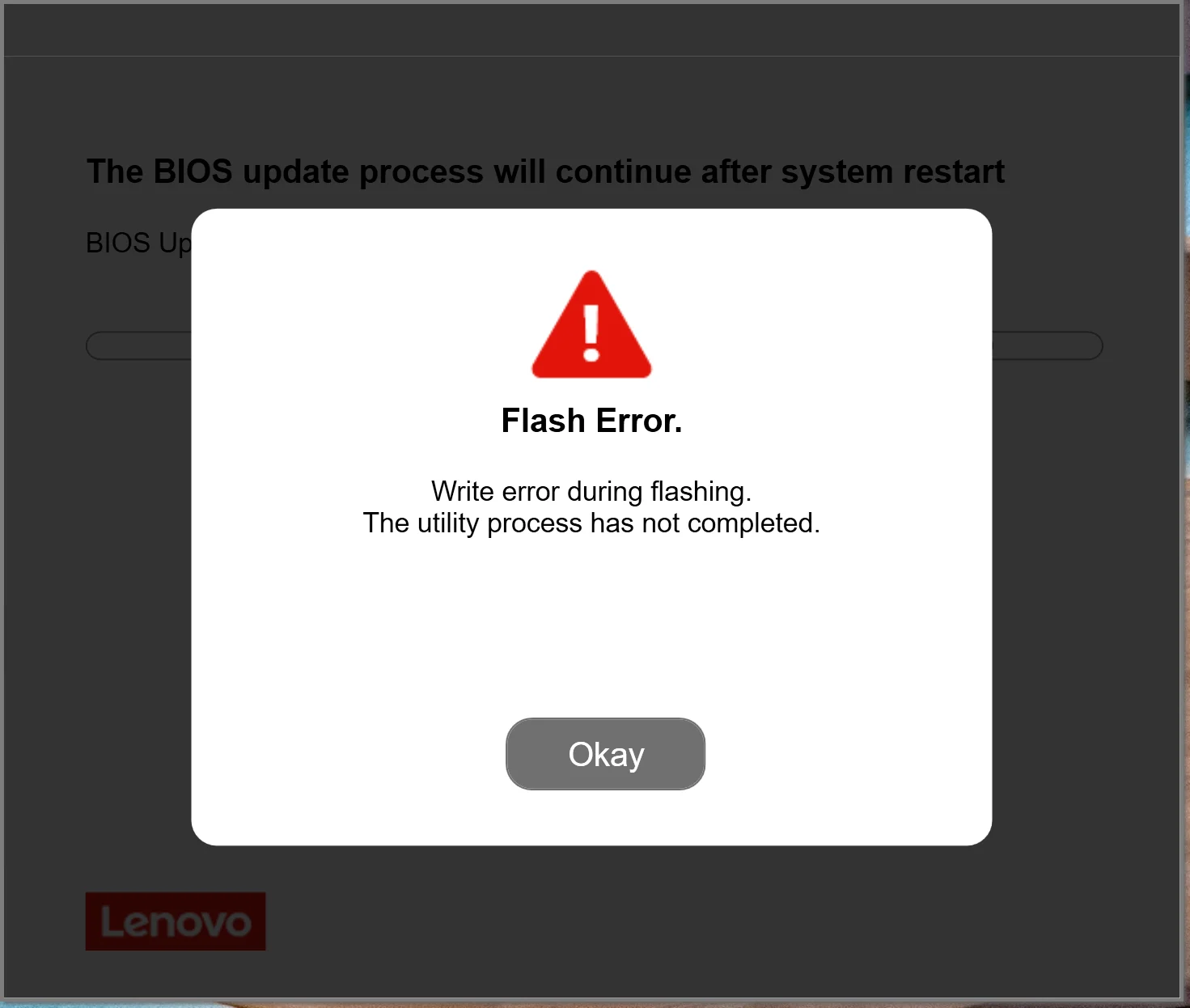
Here is the error I get:
SYS1231 Website Download BIOS Update Error Message.webp
Lenovo support are the ones who told me this was caused by having too small of an EFI partition.
I updated my "My Computers" section.

NOTE: One thing that all of you have taught me is that the Diskpart clean command leaves you with an MBR disk by default. I had not realized this and will now be more careful about converting it to GPT before going any further.

Considering all of your inputs, I think that I will try two things:
  1. On the next new system I work on, I will try just deleting the Windows partition, formatting it, then selecting that partition for the installation.
  2. On the next "used" system that needs to be reimaged, I will try creating an new image using an autounattended.xml file created with @garlin's code in Schneegan's autounattended generator.
Thanks again for all your help!
 

My Computers My Computers

  • At a glance

    Windows 11AMD Ryzen 7 Pro 7840U32GB
    OS
    Windows 11
    Computer type
    Laptop
    Manufacturer/Model
    Lenovo ThinkPad P16s Gen 2
    CPU
    AMD Ryzen 7 Pro 7840U
    Memory
    32GB
  • At a glance

    Windows 11 ProAMD Ryzen 7 Pro 8700GE16 GB
    Operating System
    Windows 11 Pro
    Computer type
    PC/Desktop
    Manufacturer/Model
    Lenovo ThinkCentre M75q Gen 5
    CPU
    AMD Ryzen 7 Pro 8700GE
    Memory
    16 GB
The Windows 10 and 11 clean install default EFI partition size is 100 MB.

How come a larger size is needed?

What does Lenovo support plan to install in the EFI partition?
 

My Computer My Computer

At a glance

Windows 10Intel(R) Core(TM) i7-4800MQ CPU @ 2.70GHz16 GB Total: Manufacturer : Samsung MemoryTyp...NVIDIA Quadro K3100M; Intel(R) HD Graphics 4600
OS
Windows 10
Computer type
Laptop
Manufacturer/Model
HP
CPU
Intel(R) Core(TM) i7-4800MQ CPU @ 2.70GHz
Motherboard
Product : 190A Version : KBC Version 94.56
Memory
16 GB Total: Manufacturer : Samsung MemoryType : DDR3 FormFactor : SODIMM Capacity : 8GB Speed : 1600
Graphics Card(s)
NVIDIA Quadro K3100M; Intel(R) HD Graphics 4600
Sound Card
IDT High Definition Audio CODEC; PNP Device ID HDAUDIO\FUNC_01&VEN_111D&DEV_76E0
Hard Drives
Model Hitachi HTS727575A9E364
Antivirus
Microsoft Defender
Other Info
Mobile Workstation
@garlin, yes, that is exactly what I would like to end up with.

The Lenovo defaults for these systems with 256GB drives are:
EFI: 260MB
MSR: 16MB
Primary: 236 GB
Recovery: 2000MB

To achieve this with your code, I would need to change the "shrink minimum=800" to "shrink minimum=2000", yes?
Just to absolutely clear, if I were to use your code, I need to remove the ==> parts. I assume those are just there as explanations.
The quoted diskpart was for demonstration purposes.

If we return to the unattended file:
Code:
<?xml version="1.0" encoding="utf-8"?>
<unattend xmlns="urn:schemas-microsoft-com:unattend">
    <settings pass="windowsPE">
        <component name="Microsoft-Windows-Setup" processorArchitecture="amd64" publicKeyToken="31bf3856ad364e35" language="neutral" versionScope="nonSxS" xmlns:wcm="http://schemas.microsoft.com/WMIConfig/2002/State" xmlns:xsi="http://www.w3.org/2001/XMLSchema-instance">
            <ImageInstall>
                <OSImage>
                    <InstallTo>
                        <DiskID>0</DiskID>
                        <PartitionID>3</PartitionID>
                    </InstallTo>
                </OSImage>
            </ImageInstall>
            <RunSynchronous>
                <RunSynchronousCommand wcm:action="add">
                    <Order>1</Order>
                    <Path>cmd /c (for %a in ("sel dis 0" "cle" "con gpt" "cre par efi size=260" "for quick fs=fat32" "cre par msr size=16" "cre par pri" "shr minimum=2000" "for quick fs=ntfs") do @echo %~a) &gt; X:\UEFI.txt</Path>
                </RunSynchronousCommand>
                <RunSynchronousCommand wcm:action="add">
                    <Order>2</Order>
                    <Path>cmd /c (for %a in ("cre par pri" "for quick fs=ntfs" "set id=de94bba4-06d1-4d40-a16a-bfd50179d6ac" "gpt attributes=0x8000000000000001") do @echo %~a) &gt;&gt; X:\UEFI.txt &amp; diskpart /s X:\UEFI.txt</Path>
                </RunSynchronousCommand>
            </RunSynchronous>
            <UserData>
                <ProductKey>
                    <Key></Key>
                </ProductKey>
            </UserData>
        </component>
    </settings>
</unattend>

The magic numbers are EFI (260), MSR (16), Windows (whatever's left), and Recovery (2000).
When you follow the recommended layout, all you need to do is to change EFI and Recovery. Almost everyone leaves MSR at the default 16.

Recovery partition sizes are trending up for enterprise PC's for two reasons:

1. MS will enable BitLocker or basic Device Encryption on a clean install, since most PC's now have TPM 2.0 or later. Therefore more emphasis is placed on a working Recovery environment so you can deal with BitLocker repair issues.

2. Recovery rolls over the same core drivers installed in Windows. Some of these (like NVIDIA, Intel iGPU, Realtek) are fairly bloated and carry over hefty DLL's along with the base driver. Sizing up to 2 GB future-proofs the Recovery partition from having to be resized at a later date.
 

My Computer My Computer

At a glance

Windows 7
OS
Windows 7
@garlin

shrink minimum=800

why minimum instead of desired
 

My Computers My Computers

  • At a glance

    Win7,Win11i7-97002x16gb 3600mhz
    OS
    Win7,Win11
    Computer type
    PC/Desktop
    CPU
    i7-9700
    Motherboard
    gigabyte b365m ds3h
    Memory
    2x16gb 3600mhz
    Monitor(s) Displays
    benq gw2480
    PSU
    bequiet pure power 11 400CM
    Cooling
    cryorig m9i
  • At a glance

    win7,win11i5-84002x8gb 3200
    Operating System
    win7,win11
    Computer type
    PC/Desktop
    CPU
    i5-8400
    Motherboard
    gigabyte b365m ds3h
    Memory
    2x8gb 3200
    PSU
    xfx pro 450

My Computer My Computer

At a glance

Windows 7
OS
Windows 7
HP is no longer causing this problem in the 2018 link:

Code:
HP requires minimum of 360 & MS requires minimum 200 – all the more reason to do 496.  Remember, these are minimum requirements, would you ever run Windows on minimum hardware requirements? No way, the experience would be horrible!  Do yourself a favor and go much larger!

HP Commercial Notebooks and Desktop PCs – Insufficient EFI Partition Size Prevents BIOS Update or Auto-Recovery | HP® Support
UEFI/GPT-based hard drive partitions | Microsoft Learn
Microsoft process for trying to clear up a little space on the system Partition

“We couldn’t update system reserved partition” error installing Windows 10 – Microsoft Support
Posted on GARYTOWN.COM
 

My Computer My Computer

At a glance

Windows 10Intel(R) Core(TM) i7-4800MQ CPU @ 2.70GHz16 GB Total: Manufacturer : Samsung MemoryTyp...NVIDIA Quadro K3100M; Intel(R) HD Graphics 4600
OS
Windows 10
Computer type
Laptop
Manufacturer/Model
HP
CPU
Intel(R) Core(TM) i7-4800MQ CPU @ 2.70GHz
Motherboard
Product : 190A Version : KBC Version 94.56
Memory
16 GB Total: Manufacturer : Samsung MemoryType : DDR3 FormFactor : SODIMM Capacity : 8GB Speed : 1600
Graphics Card(s)
NVIDIA Quadro K3100M; Intel(R) HD Graphics 4600
Sound Card
IDT High Definition Audio CODEC; PNP Device ID HDAUDIO\FUNC_01&VEN_111D&DEV_76E0
Hard Drives
Model Hitachi HTS727575A9E364
Antivirus
Microsoft Defender
Other Info
Mobile Workstation
why minimum instead of desired
OP is working in the enterprise space. If you can't shrink by a requested amount, it should error out and not just give you less than requested. Granted we're technically not catching the exit condition from diskpart, to know if it succeeded or not. But the principle is the same.

If you're like @pseymour, there's plenty of IT war stories where something "close enough" causes an unforeseen problem down the road. When you scale up to hundreds, thousands, or ten thousand machines, the cost of a tiny error and the time to fix it in a production environment is very expensive.

When you mess up a home computer, it's done on your time and not breaking the business' time.
 

My Computer My Computer

At a glance

Windows 7
OS
Windows 7
I usually do 300mb esp because diskgenius suggests it. Handy to have a bit of space so I can fool around in there.
 

My Computers My Computers

  • At a glance

    Win7,Win11i7-97002x16gb 3600mhz
    OS
    Win7,Win11
    Computer type
    PC/Desktop
    CPU
    i7-9700
    Motherboard
    gigabyte b365m ds3h
    Memory
    2x16gb 3600mhz
    Monitor(s) Displays
    benq gw2480
    PSU
    bequiet pure power 11 400CM
    Cooling
    cryorig m9i
  • At a glance

    win7,win11i5-84002x8gb 3200
    Operating System
    win7,win11
    Computer type
    PC/Desktop
    CPU
    i5-8400
    Motherboard
    gigabyte b365m ds3h
    Memory
    2x8gb 3200
    PSU
    xfx pro 450
Dell and Lenovo may have links were files are installed in the EFI partition.

This is from the Microsoft GPT link:

System partition:​

This partition is managed by the operating system, and should not contain any other files, including Windows RE tools.
 

My Computer My Computer

At a glance

Windows 10Intel(R) Core(TM) i7-4800MQ CPU @ 2.70GHz16 GB Total: Manufacturer : Samsung MemoryTyp...NVIDIA Quadro K3100M; Intel(R) HD Graphics 4600
OS
Windows 10
Computer type
Laptop
Manufacturer/Model
HP
CPU
Intel(R) Core(TM) i7-4800MQ CPU @ 2.70GHz
Motherboard
Product : 190A Version : KBC Version 94.56
Memory
16 GB Total: Manufacturer : Samsung MemoryType : DDR3 FormFactor : SODIMM Capacity : 8GB Speed : 1600
Graphics Card(s)
NVIDIA Quadro K3100M; Intel(R) HD Graphics 4600
Sound Card
IDT High Definition Audio CODEC; PNP Device ID HDAUDIO\FUNC_01&VEN_111D&DEV_76E0
Hard Drives
Model Hitachi HTS727575A9E364
Antivirus
Microsoft Defender
Other Info
Mobile Workstation
esp-win11-files.webp
 

My Computers My Computers

  • At a glance

    Win7,Win11i7-97002x16gb 3600mhz
    OS
    Win7,Win11
    Computer type
    PC/Desktop
    CPU
    i7-9700
    Motherboard
    gigabyte b365m ds3h
    Memory
    2x16gb 3600mhz
    Monitor(s) Displays
    benq gw2480
    PSU
    bequiet pure power 11 400CM
    Cooling
    cryorig m9i
  • At a glance

    win7,win11i5-84002x8gb 3200
    Operating System
    win7,win11
    Computer type
    PC/Desktop
    CPU
    i5-8400
    Motherboard
    gigabyte b365m ds3h
    Memory
    2x8gb 3200
    PSU
    xfx pro 450
@Megahertz

That would be an excellent idea and would eliminate all of this mess if it works as you describe. I haven't considered it because the boss who taught me how to do this said that any partitions I left on the drive would just get duplicated during the installation. I have seen instances where we've ended up with extra partitions (particularly recovery partitions, I believe).
You mention formatting the original Win partition then applying the image to it. Does that partition need to be formatted or will it work just as well on unformatted space?

Considering all of your inputs, I think that I will try two things:
  1. On the next new system I work on, I will try just deleting the Windows partition, formatting it, then selecting that partition for the installation.
  2. On the next "used" system that needs to be reimaged, I will try creating an new image using an autounattended.xml file created with @garlin's code in Schneegan's autounattended generator.
Thanks again for all your help!
@Megahertz
Why not format the original Win partition and apply the Win VLSC image on the partition. This will keep the original EFI and the Tools partition that has the diagnostic and maintenance tools.

I said to format the C: partition and apply the Win VLSC image. It is completly different from install to an unallocated space.
You have to use DISM to extract the Win VLSC files and folders from the Install.wim and put them on the partition.
@SIW2 can help you with the details on how to apply an image to a partition.
 
Last edited:

My Computers My Computers

  • At a glance

    Windows 11 Pro - Windows 7 HP 64 - Lubuntui5 6600K - 800MHz to 4400MHz4+4G GSkill DDR4 3000IG - Intel 530
    OS
    Windows 11 Pro - Windows 7 HP 64 - Lubuntu
    Computer type
    PC/Desktop
    Manufacturer/Model
    custom build
    CPU
    i5 6600K - 800MHz to 4400MHz
    Motherboard
    GA-Z170-HD3P
    Memory
    4+4G GSkill DDR4 3000
    Graphics Card(s)
    IG - Intel 530
    Monitor(s) Displays
    Samsung 226BW
    Screen Resolution
    1680x1050
    Hard Drives
    (1) -1 SM951 – 128GB M.2 AHCI PCIe SSD drive for Win 11
    (2) -1 WD SATA 3 - 1T for Data
    (3) -1 WD SATA 3 - 1T for backup
    (4) -1 BX500 SSD - 256G for Windows 7 and Lubuntu
    PSU
    Thermaltake 450W TR2 gold
    Keyboard
    Old and good Chicony mechanical keyboard
    Mouse
    Logitech mX performance - 9 buttons (had to disable some)
    Internet Speed
    500 Mb/s
    Browser
    Firefox 64
  • At a glance

    Windows 11 Proi7-4500U 800- 3000MHz(4+4)G DDR3 1600IG intel 4400 + NVIDIA GeForce GT 745M
    Operating System
    Windows 11 Pro
    Computer type
    Laptop
    Manufacturer/Model
    Asus Q550LF
    CPU
    i7-4500U 800- 3000MHz
    Motherboard
    Asus Q550LF
    Memory
    (4+4)G DDR3 1600
    Graphics card(s)
    IG intel 4400 + NVIDIA GeForce GT 745M
    Sound Card
    Realtek
    Monitor(s) Displays
    LG Display LP156WF4-SPH1
    Screen Resolution
    1920 x 1080
    Hard Drives
    BX500 120G SSD for Windows and programs
    & 1T HDD for data
    Internet Speed
    500 Mb/s
    Browser
    Firefox 64
Let's see what do you have on the Win VLSC USB installation drive.
On any computer with the Win VLSC USB installation drive on a USB port, open a CMD window as administrator and type:
W: (replace W with the Win VLSC USB installation drive letter)
cd \sources
dir install.* (take note if you have Install.wim or install.esd)

dism /Get-WimInfo /WimFile:W:\Sources\install.wim ( For install,wim. Replace W with the Win VLSC USB installation drive letter)
or
dism /Get-WimInfo /WimFile:W:\Sources\install.esd ( For install,esd. Replace W with the Win VLSC USB installation drive letter)

Witch index number you want to apply the image?

Below is the result for a regular Win 11 24h2 installation drive on G:

1751989396993.webp
 

My Computers My Computers

  • At a glance

    Windows 11 Pro - Windows 7 HP 64 - Lubuntui5 6600K - 800MHz to 4400MHz4+4G GSkill DDR4 3000IG - Intel 530
    OS
    Windows 11 Pro - Windows 7 HP 64 - Lubuntu
    Computer type
    PC/Desktop
    Manufacturer/Model
    custom build
    CPU
    i5 6600K - 800MHz to 4400MHz
    Motherboard
    GA-Z170-HD3P
    Memory
    4+4G GSkill DDR4 3000
    Graphics Card(s)
    IG - Intel 530
    Monitor(s) Displays
    Samsung 226BW
    Screen Resolution
    1680x1050
    Hard Drives
    (1) -1 SM951 – 128GB M.2 AHCI PCIe SSD drive for Win 11
    (2) -1 WD SATA 3 - 1T for Data
    (3) -1 WD SATA 3 - 1T for backup
    (4) -1 BX500 SSD - 256G for Windows 7 and Lubuntu
    PSU
    Thermaltake 450W TR2 gold
    Keyboard
    Old and good Chicony mechanical keyboard
    Mouse
    Logitech mX performance - 9 buttons (had to disable some)
    Internet Speed
    500 Mb/s
    Browser
    Firefox 64
  • At a glance

    Windows 11 Proi7-4500U 800- 3000MHz(4+4)G DDR3 1600IG intel 4400 + NVIDIA GeForce GT 745M
    Operating System
    Windows 11 Pro
    Computer type
    Laptop
    Manufacturer/Model
    Asus Q550LF
    CPU
    i7-4500U 800- 3000MHz
    Motherboard
    Asus Q550LF
    Memory
    (4+4)G DDR3 1600
    Graphics card(s)
    IG intel 4400 + NVIDIA GeForce GT 745M
    Sound Card
    Realtek
    Monitor(s) Displays
    LG Display LP156WF4-SPH1
    Screen Resolution
    1920 x 1080
    Hard Drives
    BX500 120G SSD for Windows and programs
    & 1T HDD for data
    Internet Speed
    500 Mb/s
    Browser
    Firefox 64
@garlin

If we return to the unattended file:
Code:
<?xml version="1.0" encoding="utf-8"?>
<unattend xmlns="urn:schemas-microsoft-com:unattend">
    <settings pass="windowsPE">
        <component name="Microsoft-Windows-Setup" processorArchitecture="amd64" publicKeyToken="31bf3856ad364e35" language="neutral" versionScope="nonSxS" xmlns:wcm="http://schemas.microsoft.com/WMIConfig/2002/State" xmlns:xsi="http://www.w3.org/2001/XMLSchema-instance">
            <ImageInstall>
                <OSImage>
                    <InstallTo>
                        <DiskID>0</DiskID>
                        <PartitionID>3</PartitionID>
                    </InstallTo>
                </OSImage>
            </ImageInstall>
            <RunSynchronous>
                <RunSynchronousCommand wcm:action="add">
                    <Order>1</Order>
                    <Path>cmd /c (for %a in ("sel dis 0" "cle" "con gpt" "cre par efi size=260" "for quick fs=fat32" "cre par msr size=16" "cre par pri" "shr minimum=2000" "for quick fs=ntfs") do @echo %~a) &gt; X:\UEFI.txt</Path>
                </RunSynchronousCommand>
                <RunSynchronousCommand wcm:action="add">
                    <Order>2</Order>
                    <Path>cmd /c (for %a in ("cre par pri" "for quick fs=ntfs" "set id=de94bba4-06d1-4d40-a16a-bfd50179d6ac" "gpt attributes=0x8000000000000001") do @echo %~a) &gt;&gt; X:\UEFI.txt &amp; diskpart /s X:\UEFI.txt</Path>
                </RunSynchronousCommand>
            </RunSynchronous>
            <UserData>
                <ProductKey>
                    <Key></Key>
                </ProductKey>
            </UserData>
        </component>
    </settings>
</unattend>
If I understand you correctly, the code above is the entire autounattend.xml file that I need to make my partitions during installation.
And all I need to do with the file is make sure it's named autounattend.xml and in the root directory of my Windows installation USB stick. Windows will take it from there once I boot from the stick. And the correct file name is autounattend.xml not autounattended.xml. Is all of that correct?

@Megahertz

I'm sorry for the misunderstanding. I've never installed Windows by any method other than standard installation or by installing a custom image captured from a system that had been manually set up to be exactly the way we want all of our computer to be.

Below is the result of running the command you requested on the install.WIM file. We want index number 5. Note that we make our bootable sticks with the latest version of Rufus using the "Remove requirement for an online Microsoft account" option since we initially create two local accounts and prefer not to be pestered to login with a Microsoft account until we want to.

Install.wim Info.webp

Do you have recommendations based on this information?


Based on the latest discussion, I've changed my plan. Now my first attempt will be to use the autounattend.xml file @garlin kindly made for me. If I can get that to work, I'll expand it by creating a file with Schneegan's autounattend generator, then dissecting it to understand what each part is designed to do. I think that will help me learn more about this process.

Thanks again for all your help everyone.
 

My Computers My Computers

  • At a glance

    Windows 11AMD Ryzen 7 Pro 7840U32GB
    OS
    Windows 11
    Computer type
    Laptop
    Manufacturer/Model
    Lenovo ThinkPad P16s Gen 2
    CPU
    AMD Ryzen 7 Pro 7840U
    Memory
    32GB
  • At a glance

    Windows 11 ProAMD Ryzen 7 Pro 8700GE16 GB
    Operating System
    Windows 11 Pro
    Computer type
    PC/Desktop
    Manufacturer/Model
    Lenovo ThinkCentre M75q Gen 5
    CPU
    AMD Ryzen 7 Pro 8700GE
    Memory
    16 GB
And the correct file name is autounattend.xml not autounattended.xml. Is all of that correct?
autounattend.xml
The alternative form, if copied to a different folder path, is unattended.xml

Based on the latest discussion, I've changed my plan. Now my first attempt will be to use the autounattend.xml file @garlin kindly made for me. If I can get that to work, I'll expand it by creating a file with Schneegan's autounattend generator, then dissecting it to understand what each part is designed to do. I think that will help me learn more about this process.

If you want to bypass the MS Account requirement, you can add those lines too.
1. Repartition the disk.
2. Install image index 5 to disk 0, partition 3.
3. Bypass the MS Account requirement.

Schneegan's can perform the above tasks (if you copy the list of diskpart commands in the diskpart webform box).

Code:
<?xml version="1.0" encoding="utf-8"?>
<unattend xmlns="urn:schemas-microsoft-com:unattend">
    <settings pass="specialize">
        <component name="Microsoft-Windows-Deployment" processorArchitecture="amd64" language="neutral" xmlns:wcm="http://schemas.microsoft.com/WMIConfig/2002/State" xmlns:xsi="http://www.w3.org/2001/XMLSchema-instance" publicKeyToken="31bf3856ad364e35" versionScope="nonSxS">
            <RunSynchronous>
                <RunSynchronousCommand wcm:action="add">
                    <Order>1</Order>
                    <Path>reg add HKLM\SOFTWARE\Microsoft\Windows\CurrentVersion\OOBE /v BypassNRO /t REG_DWORD /d 1 /f</Path>
                </RunSynchronousCommand>
            </RunSynchronous>
        </component>
    </settings>
    <settings pass="windowsPE">
        <component name="Microsoft-Windows-Setup" processorArchitecture="amd64" publicKeyToken="31bf3856ad364e35" language="neutral" versionScope="nonSxS" xmlns:wcm="http://schemas.microsoft.com/WMIConfig/2002/State" xmlns:xsi="http://www.w3.org/2001/XMLSchema-instance">
            <RunSynchronous>
                <RunSynchronousCommand wcm:action="add">
                    <Order>1</Order>
                    <Path>cmd /c (for %a in ("sel dis 0" "cle" "con gpt" "cre par efi size=260" "for quick fs=fat32" "cre par msr size=16" "cre par pri" "shr minimum=2000" "for quick fs=ntfs") do @echo %~a) &gt; X:\UEFI.txt</Path>
                </RunSynchronousCommand>
                <RunSynchronousCommand wcm:action="add">
                    <Order>2</Order>
                    <Path>cmd /c (for %a in ("cre par pri" "for quick fs=ntfs" "set id=de94bba4-06d1-4d40-a16a-bfd50179d6ac" "gpt attributes=0x8000000000000001") do @echo %~a) &gt;&gt; X:\UEFI.txt &amp; diskpart /s X:\UEFI.txt</Path>
                </RunSynchronousCommand>
            </RunSynchronous>
            <ImageInstall>
                <OSImage>
                    <WillShowUI>OnError</WillShowUI>
                    <InstallFrom>
                        <MetaData wcm:action="add">
                            <Key>/IMAGE/INDEX</Key>
                            <Value>5</Value>
                        </MetaData>
                    </InstallFrom>
                    <InstallTo>
                        <DiskID>0</DiskID>
                        <PartitionID>3</PartitionID>
                    </InstallTo>
                </OSImage>
            </ImageInstall>
            <UserData>
                <AcceptEula>true</AcceptEula>
                <ProductKey>
                    <Key></Key>
                </ProductKey>
            </UserData>
        </component>
    </settings>
</unattend>
 

My Computer My Computer

At a glance

Windows 7
OS
Windows 7
This is the procedure to apply the Win 11 pro (index 5) to the existing OEM drive.
Does the Win VLSC USB installation drive created with Rufus has two partitions? If it does, identify the one that has \sources\install.wim.
I will assume you're booting from the Win VLSC USB installation drive.

1) Format the OEM windows partition

Insert the Win VLSC USB installation drive and boot from it as UEFI.
- At the Windows Setup screen, press Shift+F10 simultaneously to open a command line prompt and type:
Diskpart
list disk (it will list all drives. Identify the main drive number)
sel disk n (replace n by the main drive number obtained with list disk)
list vol (take note of the Windows partition letter W (It may not be C:) and Win VLSC USB installation drive letter (K) that has Install.wim)
sel vol W (replace W by the windows volume letter obtained with list vol above)
format fs=ntfs quick
assign letter=W (replace W by the windows volume letter obtained with list vol above)
exit (to exit diskpart)

2)Applying the the Win 11 pro (index 5) to the partition

dism /Apply-Image /ImageFile:K:\Sources\install.wim /index:5 /ApplyDir:W:\
(replace K by the Win VLSC USB installation drive letter and W by the windows volume letter obtained with list vol above)
exit (to exit CMD window)
close Windows Setup window.
- Shut down

3) Finish installing Win 11 pro (index 5)

- Remove the Win Win VLSC USB installation drive
- Boot. It will begin to install windows from second phase.
- When you apply the image, you don't do the normal install procedure so the option to local account on Rufus wont be applied.
Use step 13 on Brink tutorial

4) Install Office and other software s and create a drive image template to apply to other computers (optional).

As I already mentioned, instead of doing the process above to each computer, once the first drive with the applied Win VLSC Pro image reaches the point to create a user (OOBE) you can enter Audit mode and Install Office and other software s. Once done you go back to OOBE, shut down and create a drive image (with Macrium, Aomei or other drive image creator software) and apply this image to the other computers.
When you start a computer with this template, Windows, Office etc is already installed and you only have to create the local user profile. Much, much faster then configure computer by computer.
 
Last edited:

My Computers My Computers

  • At a glance

    Windows 11 Pro - Windows 7 HP 64 - Lubuntui5 6600K - 800MHz to 4400MHz4+4G GSkill DDR4 3000IG - Intel 530
    OS
    Windows 11 Pro - Windows 7 HP 64 - Lubuntu
    Computer type
    PC/Desktop
    Manufacturer/Model
    custom build
    CPU
    i5 6600K - 800MHz to 4400MHz
    Motherboard
    GA-Z170-HD3P
    Memory
    4+4G GSkill DDR4 3000
    Graphics Card(s)
    IG - Intel 530
    Monitor(s) Displays
    Samsung 226BW
    Screen Resolution
    1680x1050
    Hard Drives
    (1) -1 SM951 – 128GB M.2 AHCI PCIe SSD drive for Win 11
    (2) -1 WD SATA 3 - 1T for Data
    (3) -1 WD SATA 3 - 1T for backup
    (4) -1 BX500 SSD - 256G for Windows 7 and Lubuntu
    PSU
    Thermaltake 450W TR2 gold
    Keyboard
    Old and good Chicony mechanical keyboard
    Mouse
    Logitech mX performance - 9 buttons (had to disable some)
    Internet Speed
    500 Mb/s
    Browser
    Firefox 64
  • At a glance

    Windows 11 Proi7-4500U 800- 3000MHz(4+4)G DDR3 1600IG intel 4400 + NVIDIA GeForce GT 745M
    Operating System
    Windows 11 Pro
    Computer type
    Laptop
    Manufacturer/Model
    Asus Q550LF
    CPU
    i7-4500U 800- 3000MHz
    Motherboard
    Asus Q550LF
    Memory
    (4+4)G DDR3 1600
    Graphics card(s)
    IG intel 4400 + NVIDIA GeForce GT 745M
    Sound Card
    Realtek
    Monitor(s) Displays
    LG Display LP156WF4-SPH1
    Screen Resolution
    1920 x 1080
    Hard Drives
    BX500 120G SSD for Windows and programs
    & 1T HDD for data
    Internet Speed
    500 Mb/s
    Browser
    Firefox 64
Food for thought:


In Ten Forums many members made free backup images using Macrium Reflect:


The software may no longer be free.


One of its features was the ability to restore only the C: partition.


Check its current costs and features to see whether the partitions can be created using command line followed by a C: partition restoration.


There were one or more threads that @NavyLCDR had created a Windows drive in TF.

It may have been MBR or GPT or both.

He may have ideas for the thread title and doublecheck these commands:


Boot using any Windows Media Creation Tool (MCT)(Windows iso)

Open command prompt > type:

diskpart

lis dis

sel dis W (change W to the planned new Windows drive)

clean

convert gpt

create partition efi size=260

format quick fs=fat32 label="EFI System"

create partition msr size=16

create partition primary size=236000

format quick fs=ntfs label="Windows"

create partition primary size=2000

format quick fs=ntfs label="Recovery"

set id="de94bba4-06d1-4d40-a16a-bfd50179d6ac"

gpt attributes =0x8000000000000001

exit
 

My Computer My Computer

At a glance

Windows 10Intel(R) Core(TM) i7-4800MQ CPU @ 2.70GHz16 GB Total: Manufacturer : Samsung MemoryTyp...NVIDIA Quadro K3100M; Intel(R) HD Graphics 4600
OS
Windows 10
Computer type
Laptop
Manufacturer/Model
HP
CPU
Intel(R) Core(TM) i7-4800MQ CPU @ 2.70GHz
Motherboard
Product : 190A Version : KBC Version 94.56
Memory
16 GB Total: Manufacturer : Samsung MemoryType : DDR3 FormFactor : SODIMM Capacity : 8GB Speed : 1600
Graphics Card(s)
NVIDIA Quadro K3100M; Intel(R) HD Graphics 4600
Sound Card
IDT High Definition Audio CODEC; PNP Device ID HDAUDIO\FUNC_01&VEN_111D&DEV_76E0
Hard Drives
Model Hitachi HTS727575A9E364
Antivirus
Microsoft Defender
Other Info
Mobile Workstation
The alternative form, if copied to a different folder path, is unattended.xml

Correction: The alternative is unattend.xml without the "ed" at the end.
 

My Computers My Computers

  • At a glance

    Win11 Pro 25H2 (RTM+)Intel i7-14650HX32 GBNo GPU - Built-in Intel Graphics
    OS
    Win11 Pro 25H2 (RTM+)
    Computer type
    PC/Desktop
    Manufacturer/Model
    Acemagic
    CPU
    Intel i7-14650HX
    Memory
    32 GB
    Graphics Card(s)
    No GPU - Built-in Intel Graphics
    Sound Card
    Integrated
    Monitor(s) Displays
    Varies as machine will often be moved to locations with different monitors
    Screen Resolution
    Varies
    Hard Drives
    1 x 1TB Gen 4 NVMe SSD
    PSU
    120W Power Brick
    Keyboard
    Corsair K70 Max RGB Magnetic Keyboard
    Mouse
    Logitech MX Master 3
    Internet Speed
    1Gb Up / 1 Gb Down
    Browser
    Edge
    Antivirus
    Windows Defender
  • At a glance

    Win11 Pro 25H2 (RTM+)Intel i7-1255U16 GBIntel Iris Xe Graphics
    Operating System
    Win11 Pro 25H2 (RTM+)
    Computer type
    Laptop
    Manufacturer/Model
    Lenovo ThinkBook 13x Gen 2
    CPU
    Intel i7-1255U
    Memory
    16 GB
    Graphics card(s)
    Intel Iris Xe Graphics
    Sound Card
    Realtek® ALC3306-CG codec
    Monitor(s) Displays
    13.3-inch IPS Display
    Screen Resolution
    WQXGA (2560 x 1600)
    Hard Drives
    2 TB 4 x 4 NVMe SSD
    PSU
    USB-C / Thunderbolt 4 Power / Charging
    Keyboard
    Backlit, spill resistant keyboard
    Mouse
    Buttonless Glass Precision Touchpad
    Internet Speed
    1Gb Up / 1Gb Down
    Browser
    Edge
    Antivirus
    Windows Defender
    Other Info
    WiFi 6e / Bluetooth 5.1 / Facial Recognition / Fingerprint Sensor / ToF (Time of Flight) Human Presence Sensor
Based on the latest discussion, I've changed my plan. Now my first attempt will be to use the autounattend.xml file @garlin kindly made for me. If I can get that to work, I'll expand it by creating a file with Schneegan's autounattend generator, then dissecting it to understand what each part is designed to do. I think that will help me learn more about this process.

If I may make a suggestion:

Try taking a look at the tutorial linked to below on TenForums. In particular, take note of section 3 and 4 of that tutorial. Those two sections describe in detail what every one of the more common entries in both the autounattend.xml and the unattend.xml files are. At first glance that tutorial may seem just a little bit daunting because it is rather long. But that is mainly because there are so many screenshots, and everything is explained in such great detail. I really strongly suggest looking at it. My entire foundation of unattended installations stems from that very tutorial.

Just one other thing to note about that tutorial: That tutorial makes use of both an autounintend.xml and an unattend.xml file. This is done when setting up a reference system that you then later image to replace the standard image that comes on the Windows installation media. You don't need to worry about those details for the moment. Just know that if you did want to adapt that tutorial to use just a single autounattend.xml answer file It is extremely easy to modify that tutorial to do that. If that is something you are interested in knowing more about I can very easily share that information with you. But for now, the main idea is that the two sections, Section 3 and Section 4, will give you a good understanding of what most of the settings that you will be using do.


My Computers My Computers

  • At a glance

    Win11 Pro 25H2 (RTM+)Intel i7-14650HX32 GBNo GPU - Built-in Intel Graphics
    OS
    Win11 Pro 25H2 (RTM+)
    Computer type
    PC/Desktop
    Manufacturer/Model
    Acemagic
    CPU
    Intel i7-14650HX
    Memory
    32 GB
    Graphics Card(s)
    No GPU - Built-in Intel Graphics
    Sound Card
    Integrated
    Monitor(s) Displays
    Varies as machine will often be moved to locations with different monitors
    Screen Resolution
    Varies
    Hard Drives
    1 x 1TB Gen 4 NVMe SSD
    PSU
    120W Power Brick
    Keyboard
    Corsair K70 Max RGB Magnetic Keyboard
    Mouse
    Logitech MX Master 3
    Internet Speed
    1Gb Up / 1 Gb Down
    Browser
    Edge
    Antivirus
    Windows Defender
  • At a glance

    Win11 Pro 25H2 (RTM+)Intel i7-1255U16 GBIntel Iris Xe Graphics
    Operating System
    Win11 Pro 25H2 (RTM+)
    Computer type
    Laptop
    Manufacturer/Model
    Lenovo ThinkBook 13x Gen 2
    CPU
    Intel i7-1255U
    Memory
    16 GB
    Graphics card(s)
    Intel Iris Xe Graphics
    Sound Card
    Realtek® ALC3306-CG codec
    Monitor(s) Displays
    13.3-inch IPS Display
    Screen Resolution
    WQXGA (2560 x 1600)
    Hard Drives
    2 TB 4 x 4 NVMe SSD
    PSU
    USB-C / Thunderbolt 4 Power / Charging
    Keyboard
    Backlit, spill resistant keyboard
    Mouse
    Buttonless Glass Precision Touchpad
    Internet Speed
    1Gb Up / 1Gb Down
    Browser
    Edge
    Antivirus
    Windows Defender
    Other Info
    WiFi 6e / Bluetooth 5.1 / Facial Recognition / Fingerprint Sensor / ToF (Time of Flight) Human Presence Sensor
Equivalent to running diskpart with:
select disk 0 clean convert gpt create partition efi size=260 format quick fs=fat32 create partition msr size=16 create partition primary shrink minimum=800 format quick fs=ntfs create partition primary format quick fs=ntfs set id=de94bba4-06d1-4d40-a16a-bfd50179d6ac gpt attributes=0x8000000000000001
Great topic. I notice on this and other forums that this diskpart efi / recovery partition creation process is recommended to be done DURING installation of windows. Is there any reason that I could not prepare the target disk (currently 100% blank unallocated) days before the installation - at my leisure? tv
 

My Computer My Computer

At a glance

Windows 10 PROAMD Ryzen Threadripper PRO 3945WX 12-Cores 4.0064.0 GB (63.9 GB usable)NVIDIA Quadro P620 (2 GB)
OS
Windows 10 PRO
Computer type
PC/Desktop
Manufacturer/Model
LENOVO 30E1S0T500
CPU
AMD Ryzen Threadripper PRO 3945WX 12-Cores 4.00
Memory
64.0 GB (63.9 GB usable)
Graphics Card(s)
NVIDIA Quadro P620 (2 GB)
Monitor(s) Displays
55"
Screen Resolution
4K
Hard Drives
Storage 477 GB SSD SAMSUNG MZVLB512HBJQ-000L7, 954 GB SSD SAMSUNG MZVLB1T0HBLR-000L7, 954 GB SSD SAMSUNG MZVLB1T0HBLR-000L7
Cooling
FANS
There are many options, depending on how you want to install Windows.

For a manual (non-automated) clean install, Setup looks for what it thinks should be the system disk. Typically this is the lowest numbered disk, based on the priority order of how the storage drivers are loaded into the kernel. Most of the time, disk numbering is predictable but it can be disturbed if different storage drivers are integrated in the boot.wim.

This is where you get the usual warning for less experienced users: "Disconnect all other drives while installing Windows." Technically you don't have to, but it's to prevent nasty surprises because something convinced Setup to list one or more drives in a different index order.

When Setup finds what it believes is the lowest drive, it will look for an existing partition layout. If it can match up the same set of partitions (MSR, EFI, Windows, Recovery) that it needs, Setup will try using those existing partitions.

But again, this can lead to nasty surprises. If you have the 4 partitions but shuffled them in a different order (ie. Recovery, MSR, Windows, EFI), then Setup will happily accept this layout. If you have more than the expected 4 partitions, it may not pick the one you wanted to install Windows in. So the goal may be not to allow Setup to just accept whatever was there before and always wipe the disk.

Wiping it can be done either by manually opening CMD in WinPE (Shift-F10) and running diskpart to "select disk 0; clean; convert gpt; exit". Or from Setup, deleting all the displayed partitions and asking Setup to create new partitions from scratch.

Assuming you're certain about running diskpart (or scripting it), then you can absolutely allow Setup to accept your pre-defined partitions from a week before and trust it will install Windows correctly. If you can trust yourself, it's good to go.

But if you find someone else's PC, and something weird happened to it, then maybe you shouldn't keep the previous layout. Too many weird stories fill the Windows forums where someone posts the most bizarre layouts where partitions are in the "wrong" order, unused partitions are created, gaps are left in the disk layout, etc. Do you really want to spend time debugging what happened before you arrive?

One the primary goals of automation is to leave nothing to chance. It doesn't mean your unattended will always work. But it will be consistently right, or consistently wrong. And that gives you the opportunity to fix the process until it works.

Using the diskpart shrink method allows you to use as much of the disk for Windows partition, but leave a fixed size for the other partitions. So it's more flexible when you encounter a different sized disks.
 

My Computer My Computer

At a glance

Windows 7
OS
Windows 7

Latest Support Threads

Back
Top Bottom