How to remove BIOS Boot entries?


TechnoMax

Active member
Local time
3:19 PM
Posts
14
OS
Windows 11 Pro 25H2
I have several bootable SSDs in my PC: My main System and a copy of it on another SSD. Plus two SSDs for boys to play their own games each. With the bcdboot command I have produced bootable EFI files on all of them. And because of automatic repairs in the past with Macrium Fix Boot Errors I have also EFI files on other SSDs.
Now I have a long list of eight UEFI bootable partions and Windows Boot Manager partitions. Some work some don't. So I wanted to get rid of the non working entries. I tried whatever gets recommended: EasyBCD, Hasleo Easy UEFI, Visual BCD Editor. But in each case their changes are gone once I reboot. What went wrong and how can I fix this?
 

My Computer

System One

  • OS
    Windows 11 Pro 25H2
    Computer type
    PC/Desktop
    Manufacturer/Model
    Gigabyte
    CPU
    Intel i5-11500
    Motherboard
    Z590 Aorus Elite AX
    Memory
    32 GB DDR4-3200 Fury Beast Kingston
    Graphics Card(s)
    AMD Radeon RX 6700 XT
    Sound Card
    Topping DX3 Pro
    Monitor(s) Displays
    LG 4K monitor
    Screen Resolution
    4K
    Hard Drives
    WD Black 850 2TB, WD 1TB, Crucial P3 1TB, Crucial BX500 1TB, Samsung 870 EVO 1TB, 860 EVO 1TB, 860 Pro 256GB.
    PSU
    Seasonic Prime fanless PX-450
    Case
    Midi Tower
    Cooling
    Big CPU cooler + 2 Fans
    Keyboard
    rapoo wireless multimedia
    Mouse
    Microsoft Wireless Mouse 2000
    Internet Speed
    mostly 900 Mbps
    Browser
    Brave, Firefox, Edge
    Antivirus
    Defender
Open disk management > widen each columns and rows > post images or share links


Open msconfig > boot tab > post images or share links
 

My Computer

System One

  • OS
    Windows 10
    Computer type
    Laptop
    Manufacturer/Model
    HP
    CPU
    Intel(R) Core(TM) i7-4800MQ CPU @ 2.70GHz
    Motherboard
    Product : 190A Version : KBC Version 94.56
    Memory
    16 GB Total: Manufacturer : Samsung MemoryType : DDR3 FormFactor : SODIMM Capacity : 8GB Speed : 1600
    Graphics Card(s)
    NVIDIA Quadro K3100M; Intel(R) HD Graphics 4600
    Sound Card
    IDT High Definition Audio CODEC; PNP Device ID HDAUDIO\FUNC_01&VEN_111D&DEV_76E0
    Hard Drives
    Model Hitachi HTS727575A9E364
    Antivirus
    Microsoft Defender
    Other Info
    Mobile Workstation
As long as those SSDs remain in the system with EFI partitions, the boot entries in UEFI firmware are re-created. Therefore, it is a futile attempt to delete those entries. That is what I experienced before.

Example: Mount a Windows.iso file you download from MS and put the contents of that .iso file in the root of a disk drive, you will get a boot entry for that in UEFI firmware.

Hope this helps.
 

My Computers

System One System Two

  • OS
    Windows 11 Pro build 26200.8524
    Computer type
    PC/Desktop
    Manufacturer/Model
    Home Built
    CPU
    Intel i7-4790
    Motherboard
    Asus H97 Pro Gamer with add-on TPM1.2 module
    Memory
    Teams DDR3-1600 4x4 GB
    Graphics Card(s)
    MSI Nvidia GeForce GTX 1050Ti
    Sound Card
    Realtek ALC1150
    Monitor(s) Displays
    Dell P2425D
    Screen Resolution
    2560 by 1440 pixels
    Hard Drives
    Corsair NVMe M.2 Core XT 1000 GB (Windows 11 v.25H2); Samsung SATA Evo 870 500 GB (Windows 11 v.25H2);
    PSU
    Corsair HX850
    Case
    Gigabyte Solo 210
    Cooling
    Zalman CNPS7X Tower
    Keyboard
    Microsoft AIO Wireless (includes touchpad)
    Mouse
    HP S1000 Plus Wireless
    Internet Speed
    500 Mb fiber optic
    Browser
    Chrome; MS Edge
    Antivirus
    Windows Defender
  • Operating System
    MacOS 12 Monterey
    Computer type
    Laptop
    Manufacturer/Model
    Apple Macbook Air
    CPU
    Intel Core i5
    Memory
    8 GB
    Graphics card(s)
    Intel integrated
    Screen Resolution
    1440 by 900 pixels
    Hard Drives
    128 GB
    Keyboard
    Built-in
    Mouse
    Microsoft Wireless
    Internet Speed
    802.11 ac
    Browser
    Chrome; Safari
    Antivirus
    N/A
Leave only one EFI system partition in the entire PC:
- Pick one disk (your main system SSD).
- Keep its EFI partition.
- Delete (delete partition override) EFI partitions on all other disks.
- Rebuild boot:

For example:

bcdboot c:\windows
bcdboot d:\windows
bcdboot e:\windows
(and so on)

With all commands, bcdboot copies the boot files to the same EFI system partition, and creates or updates the Boot Configuration Data (BCD) store.

BCDBOOT <source> [/s <volume letter> [/f <firmware type>]]

<source>
- Required.
- Specifies the location of the Windows directory to use as the source for copying boot-environment files.
- Check the volume letter of the Windows partition with DiskPart's list volume command.

/s <volume letter>
- Optional volume letter for the target system partition where the boot files will be copied.
- If the /s option is not used, the system partition is automatically identified based on whether the system is booted in UEFI or BIOS mode.

/f <firmware type>
- Optional firmware type for the target system partition. Determines whether to copy UEFI or BIOS boot files.
- Used with the /s option.
 

My Computers

System One System Two

  • OS
    Windows 11 Pro
    Computer type
    PC/Desktop
    CPU
    AMD Ryzen 9 9950X3D
    Motherboard
    ASRock B650E Taichi Lite
    Memory
    Kingston FURY Beast 64GB (2x32GB) DDR5 6000MT/s
    Graphics Card(s)
    ASUS TUF Gaming Radeon RX 9070 OC Edition 16GB GDDR6
    Hard Drives
    Solidigm P44 Pro 2TB M.2 NVMe SSD
  • Operating System
    Windows 11 Home
    Computer type
    Laptop
    Manufacturer/Model
    Lenovo Legion Pro 7i Gen 10 16"
    CPU
    Intel Core Ultra 9 275HX
    Memory
    64GB (2x 32GB) DDR5-6400
    Graphics card(s)
    NVIDIA GeForce RTX 5080 16GB GDDR7 Laptop GPU
    Hard Drives
    2x 1TB M.2 NVMe SSD (SK Hynix)
With "bcdboot X:\Windows /s Y: /f UEFI" I had created all the bootable EFI partitions (X and taken from the partition table in diskmgmt). This helped for all Windows installations that were shoveled up by inapropriate attempts to make the bootable (for instance after a restore of a system backup).
So when I now have deleted all but one EFI partitions on the other bootable SSDs, I have to run "bcdboot X:\Windows" for all other Windows installations that shall still be bootable?
Where is the BCD store stored?
 

My Computer

System One

  • OS
    Windows 11 Pro 25H2
    Computer type
    PC/Desktop
    Manufacturer/Model
    Gigabyte
    CPU
    Intel i5-11500
    Motherboard
    Z590 Aorus Elite AX
    Memory
    32 GB DDR4-3200 Fury Beast Kingston
    Graphics Card(s)
    AMD Radeon RX 6700 XT
    Sound Card
    Topping DX3 Pro
    Monitor(s) Displays
    LG 4K monitor
    Screen Resolution
    4K
    Hard Drives
    WD Black 850 2TB, WD 1TB, Crucial P3 1TB, Crucial BX500 1TB, Samsung 870 EVO 1TB, 860 EVO 1TB, 860 Pro 256GB.
    PSU
    Seasonic Prime fanless PX-450
    Case
    Midi Tower
    Cooling
    Big CPU cooler + 2 Fans
    Keyboard
    rapoo wireless multimedia
    Mouse
    Microsoft Wireless Mouse 2000
    Internet Speed
    mostly 900 Mbps
    Browser
    Brave, Firefox, Edge
    Antivirus
    Defender
So when I now have deleted all but one EFI partitions on the other bootable SSDs, I have to run "bcdboot X:\Windows" for all other Windows installations that shall still be bootable?
Yes.
Where is the BCD store stored?
With all commands, bcdboot copies the boot files from the Windows partition to the same EFI system partition, and creates or updates the Boot Configuration Data (BCD) store on that partition.
 

My Computers

System One System Two

  • OS
    Windows 11 Pro
    Computer type
    PC/Desktop
    CPU
    AMD Ryzen 9 9950X3D
    Motherboard
    ASRock B650E Taichi Lite
    Memory
    Kingston FURY Beast 64GB (2x32GB) DDR5 6000MT/s
    Graphics Card(s)
    ASUS TUF Gaming Radeon RX 9070 OC Edition 16GB GDDR6
    Hard Drives
    Solidigm P44 Pro 2TB M.2 NVMe SSD
  • Operating System
    Windows 11 Home
    Computer type
    Laptop
    Manufacturer/Model
    Lenovo Legion Pro 7i Gen 10 16"
    CPU
    Intel Core Ultra 9 275HX
    Memory
    64GB (2x 32GB) DDR5-6400
    Graphics card(s)
    NVIDIA GeForce RTX 5080 16GB GDDR7 Laptop GPU
    Hard Drives
    2x 1TB M.2 NVMe SSD (SK Hynix)
I tried whatever gets recommended: EasyBCD, Hasleo Easy UEFI, Visual BCD Editor. But in each case their changes are gone once I reboot.
ChatGPT:

What does not work (and why)​

MethodWhy it fails
EasyBCDManages BCD, not firmware auto-recreation
Hasleo EasyUEFIDeletes NVRAM entries, but firmware re-adds them
Visual BCD EditorSame issue
BCDEditDoes not control UEFI scanning

All these tools only affect Windows or NVRAM, not the firmware’s rescan logic.
 

My Computers

System One System Two

  • OS
    Windows 11 Pro
    Computer type
    PC/Desktop
    CPU
    AMD Ryzen 9 9950X3D
    Motherboard
    ASRock B650E Taichi Lite
    Memory
    Kingston FURY Beast 64GB (2x32GB) DDR5 6000MT/s
    Graphics Card(s)
    ASUS TUF Gaming Radeon RX 9070 OC Edition 16GB GDDR6
    Hard Drives
    Solidigm P44 Pro 2TB M.2 NVMe SSD
  • Operating System
    Windows 11 Home
    Computer type
    Laptop
    Manufacturer/Model
    Lenovo Legion Pro 7i Gen 10 16"
    CPU
    Intel Core Ultra 9 275HX
    Memory
    64GB (2x 32GB) DDR5-6400
    Graphics card(s)
    NVIDIA GeForce RTX 5080 16GB GDDR7 Laptop GPU
    Hard Drives
    2x 1TB M.2 NVMe SSD (SK Hynix)
Now it is better: When I boot into BIOS boot drive selection I only have my standard drive. But this even twice, so what.
After some time I get a Boot menu from Windows. Because I had renamed the bootable systems with Visual BCD Editor I now have 4 correctly named bootable Windows versions. It takes a little bit longer than before but basically it works as I wanted it.
Thanks!!
 

My Computer

System One

  • OS
    Windows 11 Pro 25H2
    Computer type
    PC/Desktop
    Manufacturer/Model
    Gigabyte
    CPU
    Intel i5-11500
    Motherboard
    Z590 Aorus Elite AX
    Memory
    32 GB DDR4-3200 Fury Beast Kingston
    Graphics Card(s)
    AMD Radeon RX 6700 XT
    Sound Card
    Topping DX3 Pro
    Monitor(s) Displays
    LG 4K monitor
    Screen Resolution
    4K
    Hard Drives
    WD Black 850 2TB, WD 1TB, Crucial P3 1TB, Crucial BX500 1TB, Samsung 870 EVO 1TB, 860 EVO 1TB, 860 Pro 256GB.
    PSU
    Seasonic Prime fanless PX-450
    Case
    Midi Tower
    Cooling
    Big CPU cooler + 2 Fans
    Keyboard
    rapoo wireless multimedia
    Mouse
    Microsoft Wireless Mouse 2000
    Internet Speed
    mostly 900 Mbps
    Browser
    Brave, Firefox, Edge
    Antivirus
    Defender
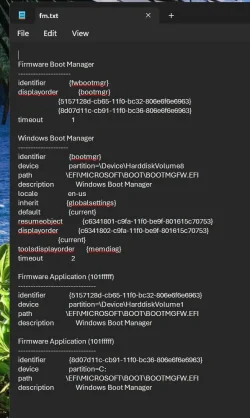
If you give the following command in Command Prompt run as admin

bcdedit /enum firmware >C:\Firmware.txt

you will get a text file in C: drive named Firmware.txt (my text file name is fm.txt below) that lists all the bootable drives in UEFI firmware. You can see the device locations. Just look at the Firmware Applications. How many do you have ?

Screenshot 2026-01-02 105045.webp
 

My Computers

System One System Two

  • OS
    Windows 11 Pro build 26200.8524
    Computer type
    PC/Desktop
    Manufacturer/Model
    Home Built
    CPU
    Intel i7-4790
    Motherboard
    Asus H97 Pro Gamer with add-on TPM1.2 module
    Memory
    Teams DDR3-1600 4x4 GB
    Graphics Card(s)
    MSI Nvidia GeForce GTX 1050Ti
    Sound Card
    Realtek ALC1150
    Monitor(s) Displays
    Dell P2425D
    Screen Resolution
    2560 by 1440 pixels
    Hard Drives
    Corsair NVMe M.2 Core XT 1000 GB (Windows 11 v.25H2); Samsung SATA Evo 870 500 GB (Windows 11 v.25H2);
    PSU
    Corsair HX850
    Case
    Gigabyte Solo 210
    Cooling
    Zalman CNPS7X Tower
    Keyboard
    Microsoft AIO Wireless (includes touchpad)
    Mouse
    HP S1000 Plus Wireless
    Internet Speed
    500 Mb fiber optic
    Browser
    Chrome; MS Edge
    Antivirus
    Windows Defender
  • Operating System
    MacOS 12 Monterey
    Computer type
    Laptop
    Manufacturer/Model
    Apple Macbook Air
    CPU
    Intel Core i5
    Memory
    8 GB
    Graphics card(s)
    Intel integrated
    Screen Resolution
    1440 by 900 pixels
    Hard Drives
    128 GB
    Keyboard
    Built-in
    Mouse
    Microsoft Wireless
    Internet Speed
    802.11 ac
    Browser
    Chrome; Safari
    Antivirus
    N/A
I have five entries, two to drive letters that I do not have anymore, three to data partitions.
 

My Computer

System One

  • OS
    Windows 11 Pro 25H2
    Computer type
    PC/Desktop
    Manufacturer/Model
    Gigabyte
    CPU
    Intel i5-11500
    Motherboard
    Z590 Aorus Elite AX
    Memory
    32 GB DDR4-3200 Fury Beast Kingston
    Graphics Card(s)
    AMD Radeon RX 6700 XT
    Sound Card
    Topping DX3 Pro
    Monitor(s) Displays
    LG 4K monitor
    Screen Resolution
    4K
    Hard Drives
    WD Black 850 2TB, WD 1TB, Crucial P3 1TB, Crucial BX500 1TB, Samsung 870 EVO 1TB, 860 EVO 1TB, 860 Pro 256GB.
    PSU
    Seasonic Prime fanless PX-450
    Case
    Midi Tower
    Cooling
    Big CPU cooler + 2 Fans
    Keyboard
    rapoo wireless multimedia
    Mouse
    Microsoft Wireless Mouse 2000
    Internet Speed
    mostly 900 Mbps
    Browser
    Brave, Firefox, Edge
    Antivirus
    Defender
If you can identify the obsolete firmware entries, you can delete them from Windows.

bcdedit /delete {identifier} where identifier is something like {5157128d-cb65-11f0-bc32-806e6f6e6963} in Firmware App list.

Data drives and/or data partitions do not appear in firmware applications list. Only those entries that seem to be bootable even if they are not bootable appear in Firmware Application list.

If you are not certain, do not delete anything. You do not see them unless you run bcdedit command or boot into BIOS.

Happy new year.
 

My Computers

System One System Two

  • OS
    Windows 11 Pro build 26200.8524
    Computer type
    PC/Desktop
    Manufacturer/Model
    Home Built
    CPU
    Intel i7-4790
    Motherboard
    Asus H97 Pro Gamer with add-on TPM1.2 module
    Memory
    Teams DDR3-1600 4x4 GB
    Graphics Card(s)
    MSI Nvidia GeForce GTX 1050Ti
    Sound Card
    Realtek ALC1150
    Monitor(s) Displays
    Dell P2425D
    Screen Resolution
    2560 by 1440 pixels
    Hard Drives
    Corsair NVMe M.2 Core XT 1000 GB (Windows 11 v.25H2); Samsung SATA Evo 870 500 GB (Windows 11 v.25H2);
    PSU
    Corsair HX850
    Case
    Gigabyte Solo 210
    Cooling
    Zalman CNPS7X Tower
    Keyboard
    Microsoft AIO Wireless (includes touchpad)
    Mouse
    HP S1000 Plus Wireless
    Internet Speed
    500 Mb fiber optic
    Browser
    Chrome; MS Edge
    Antivirus
    Windows Defender
  • Operating System
    MacOS 12 Monterey
    Computer type
    Laptop
    Manufacturer/Model
    Apple Macbook Air
    CPU
    Intel Core i5
    Memory
    8 GB
    Graphics card(s)
    Intel integrated
    Screen Resolution
    1440 by 900 pixels
    Hard Drives
    128 GB
    Keyboard
    Built-in
    Mouse
    Microsoft Wireless
    Internet Speed
    802.11 ac
    Browser
    Chrome; Safari
    Antivirus
    N/A
One EFI partition on a data partition I could delete. The other partition on the mirror partition was undeleteable with all I tried, I had to reformat it to get rid of it. And then I copied my VMs to it again.
 

My Computer

System One

  • OS
    Windows 11 Pro 25H2
    Computer type
    PC/Desktop
    Manufacturer/Model
    Gigabyte
    CPU
    Intel i5-11500
    Motherboard
    Z590 Aorus Elite AX
    Memory
    32 GB DDR4-3200 Fury Beast Kingston
    Graphics Card(s)
    AMD Radeon RX 6700 XT
    Sound Card
    Topping DX3 Pro
    Monitor(s) Displays
    LG 4K monitor
    Screen Resolution
    4K
    Hard Drives
    WD Black 850 2TB, WD 1TB, Crucial P3 1TB, Crucial BX500 1TB, Samsung 870 EVO 1TB, 860 EVO 1TB, 860 Pro 256GB.
    PSU
    Seasonic Prime fanless PX-450
    Case
    Midi Tower
    Cooling
    Big CPU cooler + 2 Fans
    Keyboard
    rapoo wireless multimedia
    Mouse
    Microsoft Wireless Mouse 2000
    Internet Speed
    mostly 900 Mbps
    Browser
    Brave, Firefox, Edge
    Antivirus
    Defender
Back
Top Bottom