Solved How to show Recent Items in Save As and Open dialog boxes


jandlightning

Member
Local time
5:28 AM
Posts
3
OS
Windows 11
I'm running Windows 11 Pro 64-bit Version: 21H2 (OS Build 22000.527). I have added the Recent Items folder to Quick Access in File Explorer, and I would like to do the same thing in Save As and Open dialog boxes. I know this is possible because I did it in Windows 10 (but don't remember how). I'm hoping someone can tell me how to do it in Windows 11.

Thanks!
 
Windows Build/Version
Windows 11 Pro 64-bit Version: 21H2 (OS Build 22000.527)

My Computer My Computer

At a glance

Windows 1111th Gen Intel(R) Core(TM) i7-1165G7 @ 2.80GHz16GBIntel(R) Iris(R) Xe Graphics
OS
Windows 11
Computer type
Laptop
Manufacturer/Model
HP
CPU
11th Gen Intel(R) Core(TM) i7-1165G7 @ 2.80GHz
Motherboard
8709 31.32
Memory
16GB
Graphics Card(s)
Intel(R) Iris(R) Xe Graphics
Sound Card
Intel® Smart Sound Technology for Digital Microphones, Intel® Smart Sound Technology for MIPI SoundWire® Audio
Screen Resolution
3840 x 2160
Hard Drives
1TB
WinaeroTweaker>Custom Navigation Pane Items.
 

My Computers My Computers

  • At a glance

    Windows 11 Pro
    OS
    Windows 11 Pro
    Computer type
    PC/Desktop
    Manufacturer/Model
    ASUS ROG Strix
  • At a glance

    Windows 11 Pro
    Operating System
    Windows 11 Pro
    Computer type
    Laptop
    Manufacturer/Model
    ASUS VivoBook
  • ASUS VivoBook 'Lite' ~ Windows 11 Home
Thanks for your suggestion, Edwin, but I'd like to find out how to do it manually instead of with an app.
 

My Computer My Computer

At a glance

Windows 1111th Gen Intel(R) Core(TM) i7-1165G7 @ 2.80GHz16GBIntel(R) Iris(R) Xe Graphics
OS
Windows 11
Computer type
Laptop
Manufacturer/Model
HP
CPU
11th Gen Intel(R) Core(TM) i7-1165G7 @ 2.80GHz
Motherboard
8709 31.32
Memory
16GB
Graphics Card(s)
Intel(R) Iris(R) Xe Graphics
Sound Card
Intel® Smart Sound Technology for Digital Microphones, Intel® Smart Sound Technology for MIPI SoundWire® Audio
Screen Resolution
3840 x 2160
Hard Drives
1TB
Figured it out with the help of Adding 'Recent Items' to File Explorer & Open/Save Dialogs in Windows 10 - αlphαrithms. I'll condense that page here.
  1. Open a Command Prompt as an administrator.
  2. Enter the following command:

    mklink /j "%USERPROFILE%\Recent Items" %APPDATA%\Microsoft\Windows\Recent

    It will come back with something like

    Junction created for C:\Users\{username}\Recent Items <<===>> C:\Users\{username}\AppData\Roaming\Microsoft\Windows\Recent

    This will put a symbolic link in your C:\Users\{username} folder.
  3. Go to that folder and pin the link to your Quick Access menu.
That's it! You should now have a Recent Items link in Quick Access in File Explorer as well as Open and Save As dialogs. If you want to shift that, or any other, pinned link around in the Quick Access menu -- say, to the top of it -- just click on the icon in the Quick Access menu and slowly drag it to the new position. As you drag it, the "tooltip" will alternate between "Copy to {folder}" and "Pin to Quick Access". Drop it when it says the latter.

By the way, if you've already pinned Recent Items to Quick Access in File Explorer, as I had done, you will now have two of them there (or at least I did). Just delete the old one.
 

My Computer My Computer

At a glance

Windows 1111th Gen Intel(R) Core(TM) i7-1165G7 @ 2.80GHz16GBIntel(R) Iris(R) Xe Graphics
OS
Windows 11
Computer type
Laptop
Manufacturer/Model
HP
CPU
11th Gen Intel(R) Core(TM) i7-1165G7 @ 2.80GHz
Motherboard
8709 31.32
Memory
16GB
Graphics Card(s)
Intel(R) Iris(R) Xe Graphics
Sound Card
Intel® Smart Sound Technology for Digital Microphones, Intel® Smart Sound Technology for MIPI SoundWire® Audio
Screen Resolution
3840 x 2160
Hard Drives
1TB

Attachments

  • Image1.png
    Image1.png
    15.3 KB · Views: 9
  • Image2.png
    Image2.png
    13 KB · Views: 9

My Computers My Computers

  • At a glance

    Windows 11AMD Ryzen 78GBAMD Radeon
    OS
    Windows 11
    Computer type
    Laptop
    Manufacturer/Model
    Microsoft 15" Surface Laptop 4
    CPU
    AMD Ryzen 7
    Memory
    8GB
    Graphics Card(s)
    AMD Radeon
    Hard Drives
    512GB WD SSD
    Internet Speed
    384 Mbps per attached network device
    Browser
    MS Edge
    Antivirus
    Windows Defender
  • At a glance

    Windows 1112th Gen Intel(R) Core(TM) i9-12900K, 3200 Mh...32 GB DDR5NVIDIA GeForce GTX 1660 Ti
    Operating System
    Windows 11
    Computer type
    PC/Desktop
    Manufacturer/Model
    Dell XPS 8950
    CPU
    12th Gen Intel(R) Core(TM) i9-12900K, 3200 Mhz, 16 Core(s), 24 Logical Processor(s)
    Memory
    32 GB DDR5
    Graphics card(s)
    NVIDIA GeForce GTX 1660 Ti
    Monitor(s) Displays
    32" Samsung
    Keyboard
    Arteck (BT)
    Mouse
    Logitech MX Master 3 (BT)
    Internet Speed
    990 Mbps
    Browser
    MS Edge/Floorp
    Antivirus
    Windows Defender/Malwarebytes
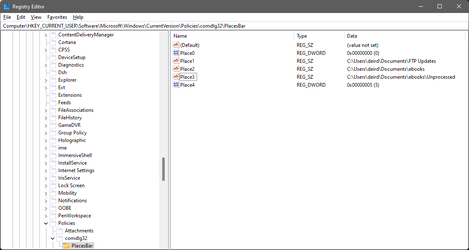
There's very few applications that still use the comdlg32 box!
The only place I still see it is in the Registry!
 

My Computers My Computers

  • At a glance

    Windows 11 Pro
    OS
    Windows 11 Pro
    Computer type
    PC/Desktop
    Manufacturer/Model
    ASUS ROG Strix
  • At a glance

    Windows 11 Pro
    Operating System
    Windows 11 Pro
    Computer type
    Laptop
    Manufacturer/Model
    ASUS VivoBook
  • ASUS VivoBook 'Lite' ~ Windows 11 Home
There's very few applications that still use the comdlg32 box!
The only place I still see it is in the Registry!
I had to add it to the registry ;) My graphics program uses it.
 

My Computers My Computers

  • At a glance

    Windows 11AMD Ryzen 78GBAMD Radeon
    OS
    Windows 11
    Computer type
    Laptop
    Manufacturer/Model
    Microsoft 15" Surface Laptop 4
    CPU
    AMD Ryzen 7
    Memory
    8GB
    Graphics Card(s)
    AMD Radeon
    Hard Drives
    512GB WD SSD
    Internet Speed
    384 Mbps per attached network device
    Browser
    MS Edge
    Antivirus
    Windows Defender
  • At a glance

    Windows 1112th Gen Intel(R) Core(TM) i9-12900K, 3200 Mh...32 GB DDR5NVIDIA GeForce GTX 1660 Ti
    Operating System
    Windows 11
    Computer type
    PC/Desktop
    Manufacturer/Model
    Dell XPS 8950
    CPU
    12th Gen Intel(R) Core(TM) i9-12900K, 3200 Mhz, 16 Core(s), 24 Logical Processor(s)
    Memory
    32 GB DDR5
    Graphics card(s)
    NVIDIA GeForce GTX 1660 Ti
    Monitor(s) Displays
    32" Samsung
    Keyboard
    Arteck (BT)
    Mouse
    Logitech MX Master 3 (BT)
    Internet Speed
    990 Mbps
    Browser
    MS Edge/Floorp
    Antivirus
    Windows Defender/Malwarebytes

Latest Support Threads

Back
Top Bottom