How to stop Surface Copilot+ PC ads from appearing on Hello Screen


bobhalverson

Well-known member
Member
Local time
2:26 AM
Posts
46
OS
Windows 11
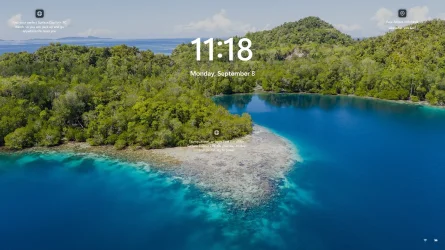
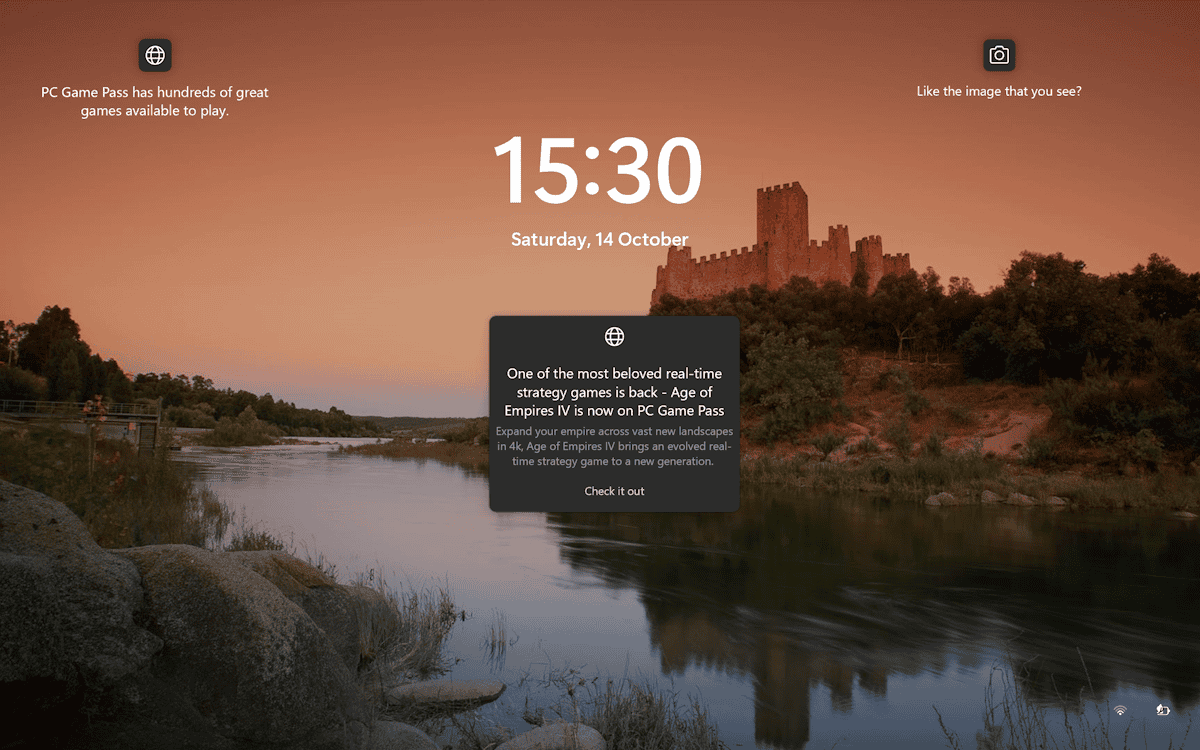
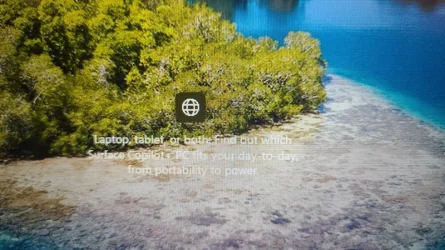
Can't get the Surface Copilot+ PC ads to stop appearing on the Windows 11 Hello Screen.
(the first screen you see - where you enter your PIN)
It is in the center -- right where the box will show to enter your PIN.
Ideas?

I'm on ver 10.0.26100
 

Attachments
  • Windows 11 Hello Screen Ad.webp
    Windows 11 Hello Screen Ad.webp
    100.5 KB · Views: 1
  • Windows 11 Hello Screen 1.webp
    Windows 11 Hello Screen 1.webp
    417.1 KB · Views: 1

My Computers

System One System Two

  • OS
    Windows 11
    Computer type
    PC/Desktop
    Manufacturer/Model
    HP ProDesk 600 G4 MT
    CPU
    Intel Core i5-8500 CPU @ 3.00GHz [6 Cores]
    Motherboard
    HP 83EC - KBC Version 07.D4.00
    Memory
    64 Gb
    Graphics Card(s)
    Intel UHD Graphics 630
    Sound Card
    Synaptics HD Audio
    Monitor(s) Displays
    24" LG
    Screen Resolution
    1920 x 1080
    Hard Drives
    (2) 1 TB
    Internet Speed
    25 Mb/s
    Browser
    Chrome
    Antivirus
    MS Defender
  • Operating System
    Windows 11 Pro
    Computer type
    Laptop
    Manufacturer/Model
    HP Laptop 17-cp3005dx
    CPU
    AMD Ryzen 5 7430U with Radeon Graphics, 2.3 Ghz, 6 Core(s), 12 Logical Processor(s)
    Motherboard
    HP 8D6B ver. 5908
    Memory
    32 GB
    Graphics card(s)
    Radeon Graphics (integrated in mother board)
    Sound Card
    AMD High Definition Audio Device
    Monitor(s) Displays
    HP Internal Display
    Screen Resolution
    1920x1080 60 Hz
    Hard Drives
    USB Attached SCSI (USAS) Mass Storage Device (1 TB)
    Browser
    Chrome
    Antivirus
    Defender
That link appears to not be valid for me -- Facts, Tips & Tricks is not there.
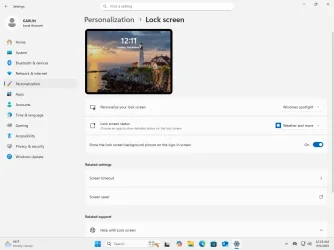
I read that if the lock screen is set to "Windows Spotlight," the option to disable these tips may not appear in the settings.
I changed to "Picture" but that didn't make any difference.
I am on Windows Pro -- 24H2 -- build 10.0.26100
I unchecked everything I could find that seemed to possibly relate to this.
 

My Computers

System One System Two

  • OS
    Windows 11
    Computer type
    PC/Desktop
    Manufacturer/Model
    HP ProDesk 600 G4 MT
    CPU
    Intel Core i5-8500 CPU @ 3.00GHz [6 Cores]
    Motherboard
    HP 83EC - KBC Version 07.D4.00
    Memory
    64 Gb
    Graphics Card(s)
    Intel UHD Graphics 630
    Sound Card
    Synaptics HD Audio
    Monitor(s) Displays
    24" LG
    Screen Resolution
    1920 x 1080
    Hard Drives
    (2) 1 TB
    Internet Speed
    25 Mb/s
    Browser
    Chrome
    Antivirus
    MS Defender
  • Operating System
    Windows 11 Pro
    Computer type
    Laptop
    Manufacturer/Model
    HP Laptop 17-cp3005dx
    CPU
    AMD Ryzen 5 7430U with Radeon Graphics, 2.3 Ghz, 6 Core(s), 12 Logical Processor(s)
    Motherboard
    HP 8D6B ver. 5908
    Memory
    32 GB
    Graphics card(s)
    Radeon Graphics (integrated in mother board)
    Sound Card
    AMD High Definition Audio Device
    Monitor(s) Displays
    HP Internal Display
    Screen Resolution
    1920x1080 60 Hz
    Hard Drives
    USB Attached SCSI (USAS) Mass Storage Device (1 TB)
    Browser
    Chrome
    Antivirus
    Defender
Correction:
I tried changing the "Personalize Your Background" setting from "Windows Spotlight" to "Picture".
After a restart, the Hello screen is just a picture with no ads.
So my revised question is, is there a way to remove the ads from Windows Spotlight?
 

My Computers

System One System Two

  • OS
    Windows 11
    Computer type
    PC/Desktop
    Manufacturer/Model
    HP ProDesk 600 G4 MT
    CPU
    Intel Core i5-8500 CPU @ 3.00GHz [6 Cores]
    Motherboard
    HP 83EC - KBC Version 07.D4.00
    Memory
    64 Gb
    Graphics Card(s)
    Intel UHD Graphics 630
    Sound Card
    Synaptics HD Audio
    Monitor(s) Displays
    24" LG
    Screen Resolution
    1920 x 1080
    Hard Drives
    (2) 1 TB
    Internet Speed
    25 Mb/s
    Browser
    Chrome
    Antivirus
    MS Defender
  • Operating System
    Windows 11 Pro
    Computer type
    Laptop
    Manufacturer/Model
    HP Laptop 17-cp3005dx
    CPU
    AMD Ryzen 5 7430U with Radeon Graphics, 2.3 Ghz, 6 Core(s), 12 Logical Processor(s)
    Motherboard
    HP 8D6B ver. 5908
    Memory
    32 GB
    Graphics card(s)
    Radeon Graphics (integrated in mother board)
    Sound Card
    AMD High Definition Audio Device
    Monitor(s) Displays
    HP Internal Display
    Screen Resolution
    1920x1080 60 Hz
    Hard Drives
    USB Attached SCSI (USAS) Mass Storage Device (1 TB)
    Browser
    Chrome
    Antivirus
    Defender
It is unfortunate that Microsoft is not giving its customers a say in the matter. While it is possible to switch from Spotlight to another display mode to stop ads from being displayed on the lock screen, some users may prefer the changing lock screen photos that Spotlight provides.
There is no technical barrier in adding the "tips" setting to Spotlight as well. Microsoft has made the decision deliberate and it looks as if it won't have a change of heart in the near future


My Computer

System One

  • OS
    Windows 11 Pro Insider 64 bit 25H2 26200.5742
    Computer type
    PC/Desktop
    Manufacturer/Model
    Gigabyte Z390 UD
    CPU
    Intel Core i7 9700K 3.60
    Motherboard
    Gigabyte Z390 UD
    Memory
    16 GB
    Graphics Card(s)
    nVidia GEForce RTX 2060 Super
    Sound Card
    onboard
    Monitor(s) Displays
    Two 27" Dell 4K monitors
    Screen Resolution
    3840 x 2160
    Hard Drives
    M.2 NVME SSD, 500 GB; Two 2TB Mechanical HDD's
    PSU
    850w PSU
    Case
    Cyberpower PC
    Cooling
    Water cooled
    Keyboard
    Backlit Cyberpower gaming keyboard
    Mouse
    Backlit Cyberpower gaming mouse
    Internet Speed
    1 GB mbps
    Browser
    Brave
    Antivirus
    Windows Security
I tried changing the "Personalize Your Background" setting from "Windows Spotlight" to "Picture".
The ad(s) do not appear on the Hello screen when it's just a picture.
So my next question is, is there a way to remove the ads from Windows Spotlight?

I tried the regedit method. It gave me a picture for both the hello screen and the desktop.
I could not get "Windows Spotlight" to load after that edit -- only the picture.
Removed the two dwords and rebooted.
Can now get "Windows Spotlight" for my desktop, but only the picture for the Hello screen.

I kinda liked "Windows Spotlight" on the Hello screen, but can't find a way to restore that now.
At least I don't have to deal with the the ads anymore.

If anyone can help me get "Windows Spotlight" back on the Hello screen -- and no ads -- I'd be interested.
 

My Computers

System One System Two

  • OS
    Windows 11
    Computer type
    PC/Desktop
    Manufacturer/Model
    HP ProDesk 600 G4 MT
    CPU
    Intel Core i5-8500 CPU @ 3.00GHz [6 Cores]
    Motherboard
    HP 83EC - KBC Version 07.D4.00
    Memory
    64 Gb
    Graphics Card(s)
    Intel UHD Graphics 630
    Sound Card
    Synaptics HD Audio
    Monitor(s) Displays
    24" LG
    Screen Resolution
    1920 x 1080
    Hard Drives
    (2) 1 TB
    Internet Speed
    25 Mb/s
    Browser
    Chrome
    Antivirus
    MS Defender
  • Operating System
    Windows 11 Pro
    Computer type
    Laptop
    Manufacturer/Model
    HP Laptop 17-cp3005dx
    CPU
    AMD Ryzen 5 7430U with Radeon Graphics, 2.3 Ghz, 6 Core(s), 12 Logical Processor(s)
    Motherboard
    HP 8D6B ver. 5908
    Memory
    32 GB
    Graphics card(s)
    Radeon Graphics (integrated in mother board)
    Sound Card
    AMD High Definition Audio Device
    Monitor(s) Displays
    HP Internal Display
    Screen Resolution
    1920x1080 60 Hz
    Hard Drives
    USB Attached SCSI (USAS) Mass Storage Device (1 TB)
    Browser
    Chrome
    Antivirus
    Defender
I discovered this hidden tip from: https://superuser.com/a/1663308

The existing answers didn't work for me. I'm using 21H1 build 19043.1110.

I have disabled the overlay by changing the security settings of the folder that stores the metadata for the lockscreen.

Code:
%localAppData%\Packages\Microsoft.Windows.ContentDeliveryManager_cw5n1h2txyewy\LocalState\TargetedContentCache\v3\338387

Right click the folder to open the properties, the go to the security tab and click Advanced. The click Add, select principal the user "Everyone", select type Disallow, and check only the "Write" permission. Then select OK in each window.


This trick works better if you add principal Everyone and Deny Read permissions to this folder.
Code:
icacls %LocalAppData%\Packages\Microsoft.Windows.ContentDeliveryManager_cw5n1h2txyewy\LocalState\TargetedContentCache\v3\338387 /deny Everyone:R

To revert your changes:
Code:
icacls %LocalAppData%\Packages\Microsoft.Windows.ContentDeliveryManager_cw5n1h2txyewy\LocalState\TargetedContentCache\v3\338387 /remove Everyone

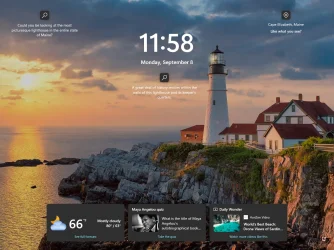
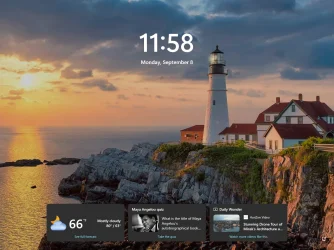
Why does this trick work? Inside the cache folder is a JSON file for every Spotlight image, and it details which glyphs (icons) are displayed and what text is printed when you hover over the icon. By making the files unreadable, the Lock Screen app doesn't know it's suppose to show the missing facts, tips & tricks.

The cache files are entirely separate from the actual images.

Contrary to what you would expect, LockApp.exe runs as you (not as SYSTEM or a secure user). Denying the folder to Everyone blocks all desktop users, but it works just the same if you blocked yourself with "/deny GARLIN:R".
 

Attachments

  • Windows 11 x64-2025-09-08-23-58-31.webp
    Windows 11 x64-2025-09-08-23-58-31.webp
    179.8 KB · Views: 1
  • Windows 11 x64-2025-09-08-23-58-58.webp
    Windows 11 x64-2025-09-08-23-58-58.webp
    168.2 KB · Views: 1
  • Windows 11 x64-2025-09-09-00-18-49.webp
    Windows 11 x64-2025-09-09-00-18-49.webp
    46.2 KB · Views: 1

My Computer

System One

  • OS
    Windows 7
Great find! Thanks!
 

My Computers

System One System Two

  • OS
    Windows 11
    Computer type
    PC/Desktop
    Manufacturer/Model
    HP ProDesk 600 G4 MT
    CPU
    Intel Core i5-8500 CPU @ 3.00GHz [6 Cores]
    Motherboard
    HP 83EC - KBC Version 07.D4.00
    Memory
    64 Gb
    Graphics Card(s)
    Intel UHD Graphics 630
    Sound Card
    Synaptics HD Audio
    Monitor(s) Displays
    24" LG
    Screen Resolution
    1920 x 1080
    Hard Drives
    (2) 1 TB
    Internet Speed
    25 Mb/s
    Browser
    Chrome
    Antivirus
    MS Defender
  • Operating System
    Windows 11 Pro
    Computer type
    Laptop
    Manufacturer/Model
    HP Laptop 17-cp3005dx
    CPU
    AMD Ryzen 5 7430U with Radeon Graphics, 2.3 Ghz, 6 Core(s), 12 Logical Processor(s)
    Motherboard
    HP 8D6B ver. 5908
    Memory
    32 GB
    Graphics card(s)
    Radeon Graphics (integrated in mother board)
    Sound Card
    AMD High Definition Audio Device
    Monitor(s) Displays
    HP Internal Display
    Screen Resolution
    1920x1080 60 Hz
    Hard Drives
    USB Attached SCSI (USAS) Mass Storage Device (1 TB)
    Browser
    Chrome
    Antivirus
    Defender

Latest Support Threads

Back
Top Bottom