
Navigation
Install the app
How to install the app on iOS
Follow along with the video below to see how to install our site as a web app on your home screen.
Note: This feature may not be available in some browsers.
More options
Style variation
System
Light
Dark
You are using an out of date browser. It may not display this or other websites correctly.
You should upgrade or use an alternative browser.
You should upgrade or use an alternative browser.
I cannot load Win 11 since auto update yesterday - goes straight to BIOS
- Thread starter Seanhunt
- Start date
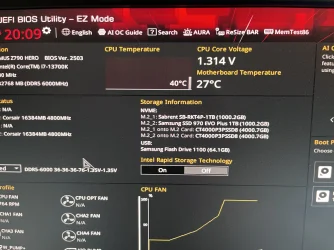
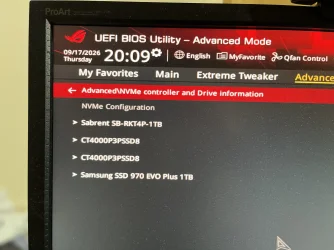
With Intel RST turned Off, all four SSDs are now showing normally under NVMe Configuration.
We now need to know exactly what happens when you try to boot the existing Windows installation. Press F8 for the ASUS one-time boot menu and select Windows Boot Manager (Sabrent SB-RKT4P-1TB).
Please tell us exactly what happens after selecting it.
Also, boot the Windows 11 USB again. With RST now Off, does Windows Setup show the 1 TB Sabrent and its existing partitions?
If Windows Setup can see the drives, press Shift+F10, enter
We now need to know exactly what happens when you try to boot the existing Windows installation. Press F8 for the ASUS one-time boot menu and select Windows Boot Manager (Sabrent SB-RKT4P-1TB).
Please tell us exactly what happens after selecting it.
Also, boot the Windows 11 USB again. With RST now Off, does Windows Setup show the 1 TB Sabrent and its existing partitions?
If Windows Setup can see the drives, press Shift+F10, enter
diskpart, then list disk and list vol, and post a photo of the results. Don't enter any other DiskPart commands.My Computers
-
At a glance
Windows 11 ProAMD Ryzen 9 9950X3DKingston FURY Beast 64GB (2x32GB) DDR5 6000MT/sASUS TUF Gaming Radeon RX 9070 OC Edition 16G...- OS
- Windows 11 Pro
- Computer type
- PC/Desktop
- CPU
- AMD Ryzen 9 9950X3D
- Motherboard
- ASRock B650E Taichi Lite
- Memory
- Kingston FURY Beast 64GB (2x32GB) DDR5 6000MT/s
- Graphics Card(s)
- ASUS TUF Gaming Radeon RX 9070 OC Edition 16GB GDDR6
- Hard Drives
- Solidigm P44 Pro 2TB M.2 NVMe SSD
-
At a glance
Windows 11 HomeIntel Core Ultra 9 275HX64GB (2x 32GB) DDR5-6400NVIDIA GeForce RTX 5080 16GB GDDR7 Laptop GPU- Operating System
- Windows 11 Home
- Computer type
- Laptop
- Manufacturer/Model
- Lenovo Legion Pro 7i Gen 10 16"
- CPU
- Intel Core Ultra 9 275HX
- Memory
- 64GB (2x 32GB) DDR5-6400
- Graphics card(s)
- NVIDIA GeForce RTX 5080 16GB GDDR7 Laptop GPU
- Hard Drives
- 2x 1TB M.2 NVMe SSD (SK Hynix)
Only in EZ mode does F8 show Windows Boot Manager but when you press enter it takes you straight back to the BIOS.
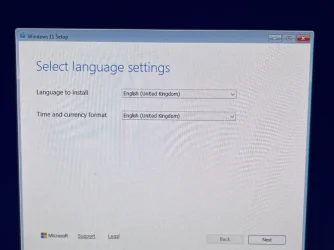
When I boot the Windows 11 USB drive it takes me straight back to the initial Windows Setup Select Language settings page after an initial reboot attempt.
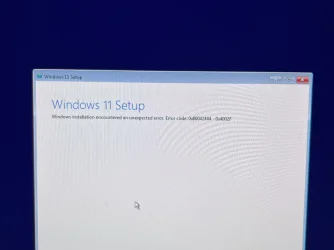
When I try and install Windows 11 it still says searching for disks and then encounters an error.
When I boot the Windows 11 USB drive it takes me straight back to the initial Windows Setup Select Language settings page after an initial reboot attempt.
When I try and install Windows 11 it still says searching for disks and then encounters an error.
Attachments
My Computer
At a glance
Windows 11
- OS
- Windows 11
- Computer type
- PC/Desktop
- Manufacturer/Model
- self build
ChatGPT:
Turning Intel RST off has done what we wanted — your four SSDs are now visible normally as NVMe drives. Don't change any more BIOS settings for now.
The error in your screenshot, 0x80042444 - 0x4002F, is occurring when the newer Windows Setup scans your disks. This has been reported when one of the attached drives is a dynamic/foreign disk, so the installation error may be a separate issue from the reason your existing Windows installation won't boot.
Please don't format, delete, clean or convert any disks.
Boot from the Windows USB, and at the first Setup screen press Shift + F10 to open Command Prompt. Enter:
diskpart
list disk
list volume
Then post a clear photo of the results.
In particular, list disk will tell us whether any of the four drives are dynamic, and list volume will show the existing partitions. That should let us identify the Windows partition and EFI System Partition on the 1 TB Sabrent.
The fact that selecting Windows Boot Manager (Sabrent) immediately returns you to the BIOS suggests that we may need to repair the existing boot files, but I wouldn't do that until we've identified the partitions correctly.
Also, when the Windows USB reboots during Setup and takes you back to the language-selection page, that's because you're booting from the USB again. For now, though, don't continue with the fresh installation.
My Computers
-
At a glance
Windows 11 ProAMD Ryzen 9 9950X3DKingston FURY Beast 64GB (2x32GB) DDR5 6000MT/sASUS TUF Gaming Radeon RX 9070 OC Edition 16G...- OS
- Windows 11 Pro
- Computer type
- PC/Desktop
- CPU
- AMD Ryzen 9 9950X3D
- Motherboard
- ASRock B650E Taichi Lite
- Memory
- Kingston FURY Beast 64GB (2x32GB) DDR5 6000MT/s
- Graphics Card(s)
- ASUS TUF Gaming Radeon RX 9070 OC Edition 16GB GDDR6
- Hard Drives
- Solidigm P44 Pro 2TB M.2 NVMe SSD
-
At a glance
Windows 11 HomeIntel Core Ultra 9 275HX64GB (2x 32GB) DDR5-6400NVIDIA GeForce RTX 5080 16GB GDDR7 Laptop GPU- Operating System
- Windows 11 Home
- Computer type
- Laptop
- Manufacturer/Model
- Lenovo Legion Pro 7i Gen 10 16"
- CPU
- Intel Core Ultra 9 275HX
- Memory
- 64GB (2x 32GB) DDR5-6400
- Graphics card(s)
- NVIDIA GeForce RTX 5080 16GB GDDR7 Laptop GPU
- Hard Drives
- 2x 1TB M.2 NVMe SSD (SK Hynix)

You can temporarily disable VMD and switch to AHCI. Setup will detect the disk and allow you to repair Windows. After repair is successful, let it load Windows. You can switch back to VMD if you want, but you won't see any difference in performance. The disk is too fast to tell the difference, if any. I would leave it in AHCI mode.Hi,
Sorry for the delay. I’m still working on this issue I have with my PC. I finally managed to get the Intel Rapid Storage Technology Driver extracted and tried to install. It showed up in the Windows set up screen where you can install drivers. It got froze asking for disks. I assume it meant it needed a full Windows 11 ISO so I attempted to add that on a USB stick too.
It failed giving me the following error: Error code: 0x80042444 - 0x4002F .
I checked the current Intel RST driver installed in my BIOS and it hadn’t updated. The driver is greyed out saying for INTERNAL USE ONLY.
My Computers
-
At a glance
Windows 11 Pro 23H2 (7582), 25H2 (9457)Mobile DualCore Intel Core 2 Duo T7250, 2000 MHz4GBMobile Intel(R) GMA 4500M (Mobile 4 series)- OS
- Windows 11 Pro 23H2 (7582), 25H2 (9457)
- Computer type
- Laptop
- Manufacturer/Model
- Acer Extensa 5630EZ
- CPU
- Mobile DualCore Intel Core 2 Duo T7250, 2000 MHz
- Motherboard
- Acer Extensa 5630
- Memory
- 4GB
- Graphics Card(s)
- Mobile Intel(R) GMA 4500M (Mobile 4 series)
- Sound Card
- Realtek ALC268 @ Intel 82801IB ICH9 - High Definition Audio Controller
- Monitor(s) Displays
- 1
- Screen Resolution
- 1280x800
- Hard Drives
- Samsung SSD 850 EVO 250GB SATA Device (250 GB, SATA-III)
- Internet Speed
- 802.11g wireless 54 Mbps
- Browser
- MICROSOFT EDGE
- Antivirus
- WINDOWS DEFENDER
- Other Info
- Legacy MBR installation, no TPM, no Secure Boot, no WDDM 2.0 graphics drivers, no SSE4.2, cannot get more unsupported ;) This is only my test laptop. I had installed Windows 11 here before upgrading my main PC. For my main PC I use everyday see my 2nd system specs.
-
At a glance
Windows 11 Pro 25H2 (build 26200.9457)Intel Core-i7 3770 3.40GHz s1155 (3rd generat...2x Kingston Hyper-X Blu 8GB DDR3-1600GIGABYTE GeForce RTX 3050 WINDFORCE OC V2 6GB...- Operating System
- Windows 11 Pro 25H2 (build 26200.9457)
- Computer type
- PC/Desktop
- Manufacturer/Model
- Custom-built PC
- CPU
- Intel Core-i7 3770 3.40GHz s1155 (3rd generation)
- Motherboard
- Asus P8H61 s1155 ATX
- Memory
- 2x Kingston Hyper-X Blu 8GB DDR3-1600
- Graphics card(s)
- GIGABYTE GeForce RTX 3050 WINDFORCE OC V2 6GB (GV-N3050WF2OCV2-6GD)
- Sound Card
- Realtek HD audio (ALC887)
- Monitor(s) Displays
- Sony Bravia KDL-19L4000 19" LCD TV via VGA
- Screen Resolution
- 1440x900 32-bit 60Hz
- Hard Drives
- WD Blue SA510 2.5 1000GB SSD as system disk, Western Digital Caviar Purple 4TB SATA III (WD40PURZ) as second
- PSU
- Thermaltake Litepower RGB 550W Full Wired
- Case
- SUPERCASE MIDI-TOWER
- Cooling
- Deepcool Gamma Archer CPU cooler, 1x 8cm fan at the back
- Keyboard
- Mitsumi 101-key PS/2
- Mouse
- Microsoft Compact Optical Mouse
- Internet Speed
- 802.11ac 5GHz wireless 260Mpbs
- Browser
- Microsoft Edge, Mozilla Firefox
- Antivirus
- Microsoft Windows Defender
- Other Info
- Legacy BIOS (MBR) installation, no TPM, no Secure Boot, WDDM 3.0 graphics drivers, WEI score 7.4
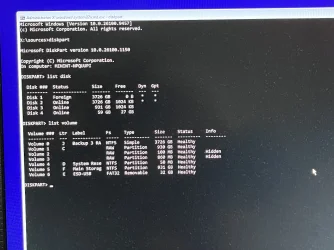
Here’s the Command Prompt results.
ChatGPT:
That output has given us some important information. Don't try another Windows installation, and don't format, clean or convert any disks yet.
The Windows Setup error is probably being caused by Disk 1, which is shown as a Foreign dynamic disk. Error 0x80042444 means that a disk pack is offline/inaccessible, so that 4 TB dynamic disk would explain why Setup fails while searching for disks.
However, there is something more important to investigate first. Your C: volume is showing as RAW, and there are also hidden 100 MB and 860 MB volumes showing as RAW. Those sizes resemble the Windows, EFI and Recovery partitions, so we need to establish whether those are on your 1 TB Sabrent drive.
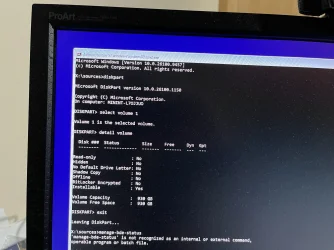
At the DiskPart prompt enter:
select volume 1
detail volume
Post a photo of the result.
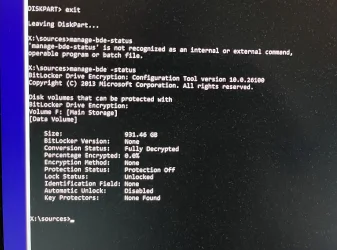
Then enter:
exit
manage-bde -status
and post that result as well.
manage-bde will tell us whether BitLocker is involved and whether the Windows volume is locked. Microsoft documents that manage-bde -status reports the encryption and lock status of the volumes.
Don't run CHKDSK, FORMAT, CLEAN, CONVERT BASIC, or import the foreign disk at this point. Let's identify exactly which physical disk contains those RAW volumes first.
My Computers
-
At a glance
Windows 11 ProAMD Ryzen 9 9950X3DKingston FURY Beast 64GB (2x32GB) DDR5 6000MT/sASUS TUF Gaming Radeon RX 9070 OC Edition 16G...- OS
- Windows 11 Pro
- Computer type
- PC/Desktop
- CPU
- AMD Ryzen 9 9950X3D
- Motherboard
- ASRock B650E Taichi Lite
- Memory
- Kingston FURY Beast 64GB (2x32GB) DDR5 6000MT/s
- Graphics Card(s)
- ASUS TUF Gaming Radeon RX 9070 OC Edition 16GB GDDR6
- Hard Drives
- Solidigm P44 Pro 2TB M.2 NVMe SSD
-
At a glance
Windows 11 HomeIntel Core Ultra 9 275HX64GB (2x 32GB) DDR5-6400NVIDIA GeForce RTX 5080 16GB GDDR7 Laptop GPU- Operating System
- Windows 11 Home
- Computer type
- Laptop
- Manufacturer/Model
- Lenovo Legion Pro 7i Gen 10 16"
- CPU
- Intel Core Ultra 9 275HX
- Memory
- 64GB (2x 32GB) DDR5-6400
- Graphics card(s)
- NVIDIA GeForce RTX 5080 16GB GDDR7 Laptop GPU
- Hard Drives
- 2x 1TB M.2 NVMe SSD (SK Hynix)
Now you need to execute the bcdboot command with the appropriate parameters to fix the boot record on the disk. Unfortunately I don't know what the appropriate parameters are. Anyone else?Thanks for all your help @Celery . Here’s the Command Prompt results.
My Computers
-
At a glance
Windows 11 Pro 23H2 (7582), 25H2 (9457)Mobile DualCore Intel Core 2 Duo T7250, 2000 MHz4GBMobile Intel(R) GMA 4500M (Mobile 4 series)- OS
- Windows 11 Pro 23H2 (7582), 25H2 (9457)
- Computer type
- Laptop
- Manufacturer/Model
- Acer Extensa 5630EZ
- CPU
- Mobile DualCore Intel Core 2 Duo T7250, 2000 MHz
- Motherboard
- Acer Extensa 5630
- Memory
- 4GB
- Graphics Card(s)
- Mobile Intel(R) GMA 4500M (Mobile 4 series)
- Sound Card
- Realtek ALC268 @ Intel 82801IB ICH9 - High Definition Audio Controller
- Monitor(s) Displays
- 1
- Screen Resolution
- 1280x800
- Hard Drives
- Samsung SSD 850 EVO 250GB SATA Device (250 GB, SATA-III)
- Internet Speed
- 802.11g wireless 54 Mbps
- Browser
- MICROSOFT EDGE
- Antivirus
- WINDOWS DEFENDER
- Other Info
- Legacy MBR installation, no TPM, no Secure Boot, no WDDM 2.0 graphics drivers, no SSE4.2, cannot get more unsupported ;) This is only my test laptop. I had installed Windows 11 here before upgrading my main PC. For my main PC I use everyday see my 2nd system specs.
-
At a glance
Windows 11 Pro 25H2 (build 26200.9457)Intel Core-i7 3770 3.40GHz s1155 (3rd generat...2x Kingston Hyper-X Blu 8GB DDR3-1600GIGABYTE GeForce RTX 3050 WINDFORCE OC V2 6GB...- Operating System
- Windows 11 Pro 25H2 (build 26200.9457)
- Computer type
- PC/Desktop
- Manufacturer/Model
- Custom-built PC
- CPU
- Intel Core-i7 3770 3.40GHz s1155 (3rd generation)
- Motherboard
- Asus P8H61 s1155 ATX
- Memory
- 2x Kingston Hyper-X Blu 8GB DDR3-1600
- Graphics card(s)
- GIGABYTE GeForce RTX 3050 WINDFORCE OC V2 6GB (GV-N3050WF2OCV2-6GD)
- Sound Card
- Realtek HD audio (ALC887)
- Monitor(s) Displays
- Sony Bravia KDL-19L4000 19" LCD TV via VGA
- Screen Resolution
- 1440x900 32-bit 60Hz
- Hard Drives
- WD Blue SA510 2.5 1000GB SSD as system disk, Western Digital Caviar Purple 4TB SATA III (WD40PURZ) as second
- PSU
- Thermaltake Litepower RGB 550W Full Wired
- Case
- SUPERCASE MIDI-TOWER
- Cooling
- Deepcool Gamma Archer CPU cooler, 1x 8cm fan at the back
- Keyboard
- Mitsumi 101-key PS/2
- Mouse
- Microsoft Compact Optical Mouse
- Internet Speed
- 802.11ac 5GHz wireless 260Mpbs
- Browser
- Microsoft Edge, Mozilla Firefox
- Antivirus
- Microsoft Windows Defender
- Other Info
- Legacy BIOS (MBR) installation, no TPM, no Secure Boot, WDDM 3.0 graphics drivers, WEI score 7.4
You can temporarily disable VMD and switch to AHCI.
AHCI is principally the SATA controller interface; NVMe SSDs don't become AHCI devices when VMD is disabled. Disabling VMD causes the NVMe devices to be exposed directly rather than through Intel's VMD controller.
My Computers
-
At a glance
Windows 11 ProAMD Ryzen 9 9950X3DKingston FURY Beast 64GB (2x32GB) DDR5 6000MT/sASUS TUF Gaming Radeon RX 9070 OC Edition 16G...- OS
- Windows 11 Pro
- Computer type
- PC/Desktop
- CPU
- AMD Ryzen 9 9950X3D
- Motherboard
- ASRock B650E Taichi Lite
- Memory
- Kingston FURY Beast 64GB (2x32GB) DDR5 6000MT/s
- Graphics Card(s)
- ASUS TUF Gaming Radeon RX 9070 OC Edition 16GB GDDR6
- Hard Drives
- Solidigm P44 Pro 2TB M.2 NVMe SSD
-
At a glance
Windows 11 HomeIntel Core Ultra 9 275HX64GB (2x 32GB) DDR5-6400NVIDIA GeForce RTX 5080 16GB GDDR7 Laptop GPU- Operating System
- Windows 11 Home
- Computer type
- Laptop
- Manufacturer/Model
- Lenovo Legion Pro 7i Gen 10 16"
- CPU
- Intel Core Ultra 9 275HX
- Memory
- 64GB (2x 32GB) DDR5-6400
- Graphics card(s)
- NVIDIA GeForce RTX 5080 16GB GDDR7 Laptop GPU
- Hard Drives
- 2x 1TB M.2 NVMe SSD (SK Hynix)
Wrong terminology, my bad, but you get the point. Disabling VMD makes the disk visible in Setup.AHCI is principally the SATA controller interface; NVMe SSDs don't become AHCI devices when VMD is disabled. Disabling VMD causes the NVMe devices to be exposed directly rather than through Intel's VMD controller.
My Computers
-
At a glance
Windows 11 Pro 23H2 (7582), 25H2 (9457)Mobile DualCore Intel Core 2 Duo T7250, 2000 MHz4GBMobile Intel(R) GMA 4500M (Mobile 4 series)- OS
- Windows 11 Pro 23H2 (7582), 25H2 (9457)
- Computer type
- Laptop
- Manufacturer/Model
- Acer Extensa 5630EZ
- CPU
- Mobile DualCore Intel Core 2 Duo T7250, 2000 MHz
- Motherboard
- Acer Extensa 5630
- Memory
- 4GB
- Graphics Card(s)
- Mobile Intel(R) GMA 4500M (Mobile 4 series)
- Sound Card
- Realtek ALC268 @ Intel 82801IB ICH9 - High Definition Audio Controller
- Monitor(s) Displays
- 1
- Screen Resolution
- 1280x800
- Hard Drives
- Samsung SSD 850 EVO 250GB SATA Device (250 GB, SATA-III)
- Internet Speed
- 802.11g wireless 54 Mbps
- Browser
- MICROSOFT EDGE
- Antivirus
- WINDOWS DEFENDER
- Other Info
- Legacy MBR installation, no TPM, no Secure Boot, no WDDM 2.0 graphics drivers, no SSE4.2, cannot get more unsupported ;) This is only my test laptop. I had installed Windows 11 here before upgrading my main PC. For my main PC I use everyday see my 2nd system specs.
-
At a glance
Windows 11 Pro 25H2 (build 26200.9457)Intel Core-i7 3770 3.40GHz s1155 (3rd generat...2x Kingston Hyper-X Blu 8GB DDR3-1600GIGABYTE GeForce RTX 3050 WINDFORCE OC V2 6GB...- Operating System
- Windows 11 Pro 25H2 (build 26200.9457)
- Computer type
- PC/Desktop
- Manufacturer/Model
- Custom-built PC
- CPU
- Intel Core-i7 3770 3.40GHz s1155 (3rd generation)
- Motherboard
- Asus P8H61 s1155 ATX
- Memory
- 2x Kingston Hyper-X Blu 8GB DDR3-1600
- Graphics card(s)
- GIGABYTE GeForce RTX 3050 WINDFORCE OC V2 6GB (GV-N3050WF2OCV2-6GD)
- Sound Card
- Realtek HD audio (ALC887)
- Monitor(s) Displays
- Sony Bravia KDL-19L4000 19" LCD TV via VGA
- Screen Resolution
- 1440x900 32-bit 60Hz
- Hard Drives
- WD Blue SA510 2.5 1000GB SSD as system disk, Western Digital Caviar Purple 4TB SATA III (WD40PURZ) as second
- PSU
- Thermaltake Litepower RGB 550W Full Wired
- Case
- SUPERCASE MIDI-TOWER
- Cooling
- Deepcool Gamma Archer CPU cooler, 1x 8cm fan at the back
- Keyboard
- Mitsumi 101-key PS/2
- Mouse
- Microsoft Compact Optical Mouse
- Internet Speed
- 802.11ac 5GHz wireless 260Mpbs
- Browser
- Microsoft Edge, Mozilla Firefox
- Antivirus
- Microsoft Windows Defender
- Other Info
- Legacy BIOS (MBR) installation, no TPM, no Secure Boot, WDDM 3.0 graphics drivers, WEI score 7.4
Switch off VMD, load Windows USB and select language and then click Repair to detect Windows and try to fix issues prevent booting. If that doesn't work, load Windows USB again, press SHIFT+F10 to open a Command Prompt and execute the appropriate command to copy to boot files from USB to your disk and make it bootable again. The command is bcdboot, but I don't know the correct parameters for a GPT disk.
My Computers
-
At a glance
Windows 11 Pro 23H2 (7582), 25H2 (9457)Mobile DualCore Intel Core 2 Duo T7250, 2000 MHz4GBMobile Intel(R) GMA 4500M (Mobile 4 series)- OS
- Windows 11 Pro 23H2 (7582), 25H2 (9457)
- Computer type
- Laptop
- Manufacturer/Model
- Acer Extensa 5630EZ
- CPU
- Mobile DualCore Intel Core 2 Duo T7250, 2000 MHz
- Motherboard
- Acer Extensa 5630
- Memory
- 4GB
- Graphics Card(s)
- Mobile Intel(R) GMA 4500M (Mobile 4 series)
- Sound Card
- Realtek ALC268 @ Intel 82801IB ICH9 - High Definition Audio Controller
- Monitor(s) Displays
- 1
- Screen Resolution
- 1280x800
- Hard Drives
- Samsung SSD 850 EVO 250GB SATA Device (250 GB, SATA-III)
- Internet Speed
- 802.11g wireless 54 Mbps
- Browser
- MICROSOFT EDGE
- Antivirus
- WINDOWS DEFENDER
- Other Info
- Legacy MBR installation, no TPM, no Secure Boot, no WDDM 2.0 graphics drivers, no SSE4.2, cannot get more unsupported ;) This is only my test laptop. I had installed Windows 11 here before upgrading my main PC. For my main PC I use everyday see my 2nd system specs.
-
At a glance
Windows 11 Pro 25H2 (build 26200.9457)Intel Core-i7 3770 3.40GHz s1155 (3rd generat...2x Kingston Hyper-X Blu 8GB DDR3-1600GIGABYTE GeForce RTX 3050 WINDFORCE OC V2 6GB...- Operating System
- Windows 11 Pro 25H2 (build 26200.9457)
- Computer type
- PC/Desktop
- Manufacturer/Model
- Custom-built PC
- CPU
- Intel Core-i7 3770 3.40GHz s1155 (3rd generation)
- Motherboard
- Asus P8H61 s1155 ATX
- Memory
- 2x Kingston Hyper-X Blu 8GB DDR3-1600
- Graphics card(s)
- GIGABYTE GeForce RTX 3050 WINDFORCE OC V2 6GB (GV-N3050WF2OCV2-6GD)
- Sound Card
- Realtek HD audio (ALC887)
- Monitor(s) Displays
- Sony Bravia KDL-19L4000 19" LCD TV via VGA
- Screen Resolution
- 1440x900 32-bit 60Hz
- Hard Drives
- WD Blue SA510 2.5 1000GB SSD as system disk, Western Digital Caviar Purple 4TB SATA III (WD40PURZ) as second
- PSU
- Thermaltake Litepower RGB 550W Full Wired
- Case
- SUPERCASE MIDI-TOWER
- Cooling
- Deepcool Gamma Archer CPU cooler, 1x 8cm fan at the back
- Keyboard
- Mitsumi 101-key PS/2
- Mouse
- Microsoft Compact Optical Mouse
- Internet Speed
- 802.11ac 5GHz wireless 260Mpbs
- Browser
- Microsoft Edge, Mozilla Firefox
- Antivirus
- Microsoft Windows Defender
- Other Info
- Legacy BIOS (MBR) installation, no TPM, no Secure Boot, WDDM 3.0 graphics drivers, WEI score 7.4
ChatGPT:
That rules out BitLocker as the cause for the accessible 931 GB F: Main Storage volume.
There is still an important discrepancy we need to resolve before attempting any repair or reinstall:
Your BIOS detects two 1 TB NVMe SSDs:
But your earlier list disk output showed only one 931 GB physical disk. We need to find out which of those two SSDs Windows Setup is actually seeing.
- Sabrent SB-RKT4P-1TB
- Samsung SSD 970 EVO Plus 1TB
Please open Command Prompt again and enter:
diskpart
rescan
list disk
If there is still only one 931 GB disk, enter:
select disk 3
detail disk
list partition
and post a photo of the results.
Do not format, clean, convert, import or delete anything.
Ifdetail diskidentifies Disk 3 as the Samsung 970 EVO Plus, then the important finding will be that Windows Setup is not seeing the Sabrent system SSD at all, even though the BIOS can see it. If Disk 3 is the Sabrent, we'll investigate why its Windows partitions are appearing as RAW.
My Computers
-
At a glance
Windows 11 ProAMD Ryzen 9 9950X3DKingston FURY Beast 64GB (2x32GB) DDR5 6000MT/sASUS TUF Gaming Radeon RX 9070 OC Edition 16G...- OS
- Windows 11 Pro
- Computer type
- PC/Desktop
- CPU
- AMD Ryzen 9 9950X3D
- Motherboard
- ASRock B650E Taichi Lite
- Memory
- Kingston FURY Beast 64GB (2x32GB) DDR5 6000MT/s
- Graphics Card(s)
- ASUS TUF Gaming Radeon RX 9070 OC Edition 16GB GDDR6
- Hard Drives
- Solidigm P44 Pro 2TB M.2 NVMe SSD
-
At a glance
Windows 11 HomeIntel Core Ultra 9 275HX64GB (2x 32GB) DDR5-6400NVIDIA GeForce RTX 5080 16GB GDDR7 Laptop GPU- Operating System
- Windows 11 Home
- Computer type
- Laptop
- Manufacturer/Model
- Lenovo Legion Pro 7i Gen 10 16"
- CPU
- Intel Core Ultra 9 275HX
- Memory
- 64GB (2x 32GB) DDR5-6400
- Graphics card(s)
- NVIDIA GeForce RTX 5080 16GB GDDR7 Laptop GPU
- Hard Drives
- 2x 1TB M.2 NVMe SSD (SK Hynix)
Samsung SSD EVO plus is an M.2 NVME drive and sits in a NVME interface. Unlike a SATA interface using Intel RST which has AHCI as an alternate backup. NVMe uses the high-bandwidth PCIe (Peripheral Component Interconnect Express) bus
You have 2 options: Install Microsoft controller and driver or turn on Intel Storage Controller.
My question: I know Intel RST can be used in a raid setup but it can also be used in pass through mode, which I think is also called Raid 0 with only one drive. What was being used here and what were the drives or drive involved?
You have 2 options: Install Microsoft controller and driver or turn on Intel Storage Controller.
My question: I know Intel RST can be used in a raid setup but it can also be used in pass through mode, which I think is also called Raid 0 with only one drive. What was being used here and what were the drives or drive involved?
Last edited:
My Computers
-
At a glance
Windows 11 & Zorin ProIntel® Core™ Ultra 9 Processor 275HX 2.7 GHz32 gbNVIDIA® GeForce RTX™ 5060 Laptop GPU- OS
- Windows 11 & Zorin Pro
- Computer type
- Laptop
- Manufacturer/Model
- Asus Rog Strix G16
- CPU
- Intel® Core™ Ultra 9 Processor 275HX 2.7 GHz
- Motherboard
- AsusteK Computer
- Memory
- 32 gb
- Graphics Card(s)
- NVIDIA® GeForce RTX™ 5060 Laptop GPU
- Sound Card
- Realtek High Definition Audio
- Monitor(s) Displays
- Laptop 16 inch
- Screen Resolution
- 2560 X 1600
- Hard Drives
- Boot: Samsung 9100 NVME 2 TB Microsoft Storage Controller: Standard NVM Express Driver: Microsoft 6/21/2006. No SATA/AHCI on my motherboard or in bios
- Mouse
- Pad
- Browser
- Google Chrome
- Antivirus
- Microsoft
- Other Info
- Printer: HP Color LaserJet MFP M477dw
-
At a glance
Windows 11 Pro, Zorin ProIntel Nuc 8i7, Intel Nuc 8i5Intel internal- Operating System
- Windows 11 Pro, Zorin Pro
- Computer type
- PC/Desktop
- Manufacturer/Model
- Intel
- CPU
- Intel Nuc 8i7, Intel Nuc 8i5
- Motherboard
- Intel
- Graphics card(s)
- Intel internal
- Monitor(s) Displays
- Dell U27
- Hard Drives
- Samsung 990 Pro
- Keyboard
- Dell USB
- Mouse
- Dell USB
- Antivirus
- Windows Defender
-
Dell 8500 Windows 10 Pro extended, Dell 8700 Windows 10 Pro extended , Hp Pavilion Linux
My Computers
-
At a glance
Windows 11 & Zorin ProIntel® Core™ Ultra 9 Processor 275HX 2.7 GHz32 gbNVIDIA® GeForce RTX™ 5060 Laptop GPU- OS
- Windows 11 & Zorin Pro
- Computer type
- Laptop
- Manufacturer/Model
- Asus Rog Strix G16
- CPU
- Intel® Core™ Ultra 9 Processor 275HX 2.7 GHz
- Motherboard
- AsusteK Computer
- Memory
- 32 gb
- Graphics Card(s)
- NVIDIA® GeForce RTX™ 5060 Laptop GPU
- Sound Card
- Realtek High Definition Audio
- Monitor(s) Displays
- Laptop 16 inch
- Screen Resolution
- 2560 X 1600
- Hard Drives
- Boot: Samsung 9100 NVME 2 TB Microsoft Storage Controller: Standard NVM Express Driver: Microsoft 6/21/2006. No SATA/AHCI on my motherboard or in bios
- Mouse
- Pad
- Browser
- Google Chrome
- Antivirus
- Microsoft
- Other Info
- Printer: HP Color LaserJet MFP M477dw
-
At a glance
Windows 11 Pro, Zorin ProIntel Nuc 8i7, Intel Nuc 8i5Intel internal- Operating System
- Windows 11 Pro, Zorin Pro
- Computer type
- PC/Desktop
- Manufacturer/Model
- Intel
- CPU
- Intel Nuc 8i7, Intel Nuc 8i5
- Motherboard
- Intel
- Graphics card(s)
- Intel internal
- Monitor(s) Displays
- Dell U27
- Hard Drives
- Samsung 990 Pro
- Keyboard
- Dell USB
- Mouse
- Dell USB
- Antivirus
- Windows Defender
-
Dell 8500 Windows 10 Pro extended, Dell 8700 Windows 10 Pro extended , Hp Pavilion Linux
My Computers
-
At a glance
Windows 11 & Zorin ProIntel® Core™ Ultra 9 Processor 275HX 2.7 GHz32 gbNVIDIA® GeForce RTX™ 5060 Laptop GPU- OS
- Windows 11 & Zorin Pro
- Computer type
- Laptop
- Manufacturer/Model
- Asus Rog Strix G16
- CPU
- Intel® Core™ Ultra 9 Processor 275HX 2.7 GHz
- Motherboard
- AsusteK Computer
- Memory
- 32 gb
- Graphics Card(s)
- NVIDIA® GeForce RTX™ 5060 Laptop GPU
- Sound Card
- Realtek High Definition Audio
- Monitor(s) Displays
- Laptop 16 inch
- Screen Resolution
- 2560 X 1600
- Hard Drives
- Boot: Samsung 9100 NVME 2 TB Microsoft Storage Controller: Standard NVM Express Driver: Microsoft 6/21/2006. No SATA/AHCI on my motherboard or in bios
- Mouse
- Pad
- Browser
- Google Chrome
- Antivirus
- Microsoft
- Other Info
- Printer: HP Color LaserJet MFP M477dw
-
At a glance
Windows 11 Pro, Zorin ProIntel Nuc 8i7, Intel Nuc 8i5Intel internal- Operating System
- Windows 11 Pro, Zorin Pro
- Computer type
- PC/Desktop
- Manufacturer/Model
- Intel
- CPU
- Intel Nuc 8i7, Intel Nuc 8i5
- Motherboard
- Intel
- Graphics card(s)
- Intel internal
- Monitor(s) Displays
- Dell U27
- Hard Drives
- Samsung 990 Pro
- Keyboard
- Dell USB
- Mouse
- Dell USB
- Antivirus
- Windows Defender
-
Dell 8500 Windows 10 Pro extended, Dell 8700 Windows 10 Pro extended , Hp Pavilion Linux
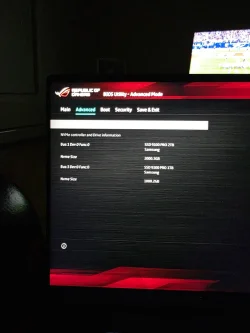
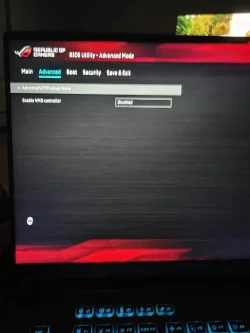
Pictures taken from my 2025 Asus Rog Strix with 2 Samsung SSD NVME 9100 Pro's.
Do you have those setting in your advanced mode?
I'm not using VMD as you can see I turned it off.
I'm not suggesting that you do that just want you to look for more options you may have missed.
Do you have those setting in your advanced mode?
I'm not using VMD as you can see I turned it off.
I'm not suggesting that you do that just want you to look for more options you may have missed.
My Computers
-
At a glance
Windows 11 & Zorin ProIntel® Core™ Ultra 9 Processor 275HX 2.7 GHz32 gbNVIDIA® GeForce RTX™ 5060 Laptop GPU- OS
- Windows 11 & Zorin Pro
- Computer type
- Laptop
- Manufacturer/Model
- Asus Rog Strix G16
- CPU
- Intel® Core™ Ultra 9 Processor 275HX 2.7 GHz
- Motherboard
- AsusteK Computer
- Memory
- 32 gb
- Graphics Card(s)
- NVIDIA® GeForce RTX™ 5060 Laptop GPU
- Sound Card
- Realtek High Definition Audio
- Monitor(s) Displays
- Laptop 16 inch
- Screen Resolution
- 2560 X 1600
- Hard Drives
- Boot: Samsung 9100 NVME 2 TB Microsoft Storage Controller: Standard NVM Express Driver: Microsoft 6/21/2006. No SATA/AHCI on my motherboard or in bios
- Mouse
- Pad
- Browser
- Google Chrome
- Antivirus
- Microsoft
- Other Info
- Printer: HP Color LaserJet MFP M477dw
-
At a glance
Windows 11 Pro, Zorin ProIntel Nuc 8i7, Intel Nuc 8i5Intel internal- Operating System
- Windows 11 Pro, Zorin Pro
- Computer type
- PC/Desktop
- Manufacturer/Model
- Intel
- CPU
- Intel Nuc 8i7, Intel Nuc 8i5
- Motherboard
- Intel
- Graphics card(s)
- Intel internal
- Monitor(s) Displays
- Dell U27
- Hard Drives
- Samsung 990 Pro
- Keyboard
- Dell USB
- Mouse
- Dell USB
- Antivirus
- Windows Defender
-
Dell 8500 Windows 10 Pro extended, Dell 8700 Windows 10 Pro extended , Hp Pavilion Linux
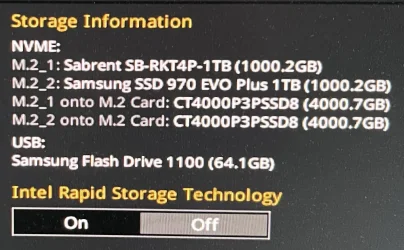
Here is a summary of what the previous screenshots show:
NVME:
M.2_1: Sabrent SB-RKT4P-1TB (1000.2GB)
M.2_2: Samsung SSD 970 EVO Plus 1TB (1000.2GB)
M.2_1 onto M.2 Card: CT4000P3PSSD8 (4000.7GB)
M.2_2 onto M.2 Card: CT4000P3PSSD8 (4000.7GB)
USB:
Samsung Flash Drive 1100 (64.1GB)
Intel Rapid Storage Technology is currently set to Off, so the NVMe drives are being exposed directly rather than through Intel RST/VMD.
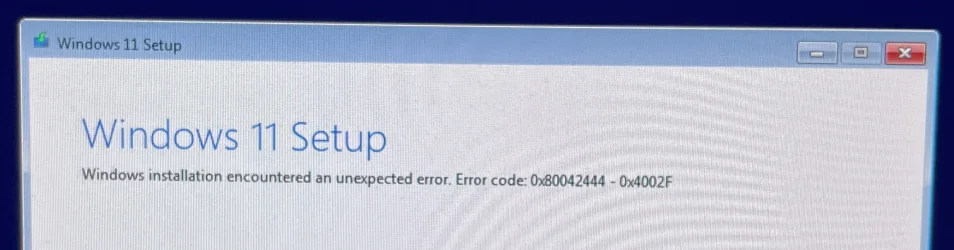
"Windows installation encountered an unexpected error. Error code: 0x80042444 - 0x4002F"
The error occurs while Windows Setup is scanning the disks. 0x80042444 means that a disk pack containing a volume is inaccessible. One of the attached drives is a dynamic disk with a Foreign status, so this may be a separate problem from whatever originally prevented the existing Windows installation from booting.
When Intel RST is enabled, this Setup error does not appear, but the NVMe drives do not appear on the "Select location to install Windows 11" screen without the appropriate RST/VMD driver.
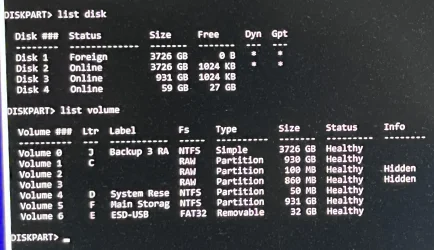
Disk 1 is a dynamic disk with a Foreign status and is a strong candidate for the Windows Setup error.
The C: volume is showing as RAW, and the hidden 100 MB and 860 MB volumes are also showing as RAW. Their sizes are consistent with partitions that could form part of a Windows installation, including an EFI System Partition and a Recovery partition, although their physical-disk association still needs to be established.
There is also an important discrepancy: the BIOS detects two 1 TB NVMe drives — the Sabrent and the Samsung — but
@Seanhunt
What happens if you temporarily disconnect all the other NVMe drives, leaving only the Sabrent Windows drive connected? Does Windows boot, and if not, does the Sabrent then appear in Windows Setup?
NVME:
M.2_1: Sabrent SB-RKT4P-1TB (1000.2GB)
M.2_2: Samsung SSD 970 EVO Plus 1TB (1000.2GB)
M.2_1 onto M.2 Card: CT4000P3PSSD8 (4000.7GB)
M.2_2 onto M.2 Card: CT4000P3PSSD8 (4000.7GB)
USB:
Samsung Flash Drive 1100 (64.1GB)
Intel Rapid Storage Technology is currently set to Off, so the NVMe drives are being exposed directly rather than through Intel RST/VMD.
"Windows installation encountered an unexpected error. Error code: 0x80042444 - 0x4002F"
The error occurs while Windows Setup is scanning the disks. 0x80042444 means that a disk pack containing a volume is inaccessible. One of the attached drives is a dynamic disk with a Foreign status, so this may be a separate problem from whatever originally prevented the existing Windows installation from booting.
When Intel RST is enabled, this Setup error does not appear, but the NVMe drives do not appear on the "Select location to install Windows 11" screen without the appropriate RST/VMD driver.
Code:
DISKPART> list disk

  Disk ###  Status         Size     Free     Dyn  Gpt
  --------  -------------  -------  -------  ---  ---
  Disk 1    Foreign        3726 GB      0 B    *    *
  Disk 2    Online         3726 GB  1024 KB    *    *
  Disk 3    Online          931 GB  1024 KB
  Disk 4    Online           59 GB    27 GB

DISKPART> list volume

  Volume ###  Ltr  Label         Fs     Type        Size     Status     Info
  ----------  ---  ------------  -----  ----------  -------  ---------  --------
  Volume 0     J   Backup 3 RA   NTFS   Simple      3726 GB  Healthy
  Volume 1     C                 RAW    Partition    930 GB  Healthy
  Volume 2                       RAW    Partition    100 MB  Healthy    Hidden
  Volume 3                       RAW    Partition    860 MB  Healthy    Hidden
  Volume 4     D   System Rese   NTFS   Partition     50 MB  Healthy
  Volume 5     F   Main Storag   NTFS   Partition    931 GB  Healthy
  Volume 6     E   ESD-USB       FAT32  Removable     32 GB  Healthy
Disk 1 is a dynamic disk with a Foreign status and is a strong candidate for the Windows Setup error.
The C: volume is showing as RAW, and the hidden 100 MB and 860 MB volumes are also showing as RAW. Their sizes are consistent with partitions that could form part of a Windows installation, including an EFI System Partition and a Recovery partition, although their physical-disk association still needs to be established.
There is also an important discrepancy: the BIOS detects two 1 TB NVMe drives — the Sabrent and the Samsung — but
list disk shows only one 931 GB physical disk.@Seanhunt
What happens if you temporarily disconnect all the other NVMe drives, leaving only the Sabrent Windows drive connected? Does Windows boot, and if not, does the Sabrent then appear in Windows Setup?
My Computers
-
At a glance
Windows 11 ProAMD Ryzen 9 9950X3DKingston FURY Beast 64GB (2x32GB) DDR5 6000MT/sASUS TUF Gaming Radeon RX 9070 OC Edition 16G...- OS
- Windows 11 Pro
- Computer type
- PC/Desktop
- CPU
- AMD Ryzen 9 9950X3D
- Motherboard
- ASRock B650E Taichi Lite
- Memory
- Kingston FURY Beast 64GB (2x32GB) DDR5 6000MT/s
- Graphics Card(s)
- ASUS TUF Gaming Radeon RX 9070 OC Edition 16GB GDDR6
- Hard Drives
- Solidigm P44 Pro 2TB M.2 NVMe SSD
-
At a glance
Windows 11 HomeIntel Core Ultra 9 275HX64GB (2x 32GB) DDR5-6400NVIDIA GeForce RTX 5080 16GB GDDR7 Laptop GPU- Operating System
- Windows 11 Home
- Computer type
- Laptop
- Manufacturer/Model
- Lenovo Legion Pro 7i Gen 10 16"
- CPU
- Intel Core Ultra 9 275HX
- Memory
- 64GB (2x 32GB) DDR5-6400
- Graphics card(s)
- NVIDIA GeForce RTX 5080 16GB GDDR7 Laptop GPU
- Hard Drives
- 2x 1TB M.2 NVMe SSD (SK Hynix)
Latest Support Threads
-
-
-
-
 Since serveral days Google is requiring a reCAPTCHA for every search term I am typing in (Firefox)
- Started by rogerrabbit
- Replies: 7
Latest Tutorials
-
 Accessibility Enable or Disable Include Screen Reader Audio in Live Captions on Windows 11
- Started by Brink
- Replies: 0
-
 Accessibility Change Lock View Shortcut for Magnifier Zoom on Multiple Displays in Windows 11
- Started by Brink
- Replies: 0
-
 Personalization Enable or Disable "Customize menu" Tip in Windows 11
- Started by Brink
- Replies: 0
-
 Personalization Add or Remove "Customize menu" on Context Menu in Windows 11
- Started by Brink
- Replies: 0
-
 Accessibility Enable or Disable Magnifier Zoom per Display in Windows 11
- Started by Brink
- Replies: 0