Impossible to use your own screensaver on the lock screen?


paradoxum

Sublimed
Member
Local time
11:37 AM
Posts
187
OS
Windows 11 [22H2] [22621.2428]
Like, if I lock my computer now, the screen will just eventually go black/turn off, it doesn't play the screensaver.
 

My Computer

System One

  • OS
    Windows 11 [22H2] [22621.2428]
    Computer type
    PC/Desktop
    Manufacturer/Model
    Culture-Virus v7.0
    CPU
    Intel Core i9-14900K 3.2 GHz 24-Core Processor
    Motherboard
    Asus ROG MAXIMUS Z790 APEX ENCORE ATX LGA1700 Motherboard
    Memory
    G.Skill Trident Z5 RGB 32 GB (2 x 16 GB) DDR5-7200 CL34 Memory
    Graphics Card(s)
    AMD Radeon RX 6950 XT
    Monitor(s) Displays
    AOC CQ27G2U/BK
    Screen Resolution
    2560x1440
    Hard Drives
    M.2 1: Samsung SSD 990 PRO 2TB
    M.2 2: Samsung SSD 970 EVO Plus 2TB
    PSU
    Corsair RM1000X SHIFT
    Case
    Phanteks NV9
    Cooling
    Custom Water / Direct-Die Cooling
    Keyboard
    Corsair K95 RGB PLATINUM XT Wired Gaming Keyboard
    Mouse
    ROCCAT LEADR Optical
    Internet Speed
    500mb Direct Fiber
    Browser
    Chrome
Yeah, that behavior is annoying, but there is a registry change that will resolve that for. Unfortunately, I have to pull the details from my primary desktop system where I keep those notes. It may be a few hours, but I'll get that to you as soon as I can.
 

My Computers

System One System Two

  • OS
    Win11 Pro 25H2 (RTM+)
    Computer type
    PC/Desktop
    Manufacturer/Model
    Acemagic
    CPU
    Intel i7-14650HX
    Memory
    32 GB
    Graphics Card(s)
    No GPU - Built-in Intel Graphics
    Sound Card
    Integrated
    Monitor(s) Displays
    Varies as machine will often be moved to locations with different monitors
    Screen Resolution
    Varies
    Hard Drives
    1 x 1TB Gen 4 NVMe SSD
    PSU
    120W Power Brick
    Keyboard
    Corsair K70 Max RGB Magnetic Keyboard
    Mouse
    Logitech MX Master 3
    Internet Speed
    1Gb Up / 1 Gb Down
    Browser
    Edge
    Antivirus
    Windows Defender
  • Operating System
    Win11 Pro 25H2 (RTM+)
    Computer type
    Laptop
    Manufacturer/Model
    Lenovo ThinkBook 13x Gen 2
    CPU
    Intel i7-1255U
    Memory
    16 GB
    Graphics card(s)
    Intel Iris Xe Graphics
    Sound Card
    Realtek® ALC3306-CG codec
    Monitor(s) Displays
    13.3-inch IPS Display
    Screen Resolution
    WQXGA (2560 x 1600)
    Hard Drives
    2 TB 4 x 4 NVMe SSD
    PSU
    USB-C / Thunderbolt 4 Power / Charging
    Keyboard
    Backlit, spill resistant keyboard
    Mouse
    Buttonless Glass Precision Touchpad
    Internet Speed
    1Gb Up / 1Gb Down
    Browser
    Edge
    Antivirus
    Windows Defender
    Other Info
    WiFi 6e / Bluetooth 5.1 / Facial Recognition / Fingerprint Sensor / ToF (Time of Flight) Human Presence Sensor
Okay, I couldn't leaving you waiting. Here is the info...

Here is a description of the problem and how to resolve it:

By default, the lock screen times out and goes to a blank screen after one minute and no way is provided in the Windows GUI to change this. After implementing the registry change below, the user will have access to a new setting in the Control Panel to change this timeout. This is especially helpful if you want to be able to see a screensaver run while on the lock screen. The registry entry will expose the new option in Control Panel in the location noted below.

Start by opening an elevated command prompt and then run the command below. It might be easiest to simply copy and paste this:

REG ADD "HKLM\SYSTEM\CurrentControlSet\Control\Power\PowerSettings\7516b95f-f776-4464-8c53-06167f40cc99\8EC4B3A5-6868-48c2-BE75-4F3044BE88A7" /v "attributes" /t REG_DWORD /d 0x00000002 /f

After making that registry change, a new option will be available to you in Control Panel. Open the Control Panel and do the following:

NOTE: Select "View by: Large icons" or "View by: Small icons" when you first open Control Panel. Select Power Options > Change plan settings > Change advanced power settings > Display > Console lock display off timeout

Change this timeout to something longer than the timeout for your screensaver. If I recall, I believe you can set this to zero to prevent the lock screen from ever going blank.

Please do let me know if this solves the issue for you!
 

My Computers

System One System Two

  • OS
    Win11 Pro 25H2 (RTM+)
    Computer type
    PC/Desktop
    Manufacturer/Model
    Acemagic
    CPU
    Intel i7-14650HX
    Memory
    32 GB
    Graphics Card(s)
    No GPU - Built-in Intel Graphics
    Sound Card
    Integrated
    Monitor(s) Displays
    Varies as machine will often be moved to locations with different monitors
    Screen Resolution
    Varies
    Hard Drives
    1 x 1TB Gen 4 NVMe SSD
    PSU
    120W Power Brick
    Keyboard
    Corsair K70 Max RGB Magnetic Keyboard
    Mouse
    Logitech MX Master 3
    Internet Speed
    1Gb Up / 1 Gb Down
    Browser
    Edge
    Antivirus
    Windows Defender
  • Operating System
    Win11 Pro 25H2 (RTM+)
    Computer type
    Laptop
    Manufacturer/Model
    Lenovo ThinkBook 13x Gen 2
    CPU
    Intel i7-1255U
    Memory
    16 GB
    Graphics card(s)
    Intel Iris Xe Graphics
    Sound Card
    Realtek® ALC3306-CG codec
    Monitor(s) Displays
    13.3-inch IPS Display
    Screen Resolution
    WQXGA (2560 x 1600)
    Hard Drives
    2 TB 4 x 4 NVMe SSD
    PSU
    USB-C / Thunderbolt 4 Power / Charging
    Keyboard
    Backlit, spill resistant keyboard
    Mouse
    Buttonless Glass Precision Touchpad
    Internet Speed
    1Gb Up / 1Gb Down
    Browser
    Edge
    Antivirus
    Windows Defender
    Other Info
    WiFi 6e / Bluetooth 5.1 / Facial Recognition / Fingerprint Sensor / ToF (Time of Flight) Human Presence Sensor

My Computer

System One

  • OS
    Windows 11 Pro
    Computer type
    PC/Desktop
    Manufacturer/Model
    Self build
    CPU
    Core i7-13700K
    Motherboard
    Asus TUF Gaming Plus WiFi Z790
    Memory
    64 GB Kingston Fury Beast DDR5
    Graphics Card(s)
    Gigabyte GeForce RTX 2060 Super Gaming OC 8G
    Sound Card
    Realtek S1200A
    Monitor(s) Displays
    Viewsonic VP2770 & Dell (secondary)
    Screen Resolution
    2560 x 1440
    Hard Drives
    Kingston KC3000 2TB NVME SSD & SATA HDDs & SSD
    PSU
    EVGA SuperNova G2 850W
    Case
    Nanoxia Deep Silence 1
    Cooling
    Noctua NH-D14
    Keyboard
    Microsoft Digital Media Pro
    Mouse
    Logitech Wireless
    Internet Speed
    80 Mb / s
    Browser
    Chrome
    Antivirus
    Defender, Malwarebytes Free & AdwCleaner
Hello! Seems I've forgotten how to computer and Win at 11.

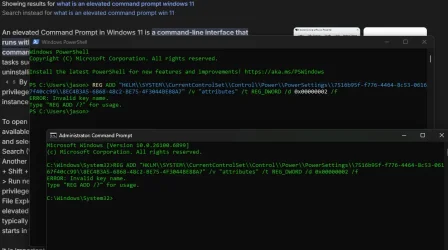
I'm not able to add the registry (thanks for the info, thus far). I typed and entered the "REG ADD /?" and read that stuff but I've never had to do that the whole 6 times in my life before to add a reg key.

What am I missing?

Thanks:

1760967534953.webp
 

My Computer

System One

  • OS
    Win 11
    Computer type
    Laptop
    Manufacturer/Model
    Razer
You didn't copy the command correctly. You've added \\ in place of \ in several places. This is sometimes required but not what H suggested for this case.

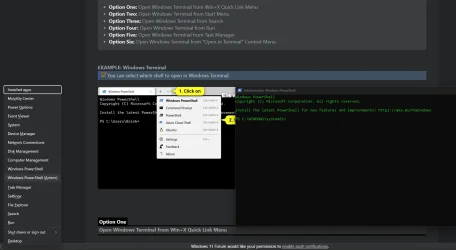
Since the command affects HKLM, you'll need to run the command in an Admin cmd window i.e Admin Terminal window in which you have selected Cmd prompt.
Open Windows Terminal- ElevenForumTutorials

I've never had to do that the whole 6 times in my life before to add a reg key
I don't understand that comment.


All the best,
Denis
 

My Computer

System One

  • OS
    Windows 11 Home x64 Version 25H2 Build 26200.8037
Hmm...I might be making a moped out of a mower here....

I tried WIN + X but I didn't get the same menu as in the screen shot. Where the forum says terminal and terminal admin, mine says powershell. Plus, I don't have a dropdown option.

Anyway, I've written registry keys in the past, sometimes by navigating all the way to the exact location to change a 0 to a 1 so, not my first time...but not an expert either.


1761085578907.webp
 

My Computer

System One

  • OS
    Win 11
    Computer type
    Laptop
    Manufacturer/Model
    Razer
Hmm...I might be making a moped out of a mower here....

I tried WIN + X but I didn't get the same menu as in the screen shot. Where the forum says terminal and terminal admin, mine says powershell. Plus, I don't have a dropdown option.

Anyway, I've written registry keys in the past, sometimes by navigating all the way to the exact location to change a 0 to a 1 so, not my first time...but not an expert either.

just unlock all power settings and you can change whatever (to include this) you want
 

My Computer

System One

  • OS
    Windows 11 Pro
Back
Top Bottom