Solved Increase Icon/Image Size of files in Recycle Bin?


pacificSurf

Well-known member
Member
Local time
12:22 PM
Posts
168
OS
windwos 11 pro
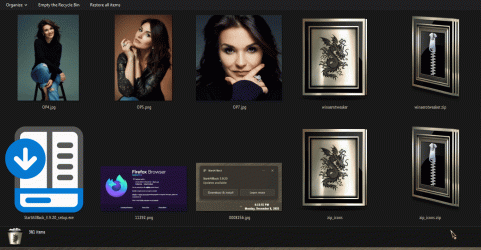
I messed with scaling and DPI tutorials that BRinks posted but that does not effect the size of the icons in my recycle bin.
I often scroll through the bin to find pictures and screenshots and its too small to see.

Yes I have EXTRA large selected. Can we tweak this in registry or something to customize it? Its the screenshots that are hard to see and thus want to increase size. Restoring hundreds of screenshots and going through them 1 by 1 is not ideal, then re-deleting them when I find the 1 I want.
 

My Computer

System One

  • OS
    windwos 11 pro
Perhaps a Preview On Mouse Hover utility would help.
There's QuickLook in the Microsoft Store, or, I believe Power Toys has something similar.

However, QTTabBar is often regarded as the Go-To for such a feature:

11300.gif
 

My Computers

System One System Two

  • OS
    Windows 11 Pro
    Computer type
    PC/Desktop
    Manufacturer/Model
    ASUS ROG Strix
  • Operating System
    Windows 11 Pro
    Computer type
    Laptop
    Manufacturer/Model
    ASUS VivoBook
Perhaps a Preview On Mouse Hover utility would help.
There's QuickLook in the Microsoft Store, or, I believe Power Toys has something similar.

However, QTTabBar is often regarded as the Go-To for such a feature:
Thanks I downloaded the Quicklook one, it's quite slow as it opens an entire preview window as if you double click on an image to view in windows photo viewer, then have to wait for it to close then move onto the next one, 1 by 1. Drove me crazy lol I unsintalled it.

I have powertoys already installed, so I should try to find out the name of that app in powertoys, otherwise ill try QTTabBar
 

My Computer

System One

  • OS
    windwos 11 pro
So the feature is called Peek in Power toys, I got it running. It is faster to open, but its still cumbersome because for each file I want to preview, I have to press the keyboard shortcut one by one, and hover my mouse over the image first.

I wish I could simply increase the file icon size of images.....
 

My Computer

System One

  • OS
    windwos 11 pro
So the feature is called Peek in Power toys, I got it running. It is faster to open, but its still cumbersome because for each file I want to preview, I have to press the keyboard shortcut one by one, and hover my mouse over the image first.

I wish I could simply increase the file icon size of images.....
best i can offer is an autohotkey script (i've attached the compiled exe too). it will launch windows magnifier in lens mode ONLY when recycle bin is opened. it will close magnifier when recycle bin is closed. because its a compiled script, windows may flag the exe an bad, but its fine. below is everything that is in the exe...

ahk code:
Code:
#Persistent
magnifierOn := false
SetTimer, CheckRecycleBin, 300
return

CheckRecycleBin:
    recycleBinOpen := false
    recycleBinCLSID := "::{645FF040-5081-101B-9F08-00AA002F954E}"

    ; Check ALL Explorer windows, not just the active one
    for window in ComObjCreate("Shell.Application").Windows {
        try {
            path := window.Document.Folder.Self.Path
            if (path = recycleBinCLSID) {
                recycleBinOpen := true
                break
            }
        }
    }

    ; --- Recycle Bin OPEN ---
    if (recycleBinOpen) {
        if (!magnifierOn) {
            ; Turn on Magnifier
            Send, #{=}
            Send, ^!{l}
            Sleep, 150

            ; Wait for Magnifier window and minimize it
            WinWait, ahk_exe magnify.exe, , 2
            WinActivate, Magnifier
            Send, #{Down}

            magnifierOn := true
        }
        return
    }

    ; --- Recycle Bin CLOSED ---
    if (magnifierOn) {
        Send, #{Esc}    ; Turn off Magnifier
        magnifierOn := false
    }
return


also, you can apply this registry key to make it + or - by 5% instead of 100% per click on magnifier

Code:
Windows Registry Editor Version 5.00

[HKEY_CURRENT_USER\Software\Microsoft\ScreenMagnifier]
"ZoomIncrement"=dword:00000005
 

Attachments

My Computer

System One

  • OS
    Windows 11 Pro
best i can offer is an autohotkey script (i've attached the compiled exe too). it will launch windows magnifier in lens mode ONLY when recycle bin is opened. it will close magnifier when recycle bin is closed. because its a compiled script, windows may flag the exe an bad, but its fine. below is everything that is in the exe...

ahk code:
Code:
#Persistent
magnifierOn := false
SetTimer, CheckRecycleBin, 300
return

CheckRecycleBin:
    recycleBinOpen := false
    recycleBinCLSID := "::{645FF040-5081-101B-9F08-00AA002F954E}"

    ; Check ALL Explorer windows, not just the active one
    for window in ComObjCreate("Shell.Application").Windows {
        try {
            path := window.Document.Folder.Self.Path
            if (path = recycleBinCLSID) {
                recycleBinOpen := true
                break
            }
        }
    }

    ; --- Recycle Bin OPEN ---
    if (recycleBinOpen) {
        if (!magnifierOn) {
            ; Turn on Magnifier
            Send, #{=}
            Send, ^!{l}
            Sleep, 150

            ; Wait for Magnifier window and minimize it
            WinWait, ahk_exe magnify.exe, , 2
            WinActivate, Magnifier
            Send, #{Down}

            magnifierOn := true
        }
        return
    }

    ; --- Recycle Bin CLOSED ---
    if (magnifierOn) {
        Send, #{Esc}    ; Turn off Magnifier
        magnifierOn := false
    }
return


also, you can apply this registry key to make it + or - by 5% instead of 100% per click on magnifier

Code:
Windows Registry Editor Version 5.00

[HKEY_CURRENT_USER\Software\Microsoft\ScreenMagnifier]
"ZoomIncrement"=dword:00000005

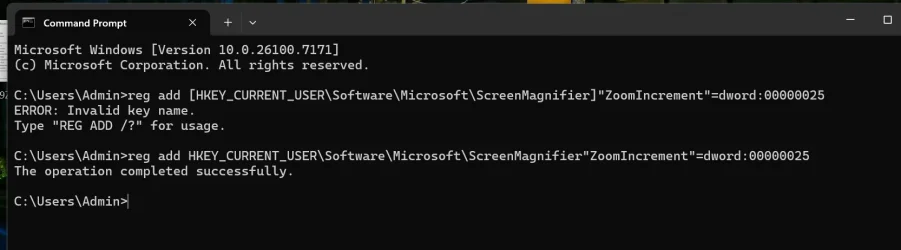
Thanks I got the AHK script working, but now for the Registry key, how would I paste it into CMD to add that key? I tried a few versions and one said "operation succefuly" but I dont see it showing up in regedit in that section
ywGOql6VB6.webp
 

My Computer

System One

  • OS
    windwos 11 pro
Thanks I got the AHK script working, but now for the Registry key, how would I paste it into CMD to add that key? I tried a few versions and one said "operation succefuly" but I dont see it showing up in regedit in that section
View attachment 157343
Code:
REG ADD "HKEY_CURRENT_USER\Software\Microsoft\ScreenMagnifier" /v ZoomIncrement /t REG_DWORD /d 5 /f
 

My Computer

System One

  • OS
    Windows 11 Pro
Code:
REG ADD "HKEY_CURRENT_USER\Software\Microsoft\ScreenMagnifier" /v ZoomIncrement /t REG_DWORD /d 5 /f
Ah perfect, thanks so much! now it just does it for recycle bin, that's perfect! And I already had autokey installed for something else, so worked out well.
 

My Computer

System One

  • OS
    windwos 11 pro

Latest Support Threads

Back
Top Bottom