This tutorial will show you different ways to install a CAB file in Windows 10 and Windows 11.
A cabinet is a single file, usually with a .cab extension, that stores compressed files in a file library. The cabinet format is an efficient way to package multiple files because compression is performed across file boundaries, which significantly improves the compression ratio.
If you have a Windows Update in a CAB format, you can use the command prompt or PowerShell to install it.
If you have a driver (ex: Realtek) in a CAB format, you can extract the CAB and use Device Manager to install it.
You must be signed in as an administrator to install a CAB file.
- Option One: Install CAB File using Context Menu
- Option Two: Install CAB File in Command Prompt
- Option Three: Install CAB File in PowerShell
- Option Four: Install CAB File for Driver in Device Manager
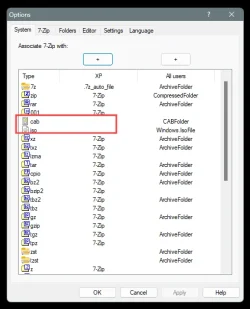
If you have the .cab file extension type associated to open with a third party app (ex: 7Zip, WinZip, WinRAR, etc...) by default, the Install context menu item added from this option will not show until you restore the default association for the .cab file type.
1 Add the Install CAB context menu if you haven't already.
Add Install CAB Context Menu in Windows 11
 www.elevenforum.com
2 When you right click on a .cab file you want to install, you will need to click/tap on Show more options first, then click/tap on Install.
1 Open Terminal (Admin), and select either Windows PowerShell or Command Prompt.
2 Type the command below into Terminal, and press Enter. (see screenshot below)
dism /online /Add-Package /PackagePath:"<Full path of .cab file with extension>"Substitute <full path of CAB file with extension> in the command above with the actual full path of the CAB file you want to install.
For example: dism /online /Add-Package /PackagePath:"C:\Users\Brink\OneDrive\Desktop\Example.cab"

Add-WindowsPackage (Dism)
1 Open Terminal (Admin), and select either Windows PowerShell or Command Prompt.
2 Type the command below into Terminal, and press Enter. (see screenshot below)
Add-WindowsPackage -Online -PackagePath "<Full path of .cab file with extension>"Substitute <full path of CAB file with extension> in the command above with the actual full path of the CAB file you want to install.
For example: Add-WindowsPackage -Online -PackagePath "C:\Users\Brink\OneDrive\Desktop\Example.cab"
1 Extract all files from the CAB file into a folder of your choice.
2 Open Device Manager (devmgmt.msc).
3 Right click on the device (ex: "Realtek High Definition Audio") you want to install a driver from the CAB, and click/tap on Update driver. (see screenshot below)
4 Click/tap on Browse my computer for drivers. (see screenshot below)
5 Follow the steps below to install the driver (inf) from the CAB for this device: (see screenshots below)
- Click/tap on Browse.
- Navigate to and select the folder you extracted all files from the CAB.
- Click/tap on OK.
- Click/tap on Next.
6 Click/tap on Close when the driver has finished installing.
That's it,
Shawn Brink