Solved Installing windows from usb created by Rufus


vsub

Active member
Member
VIP
Local time
3:09 AM
Posts
207
OS
Windows 11
I create an usb win11 installation with Rufus few months ago but I don't remember what I choose in the "Partition Schemes"
When I run the installation(boot from the usb)I get an error

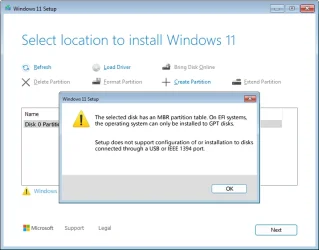
The selected disk has an MBR partition table.On EFI systems,the operation can only be installed on GPT disks
Setup does not support configuration of or installation on disks connected through a USB or IEEE 1394 port

What does this mean?
That I choose the wrong option in Rufus or what
When I boot back to windows(current installation)and check the disk on which windows is installed on
Right click on the drive=>Properties=>Hardware=>select the drive=>Properties=>Volume=>Populate=>in Partition Style it says GUID partition Table(GPT)

So why does it say that the partition table during the installation is MBR
The options to format the partition are grayed out

Does it mean I create the installation with Rufus by using the wrong partition scheme?
 

My Computer

System One

  • OS
    Windows 11
    Computer type
    Laptop
    Manufacturer/Model
    MSI Sword 17 HX
    CPU
    14700HX
    Memory
    64GB
    Graphics Card(s)
    RTX 4070
Why are you trying to do a clean install? The MSI Sword 17 HX is a quite new computer so why don't you do a Reset?
Why are you using Rufus?
Steps to Configure Rufus for UEFI:
  1. Open Rufus and select your USB drive.
  2. Select your ISO file by clicking "Select".
  3. Set Partition scheme to GPT.
  4. Set Target system to UEFI (non CSM).
  5. Set file system to FAT32.
  6. Click Start to create the bootable drive.
I suggest you build the USB Win 11 25h2 installation drive using MCT

To install as UEFI - GPT you must boot the Win 11 installation drive (Rufus or MCT) as UEFI
During POST, press F12(?) to launch the boot menu. You will see two options for the USB drive. USB UEFI (Name) and USB (Name). Select USB UEFI (Name) to install as UEFI-GPT.
Go to install and delete ALL partitions on the main drive till you have one and only one unallocated space and then proceed.
 
Last edited:

My Computers

System One System Two

  • OS
    Windows 11 Pro - Windows 7 HP 64 - Lubuntu
    Computer type
    PC/Desktop
    Manufacturer/Model
    custom build
    CPU
    i5 6600K - 800MHz to 4400MHz
    Motherboard
    GA-Z170-HD3P
    Memory
    4+4G GSkill DDR4 3000
    Graphics Card(s)
    IG - Intel 530
    Monitor(s) Displays
    Samsung 226BW
    Screen Resolution
    1680x1050
    Hard Drives
    (1) -1 SM951 – 128GB M.2 AHCI PCIe SSD drive for Win 11
    (2) -1 WD SATA 3 - 1T for Data
    (3) -1 WD SATA 3 - 1T for backup
    (4) -1 BX500 SSD - 256G for Windows 7 and Lubuntu
    PSU
    Thermaltake 450W TR2 gold
    Keyboard
    Old and good Chicony mechanical keyboard
    Mouse
    Logitech mX performance - 9 buttons (had to disable some)
    Internet Speed
    500 Mb/s
    Browser
    Firefox 64
  • Operating System
    Windows 11 Pro
    Computer type
    Laptop
    Manufacturer/Model
    Asus Q550LF
    CPU
    i7-4500U 800- 3000MHz
    Motherboard
    Asus Q550LF
    Memory
    (4+4)G DDR3 1600
    Graphics card(s)
    IG intel 4400 + NVIDIA GeForce GT 745M
    Sound Card
    Realtek
    Monitor(s) Displays
    LG Display LP156WF4-SPH1
    Screen Resolution
    1920 x 1080
    Hard Drives
    BX500 120G SSD for Windows and programs
    & 1T HDD for data
    Internet Speed
    500 Mb/s
    Browser
    Firefox 64
I have multiple weird problems I have no idea what is causing them(I did ask before but I did not find a solution)
I create a new windows installation on a flash drive using the option WindowsToGo and there none of the problem I have on the current installation exist
I tried using the option to reinstall windows by keeping all of my programs and files but that did not fix the problems(there must be some program or drivers that is causing all of my problems but I have no idea what)

I think it's been an year and a half since I get the laptop with windows almost installed(I just had to finish the setup)

As for why I am using Rufus,it is because the normal installation forces you to create a Microsoft account which is something I never needed and still don't in over 20 years of using different versions of windows
I don't use nor need any of the windows features that requires windows account.

I am creating the installation using GPT now(it will take some time)
 

My Computer

System One

  • OS
    Windows 11
    Computer type
    Laptop
    Manufacturer/Model
    MSI Sword 17 HX
    CPU
    14700HX
    Memory
    64GB
    Graphics Card(s)
    RTX 4070
Rufus will automatically create a UEFI-bootable Windows 11 installation USB drive.

If you want, you can check the following setting:

Partition scheme: GPT

Note that the "Target system" and "File system" options will change automatically.

In addition to the NTFS partition, Rufus also creates a small FAT partition (labeled UEFI_NTFS) where the UEFI:NTFS bootloader is located.

The selected disk has an MBR partition table.On EFI systems,the operation can only be installed on GPT disks
Setup does not support configuration of or installation on disks connected through a USB or IEEE 1394 port

So why does it say that the partition table during the installation is MBR
The options to format the partition are grayed out

"The selected disk has an MBR partition table. On EFI systems, the operating system can only be installed to GPT disks.

Setup does not support configuration of or installation to disks connected through a USB or IEEE 1394 port."

Error message.webp

If the error message only had the top error message shown in the screenshot, it would mean:

This error message indicates that you have booted the Windows 11 USB flash drive in UEFI mode, but the disk is using the MBR partition style. Windows cannot be installed because the boot mode does not match the partition style.

But if the error message also includes the second error message shown in the screenshot, it means:

Windows Setup is unable to properly detect or access the internal storage drive because the Intel Rapid Storage Technology (IRST) VMD controller driver is missing. As a result, the installer may misidentify the disk or report misleading errors (such as MBR/GPT issues or unsupported installation locations).

To fix this, you can either:

- Disable VMD (Volume Management Device) in the BIOS, then install Windows 11 normally, or

- Load the Intel RST (IRST) VMD driver during Windows Setup, so the installer can correctly detect the internal drive.

As for why I am using Rufus,it is because the normal installation forces you to create a Microsoft account

If you want to set up a local account, just use the start ms-cxh:localonly command:


My Computers

System One System Two

  • OS
    Windows 11 Pro
    Computer type
    PC/Desktop
    CPU
    AMD Ryzen 9 9950X3D
    Motherboard
    ASRock B650E Taichi Lite
    Memory
    Kingston FURY Beast 64GB (2x32GB) DDR5 6000MT/s
    Graphics Card(s)
    ASUS TUF Gaming Radeon RX 9070 OC Edition 16GB GDDR6
    Hard Drives
    Solidigm P44 Pro 2TB M.2 NVMe SSD
  • Operating System
    Windows 11 Home
    Computer type
    Laptop
    Manufacturer/Model
    Lenovo Legion Pro 7i Gen 10 16"
    CPU
    Intel Core Ultra 9 275HX
    Memory
    64GB (2x 32GB) DDR5-6400
    Graphics card(s)
    NVIDIA GeForce RTX 5080 16GB GDDR7 Laptop GPU
    Hard Drives
    2x 1TB M.2 NVMe SSD (SK Hynix)
After I create the installation with Rufus and choose GPT,now I have only the bottom error about not able to install it from the usb and again,all options except refresh and load driver are disabled

When,I install the VMD driver,then all partition show up and I was able to select the windows partition so problems solved,thanks
 

My Computer

System One

  • OS
    Windows 11
    Computer type
    Laptop
    Manufacturer/Model
    MSI Sword 17 HX
    CPU
    14700HX
    Memory
    64GB
    Graphics Card(s)
    RTX 4070

Latest Support Threads

Back
Top Bottom