UPDATE 3/18:
 www.elevenforum.com
Hello Windows Insiders, today we’re releasing Windows 11 Build 26100.3321 (KB5052093) to Insiders in the Release Preview Channel on Windows 11, version 24H2 (Build 26100).
Below is a summary of the new features and improvements included as part of this update separated into two sections: gradual rollout and normal rollout. The bold text within the brackets indicates the item or area of the change we are documenting.
KB5053656 Windows 11 Insider Release Preview build 26100.3613 (24H2) - March 18
UPDATE 3/24: https://www.elevenforum.com/t/kb5053656-windows-11-insider-release-preview-build-26100-3624-24h2-march-24.34560/ Windows Blogs: Hello Windows Insiders, today we’re releasing Windows 11 Build 26100.3613 (KB5053656) to Insiders in the Release Preview Channel on Windows 11, version...
www.elevenforum.com
Windows Blogs:
Hello Windows Insiders, today we’re releasing Windows 11 Build 26100.3321 (KB5052093) to Insiders in the Release Preview Channel on Windows 11, version 24H2 (Build 26100).
Below is a summary of the new features and improvements included as part of this update separated into two sections: gradual rollout and normal rollout. The bold text within the brackets indicates the item or area of the change we are documenting.
Gradual rollout
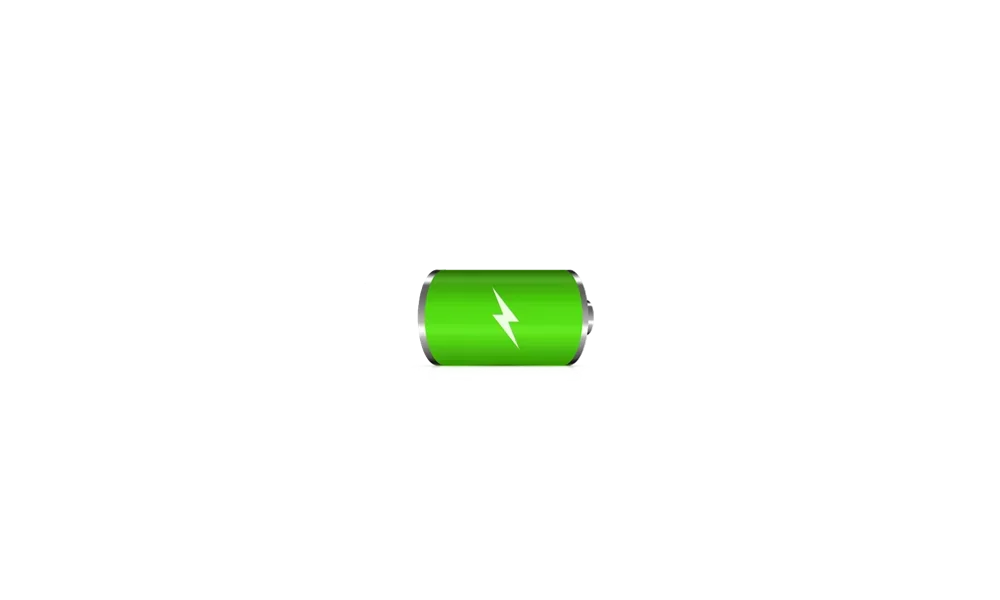
The following features and improvements might not be available to all users because they will roll out gradually. Text bolded in brackets indicate the area of the change being documented.[Battery]New! Improved icons show your battery status with just a quick glance. When your battery icon is green, your PC is charging and in a good state. Yellow means that your PC battery is in energy saving mode. Windows makes this change for you when your battery power is less than or equal to 20%. Red means battery power is low, and you must plug in your PC as soon as possible. We’re also introducing the ability to show your battery percentage next to the battery icon in the system tray which can be enabled via Settings > Power & battery and toggling on the “Battery Percentage” setting.[UPDATE 2/25] We have stopped the roll out of this change to address some issues. We plan to begin rolling it out in a future update soon.
Enable or Disable Show Battery Percentage on Taskbar in Windows 11
This tutorial will show you how to turn on or off displaying the battery percentage on the taskbar for your account in Windows 11. By default, you can always check your PC's battery status and more when you hover over the battery icon in the taskbar system tray. Starting with Windows 11 build...
www.elevenforum.com
- [Taskbar]
- New! You can now share files directly from a jump list on the taskbar. Jump lists appear when you right-click an app that has a jump list.

Share File with App in Windows 11
This tutorial will show you how to share a file with an app in Windows 11. Windows Share in Windows 11 allows you to share file(s) with an app to send from. Starting with Windows 11 build 22631.3810, Microsoft is rolling out the ability to copy files from the Windows share window. Just click...
www.elevenforum.com
- Fixed: It might identify an HDD as an SSD.

Check if HDD, SSD, or NVMe Disk Drive in Windows 11
This tutorial will show you how to quickly check if a disk drive is a HDD, SSD, or NVMe type in Windows 10 and Windows 11. Hard disk drive (HDD) = This is the older mechanical magnetic spinner disk. While HDDs are slower than SSD or NVMe, a HDD does offer much larger storage capacity at a...
www.elevenforum.com
- New! You can now share files directly from a jump list on the taskbar. Jump lists appear when you right-click an app that has a jump list.
- [Windows Spotlight]
- New! There’s a quick and easy way to find out more information about a background image. Simply hover over the image or click the “Learn about this picture” icon.
- New! This update makes Windows Spotlight easier to find. You’ll notice changes to the icon color and background. Also, the icon will show at the lower right area on your desktop.

Add or Remove "Learn about this picture" Desktop icon in Windows 11
This tutorial will show you how to add or remove the Learn about this picture desktop icon when using Windows Spotlight as your desktop background for your account in Windows 11 and Windows 10. When you choose to have Windows Spotlight as your desktop background or theme, it will add a Learn...
www.elevenforum.com
- [Lock screen] New! This update makes it easier to learn more about the image on your lock screen when you click the “Like” icon.
- [Narrator] New! There are new functions for Narrator scan mode. Skip past links
 allows you to go to the text after a link. Use the comma (,) to jump to the start of an item (large table, long list, or another item.) Use the period (.) to jump to the end of an item. This is most helpful when you read long emails, news articles, and wiki pages. Jump to lists (l) allows you to quickly access a list on a web page or in a document. To use these new functions, turn on Narrator first (Windows logo key + Ctrl + Enter). Then turn scan mode on by pressing Caps lock + Spacebar. Note that scan mode is on by default on most web pages (like news articles, wiki page, and so on).
Turn On or Off Narrator Scan Mode in Windows 11
This tutorial will show you how to use and turn on or off scan mode in Narrator for your account in Windows 11. Narrator is a screen reader included with Windows 11 that describes what's on your screen. It lets you use your PC without a mouse to complete common tasks if you’re blind or have low...
www.elevenforum.com
- [Game Pass Ultimate and PC Game Pass subscribers] New! Some of you might see a new referral card for a PC Game Pass subscription on the Settings home page. With it, you can invite friends and family to try a PC Game Pass for free. If you qualify, the card only appears when you sign in to your PC using your Microsoft account.

Add or Remove Settings Home page in Windows 11
This tutorial will show you how to add or remove the Home page in Settings for all users in Windows 11. Starting with Windows 11 version 22H2 KB5030310 Build 22621.2361, Microsoft is introduced a new homepage in Settings that offers you a dynamic and personalized experience. It provides an...
www.elevenforum.com
- [File Explorer]
- New! You can now snooze or turn off the “Start backup” reminder in the File Explorer address bar. This only applies if you are not already backing up your files and folder. To view this new option, right-click Start backup.

Turn On or Off OneDrive Folder Backup Syncing Across Windows 11 Devices
This tutorial will show you how to turn on or off OneDrive folder backup and sync for your Microsoft account across all your Windows 10 and Windows 11 devices you sign in with the same Microsoft account. You can use OneDrive to sync files and folders between your computer and the cloud, so you...
www.elevenforum.com
- Fixed: Improves performance when it loads folders that have a large number of media files.
- Fixed: When you enter a URL in the address bar, it might not go to the location.
- Fixed: The address bar overlaps files when you use the F11 full-screen mode.
- Fixed: The context menu opens slowly when you right-click cloud files.
- Thumbnails for cloud files display more consistently in search results.
- New! You can now snooze or turn off the “Start backup” reminder in the File Explorer address bar. This only applies if you are not already backing up your files and folder. To view this new option, right-click Start backup.
- [HTML Help Viewer] New! This update adds text scaling support.
- [Start menu] Fixed: The colors are wrong when you open the account manager flyout menu. This occurs when you use a mixed dark and light custom mode in Settings > Personalization > Colors.
- [Scanners] Fixed: Apps might not recognize a scanner is available when it is connected.
Last edited: