Insider KB5053656 Windows 11 Insider Release Preview build 26100.3624 (24H2) - March 24


UPDATE 4/10:


 Windows Blogs:

Hello Windows Insiders, today we’re releasing Windows 11 Build 26100.3624 (KB5053656) to Insiders in the Release Preview Channel on Windows 11, version 24H2 (Build 26100).

This update includes all of the same improvements and fixes from Build 26100.3613 plus the additional features gradually rolling out for Snapdragon-powered Copilot+ PCs.

Gradual rollout

The following features and improvements might not be available to all users because they will roll out gradually. Text bolded in brackets indicate the area of the change being documented.

[Improved Windows Search]
  • New! Finding your documents, photos, and settings across Windows 11 is easier on Copilot+ PCs with improved Windows Search, powered by semantic indexing models along with traditional lexical indexing. Whether it’s searching in File Explorer, in the Windows Search on your taskbar, or in Settings – just type what’s on your mind to find it on your Copilot+ PC. You no longer need to remember file names, exact words in file content, or settings names. Searching for settings like “change my theme” will work within the Settings app for now. Thanks to the power of the 40+ TOPS NPU onboard Copilot+ PCs, these search improvements work even when you’re not connected to the internet. For more info, see semantic search on Copilot+ PCs. Available on Snapdragon-powered Copilot+ PCs, with support for AMD and Intel-powered Copilot+ PCs coming soon.
  • New! Locating your photos stored and saved in the cloud is getting simpler on Copilot+ PCs You can use your own words in the search box at the top right corner of File Explorer like “summer picnics”. In addition to photos stored locally on your Copilot+ PC, photos from the cloud will now show up in the search results together. Exact matches for your keywords within the text of your cloud files will also show in the search results. You can try this experience out today with your personal OneDrive when signed in with your Microsoft account and connected to the internet. To learn more, see semantic search on Copilot+ PCs. Available on Snapdragon-powered Copilot+ PCs, with support for AMD and Intel-powered Copilot+ PCs coming soon.

Thanks,
Windows Insider Program Team


 Source:


Check Windows Updates


UUP Dump:

64-bit ISO download:

ARM64 ISO download:

 
Last edited:
Microsoft uses Dev, Beta..etc and other channels for A/B experimental feature testing and development. This experimental code may also be included in consumer builds 26100.x, These features under development use CFR control to determine which channels should be activated.

Like "Task Manager calculates CPU utilization" feature, This feature code was introduced in the previous build 26100.3321. I have activated this feature.
I know all that.
I was hoping there was a list of the CFR keys with the explanation of what feature they actually control. There are cases when they reuse the same CFR number to control a different feature.
I have seen that happening with the vivetool IDs. They reuse them in different Builds for different features. 😝🤬
 

My Computer

System One

  • OS
    Windows 11 Pro 25H2
    Computer type
    PC/Desktop
    Manufacturer/Model
    Dell XPS 8930
    CPU
    Intel I9-9900K
    Memory
    64GB
    Graphics Card(s)
    NVIDIA RTX 2060
    Sound Card
    NVIDIA High Definition Audio
    Monitor(s) Displays
    4k Samsung
    Screen Resolution
    3840 x 2160
    Hard Drives
    512GB NVMe, ADATA SU 800, 2TB HDD
I know all that.
I was hoping there was a list of the CFR keys with the explanation of what feature they actually control. There are cases when they reuse the same CFR number to control a different feature.
I have seen that happening with the vivetool IDs. They reuse them in different Builds for different features. 😝🤬

vivetool IDs are of the same type as CFR, which is the real IDs number. The Vivetool Tools access the CFR registry.
 

My Computer

System One

  • OS
    Windows 11, version 25H2 (26200)
    Computer type
    PC/Desktop
    CPU
    AMD Ryzen 9 9950X 16-Core Processor
    Motherboard
    ASRock B650M PG Riptide
    Memory
    DDR5-6000 (CL36) 64.0 GB
    Graphics Card(s)
    NVIDIA GeForce RTX 4090
    PSU
    1200W
    Case
    Phanteks Enthoo Pro 2
    Cooling
    Noctua NH-D12L
vivetool IDs are of the same type as CFR, which is the real IDs number. The Vivetool Tools access the CFR registry.
The problem is that they don't publish what each CFR is used for, and there is no easy way to find out. 😝🤬
They use the insiders a Guinea pigs for their experiments. Then they take an eternity to fix the bugs that they keep adding. 🤣🤣🤣
 

My Computer

System One

  • OS
    Windows 11 Pro 25H2
    Computer type
    PC/Desktop
    Manufacturer/Model
    Dell XPS 8930
    CPU
    Intel I9-9900K
    Memory
    64GB
    Graphics Card(s)
    NVIDIA RTX 2060
    Sound Card
    NVIDIA High Definition Audio
    Monitor(s) Displays
    4k Samsung
    Screen Resolution
    3840 x 2160
    Hard Drives
    512GB NVMe, ADATA SU 800, 2TB HDD
Downloading...26.100.3624...will report if I run into problems.
 

My Computer

System One

  • OS
    Win11 Release Beta channel
    Computer type
    PC/Desktop
    Manufacturer/Model
    a cherry-picked assembly
    CPU
    AMD R7 7800X3D
    Motherboard
    MSI x870 Tomahawk Wi-Fi, 8-layer, 2 oz copper, server PCB
    Memory
    GSkill 2x16GB @ 6400MT/s
    Graphics Card(s)
    XFX 9070 XT SWIFT tri-fan (PCIe5.0)
    Sound Card
    Creative Labs G8 USB External Sound device, Gaming DAC, Sound Card & Earphone AMP.. HIGHLY RECOMMENDED, btw. Totally changed my opinion of external USB sound. I like!...;)
    Monitor(s) Displays
    Philips 43" Momentum DisplayHDR 1000-certified
    Screen Resolution
    3840x2160
    Hard Drives
    *Boot: Samsung 980 Pro 2 TB NVMe (PCIe4x4)
    *Samsung 980 EVO NVMe 500GB (PCIe 4x4)
    *Kingston SNV3S2000G 2TB NVMe (PCIe4x4)
    *Samsung 960 EVO 250GB NVMe(PCIe3x2)
    *8TB Toshiba x300 HDD
    *ST4000DM004 S3 4TB HDD
    PSU
    Gigabyte 850W Gold, Rev 2
    Case
    Lian Li Lancool 217, white, with wood trim, very nice looking--tired of black, 5-fans standard
    Cooling
    Air coutesy Lian Li
    Keyboard
    Cherry MX 2.0S RGB
    Mouse
    Razer Basilisk V3 24k DPI
    Internet Speed
    ~950Mbps down and up!
    Browser
    Firefox x64 DE
    Antivirus
    Defender
    Other Info
    Great New system. Exceeds my expectations by quite a bit, btw. I love the USB G8 SoundBlaster, it's quite an improvement over the G6!
Explorer "See more" menu still not fixed on my laptop.
 

My Computers

System One System Two

  • OS
    Windows 11 Pro 24H2
    Computer type
    PC/Desktop
    Manufacturer/Model
    Multi
    CPU
    Intel i9-9900k
    Motherboard
    Gigabyte Z390 Aorus Master
    Memory
    Corsair Vengeance LPX 32GB (2 x 16GB)
    Graphics Card(s)
    Gigabyte RTX 2080Ti Gaming OC
    Monitor(s) Displays
    Samsung LC32HGQ
    Screen Resolution
    WQHD
    Hard Drives
    Samsung 970 Evo Plus 1 TB
    Crucial MX100 512 GB
    Samsung 840 Pro 256 GB
    Seagate ST4000DM000-1F2168 4 TB
    PSU
    Seasonic P-860 Platinium
    Case
    Corsair Graphite 780T
    Cooling
    Noctua NH-U14S
    Keyboard
    Corsair K70 MK.2 Low profile
    Mouse
    Logitech G Pro HERO
    Internet Speed
    200 Mb/s
    Browser
    Mozilla Firefox
    Antivirus
    Windows Defender
    Other Info
    BIOS version F11
  • Operating System
    Windows 11 Home 24H2
    Computer type
    Laptop
    Manufacturer/Model
    Clevo W650KJ1
    CPU
    Intel i5 7500
    Motherboard
    Clevo W65KK/KJ1
    Memory
    2×8 Go Corsair Vengeance 2400Mhz DDR4
    Graphics card(s)
    Nvidia GeForce GTX 1050
    Sound Card
    Integrated
    Screen Resolution
    1920x1080
    Hard Drives
    Samsung 850 Evo M.2 SATA 250 GB
    Seagate ST1000LM035 1 TB
    Browser
    Mozilla Firefox
    Antivirus
    Windows Defender
    Other Info
    Replaced original Wi-Fi card by an Intel® Wireless-AC 9260
    BIOS version 1.05.13

My Computer

System One

  • OS
    Windows 11 Pro 25H2
    Computer type
    PC/Desktop
    Manufacturer/Model
    Dell XPS 8930
    CPU
    Intel I9-9900K
    Memory
    64GB
    Graphics Card(s)
    NVIDIA RTX 2060
    Sound Card
    NVIDIA High Definition Audio
    Monitor(s) Displays
    4k Samsung
    Screen Resolution
    3840 x 2160
    Hard Drives
    512GB NVMe, ADATA SU 800, 2TB HDD

My Computers

System One System Two

  • OS
    Windows 11 25H2
    Computer type
    Laptop
    Manufacturer/Model
    Alienware 18 Area-51
    CPU
    Intel Core Ultra 9 275HX (24-Core)
    Motherboard
    Alienware
    Memory
    64GB DDR5 6400MT/s
    Graphics Card(s)
    NVIDIA GeForce RTX 5080 and Intel UHD Graphics
    Sound Card
    Onboard, Realtek high-performance Audio chips (ALC3329 & ALC1708))
    Monitor(s) Displays
    300HZ 18-inch QHD 500 nit Comfort View+
    Screen Resolution
    2560 x 1600
    Hard Drives
    2TB NVMe M.2 PCIe Gen 5 SSD
    Case
    Magnesium Alloy
    Cooling
    Advanced Cryo-Tech Quad-Fan Cooling system & large vapor chamber
    Keyboard
    Cherry MX ultra low profile mechanical keyboard with per key AlienFX RGB lighting
    Mouse
    Logitech MX Master 4
    Browser
    Vivaldi (main), Firefox, Chrome, Edge
    Antivirus
    MS Defender and Malwarebytes Free
  • Operating System
    Windows 11 25H2
    Computer type
    Laptop
    Manufacturer/Model
    Microsoft Surface Laptop 7
    CPU
    Qualcomm Snapdragon X Elite (12 Core) ARM based CPU
    Motherboard
    Microsoft Corp.
    Memory
    16GB LPDDR5
    Graphics card(s)
    Qualcomm Adreno X1-85
    Sound Card
    Omnisonic speakers with Dolby Atmos spatial sound
    Monitor(s) Displays
    120 Hz 13.8-inch 600 nit PixelSense Flow touchscreen
    Screen Resolution
    2304x1536
    Hard Drives
    1TB NVMe Gen 4 SSD
    Case
    Anodized Aluminum
    Cooling
    Traditional active cooling fan system
    Keyboard
    Mechanical QWERTY, backlit when in use
    Mouse
    Logitech MX Master 4 and Surface Arc Mouse
    Browser
    Vivaldi (main), Firefox, Chrome, Edge
    Antivirus
    MS Defender and Malwarebytes Free

My Computers

System One System Two

  • OS
    Win 11 Pro (25H2 RP)
    Computer type
    Laptop
    Manufacturer/Model
    Acer AN515-54
    CPU
    Intel(R) Core(TM) i5-9300H CPU @ 2.40GHz 2.40 GHz
    Memory
    32GB
    Graphics Card(s)
    Nvidia GeForce GTX 1650, Intel UHD 630
    Monitor(s) Displays
    Acer CB272D
    Screen Resolution
    1920x1080
    Hard Drives
    256GB and 1T SSD
    Internet Speed
    500MB
    Browser
    Edge (Stable)
    Antivirus
    Microsoft Defender
  • Operating System
    Win 11 Pro (RP)
    Computer type
    Laptop
    Manufacturer/Model
    Lenovo Legion 5 16IAX10 - Type 83NX
    CPU
    Intel(R) Core(TM) Ultra 9 275HX (2.70 GHz)
    Memory
    32GB DDR5-5600
    Graphics card(s)
    NVIDIA® GeForce RTX™ 5060 8GB
    Monitor(s) Displays
    Acer CB272D
    Screen Resolution
    1920x1080 75Hz
    Hard Drives
    WD Green SN3000 (2TB)
    Samsung Portable T5 (2TB)
    Keyboard
    Logi MX Keys
    Mouse
    Logi MX Anywhere 3
    Internet Speed
    500MB
    Browser
    Edge
    Antivirus
    MS Defender

My Computers

System One System Two

  • OS
    Windows 11 Pro for Workstations
    Computer type
    PC/Desktop
    Manufacturer/Model
    Custom self build
    CPU
    Intel i7-8700K 5 GHz
    Motherboard
    ASUS ROG Maximus XI Formula Z390
    Memory
    64 GB (4x16GB) G.SKILL TridentZ RGB DDR4 3600 MHz (F4-3600C18D-32GTZR)
    Graphics Card(s)
    ASUS ROG-STRIX-GTX1080TI-O11G-GAMING (11GB GDDR5X)
    Sound Card
    Integrated Digital Audio (S/PDIF)
    Monitor(s) Displays
    2 x Samsung Odyssey G75 27"
    Screen Resolution
    2560x1440
    Hard Drives
    1TB Samsung 990 PRO M.2,
    4TB Samsung 990 PRO M.2,
    TerraMaster F8 SSD Plus NAS
    PSU
    Seasonic Prime Titanium 850W
    Case
    Thermaltake Core P3 wall mounted
    Cooling
    Corsair Hydro H115i
    Keyboard
    Amazon Basics Wired Full Keyboard MD005
    Mouse
    Logitech MX Master 4
    Internet Speed
    2 Gbps Download and 100 Mbps Upload
    Browser
    Chrome and Edge
    Antivirus
    Microsoft Defender
    Other Info
    Logitech Z625 speaker system,
    Logitech BRIO 4K Pro webcam,
    HP Color LaserJet Pro MFP M477fdn,
    CyberPower CP1500PFCLCD
    Galaxy S23 Plus phone
  • Operating System
    Windows 11 Pro
    Computer type
    Laptop
    Manufacturer/Model
    Surface Laptop 7 Copilot+ PC
    CPU
    Snapdragon X Elite (12 core) 3.42 GHz
    Memory
    16 GB LPDDR5x-7467 MHz
    Monitor(s) Displays
    15" HDR
    Screen Resolution
    2496 x 1664
    Hard Drives
    1 TB SSD
    Internet Speed
    Wi-Fi 7 and Bluetooth 5.4
    Browser
    Chrome and Edge
    Antivirus
    Microsoft Defender
If you have updated Windows 11 Build 26100.3624 (KB5053656) and still do not see some "Gradual rollout" appearing on your system, you can activate them manually.

Code:
Windows Registry Editor Version 5.00

[HKEY_LOCAL_MACHINE\SYSTEM\ControlSet001\Control\FeatureManagement\Overrides\14]

# [File Explorer] Fixed: The “see more” (…) menu in the File Explorer command bar opens in the wrong direction in some cases.
# [Settings] New! We are rolling out “top cards” under Settings > System > About. These top cards provide an easy way to view your PC’s key specifications—processor, RAM, storage, and GPU—helping you understand your PC’s capabilities at a glance. This is designed to simplify decision-making by highlighting potential areas for hardware improvements while giving you a clear snapshot of your PC. Top Cards won’t appear yet on managed commercial PCs. Note this change appears only on specific PC form-factors such as desktops.
[HKEY_LOCAL_MACHINE\SYSTEM\ControlSet001\Control\FeatureManagement\Overrides\14\593004686]
"EnabledState"=dword:00000002
"EnabledStateOptions"=dword:00000000

[HKEY_LOCAL_MACHINE\SYSTEM\ControlSet001\Control\FeatureManagement\Overrides\14\861440142]
"EnabledState"=dword:00000002
"EnabledStateOptions"=dword:00000000

# [File Explorer] New! Recommended files in File Explorer Home are now available to all Windows Insiders who are signed in with their personal Microsoft account (and local accounts). These files will provide you quick access to relevant files based on your activity in the Recommended section which is displayed as a carousel with thumbnail previews. This includes content such as files you frequently use, have recently downloaded, or added to your File Explorer Gallery. Users with a work/school account (Entra ID) will have additional types of recommendations available with this update. This change is not yet rolling out in the EEA (European Economic Area). Quick access folders will continue to be available in the navigation pane for easy access to pinned folders.
# Request 1853569164.
[HKEY_LOCAL_MACHINE\SYSTEM\ControlSet001\Control\FeatureManagement\Overrides\14\156965516]
"EnabledState"=dword:00000002
"EnabledStateOptions"=dword:00000000

[HKEY_LOCAL_MACHINE\SYSTEM\ControlSet001\Control\FeatureManagement\Overrides\14\1916873356]
"EnabledState"=dword:00000002
"EnabledStateOptions"=dword:00000000

[HKEY_LOCAL_MACHINE\SYSTEM\ControlSet001\Control\FeatureManagement\Overrides\14\3878395533]
"EnabledState"=dword:00000002
"EnabledStateOptions"=dword:00000000

[HKEY_LOCAL_MACHINE\SYSTEM\ControlSet001\Control\FeatureManagement\Overrides\14\436524174]
"EnabledState"=dword:00000002
"EnabledStateOptions"=dword:00000000

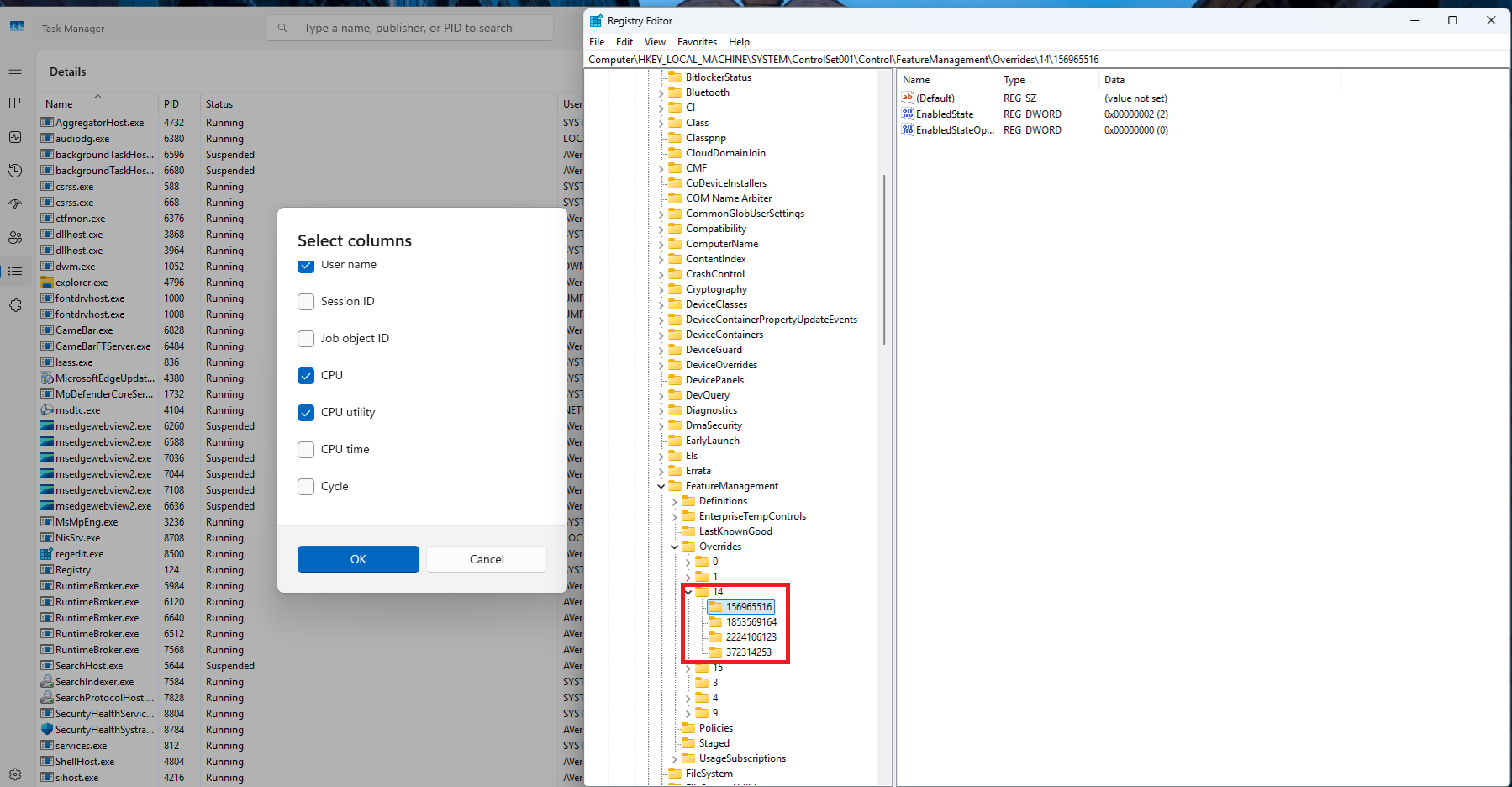
#  [Task Manager] New! We are beginning to roll out a change to the way Task Manager calculates CPU utilization for the Processes, Performance, and Users pages. Task Manager will now use the standard metrics to display CPU workload consistently across all pages and aligning with industry standards and third-party tools. For backward compatibility, a new optional column called CPU Utility is available (hidden by default) on the Details tab showing the previous CPU value used on the Processes page.
# Request 1853569164.
[HKEY_LOCAL_MACHINE\SYSTEM\ControlSet001\Control\FeatureManagement\Overrides\14\2224106123]
"EnabledState"=dword:00000002
"EnabledStateOptions"=dword:00000000

[HKEY_LOCAL_MACHINE\SYSTEM\ControlSet001\Control\FeatureManagement\Overrides\14\372314253]
"EnabledState"=dword:00000002
"EnabledStateOptions"=dword:00000000

# [Taskbar] New! Show jump list when hovering on inactive taskbar apps.
# Request 156965516.
[HKEY_LOCAL_MACHINE\SYSTEM\ControlSet001\Control\FeatureManagement\Overrides\14\1853569164]
"EnabledState"=dword:00000002
"EnabledStateOptions"=dword:00000000

[HKEY_LOCAL_MACHINE\SYSTEM\ControlSet001\Control\FeatureManagement\Overrides\14\3870238861]
"EnabledState"=dword:00000002
"EnabledStateOptions"=dword:00000000

# New! During text entry, type Windows logo key + . (period). The emoji keyboard will appear. Select an emoji with the mouse, or keep typing to search through the available emojis for one you like.
# Request 1853569164.
[HKEY_LOCAL_MACHINE\SYSTEM\ControlSet001\Control\FeatureManagement\Overrides\14\3058906765]
"EnabledState"=dword:00000002
"EnabledStateOptions"=dword:00000000

# [Taskbar] New! Show smaller taskbar icons" option in the Settings app.
# Request 1853569164.
[HKEY_LOCAL_MACHINE\SYSTEM\ControlSet001\Control\FeatureManagement\Overrides\14\3231150730]
"EnabledState"=dword:00000002
"EnabledStateOptions"=dword:00000000

# [File Explorer] New! Opening new folders in a new tab instead of creating additional windows.
[HKEY_LOCAL_MACHINE\SYSTEM\ControlSet001\Control\FeatureManagement\Overrides\14\1507140749]
"EnabledState"=dword:00000002
"EnabledStateOptions"=dword:00000000

[HKEY_LOCAL_MACHINE\SYSTEM\ControlSet001\Control\FeatureManagement\Overrides\14\3037514383]
"EnabledState"=dword:00000002
"EnabledStateOptions"=dword:00000000

Note: If your system reboots unexpectedly, some CFR states will fall back to an inactive state (Because their CFR default state may be 1 or 0. Under \FeatureManagement\Overrides\0). This will disable some associated fixes and features.

If you want to force activation of CFR status, you need TrustedInstaller (TI) permission to change the XXXXX number keys under \FeatureManagement\Overrides\0.
CPU utilization not working for me. Fix ... menu, top cards and Emoji working.
 

My Computer

System One

  • OS
    26200.8037
    Computer type
    PC/Desktop
    CPU
    i5-11400F
    Motherboard
    Gigabyte
    Memory
    32GB
    Graphics Card(s)
    Geforce GT-1030
    Keyboard
    Logitech K400
    Mouse
    Logitech M720
    Internet Speed
    600 Mb
    Browser
    Edge
CPU utilization not working for me. Fix ... menu, top cards and Emoji working.
CPU utilization is require 1853569164 is active.
 

My Computer

System One

  • OS
    Windows 11, version 25H2 (26200)
    Computer type
    PC/Desktop
    CPU
    AMD Ryzen 9 9950X 16-Core Processor
    Motherboard
    ASRock B650M PG Riptide
    Memory
    DDR5-6000 (CL36) 64.0 GB
    Graphics Card(s)
    NVIDIA GeForce RTX 4090
    PSU
    1200W
    Case
    Phanteks Enthoo Pro 2
    Cooling
    Noctua NH-D12L
CPU utilization is require 1853569164 is active.
It's not working. I tried 1853569164 with EnabledState and EnabledStateOptions and it's not work. And I tried without this 2 variables and it's not work.
 

My Computer

System One

  • OS
    26200.8037
    Computer type
    PC/Desktop
    CPU
    i5-11400F
    Motherboard
    Gigabyte
    Memory
    32GB
    Graphics Card(s)
    Geforce GT-1030
    Keyboard
    Logitech K400
    Mouse
    Logitech M720
    Internet Speed
    600 Mb
    Browser
    Edge
It's not working. I tried 1853569164 with EnabledState and EnabledStateOptions and it's not work. And I tried without this 2 variables and it's not work.

I missed a CFR Key. is also require 156965516 is active.

PxQhJV0.png
 

My Computer

System One

  • OS
    Windows 11, version 25H2 (26200)
    Computer type
    PC/Desktop
    CPU
    AMD Ryzen 9 9950X 16-Core Processor
    Motherboard
    ASRock B650M PG Riptide
    Memory
    DDR5-6000 (CL36) 64.0 GB
    Graphics Card(s)
    NVIDIA GeForce RTX 4090
    PSU
    1200W
    Case
    Phanteks Enthoo Pro 2
    Cooling
    Noctua NH-D12L
Finally the gradual fix was activated on my laptop and the See more menu is FIXED! :eek1::p
 

My Computers

System One System Two

  • OS
    Windows 11 Pro 24H2
    Computer type
    PC/Desktop
    Manufacturer/Model
    Multi
    CPU
    Intel i9-9900k
    Motherboard
    Gigabyte Z390 Aorus Master
    Memory
    Corsair Vengeance LPX 32GB (2 x 16GB)
    Graphics Card(s)
    Gigabyte RTX 2080Ti Gaming OC
    Monitor(s) Displays
    Samsung LC32HGQ
    Screen Resolution
    WQHD
    Hard Drives
    Samsung 970 Evo Plus 1 TB
    Crucial MX100 512 GB
    Samsung 840 Pro 256 GB
    Seagate ST4000DM000-1F2168 4 TB
    PSU
    Seasonic P-860 Platinium
    Case
    Corsair Graphite 780T
    Cooling
    Noctua NH-U14S
    Keyboard
    Corsair K70 MK.2 Low profile
    Mouse
    Logitech G Pro HERO
    Internet Speed
    200 Mb/s
    Browser
    Mozilla Firefox
    Antivirus
    Windows Defender
    Other Info
    BIOS version F11
  • Operating System
    Windows 11 Home 24H2
    Computer type
    Laptop
    Manufacturer/Model
    Clevo W650KJ1
    CPU
    Intel i5 7500
    Motherboard
    Clevo W65KK/KJ1
    Memory
    2×8 Go Corsair Vengeance 2400Mhz DDR4
    Graphics card(s)
    Nvidia GeForce GTX 1050
    Sound Card
    Integrated
    Screen Resolution
    1920x1080
    Hard Drives
    Samsung 850 Evo M.2 SATA 250 GB
    Seagate ST1000LM035 1 TB
    Browser
    Mozilla Firefox
    Antivirus
    Windows Defender
    Other Info
    Replaced original Wi-Fi card by an Intel® Wireless-AC 9260
    BIOS version 1.05.13

My Computers

System One System Two

  • OS
    Windows 11 Pro for Workstations
    Computer type
    PC/Desktop
    Manufacturer/Model
    Custom self build
    CPU
    Intel i7-8700K 5 GHz
    Motherboard
    ASUS ROG Maximus XI Formula Z390
    Memory
    64 GB (4x16GB) G.SKILL TridentZ RGB DDR4 3600 MHz (F4-3600C18D-32GTZR)
    Graphics Card(s)
    ASUS ROG-STRIX-GTX1080TI-O11G-GAMING (11GB GDDR5X)
    Sound Card
    Integrated Digital Audio (S/PDIF)
    Monitor(s) Displays
    2 x Samsung Odyssey G75 27"
    Screen Resolution
    2560x1440
    Hard Drives
    1TB Samsung 990 PRO M.2,
    4TB Samsung 990 PRO M.2,
    TerraMaster F8 SSD Plus NAS
    PSU
    Seasonic Prime Titanium 850W
    Case
    Thermaltake Core P3 wall mounted
    Cooling
    Corsair Hydro H115i
    Keyboard
    Amazon Basics Wired Full Keyboard MD005
    Mouse
    Logitech MX Master 4
    Internet Speed
    2 Gbps Download and 100 Mbps Upload
    Browser
    Chrome and Edge
    Antivirus
    Microsoft Defender
    Other Info
    Logitech Z625 speaker system,
    Logitech BRIO 4K Pro webcam,
    HP Color LaserJet Pro MFP M477fdn,
    CyberPower CP1500PFCLCD
    Galaxy S23 Plus phone
  • Operating System
    Windows 11 Pro
    Computer type
    Laptop
    Manufacturer/Model
    Surface Laptop 7 Copilot+ PC
    CPU
    Snapdragon X Elite (12 core) 3.42 GHz
    Memory
    16 GB LPDDR5x-7467 MHz
    Monitor(s) Displays
    15" HDR
    Screen Resolution
    2496 x 1664
    Hard Drives
    1 TB SSD
    Internet Speed
    Wi-Fi 7 and Bluetooth 5.4
    Browser
    Chrome and Edge
    Antivirus
    Microsoft Defender
If you have updated Windows 11 Build 26100.3624 (KB5053656) and still do not see some "Gradual rollout" appearing on your system, you can activate them manually.

Code:
Windows Registry Editor Version 5.00

[HKEY_LOCAL_MACHINE\SYSTEM\ControlSet001\Control\FeatureManagement\Overrides\14]

# [File Explorer] Fixed: The “see more” (…) menu in the File Explorer command bar opens in the wrong direction in some cases.
# [Settings] New! We are rolling out “top cards” under Settings > System > About. These top cards provide an easy way to view your PC’s key specifications—processor, RAM, storage, and GPU—helping you understand your PC’s capabilities at a glance. This is designed to simplify decision-making by highlighting potential areas for hardware improvements while giving you a clear snapshot of your PC. Top Cards won’t appear yet on managed commercial PCs. Note this change appears only on specific PC form-factors such as desktops.
[HKEY_LOCAL_MACHINE\SYSTEM\ControlSet001\Control\FeatureManagement\Overrides\14\593004686]
"EnabledState"=dword:00000002
"EnabledStateOptions"=dword:00000000

[HKEY_LOCAL_MACHINE\SYSTEM\ControlSet001\Control\FeatureManagement\Overrides\14\861440142]
"EnabledState"=dword:00000002
"EnabledStateOptions"=dword:00000000

# [File Explorer] New! Recommended files in File Explorer Home are now available to all Windows Insiders who are signed in with their personal Microsoft account (and local accounts). These files will provide you quick access to relevant files based on your activity in the Recommended section which is displayed as a carousel with thumbnail previews. This includes content such as files you frequently use, have recently downloaded, or added to your File Explorer Gallery. Users with a work/school account (Entra ID) will have additional types of recommendations available with this update. This change is not yet rolling out in the EEA (European Economic Area). Quick access folders will continue to be available in the navigation pane for easy access to pinned folders.
# Request 1853569164.
[HKEY_LOCAL_MACHINE\SYSTEM\ControlSet001\Control\FeatureManagement\Overrides\14\156965516]
"EnabledState"=dword:00000002
"EnabledStateOptions"=dword:00000000

[HKEY_LOCAL_MACHINE\SYSTEM\ControlSet001\Control\FeatureManagement\Overrides\14\1916873356]
"EnabledState"=dword:00000002
"EnabledStateOptions"=dword:00000000

[HKEY_LOCAL_MACHINE\SYSTEM\ControlSet001\Control\FeatureManagement\Overrides\14\3878395533]
"EnabledState"=dword:00000002
"EnabledStateOptions"=dword:00000000

[HKEY_LOCAL_MACHINE\SYSTEM\ControlSet001\Control\FeatureManagement\Overrides\14\436524174]
"EnabledState"=dword:00000002
"EnabledStateOptions"=dword:00000000

#  [Task Manager] New! We are beginning to roll out a change to the way Task Manager calculates CPU utilization for the Processes, Performance, and Users pages. Task Manager will now use the standard metrics to display CPU workload consistently across all pages and aligning with industry standards and third-party tools. For backward compatibility, a new optional column called CPU Utility is available (hidden by default) on the Details tab showing the previous CPU value used on the Processes page.
# Request 1853569164.
[HKEY_LOCAL_MACHINE\SYSTEM\ControlSet001\Control\FeatureManagement\Overrides\14\2224106123]
"EnabledState"=dword:00000002
"EnabledStateOptions"=dword:00000000

[HKEY_LOCAL_MACHINE\SYSTEM\ControlSet001\Control\FeatureManagement\Overrides\14\372314253]
"EnabledState"=dword:00000002
"EnabledStateOptions"=dword:00000000

# [Taskbar] New! Show jump list when hovering on inactive taskbar apps.
# Request 156965516.
[HKEY_LOCAL_MACHINE\SYSTEM\ControlSet001\Control\FeatureManagement\Overrides\14\1853569164]
"EnabledState"=dword:00000002
"EnabledStateOptions"=dword:00000000

[HKEY_LOCAL_MACHINE\SYSTEM\ControlSet001\Control\FeatureManagement\Overrides\14\3870238861]
"EnabledState"=dword:00000002
"EnabledStateOptions"=dword:00000000

# New! During text entry, type Windows logo key + . (period). The emoji keyboard will appear. Select an emoji with the mouse, or keep typing to search through the available emojis for one you like.
# Request 1853569164.
[HKEY_LOCAL_MACHINE\SYSTEM\ControlSet001\Control\FeatureManagement\Overrides\14\3058906765]
"EnabledState"=dword:00000002
"EnabledStateOptions"=dword:00000000

# [Taskbar] New! Show smaller taskbar icons" option in the Settings app.
# Request 1853569164.
[HKEY_LOCAL_MACHINE\SYSTEM\ControlSet001\Control\FeatureManagement\Overrides\14\3231150730]
"EnabledState"=dword:00000002
"EnabledStateOptions"=dword:00000000

# [File Explorer] New! Opening new folders in a new tab instead of creating additional windows.
[HKEY_LOCAL_MACHINE\SYSTEM\ControlSet001\Control\FeatureManagement\Overrides\14\1507140749]
"EnabledState"=dword:00000002
"EnabledStateOptions"=dword:00000000

[HKEY_LOCAL_MACHINE\SYSTEM\ControlSet001\Control\FeatureManagement\Overrides\14\3037514383]
"EnabledState"=dword:00000002
"EnabledStateOptions"=dword:00000000

Note: If your system reboots unexpectedly, some CFR states will fall back to an inactive state (Because their CFR default state may be 1 or 0. Under \FeatureManagement\Overrides\0). This will disable some associated fixes and features.

If you want to force activation of CFR status, you need TrustedInstaller (TI) permission to change the XXXXX number keys under \FeatureManagement\Overrides\0.
Do you happen to know which keys are required for the new taskbar battery icon percentage?
 

My Computer

System One

  • OS
    Windows 11
Do you happen to know which keys are required for the new taskbar battery icon percentage?

You can find the new taskbar battery icon percentage in my Github in the Enablement Package of features registry keys.

Search "taskbar battery icon"


My Computer

System One

  • OS
    Windows 11, version 25H2 (26200)
    Computer type
    PC/Desktop
    CPU
    AMD Ryzen 9 9950X 16-Core Processor
    Motherboard
    ASRock B650M PG Riptide
    Memory
    DDR5-6000 (CL36) 64.0 GB
    Graphics Card(s)
    NVIDIA GeForce RTX 4090
    PSU
    1200W
    Case
    Phanteks Enthoo Pro 2
    Cooling
    Noctua NH-D12L
You can find the new taskbar battery icon percentage in my Github in the Enablement Package of features registry keys.

Search "taskbar battery icon"

Thank you! I set the 3 registry keys and rebooted, but still don't see the toggle in settings. :unsure:
1755441930542.webp
 

Attachments

  • 1755441688418.webp
    1755441688418.webp
    3.1 KB · Views: 0

My Computer

System One

  • OS
    Windows 11

My Computers

System One System Two

  • OS
    All Branches but Release
    Computer type
    Laptop
    Manufacturer/Model
    Acer Nitro ANV15-51
    CPU
    AMD Ryzen 7 7735HS 3200-4500 Mhz 8 cores x 2
    Motherboard
    Sportage_RBH
    Memory
    32 GB DDR5
    Graphics Card(s)
    Radeon Graphic / NVIDIA GeForce RTX 4060 8 GB GDDR6
    Sound Card
    AMD/Realtek(R) Audio
    Monitor(s) Displays
    Integrated Monitor (15.3"vis)
    Screen Resolution
    FHD 1920X1080 16:9 144Hz
    Hard Drives
    KINGSTON OM8SEP4512Q-AA 1TB
    Western Digital 256GB
    PSU
    19V DC 6.32 A 120 W
    Cooling
    Dual Fans
    Mouse
    MS Bluetooth
    Internet Speed
    Fiber 1GB Cox -us & 1GB Orange-fr
    Browser
    Edge Canary- Firefox Nightly-Chrome Dev-Chrome Dev
    Antivirus
    Windows Defender
  • Operating System
    Windows 11 Beta
    Computer type
    Laptop
    Manufacturer/Model
    Asus X751BP
    CPU
    AMD A9-9420
    Memory
    8 GB of DDR4
    Graphics card(s)
    AMD Radeon R5
    Screen Resolution
    1600x900
    Hard Drives
    Seagate 1 TB
Thank you! I set the 3 registry keys and rebooted, but still don't see the toggle in settings. :unsure:
View attachment 142635

Try use all keys.

or add

Code:
Windows Registry Editor Version 5.00

[HKEY_LOCAL_MACHINE\SYSTEM\ControlSet001\Control\FeatureManagement\Overrides\14]

[HKEY_LOCAL_MACHINE\SYSTEM\ControlSet001\Control\FeatureManagement\Overrides\14\862603406]
"EnabledState"=dword:00000002
"EnabledStateOptions"=dword:00000000
 

My Computer

System One

  • OS
    Windows 11, version 25H2 (26200)
    Computer type
    PC/Desktop
    CPU
    AMD Ryzen 9 9950X 16-Core Processor
    Motherboard
    ASRock B650M PG Riptide
    Memory
    DDR5-6000 (CL36) 64.0 GB
    Graphics Card(s)
    NVIDIA GeForce RTX 4090
    PSU
    1200W
    Case
    Phanteks Enthoo Pro 2
    Cooling
    Noctua NH-D12L
Back
Top Bottom