UPDATE 9/12:
 www.elevenforum.com
Hello Windows Insiders, today we are releasing Windows 11 Insider Preview Build 26120.5790 (KB5065779) to the Beta Channel for Windows Insiders on Windows 11, version 24H2.
Changes in Beta Channel builds and updates are documented in two buckets: new features, improvements, and fixes that are being gradually rolled out for Insiders who have turned on the toggle to get the latest updates as they are available (via Settings > Windows Update*) and then new features, improvements, and fixes rolling out to everyone in the Beta Channel. For more information, see the Reminders section at the bottom of this blog post.
 www.elevenforum.com
 www.elevenforum.com

The option to turn fluid dictation on or off in the settings flyout in voice access highlighted in a red box.
It works in any text app but is disabled in secure fields like passwords or PINs to protect your privacy. Fluid dictation in voice access is currently available in all English locales and is available on all Copilot + PCs.
FEEDBACK: Please file feedback in Feedback Hub (WIN + F) under Accessibility > Voice access.
 www.elevenforum.com
 www.elevenforum.com
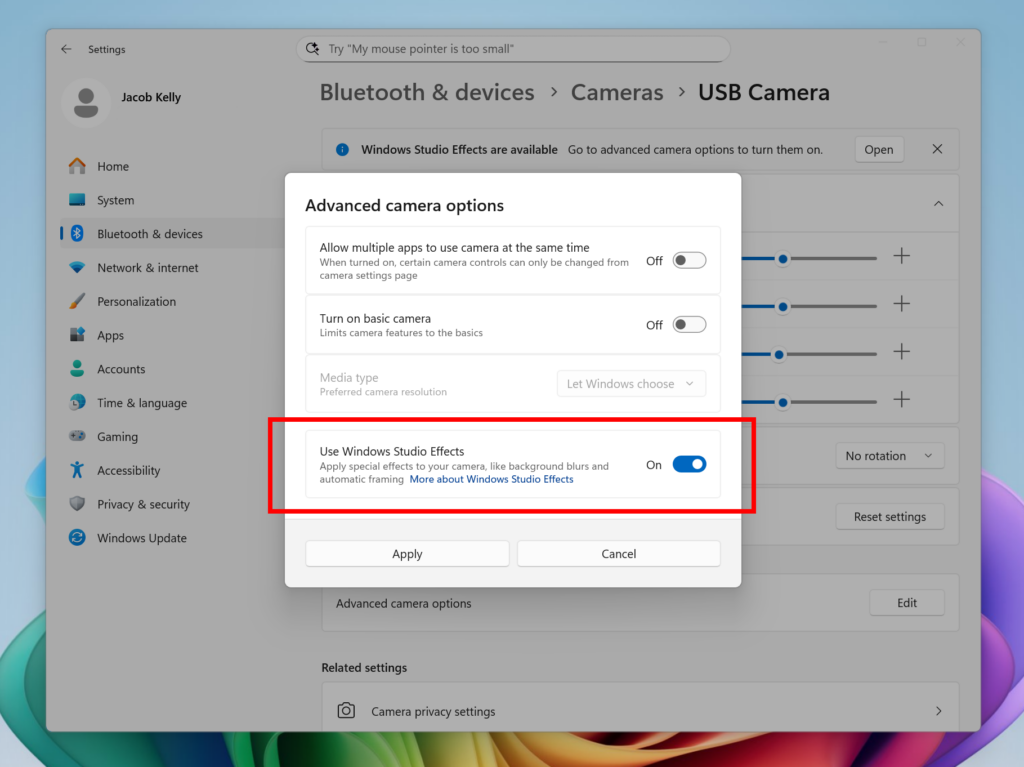
New option inside Settings to turn on the ability to use Windows Studio Effects on an additional camera highlighted in a red box.
To get started, navigate to Settings > Bluetooth & devices > Cameras and select your preferred camera from the connected cameras list. Then, open the advanced camera options menu to find the new “Use Windows Studio Effects” toggle. Once enabled, you can now access and adjust Studio Effects directly from the camera settings page or via the quick settings menu in the taskbar.
NOTE: The required update for the Windows Studio Effects driver will first roll out to Intel®-powered Copilot+ PCs with the update rolling out for AMD and Snapdragon-powered Copilot+ PCs in the coming weeks.
For more information on Windows Studio Effects and device prerequisites, check out Windows Studio Effects – Microsoft Support.
FEEDBACK: Please file feedback in Feedback Hub (WIN + F) under Desktop Environment > Studio Effects.
KB5065782 Windows 11 Insider Beta build 26120.6682 (24H2) - Sep. 12
UPDATE 9/19: https://www.elevenforum.com/t/kb5065786-windows-11-insider-beta-build-26120-6690-24h2-sep-19.40045/ Windows Insider Blog: Hello Windows Insiders, today we are releasing Windows 11 Insider Preview Build 26120.6682 (KB5065782) to the Beta Channel for Windows Insiders on Windows 11...
www.elevenforum.com
Windows Insider Blog:
Hello Windows Insiders, today we are releasing Windows 11 Insider Preview Build 26120.5790 (KB5065779) to the Beta Channel for Windows Insiders on Windows 11, version 24H2.
Changes in Beta Channel builds and updates are documented in two buckets: new features, improvements, and fixes that are being gradually rolled out for Insiders who have turned on the toggle to get the latest updates as they are available (via Settings > Windows Update*) and then new features, improvements, and fixes rolling out to everyone in the Beta Channel. For more information, see the Reminders section at the bottom of this blog post.
Enable or Disable Get Latest Updates as soon as available in Windows 11
This tutorial will show you how to turn on or off "Get the latest updates as soon as they are available" in Windows 11. Starting with Windows 11 build 22621.1635, Microsoft added a new "Get the latest updates as soon as they are available" toggle under Settings > Windows Update. When you turn...
www.elevenforum.com
New Copilot+ PC experiences
Introducing
Fluid dictation is a new feature in voice access on Copilot+ PCs, that makes voice-based dictation smoother and smarter. It automatically corrects grammar, punctuation, and filler words as you speak, reducing the need for manual editing. This experience is powered by on-device small language models (SLMs) so ensure fast and private processing. To use it, launch voice access and complete setup if you’re a first-time user. Fluid dictation is enabled by default – you can check or toggle it via the settings flyout in the top-right corner or simply say “turn on/off fluid dictation.”
Enable or Disable Fluid Dictation in Voice Access on Windows 11
This tutorial will show you how to turn on or off the fluid dictation feature in voice access for your account on Windows 11 Copilot+ PCs. Voice access in Windows 11 enables everyone, including people with mobility disabilities, to control their PC and author text using their voice. For...
www.elevenforum.com
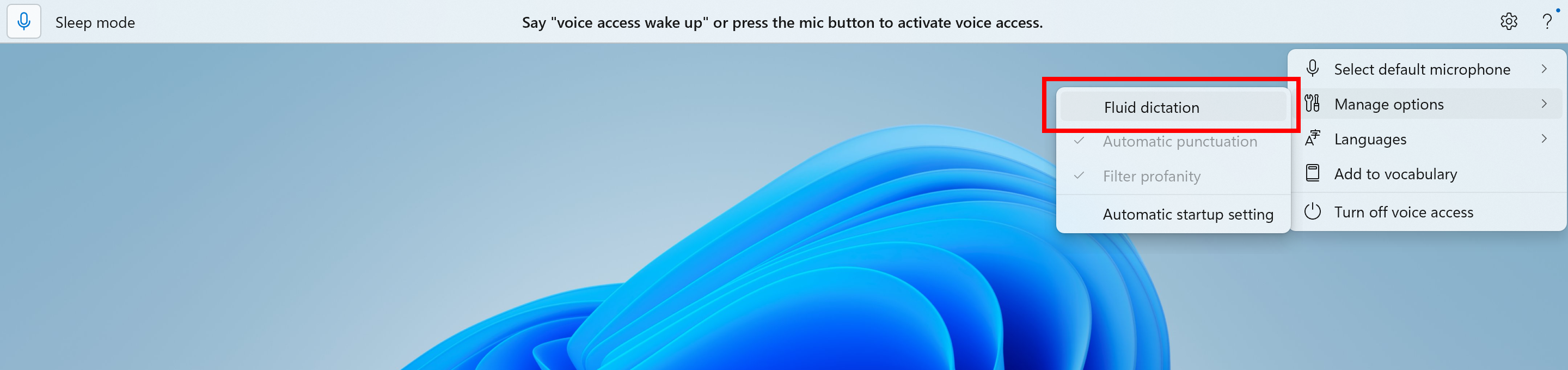
The option to turn fluid dictation on or off in the settings flyout in voice access highlighted in a red box.
It works in any text app but is disabled in secure fields like passwords or PINs to protect your privacy. Fluid dictation in voice access is currently available in all English locales and is available on all Copilot + PCs.
FEEDBACK: Please file feedback in Feedback Hub (WIN + F) under Accessibility > Voice access.
Making Windows Studio Effects available on additional cameras
We are working to bring the Windows Studio Effects experience from integrated laptop cameras to a broader range of camera hardware, helping you stay professional and look your best across more setups. On supported Copilot+ PCs, we are rolling out the ability to use Studio Effect’s AI-powered camera enhancements with an additional, alternative camera – such as a USB webcam or your laptop’s built-in rear camera.
Enable or Disable Windows Studio Effects for Camera in Windows 11
This tutorial will show you how to turn on or off using Windows Studio Effects for a camera on Windows 11 Copilot+ PC. Windows Studio Effects is the collective name of AI-powered video call and audio effects that are available on Copilot+ PCs and select Windows 11 devices with compatible NPUs...
www.elevenforum.com
Change Default Camera Settings and Studio Effects in Windows 11
This tutorial will show you how to change or reset the default brightness, contrast, and other available image settings and Studio Effects for a camera in Windows 11. Having a camera as part of your Windows device or system lets you make Skype video calls, take pictures, etc. Many apps and...
www.elevenforum.com
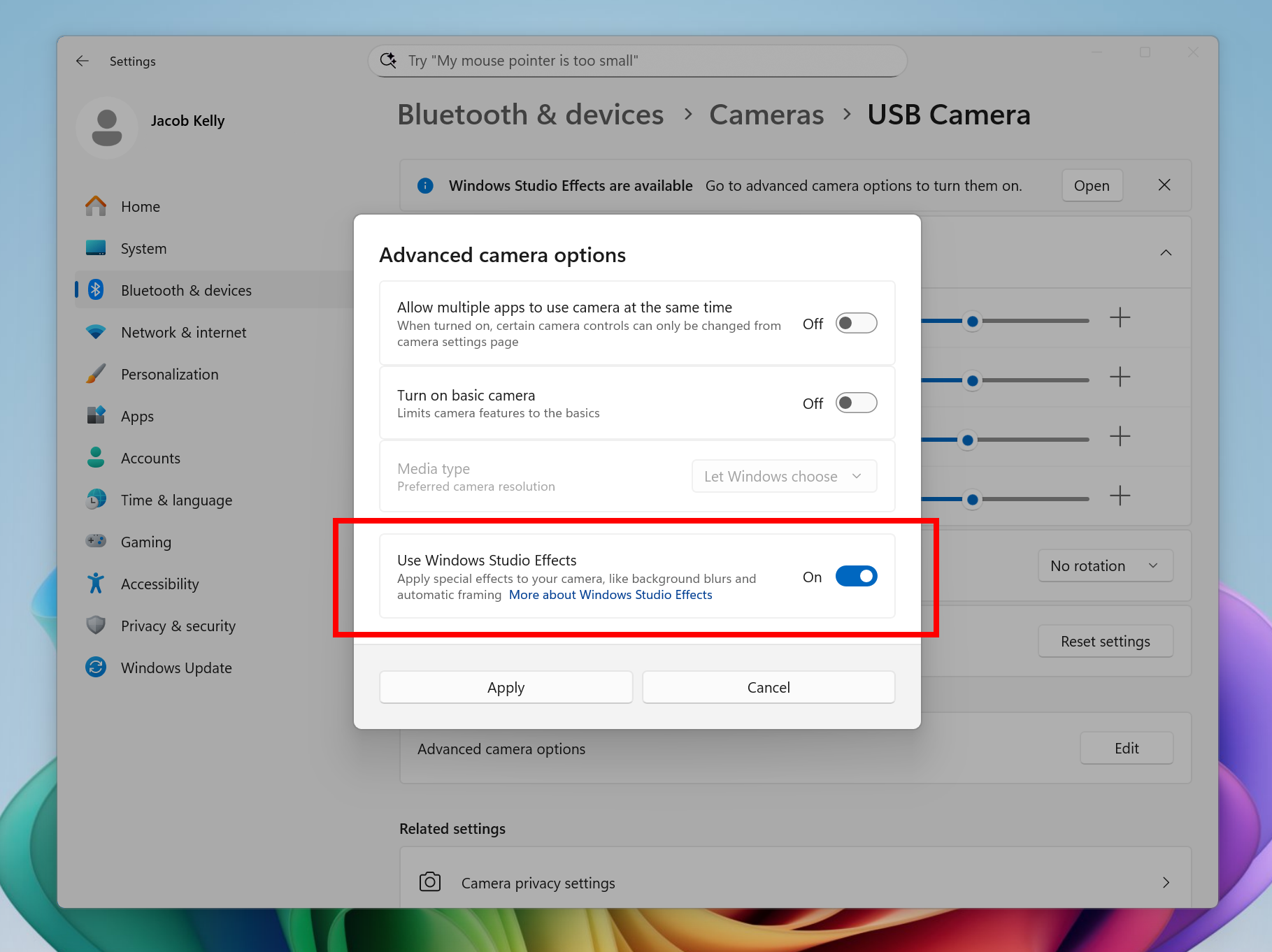
New option inside Settings to turn on the ability to use Windows Studio Effects on an additional camera highlighted in a red box.
To get started, navigate to Settings > Bluetooth & devices > Cameras and select your preferred camera from the connected cameras list. Then, open the advanced camera options menu to find the new “Use Windows Studio Effects” toggle. Once enabled, you can now access and adjust Studio Effects directly from the camera settings page or via the quick settings menu in the taskbar.
NOTE: The required update for the Windows Studio Effects driver will first roll out to Intel®-powered Copilot+ PCs with the update rolling out for AMD and Snapdragon-powered Copilot+ PCs in the coming weeks.
For more information on Windows Studio Effects and device prerequisites, check out Windows Studio Effects – Microsoft Support.
FEEDBACK: Please file feedback in Feedback Hub (WIN + F) under Desktop Environment > Studio Effects.
Changes and Improvements gradually being rolled out to the Beta Channel with toggle on*
[Agent in Settings]
The following changes and improvements are rolling out for agent in Settings on Copilot+ PCs:- We are beginning to roll out the new agent in Settings experience to Windows Insiders with their primary display language is set to French.

Enable or Disable Settings Search Agent in Windows 11
This tutorial will show you how to enable or disable the Settings agentic search experience for all users on Windows 11 Copilot+ PCs. Starting in Windows 11, version 24H2 with KB5062660 on Copilot+ PCs, the agent in Windows Settings is a feature that uses on-device AI to help you find and...
www.elevenforum.com
[File Explorer]
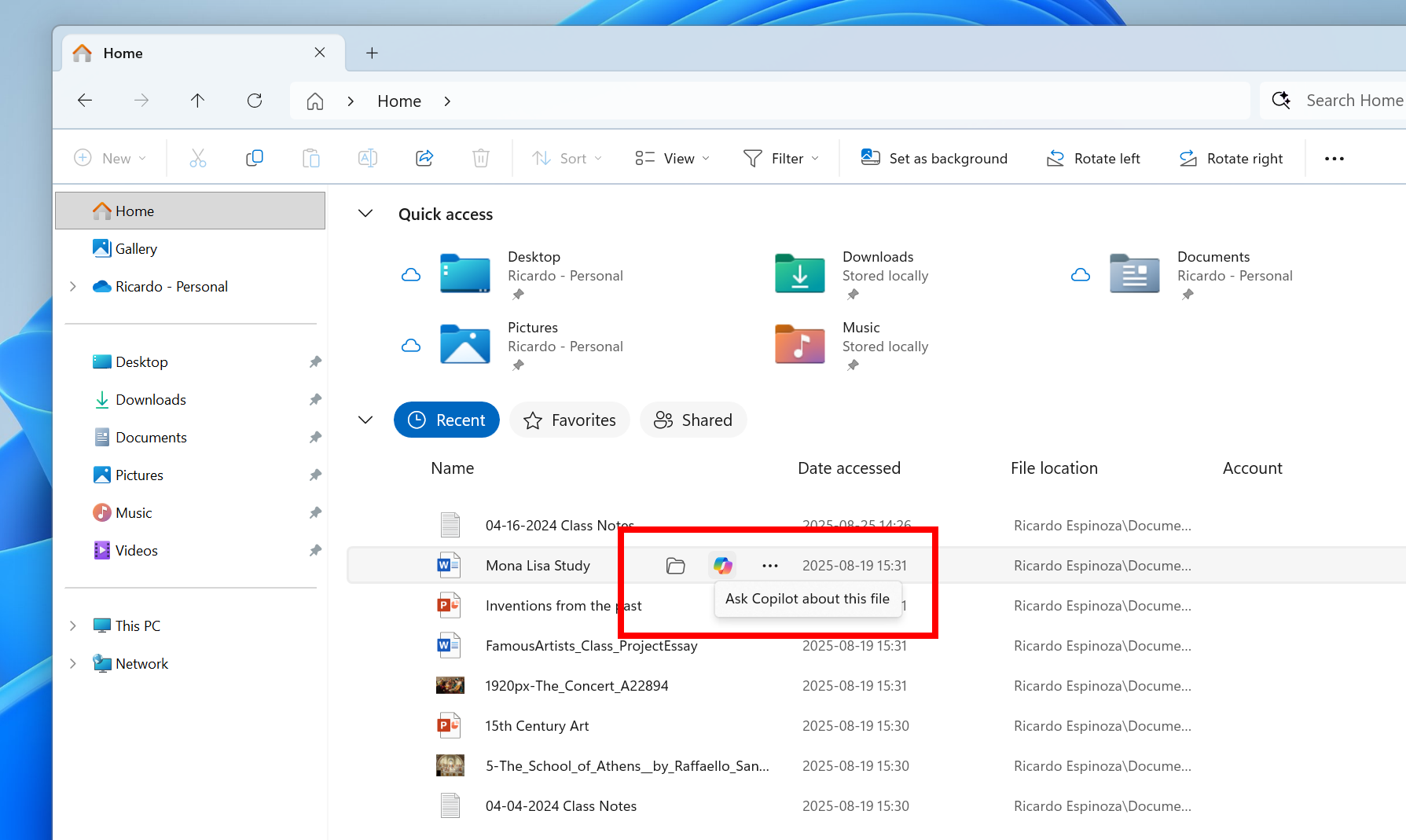
- File Explorer Home now offers on-hover actions for faster file management. Hovering over a file with your mouse in File Explorer Home will display commands like Open file location and Ask Copilot about this file. You will be able to try out the Copilot integration and attach files easily. This experience currently only works if you’re signed in with a Microsoft account. Work or school account (Entra ID) support is coming in a future flight. This change is not yet rolling out to Windows Insiders in the EEA (European Economic Area).

Add or Remove Home in Navigation Pane of File Explorer in Windows 11
This tutorial will show you how to add or remove Home in the navigation pane of File Explorer for your account or all users in Windows 11. Home in the navigation pane is the default homepage of File Explorer (Win+E) that allows you to quickly access and view your pinned/frequent locations...
www.elevenforum.com

On-hover actions in File Explorer Home highlighted in a red box.
[Settings]
- Advanced Settings will revert to the previous “For Developers” experience after updating to this build. This change will come back soon.
Fixes gradually being rolled out to the Beta Channel with toggle on*
[General]
- Fixed an underlying issue which was causing Insiders on certain devices to experience an unexpected increase in lag in various scenarios after the latest flights, including when interacting with File Explorer and taskbar (clicks could take 500ms to be processed), and browser windows (particularly when watching videos). Performance issues can have multiple causes, so if you’re continuing to experience issues, please let us know by filing feedback, including as many details as possible.
[Taskbar & System Tray]
- Fixed an issue which could cause the app preview windows in the taskbar to become misaligned (away from the app icon you’d clicked / hovered over) after a display resolution change.
[File Explorer]
- Fixed an issue where with certain apps installed, when you right clicked you may see the context menu unexpectedly switch back and forth with each right click between the normal initial view and “Show more options”.
[Settings]
- Fixed an issue causing Settings > System > Storage > Temporary files to get stuck when scanning files.
[Other]
- Fixed an issue causing an event saying “The “Microsoft Pluton Cryptographic Provider” provider was not loaded because initialization failed” with error 57 to appear in Event Viewer for some Insiders after boot.
Known issues
[General]
- [NEW] We’re investigating an issue causing some PCs to bugcheck (green screen) while hibernating after the previous flight. This may make it look like hibernation has shut down your PC. We recommend not hibernating your PC until this is fixed if you are experiencing this issue.
[File Explorer]
- For some users, the Shared section in File Explorer Home may be visible even if there is no content to display.
[Windows Studio Effects]
- [ADDED 9/11] For some classes of external webcams, turning on “Use Windows Studio Effects” in the advanced camera setting may result in a camera preview failure. This is due to a compatibility issue with the camera firmware and is being addressed with a future update. In the meantime, if you are impacted by this issue, turn off Windows Studio Effects inside the camera settings.
[For developers]
- [NEW] PIX on Windows is unable to play back GPU captures on this OS version. This will be addressed by a new PIX release, estimated to arrive by the end of September. In the meantime, if you are impacted, you can use the “Send Feedback” button in PIX or contact us on the DirectX Discord server and we can help provide private builds.
Last edited: