UPDATE 3/10:
 www.elevenforum.com
To view the latest updates about this release, visit the Windows release health dashboard or the update history page for Windows 11, version 26H1.
 www.elevenforum.com
Gradual rollout
The following summary outlines features from Copilot experiences and AI-powered Windows 11 PC experiences, along with improvements and fixes. The bold text within the brackets indicates the item or area of the change.
For more info on the different AI experiences, see aka.ms/copilotpluspcs.
3 Feature availability depends on your device and market. This feature isn’t available in the European Economic Area.
Normal rollout
This non-security update includes quality improvements. The following summary outlines key issues addressed by the KB update after you install it. Also, included are available new features. The bold text within the brackets indicates the item or area of the change.
Microsoft combines the latest servicing stack update (SSU) for your operating system with the latest cumulative update (LCU). For general information about SSUs, see Servicing stack updates and Servicing Stack Updates (SSU): Frequently Asked Questions.
Install this update
To install this update, use one of the following Windows and Microsoft release channels.
4 This latest cumulative update includes updates for AI components. Even though the AI component updates are included in the update, the AI components are only applicable to Windows Copilot+ PCs and will not install on Windows PC or Windows Server.
If you want to remove the LCU
To remove the LCU after installing the combined SSU and LCU package, use the DISM/Remove-Package command line option with the LCU package name as the argument. You can find the package name by using this command: DISM /online /get-packages.
Running Windows Update Standalone Installer (wusa.exe) with the /uninstall switch on the combined package will not work because the combined package contains the SSU. You cannot remove the SSU from the system after installation.
File information
For a list of the files provided in this update, download the file information for cumulative update 5077239.
For a list of the files provided in the servicing stack update, download the file information for the SSU (KB5078262) - version 28000.1638.
 support.microsoft.com
Check Windows Updates
UUP Dump:
64-bit ISO download:

ARM64 ISO download:
 www.elevenforum.com
KB5079466 Windows 11 Cumulative Update build 28000.1719 (26H1) - March 10
Microsoft Support: Source: Check Windows Updates UUP Dump: 64-bit ISO download: https://uupdump.net/selectlang.php?id=40a89789-cad6-4281-8e18-35c208f7b1d2 ARM64 ISO download: https://uupdump.net/selectlang.php?id=fde8938f-4091-47eb-bde6-7756590e861b...
www.elevenforum.com
Microsoft Support:
February 24, 2026 - KB5077239 (OS Build 28000.1643) Preview
This non-security update for Windows 11, version 26H1 (KB5077239), includes the latest security fixes and improvements, along with non-security updates from last month’s optional preview release. To learn more about differences between security updates, optional non-security preview updates, Out-of-band (OOB) updates, and continuous innovation, see Windows monthly updates explained. For information on Windows update terminology, see the different types of Windows software updates.To view the latest updates about this release, visit the Windows release health dashboard or the update history page for Windows 11, version 26H1.
What to know about Windows 11 version 26H1
Windows IT Pro Blog: Windows continually works in partnership with our OEMs and IHVs to support new device innovations. Windows 11, version 26H1 is a targeted release that supports some of the new device innovations coming in 2026. That means that this release is not being made available through...
www.elevenforum.com
Announcements and messages
This section provides key notifications related to this release, including announcements, change logs, and end-of-support notices.Change log
| Change date | Change description |
|---|---|
| February 24, 2026 | This update does not include any changes. |
Highlights
This update is available through two release phases: gradual rollout and normal rollout. A gradual rollout delivers an update in phases, so features reach devices over time instead of all at once, meaning availability varies by device. A normal rollout is the broad release to all eligible devices at the same time, usually when it reaches general availability (GA).Gradual rollout
The following summary outlines features from Copilot experiences and AI-powered Windows 11 PC experiences, along with improvements and fixes. The bold text within the brackets indicates the item or area of the change.
For more info on the different AI experiences, see aka.ms/copilotpluspcs.
Copilot+ PCs experiences
This section highlights updates and improvements unique to Copilot+ PCs, focusing on AI-powered features, performance enhancements, and user experience optimizations.- [Agent in Settings]
- New! The Settings Agent now supports more languages, with expanded support for German, Portuguese, Spanish, Korean, Japanese, Hindi, Italian, and Chinese (Simplified).
- New! The search results menu displays more available results, making it easier to quickly find and modify your settings. A scroll bar lets you view all search results.

Find a Setting in Settings app in Windows 11
This tutorial will show you how to search to find a setting within the Settings app in Windows 11. Microsoft designed Settings to be beautiful, easy to use and inclusive of all your Microsoft experiences in Windows 11. Settings has left-handed navigation that persists between pages, and...
www.elevenforum.com
- New! Recommended settings now makes changes faster by showing an inline agent option for recently modified settings.

Add or Remove Settings Home page in Windows 11
This tutorial will show you how to add or remove the Home page in Settings for all users in Windows 11. Starting with Windows 11 version 22H2 KB5030310 Build 22621.2361, Microsoft is introduced a new homepage in Settings that offers you a dynamic and personalized experience. It provides an...
www.elevenforum.com
- New! A dialog now appears when settings can’t be adjusted further. It explains why and provides an option to modify the settings as needed.
- [Click to Do]
- New! 1 The Click to Do context menu now has a streamlined design that makes it easier to access frequently used actions such as Copy, Save, Share, and Open. You can quickly find what you need.
- New! 1 Whenever a large image or table appears on your screen, the context menu automatically opens so you can quickly access actions and view results.

Use Click to Do in Windows 11
This tutorial will show you how to use Click to Do to perform AI actions with text and images for your account on a Windows 11 Copilot+ PC. Click to Do (preview) helps you get things done faster by identifying text and images on your screen that you can take actions with. Click to Do analyzes...
www.elevenforum.com
- [Camera] New! You can use Windows Studio Effects, which provides AI-powered camera enhancements, on an additional camera such as a USB webcam or your laptop’s built-in rear camera. To get started, go to Settings > Bluetooth & devices > Cameras, and select your preferred camera from the connected cameras list. Then, open Advanced camera options and turn on Use Windows Studio Effects. After you turn it on, you can adjust Studio Effects from the camera settings page or the quick settings menu in the taskbar.

Enable or Disable Windows Studio Effects for Camera in Windows 11
This tutorial will show you how to turn on or off using Windows Studio Effects for a camera on Windows 11 Copilot+ PC. Windows Studio Effects is the collective name of AI-powered video call and audio effects that are available on Copilot+ PCs and select Windows 11 devices with compatible NPUs...
www.elevenforum.com

Change Default Camera Settings and Studio Effects in Windows 11
This tutorial will show you how to change or reset the default brightness, contrast, and other available image settings and Studio Effects for a camera in Windows 11. Having a camera as part of your Windows device or system lets you make Skype video calls, take pictures, etc. Many apps and...
www.elevenforum.com
- [File Explorer]
- New! The File Explorer Search Box placeholder text has been updated to highlight the enhanced Windows Search experiences.
- New! File Explorer Home on-hover actions for faster file management is now available for enterprise customers.
Windows 11 PC experiences
This section highlights some new features and enhancements for Windows 11 PCs, including AI-powered capabilities, continuous innovation, and performance improvements.- [Advanced Settings] New! You can now turn on Virtual Workspaces in Advanced Settings. Virtual Workspaces allow you to enable or disable virtual environments such as Hyper-V and Windows Sandbox. To access Virtual Workspaces, go to Settings > Systems > Advanced.

Enable or Disable Hyper-V in Windows 11
This tutorial will show you how to enable or disable the Hyper-V feature for all users in Windows 10 and Windows 11. Hyper-V enables running virtualized computer systems in parallel with a physical host. These virtualized systems can be used and managed just as if they were physical computer...
www.elevenforum.com

Enable or Disable Windows Sandbox in Windows 11
This tutorial will show you how to enable or disable the Windows Sandbox feature for all users in Windows 11 Pro, Enterprise, or Education. Windows Sandbox provides a lightweight desktop environment to safely run applications in isolation. Software installed inside the Windows Sandbox...
www.elevenforum.com

Enable or Disable Virtual Machine Platform in Windows 11
This tutorial will show you how to enable or disable the Virtual Machine Platform for all users in Windows 10 and Windows 11. The Virtual Machine Platform enables virtualization support in Windows. Virtualization lets your Windows device emulate a different operating system, like Windows...
www.elevenforum.com

Enable or Disable Windows Hypervisor Platform in Windows 11
This tutorial will show you how to enable or disable the Windows Hypervisor Platform for all users in Windows 10 and Windows 11. The Windows Hypervisor Platform (WHP) is a virtualization feature in Windows that adds an extended user-mode API for third-party virtualization stacks and...
www.elevenforum.com
- [Cross Device Resume] New! This update expands the functionality of Cross‑Device Resume. You can continue activities from your Android phone on your PC based on the apps and services you use, including resuming Spotify playback, working in Word, Excel, or PowerPoint, or continuing a browsing session.

Resume Apps from Android Phone on Windows 11 PC
This tutorial will show you how to seamlessly resume using your favorite apps from your Android phone on your Windows 11 PC. Starting with Windows 11 build 26200.5761 (Dev 25H2), build 26120.5761 (Beta 24H2), and build 28020.1619 (Canary 26H1), Microsoft is beginning to gradually roll out the...
www.elevenforum.com

Enable or Disable Resume from Android Mobile Device on Windows 11 PC
This tutorial will show you how to turn on or off the Resume feature for Android mobile devices (phone) linked to your account on a Windows 11 PC. Starting with Windows 11 build 26200.5761 (Dev 25H2), build 26120.5761 (Beta 24H2), and build 28020.1619 (Canary 26H1), Microsoft is beginning to...
www.elevenforum.com
- Vivo Android phone users can continue browsing from Vivo Browser on their PC.
- If you use an Android phone from HONOR, OPPO, Samsung, vivo, or Xiaomi, you can resume online files that you opened in the Microsoft Copilot app on your phone and continue working on them on your PC. Files open in the corresponding Microsoft 365 app on your PC if it is installed. If the app is not installed, the files open in your default web browser. This feature does not support offline files stored only on your phone.
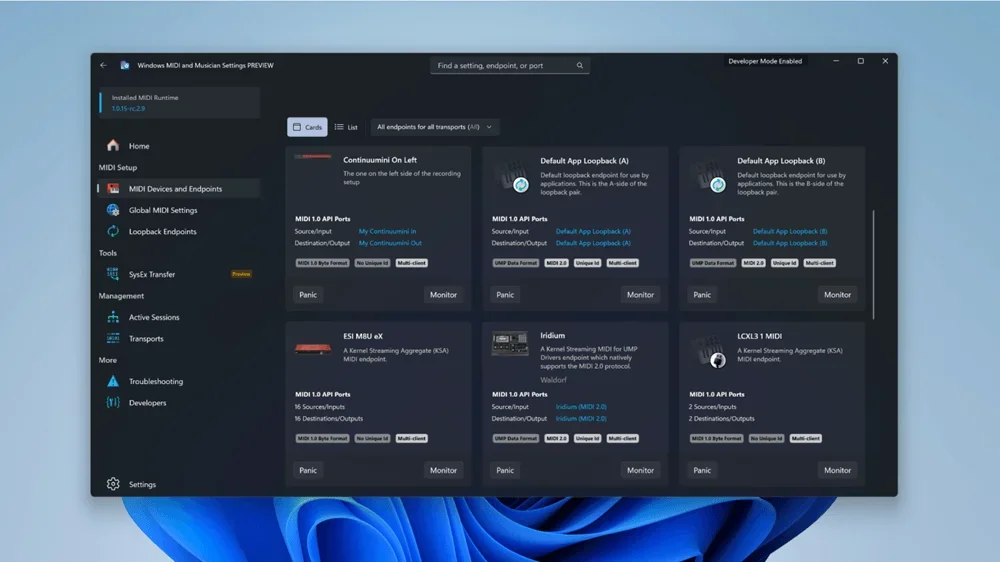
- [Windows MIDI Services] New! This update improves MIDI on Windows with enhanced support for MIDI 1.0 and MIDI 2.0, including full WinMM and WinRT MIDI 1.0 support with built-in translation, shared MIDI ports across apps, custom port names, loopback and app-to-app MIDI, plus performance improvements and bug fixes—delivering a better experience for musicians.
The App SDK and Tools package is a separate download that enables inbox MIDI 2.0 features and includes tools like MIDI Console and the MIDI Settings app. Releases are available on the Windows MIDI Services landing page and GitHub and are currently unsigned, which might display a security warning during download or installation.
MIDI 2.0 and enhanced MIDI 1.0 comes to Windows 11
Windows Experience Blog: MIDI 2.0 (and enhanced MIDI 1.0!) comes to Windows 11 Non-musicians sometimes associate MIDI only with .mid music files, or with the late 80’s General MIDI sound sets. But it is so much more than that. For musicians, MIDI is essential to everything from instrument...
www.elevenforum.com
- [Narrator] New! Narrator now gives you more control over how it announces on‑screen controls. You can choose which details are spoken and adjust their order to match how you navigate apps. These settings apply throughout the app to help reduce extra speech and make Narrator easier to follow.
- [Voice Access] New! A streamlined setup makes it easier to get started with Voice Access. The redesigned experience helps you download a speech model for your chosen language, select your preferred input microphone, and learn what Voice Access can help you do on your Windows PC.

Turn On or Off Voice Access in Windows 11
This tutorial will show you how to turn on or off voice access for your account in Windows 11. Voice access is a new experience starting with Windows 11 build 22518 that enables everyone, including people with mobility disabilities, to control their PC and author text using only their voice and...
www.elevenforum.com
- [Voice Typing] New! The Wait time before acting setting in Voice Typing enables you to adjust the delay before a voice command runs. This setting gives you flexibility for different speech patterns and improves recognition accuracy whether you speak slowly or quickly.

Change Voice Typing "Wait time before acting" in Windows 11
This tutorial will show you how to change the Voice Typing "Wait time before acting" on voice command setting for your account in Windows 11. Voice typing allows you to enter text on your PC by speaking. Starting with Windows 11 build 26100.7705 (24H2) and build 26200.7705 (25H2), and build...
www.elevenforum.com
- [Windows Hello] New! Windows Hello Enhanced Sign-in Security (ESS) now supports peripheral fingerprint sensors. This update extends this more secure sign in option beyond devices with built in fingerprint sensors to include desktops and other Windows 11 PCs, including Copilot+ PCs. To get started, plug in a supported ESS fingerprint reader, go to Settings > Accounts > Sign in options, and follow the prompts to enroll.

Enable or Disable Enhanced Sign-in Security in Windows 11
This tutorial will show you how to enable or disable Enhanced Sign-in Security for all users in Windows 11. Windows Hello enables biometrics or PIN authentication, eliminating the need for a password. Biometric authentication uses facial recognition or fingerprint to prove a user's identity in...
www.elevenforum.com
- [Windows Update] Improved: The update improves the experience of joining the Windows Insider Program. It helps prevent situations where the process might get stuck when you join through Settings > Windows Update, so you can get started more smoothly.
- [Lock screen] Improved: This update includes some underlying changes that help address cases where the lock screen might become unresponsive.
- [File Explorer]
- New! File Explorer now offers a more consistent dark mode experience. Key actions such as copy, move, and delete dialogs have been updated in both default and expanded views. Progress bars and chart views now align with the dark theme to improve readability. Confirmation dialogs for actions like skip, override, and file selection, along with multiple error dialogs, have also been refreshed for a cohesive look.
- New! The simplified File Explorer context menu for easier navigation. Common actions like Share, Copy, and Move now appear in a single organized menu. This change removes clutter and makes commands easier to find, whether you use a mouse, keyboard, or assistive technology. This change will initially be available to a small group of devices as we evaluate the best approach.
- New! The Recommended section in File Explorer now makes it easier to access files you frequently use or recently downloaded. To view this section on the homepage, turn on the Show Recommended section setting in File Explorer > Options. This feature is now available to all users, including those signed in with personal Microsoft accounts.

Enable or Disable Show Recommended Section in File Explorer Home in Windows 11
This tutorial will show you how to turn on or off showing the Recommended section instead of Quick access in File Explorer Home for your account in Windows 11. Home in the navigation pane of File Explorer allows you to quickly access and view your pinned locations, frequent folders, and recent...
www.elevenforum.com
- Improved: This update includes some underlying changes that help improve responsiveness of File Explorer when navigating in network locations.
- Improved: File Explorer might unexpectedly not show thumbnails for video files containing certain EXIF metadata.
- Improved: File Explorer now provides a more consistent experience, preventing a toolbar from appearing unexpectedly.
- Fixed: When you right-click a file, the app icon next to the Open option might appear generic instead of showing the default app for that file type.
- [Logging into your PC] Improved: This update improves reliability where Explorer.exe might stop responding (hang) the first time you sign in to your PC, if certain apps were configured as startup apps. This could make the taskbar not appear.
- [Activation] Improved: This update improves Windows license migration during upgrades. In some cases, a valid license might not migrate because the device couldn’t register its digital license, requiring the Activation troubleshooter to complete the process.
- [Desktop icons] Improved: This update improves reliability when you open or rename files on your desktop. Desktop icons now stay in place instead of moving unexpectedly.
- [Input] Improved: This update improves how the keyboard character repeat delay labels appear in Settings > Bluetooth & Devices > Keyboard.
- [User Account Control (UAC)] Improved: This update helps improves reliability when running Windows Terminal as an administrator from a non‑admin account, preventing the PC from becoming unresponsive.
- [Windows Sandbox] Fixed: This update addresses an issue that could cause Windows Sandbox to stop responding during start up and display error 0x800705b4.
- [Advanced Settings] New! You can now turn on Virtual Workspaces in Advanced Settings. Virtual Workspaces allow you to enable or disable virtual environments such as Hyper-V and Windows Sandbox. To access Virtual Workspaces, go to Settings > Systems > Advanced.
- [Desktop Spotlight] New! When Windows Spotlight is set as your desktop background (Settings > Personalization > Background), the context menu now includes two options: "Learn more about this background" and "Next desktop background".

Add or Remove "Explore background" Desktop Context Menu in Windows 11
This tutorial will show you how to add or remove the Learn about this background or Explore background desktop context menu when using Windows Spotlight as your desktop background for your account or all users in Windows 11. Starting with Windows 11 build 26100.7309 (24H2) and build 26200.7309...
www.elevenforum.com

Add or Remove "Next background" Desktop Context Menu in Windows 11
This tutorial will show you how to add or remove the Next desktop background or Next background desktop context menu when using Windows Spotlight as your desktop background for your account or all users in Windows 11. Starting with Windows 11 build 26100.7309 (24H2) and build 26200.7309 (25H2)...
www.elevenforum.com
- [Gaming] New! The full screen experience (FSE) is now available on more Windows 11 handheld devices after its initial launch on ASUS ROG Ally and ROG Ally X. FSE gives you a console-style interface with the Xbox app, making handheld gaming clean and distraction-free. It improves performance by minimizing background tasks, so gameplay stays smooth and responsive. To turn it on, go to Settings > Gaming > Full screen experience, and set Xbox as your home app. You can open FSE from Task View or Game Bar, or configure your handheld to enter full screen experience on startup.

Enable or Disable Xbox Mode in Windows 11
This tutorial will show you how to enable or disable Xbox mode for full screen gaming for your account on Windows 11. Starting with Windows 11 build 26100.8328 (24H2), build 26200.8328 (25H2), and build 28000.2179 (26H1), Xbox mode is now available on Windows 11 PCs, including laptops...
www.elevenforum.com
Enter and Exit Xbox Mode in Windows 11
This tutorial will show you how to enter and exit Xbox mode for full screen gaming for your account on Windows 11. Starting with Windows 11 build 26100.8328 (24H2), build 26200.8328 (25H2), and build 28000.2179 (26H1), Xbox mode is now available on Windows 11 PCs, including laptops, desktops...
www.elevenforum.com
- [Input] New! Pens that support haptic feedback—small vibrations that simulate touch—now provide tactile responses when you interact with the Windows interface. For example, you might feel vibrations when hovering over the close button or when snapping and resizing windows.
- [Keyboard]
- New! Keyboard backlight performance has improved on supported HID-compliant keyboards. Compatible keyboards display keys clearly in low-light environments, and the backlight adjusts to help conserve power.
- New! The AltGr layer is now enabled for the Arabic 101 keyboard layout. The left Alt key continues to function as before, while the right Alt key acts as a modifier to access additional symbols. The first new symbol mapped to AltGr on the Arabic 101 layout is the Saudi Riyal currency symbol (AltGr+S). The Saudi Riyal currency symbol is also available on the touch keyboard’s symbols page and the expressive input panels currency tab. Users who switch languages with Alt+Shift can continue to use the left Alt+Shift or the general shortcut Windows logo key+Spacebar. Arabic 102 and Arabic 102 AZERTY layouts are updated similarly.
- [Mobile Device Settings] New! You can add and manage your mobile devices in Settings under Bluetooth & Devices › Mobile Devices. On this page you can manage features such as using your device as a connected camera or accessing your device’s files in File Explorer.

Enable or Disable Android Phone Access in File Explorer in Windows 11
This tutorial will show you how to turn on or off access to your Android phone mobile device in File Explorer for your account in Windows 11. If you turn on Allow this PC to access your mobile devices, you will be able to link and manage your mobile devices directly from your PC. This link...
www.elevenforum.com

Enable or Disable Use Camera from Android Mobile Devices in Windows 11
This tutorial will show you how to turn on or off the ability to use your Android phone or tablet camera in any video application for your account in Windows 11. Microsoft is gradually rolling out the ability to use your Android phone or tablet camera in any video application on your Windows 11...
www.elevenforum.com
- [OneDrive] New! The new OneDrive icon now appears in Settings > Accounts > Homepage.
- [Settings]
- New! Keyboard settings for "character repeat delay and rate", and "cursor blink rate", have moved from Control Panel to Settings. You can now find "character repeat delay and rate" under Settings > Accessibility > Keyboard, and "cursor blink rate" under Settings > Accessibility > Text cursor.

Change Keyboard Character Repeat Delay in Windows 11
This tutorial will show you how to change the keyboard character repeat delay for your account in Windows 10 and Windows 11. You can change the keyboard character repeat delay and rate for when you press and hold down a key. The repeat delay is the pause between pressing a key and when it...
www.elevenforum.com

Change Keyboard Character Repeat Rate in Windows 11
This tutorial will show you how to change the keyboard character repeat rate for your account in Windows 10 and Windows 11. You can change the keyboard character repeat delay and rate for when you press and hold down a key. The repeat delay is the pause between pressing a key and when it...
www.elevenforum.com

Change Text Cursor Blink Rate in Windows 11
This tutorial will show you how to change the text cursor blink rate for your account in Windows 7, Windows 8, Windows 10, and Windows 11. The text cursor is that blinking line at the end of what you are typing in Windows. The cursor blink rate is how often the text cursor blinks. The default...
www.elevenforum.com
- New! "About" in Settings now has an updated layout that organizes device details and related options in one place. You can quickly access features such as Storage settings for faster navigation.
- Improved: This update helps improve reliability when you navigate to Settings > Network & Internet. It prevents Settings from becoming unresponsive.
- Improved: This update improves the Settings search bar so it no longer overlaps the Minimize and Maximize buttons in the title bar.
- New! Keyboard settings for "character repeat delay and rate", and "cursor blink rate", have moved from Control Panel to Settings. You can now find "character repeat delay and rate" under Settings > Accessibility > Keyboard, and "cursor blink rate" under Settings > Accessibility > Text cursor.
- [Taskbar & System Tray]
- New! You can now share an open app window with Copilot directly from the taskbar. When you hover over an open app, you’ll see the option to share its window with Copilot—similar to sharing in Microsoft Teams. Hover over the app icon, select Share with Copilot to start a conversation. Copilot Vision will analyze the content you shared and provide insights based on what’s displayed in that app.

Use Copilot Vision to Share App or Screen with Copilot in Windows 11
This tutorial will show you how to use the Copilot Vision feature in Microsoft Edge and Copilot app to share screen with Copilot on Windows 10 and Windows 11. Copilot Vision on Windows lets you share any browser or app window on your screen and talking about it with Copilot. Copilot can then...
www.elevenforum.com

Enable or Disable Share any Window from Taskbar in Windows 11
This tutorial will show you how to enable or disable the ability to quickly share the content from open app windows directly from the taskbar for your account in Windows 11. Starting with Windows 11 build 22499, Microsoft added the ability to quickly share the content from open app windows...
www.elevenforum.com

Enable or Disable Share with Copilot Vision Controls on Taskbar in Windows 11
This tutorial will show you how to enable or disable start sharing with Copilot Vision from app on taskbar when hovering over an opened app window on the taskbar for your account in Windows 11. Copilot Vision on Windows lets you share any browser or app window on your screen and talking about...
www.elevenforum.com
- Improved: The Automatically hide the taskbar setting now works more reliably and no longer turns off unexpectedly after the message “A toolbar is already hidden on this side of your screen.” appears.
- Improved: Voice access now responds more reliably when you interact with the taskbar, including when you call out a number to choose an item.
- Improved: The update improves the taskbar icon experience and icons now keep their expected size when enough space is available.
- New! You can now share an open app window with Copilot directly from the taskbar. When you hover over an open app, you’ll see the option to share its window with Copilot—similar to sharing in Microsoft Teams. Hover over the app icon, select Share with Copilot to start a conversation. Copilot Vision will analyze the content you shared and provide insights based on what’s displayed in that app.
- [Windows Share]
- New! 2 Drag tray now supports multi-file sharing, shows more relevant apps, and makes it easy to move files to a chosen folder.
- New! 2 You can now turn drag tray on or off from Settings > System > Nearby sharing.

Enable or Disable Drop Tray in Windows 11
This tutorial will show you how to enable or disable the Drag/Drop Tray feature for your account in Windows 11. Starting with Windows 11 build 26100.4202 (24H2) and build 22631.5413 (23H2), sharing files in Windows is getting a lot easier and quicker with the Drag Tray feature. When you start...
www.elevenforum.com
- New! 3 You can share OneDrive files through other apps. The options appear under Share using when you select the Copy link. You must be signed into your Microsoft account.

Share File with App in Windows 11
This tutorial will show you how to share a file with an app in Windows 11. Windows Share in Windows 11 allows you to share file(s) with an app to send from. Starting with Windows 11 build 22631.3810, Microsoft is rolling out the ability to copy files from the Windows share window. Just click...
www.elevenforum.com
- [Display and Graphics]
- Improved: Performance has been improved when apps query monitors for their full list of supported modes. When this happens it could previously lead to a momentary stutter on very high-resolution monitors. This work should help prevent and reduce stuttering in these scenarios.
- Improved: This update improves the brightness slider experience on all‑in‑one PCs, keeping your chosen level and helping you avoid unexpected brightness changes.
- Fixed: Recently certain games might display the message Unsupported graphics card detected, although a supported graphics card is used.
- [Game Pass] References to Game Pass in Settings are now modified to reflect updated branding and benefits.
- [Start menu] Improved: For users with the new Start menu, the Windows Search panel now matches the new Start menu in size. This update aims to create a smoother transition when searching.
- [Lock and Sign-in Screens]
- Fixed: It might be very slow the first time when signing into a new account.
- Fixed: When your lock screen is set to slide show, there might be a memory leak. Memory leaks can lead to performance or reliability issues over time.
- [Smart cards] Fixed: You might unexpectedly see STATUS_NOT_SUPPORTED (0xc00000bb) during sign on when using ECC Smart Card Logon Credential.
3 Feature availability depends on your device and market. This feature isn’t available in the European Economic Area.
Normal rollout
This non-security update includes quality improvements. The following summary outlines key issues addressed by the KB update after you install it. Also, included are available new features. The bold text within the brackets indicates the item or area of the change.
- [BitLocker] Improved: The update improves BitLocker recovery experiences and helps your device start Windows reliably. Your device no longer stops responding after you enter your recovery key.
AI Components
This release updates the following AI components:| AI Component | Version |
|---|---|
| Image Search | 1.2601.1268.0 |
| Content Extraction | 1.2601.1268.0 |
| Semantic Analysis | 1.2601.1268.0 |
| Settings Model | 1.2601.1268.0 |
Windows 11 servicing stack update (KB5078262)- 28000.1638
This update makes quality improvements to the servicing stack, which is the component that installs Windows updates. Servicing stack updates (SSU) ensure that you have a robust and reliable servicing stack so that your devices can receive and install Microsoft updates. To learn more about SSUs, see Simplifying on-premises deployment of servicing stack updates.Known issues in this update
Microsoft is not currently aware of any issues with this update.How to get this update
Before you install this updateMicrosoft combines the latest servicing stack update (SSU) for your operating system with the latest cumulative update (LCU). For general information about SSUs, see Servicing stack updates and Servicing Stack Updates (SSU): Frequently Asked Questions.
Install this update
To install this update, use one of the following Windows and Microsoft release channels.
| Available | Next Step |
|---|---|

| Open Start > Settings Update & Security > Windows Update. In the Optional updates available area, you will find the link to download and install available updates. Check for optional updates |
| Yes 4 | Before you install this update To get the standalone package(s) for this update, go to the Microsoft Update Catalog website. This KB contains one or more MSU files that require installation in a specific order. Install this update Method 1: Install all MSU files together Download all MSU files for KB5077239 from Microsoft Update Catalog and place them in the same folder (for example, C:/Packages). Use Deployment Image Servicing and Management (DISM.exe) to install the target update. DISM will use the folder specified in PackagePath to discover and install one or more prerequisite MSU files as needed. Updating Windows PC To apply this update to a running Windows PC, run the following command from an elevated Command Prompt: DISM /Online /Add-Package /PackagePath:c:\packages\Windows11.0-KB5077239-x64.msuOr, run the following command from an elevated Windows PowerShell prompt: Add-WindowsPackage -Online -PackagePath "c:\packages\Windows11.0-KB5077239-x64.msu"Or use Windows Update Standalone Installer to install the target update. Updating Windows Installation media To apply this update to Windows Installation media, see Update Windows installation media with Dynamic Update. Note: When downloading other Dynamic Update packages, ensure they match the same month as this KB. If the SafeOS Dynamic Update or Setup Dynamic Update is not available for the same month as this KB, use the most recently published version of each. To add this update to a mounted image, run the following command from an elevated Command Prompt: DISM /Image:mountdir /Add-Package /PackagePath:Windows11.0-KB5077239-x64.msuOr, run the following command from an elevated Windows PowerShell prompt: Add-WindowsPackage -Path "c:\offline" -PackagePath "Windows11.0-KB5077239-x64.msu" -PreventPendingMethod 2: Install each MSU file individually, in order Download and install each MSU file individually either using DISM or Windows Update Standalone Installer in the following order:
|
If you want to remove the LCU
To remove the LCU after installing the combined SSU and LCU package, use the DISM/Remove-Package command line option with the LCU package name as the argument. You can find the package name by using this command: DISM /online /get-packages.
Running Windows Update Standalone Installer (wusa.exe) with the /uninstall switch on the combined package will not work because the combined package contains the SSU. You cannot remove the SSU from the system after installation.
File information
For a list of the files provided in this update, download the file information for cumulative update 5077239.
For a list of the files provided in the servicing stack update, download the file information for the SSU (KB5078262) - version 28000.1638.
Source:
February 24, 2026—KB5077239 (OS Build 28000.1643) Preview - Microsoft Support
support.microsoft.com
Check Windows Updates
UUP Dump:
64-bit ISO download:
Select language for Windows 11, version 26H1 (28000.1643) amd64
Select language for Windows 11, version 26H1 (28000.1643) amd64 on UUP dump. UUP dump lets you download Unified Update Platform files, like Windows Insider updates, directly from Windows Update.
uupdump.net
ARM64 ISO download:
Select language for Windows 11, version 26H1 (28000.1643) arm64
Select language for Windows 11, version 26H1 (28000.1643) arm64 on UUP dump. UUP dump lets you download Unified Update Platform files, like Windows Insider updates, directly from Windows Update.
uupdump.net
UUP Dump - Download Windows Insider ISO
UUP Dump is the most practical and easy way to get ISO images of any Insider Windows 10 or Windows 11 version, as soon as Microsoft has released a new build. UUP Dump creates a download configuration file according to your choices, downloads necessary files directly from Microsoft servers, and...
www.elevenforum.com
Last edited: