KB5079387 Windows 11 Insider Release Preview build 26100.8106 (24H2) and 26200.8106 (25H2) - March 12
 www.elevenforum.com
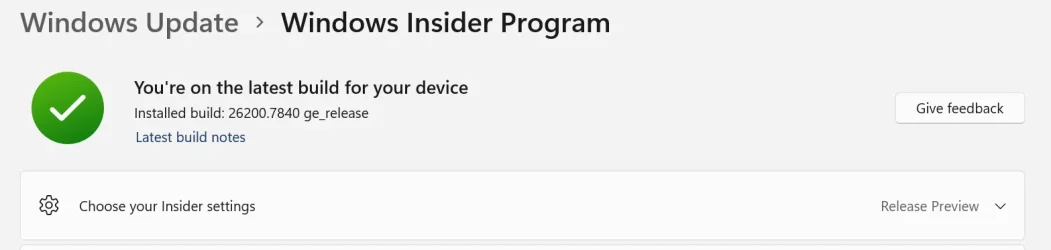
Just a quick heads-up for those of you running Windows 11 25H2 Release Preview (26200). gur_helios just informed me that his 26200.7921 is automatically downloading 26220.7872. A look at the Insider settings shows that Beta is selected there.
The Release Preview channel is missing from the Insider Channel selection. Therefore, switching channels is not possible. This is clearly a server-side issue that Microsoft needs to resolve. I also started my VM with the Release Preview, and it now shows Beta for me as well, even though version 26200.7921 is installed.
The only current workaround is to switch the toggle for receiving the latest updates to "Off". Otherwise, the 26220 beta will be installed immediately. If the toggle is off, the beta will only be offered, but not installed. Then you can wait and see if Microsoft has fixed the problem in the meantime.

Windows 11 25H2 Release Preview springt automatisch auf Beta [Workaround][Update]
You can manually change it back to the Release Preview channel using option 2 step 5 below to get the new RP build instead of Beta build in Windows Update.

Change Windows Insider Program Channel in Windows 11
www.elevenforum.com
[UPDATE 2/19] We are releasing Builds 26100.7921 and 26200.7921 (KB5077241) today with some small underlying improvements.
Hello Windows Insiders, Today we’re releasing Windows 11 Builds
Below is a summary of the new features and improvements included as part of this update separated into two sections: gradual rollout and normal rollout. The bold text within the brackets indicates the item or area of the change we are documenting.
A gradual rollout delivers an update in phases, so features reach devices over time instead of all at once, meaning availability varies by device. A normal rollout is the broad release to all eligible devices at the same time, usually when it reaches general availability (GA).
Gradual rollout
Windows 11 PC experiences
This section highlights new features and enhancements for Windows 11 PCs, including AI-powered capabilities, continuous innovation, and performance improvements.- [Emoji] New! The Emoji 16.0 release introduces a small thoughtfully curated set of new emojis, one from each major category. These new emojis now appear in the emoji panel.

Open Emoji Panel in Windows 11
This tutorial will show you how to open the Emoji Panel in Windows 11. An emoji is a pictogram, logogram, ideogram or smiley embedded in text. Windows 11 includes 3D Fluent emoji you can use from the Emoji Panel. Starting with Windows 11 build 22631.3810, Microsoft is adding support for Emoji...
www.elevenforum.com
- [Backup & Restore] New! The first sign-in restore experience is now part of Windows Backup for Organizations, bringing this restore capability to more device types. This experience restores user settings and Microsoft Store apps automatically at first sign-in on Microsoft Entra hybrid joined devices, Cloud PCs, and multi‑user environments. This capability helps create a consistent setup process during device refreshes, upgrades, or migrations.

Transfer Files and Settings to New Windows 11 PC using Windows Backup app
This tutorial will show you how to transfer your files, settings, and preferences from your previous (old) Windows 10/11 PC to your new Windows 11 PC during Windows Setup. The Windows Backup app includes a PC to PC migration experience to Transfer to a new PC. When you're setting up your new...
www.elevenforum.com
- [Quick Machine Recovery] New! Quick Machine Recovery (QMR) now turns on automatically for Windows Professional devices that are not domain‑joined and not enrolled in enterprise endpoint management. These devices receive the same recovery features available to Windows Home users. For domain‑joined or enterprise managed devices, QMR stays off unless it is enabled by the organization.

Enable or Disable Quick Machine Recovery in Windows 11
This tutorial will show you how to enable or disable Quick Machine Recovery in Windows 11. Quick machine recovery (QMR) is a feature that enables the recovery of Windows devices when they encounter critical errors that prevent them from booting. QMR automatically detects, diagnoses, and...
www.elevenforum.com
- [Taskbar & System Tray]
- New! A built‑in network speed test is now available from the taskbar. Open it from the Wi‑Fi or Cellular Quick Settings, or by right-clicking the network icon in the system tray. The speed test opens in the default browser and measures Ethernet, Wi‑Fi, and Cellular connections. This feature helps check network performance and troubleshoot issues.

Perform Network Speed Test in Windows 11
This tutorial will show you how to perform a Ethernet, Wi-Fi, or Cellular network speed test in Windows 11. Starting with Windows 11 build 26100.7922 (24H2) and 26200.7922 (25H2), and build 2800.1764 (26H1), Microsoft is gradually rolling out the ability to do built-in network speed test...
www.elevenforum.com
- Improved: When your taskbar is set to uncombined, if you have an app open with many windows, they will no longer all move as a set to the overflow area when there is not enough space on the taskbar, and instead only the ones specifically within the set that don’t have space. With this change, the overflow area should no longer appear to display with lots of available space.

Always or Never Combine Taskbar buttons and Hide Labels in Windows 11
This tutorial will show you how to always, when the taskbar is full, or never combine taskbar buttons and hide labels for your account, specific users, or all users in Windows 11. The taskbar in Windows 11 shows the Start menu, Search, Task View, Widgets, Chat, File Explorer, Microsoft Edge...
www.elevenforum.com
- New! A built‑in network speed test is now available from the taskbar. Open it from the Wi‑Fi or Cellular Quick Settings, or by right-clicking the network icon in the system tray. The speed test opens in the default browser and measures Ethernet, Wi‑Fi, and Cellular connections. This feature helps check network performance and troubleshoot issues.
- [Accounts] New! A new entry point in the account menu on the Start menu now directs you to the benefits page (https://account.microsoft.com/). This update makes it easier to explore and manage the benefits associated with your Microsoft account.

Add or Remove User Tile on Start Menu in Windows 11
This tutorial will show you how to add or remove user tile on the Start menu for all users in Windows 10 and Windows 11. The user tile (aka: "account picture menu") on the Start menu allows you to Change account settings in the Account Control flyout, Lock the computer, Sign out, or switch...
www.elevenforum.com
- [Identity & Access Management] New! Windows now supports Microsoft Entra ID group and role SID resolution. This update enables Windows to translate Entra cloud group and role security identifiers (SIDs) to readable names, allowing Entra-only groups to be used and displayed correctly in file permissions, local group membership, and access control scenarios without relying on on‑premises or hybrid Active Directory identities.
- [Camera Settings] New! You can now control pan and tilt for supported cameras in the Settings app. The controls appear under Settings > Bluetooth & devices > Cameras, in the “Basic settings” section for your selected camera.

Change Default Camera Settings and Studio Effects in Windows 11
This tutorial will show you how to change or reset the default brightness, contrast, and other available image settings and Studio Effects for a camera in Windows 11. Having a camera as part of your Windows device or system lets you make Skype video calls, take pictures, etc. Many apps and...
www.elevenforum.com
- [Built-in Sysmon] New! Windows now brings Sysmon functionality natively to Windows. Sysmon functionality allows you to capture system events that can help with threat detection, and you can use custom configuration files to filter the events you want to monitor. The captured events are written on the Windows event log, enabling them to be used with security applications and a wide range of use cases.
Install or Uninstall Built-in Sysmon in Windows 11
This tutorial will show you how to install or uninstall the built-in Sysmon for all users in Windows 11. System Monitor (Sysmon) is a Windows system service and device driver that, once installed on a system, remains resident across system reboots to monitor and log system activity to the...
www.elevenforum.com
- Built-in Sysmon is disabled by default and must be explicitly enabled.
- Go to Settings > System > Optional features > More Windows features > checking Sysmon or in PowerShell or command prompt:
Dism /Online /Enable-Feature /FeatureName:Sysmon - To complete the installation, from PowerShell or command prompt run:
sysmon -i
Note: If you’ve already installed Sysmon from the website, it must be uninstalled before enabling the built-in Sysmon.
- [Widgets] New! Widget Settings now opens as a full‑page experience in the Widgets app instead of opening in a dialog.

Open Widgets in Windows 11
This tutorial will show you different ways to open Widgets in Windows 11. Widgets in Windows are interactive elements that display dynamic content and provide quick access to various apps and features. You can view your location's current weather conditions directly on the taskbar and hover...
www.elevenforum.com
- [Desktop Background] New! You can now set .webp image files as your desktop background in Settings > Personalization > Background, as well as when right clicking the image in File Explorer.

Change Desktop Background to Spotlight, Picture, Solid Color, or Slideshow in Windows 11
This tutorial will show you different ways to change the desktop background to a picture, solid color, slideshow, or Windows Spotlight image for your account in Windows 11. You can change your desktop background in Windows 11 to be a picture, solid color, a slideshow, or Windows Spotlight...
www.elevenforum.com
- [Search] Improved: Updated icon for the search process in Task Manager to now show a magnifying glass.
- [Storage Settings]
- Improved: Updated some of the dialogs in Storage Settings to have a more modern design.
- Improved Performance of scanning for temporary files.
- [Windows Update Settings] Improves the responsiveness of the settings page.
- [Login and lock screens] Improves the login screen reliability.
- [Nearby Sharing] Improves the reliability of sending larger files.
- [Projecting] Improves the reliability of displaying the project pane after pressing the Windows key plus P.

Project Display in Windows 11
This tutorial will show you how to project the main display to the PC screen only, duplicate, extend, or second screen only for all users in Windows 11. If you have more than one display connected in Windows, you can use choose a display option with Project to change what shows on your...
www.elevenforum.com
- [Printing] Improves the Windows print service (spoolsv.exe) to ensure smoother performance and prevent slowdowns during high‑volume printing.
- [File Explorer]
- Improved: Added the extract all option to the File Explorer command bar when browsing non-ZIP archive folders.

Unzip (extract) Files from ZIP Folder in Windows 11
This tutorial will show you how to unzip (extract) files from a zipped folder in Windows 11. Zipped (compressed) files take up less storage space and can be transferred to other computers more quickly than uncompressed files. In Windows, you work with zipped files and folders in the same way...
www.elevenforum.com
- Fixed: Holding Shift and clicking the File Explorer in the taskbar, or middle clicking, might open the current instance of File Explorer rather than another instance.
- Improved reliability of displaying devices on the Network page of File Explorer.
- Improved: Added the extract all option to the File Explorer command bar when browsing non-ZIP archive folders.
- [Display]
- Improved: Made display related performance improvements to help reduce PC resume-from-sleep time on heavily loaded systems and other scenarios.
- Improved: For laptops used with a docking station while the lid is closed, improved reliability of resuming from sleep when connecting to AC power, without needing to open the laptop lid.
- [Other] Addressed a few small visual issues, including when the taskbar was set to autohide, with the Windows Security pop up credentials fields, and with the print dialog.
Windows Insider Program Team

Releasing Windows 11 Builds 26100.7918 and 26200.7918 to the Release Preview Channel
 blogs.windows.com
Check Windows Updates
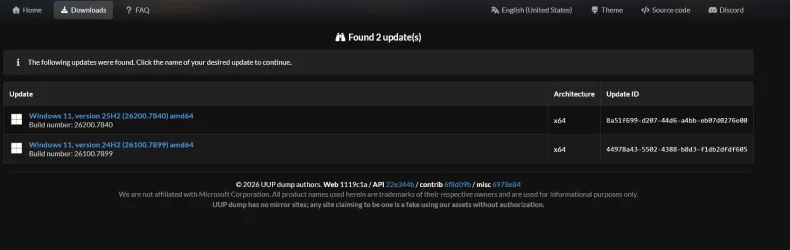
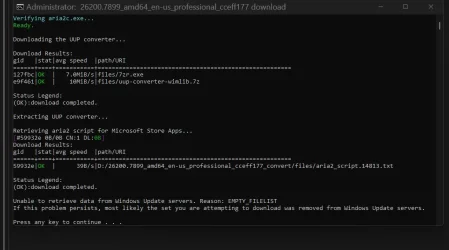
UUP Dump:
64-bit ISO download:

Select language for Windows 11, version 24H2 (26100.7921) amd64
Select language for Windows 11, version 25H2 (26200.7921) amd64
ARM64 ISO download:
Select language for Windows 11, version 24H2 (26100.7921) arm64
Select language for Windows 11, version 25H2 (26200.7921) arm64

UUP Dump - Download Windows Insider ISO
www.elevenforum.com





 Apple 13" Macbook Pro 2020 (m1)

 Sound by Fosi Audio DA-2120C pushing Magnat Series 503 bookshelf speakers and a SVS SB-1000 Pro subwoofer.