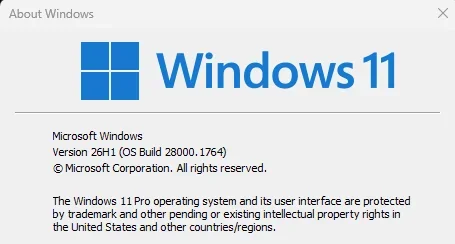
UPDATE 4/14:
 www.elevenforum.com
To view the latest updates about this release, visit the Windows release health dashboard or the update history page for Windows 11, version 26H1.
 www.elevenforum.com
Gradual rollout
The following summary outlines features from AI-powered Windows 11 PC experiences, along with improvements and fixes. The bold text within the brackets indicates the item or area of the change.
This non-security update includes quality improvements. The following summary outlines key issues addressed by the KB update after you install it. Also, included are available new features. The bold text within the brackets indicates the item or area of the change.
Microsoft combines the latest servicing stack update (SSU) for your operating system with the latest cumulative update (LCU). For general information about SSUs, see Servicing stack updates.
Install this update
To install this update, use one of the following Windows and Microsoft release channels.
If you want to remove the LCU
Before you decide to remove the LCU, see Understanding the risks: Why you should not uninstall security updates.
To remove the LCU after installing the combined SSU and LCU package, use the DISM/Remove-Package command line option with the LCU package name as the argument. You can find the package name by using this command: DISM /online /get-packages.
Running Windows Update Standalone Installer (wusa.exe) with the /uninstall switch on the combined package will not work because the combined package contains the SSU. You cannot remove the SSU from the system after installation.
File information
For a list of the files provided in this update, download the file information for cumulative update 5079489.
For a list of the files provided in the servicing stack update, download the file information for the SSU (KB5085536) - version 28000.1763.
 support.microsoft.com
Check Windows Updates
UUP Dump:
64-bit ISO download:

ARM64 ISO download:
 www.elevenforum.com
KB5083768 Windows 11 Cumulative Update build 28000.1836 (26H1) - April 14
Microsoft Support: April 14, 2026 - KB5083768 (OS Build 28000.1836) This security update for Windows 11, version 26H1 (KB5082052), includes the latest security improvements, along with non-security updates from last month’s optional preview release. To learn more about differences between...
www.elevenforum.com
Microsoft Support:
March 26, 2026 - KB5079489 (OS Build 28000.1764) Preview
This non-security update for Windows 11, version 26H1 (KB5079489), incudes production-quality improvements. To learn more about differences between security updates, optional non-security preview updates, Out-of-band (OOB) updates, and continuous innovation, see Windows monthly updates explained. For information on Windows update terminology, see the different types of Windows software updates.To view the latest updates about this release, visit the Windows release health dashboard or the update history page for Windows 11, version 26H1.
What to know about Windows 11 version 26H1
Windows IT Pro Blog: Windows continually works in partnership with our OEMs and IHVs to support new device innovations. Windows 11, version 26H1 is a targeted release that supports some of the new device innovations coming in 2026. That means that this release is not being made available through...
www.elevenforum.com
Highlights
This update is available through two release phases: gradual rollout and normal rollout. A gradual rollout delivers an update in phases, so features reach devices over time instead of all at once, meaning availability varies by device. A normal rollout is the broad release to all eligible devices at the same time, usually when it reaches general availability (GA).Gradual rollout
The following summary outlines features from AI-powered Windows 11 PC experiences, along with improvements and fixes. The bold text within the brackets indicates the item or area of the change.
Windows 11 PC experiences
This section highlights some new features and enhancements for Windows 11 PCs, including AI-powered capabilities, continuous innovation, and performance improvements.- [Emoji] New! The Emoji 16.0 release introduces a small thoughtfully curated set of new emojis, one from each major category. Each emoji carries timeless symbolism and practical versatility. These new emojis now appear in the emoji panel.

Open Emoji Panel in Windows 11
This tutorial will show you how to open the Emoji Panel in Windows 11. An emoji is a pictogram, logogram, ideogram or smiley embedded in text. Windows 11 includes 3D Fluent emoji you can use from the Emoji Panel. Starting with Windows 11 build 22631.3810, Microsoft is adding support for Emoji...
www.elevenforum.com
- [Backup & Restore] New! The first sign-in restore experience is now part of Windows Backup for Organizations, bringing this restore capability to more device types. This experience restores user settings and Microsoft Store apps automatically at first sign-in on Microsoft Entra hybrid joined devices, Cloud PCs, and multi‑user environments. This capability helps create a consistent setup process during device refreshes, upgrades, or migrations.

Transfer Files and Settings to New Windows 11 PC using Windows Backup app
This tutorial will show you how to transfer your files, settings, and preferences from your previous (old) Windows 10/11 PC to your new Windows 11 PC during Windows Setup. The Windows Backup app includes a PC to PC migration experience to Transfer to a new PC. When you're setting up your new...
www.elevenforum.com

Windows 11 first sign-in restore experience now available
Windows IT Pro Blog: The first sign-in restore experience is now generally available as part of Windows Backup for Organizations! This means that the restore functionality is now available beyond Microsoft Entra joined devices, expanding to support the needs of hybrid-managed environments. Help...
www.elevenforum.com
- [Quick Machine Recovery] New!
- Quick Machine Recovery (QMR) now turns on automatically for Windows Professional devices that are not domain‑joined and not enrolled in enterprise endpoint management. These devices receive the same recovery features available to Windows Home users. For domain‑joined or enterprise managed devices, QMR stays off unless it is enabled by the organization.
- New! Quick Machine Recovery (QMR) now runs a one-time scan on PCs with settings quick machine recovery and automatically check for solutions are both turned on. If a fix isn’t available immediately, QMR directs you to the best recovery options to get your PC running again.

Enable or Disable Quick Machine Recovery in Windows 11
This tutorial will show you how to enable or disable Quick Machine Recovery in Windows 11. Quick machine recovery (QMR) is a feature that enables the recovery of Windows devices when they encounter critical errors that prevent them from booting. QMR automatically detects, diagnoses, and...
www.elevenforum.com
- [Taskbar & System Tray]
- New! A built‑in network speed test is now available from the taskbar. You can open it from the Wi‑Fi or Cellular Quick Settings, or by right-clicking the network icon in the system tray. The speed test opens in the default browser and measures Ethernet, Wi‑Fi, and cellular connections. This feature helps check network performance and troubleshoot issues.

Perform Network Speed Test in Windows 11
This tutorial will show you how to perform a Ethernet, Wi-Fi, or Cellular network speed test in Windows 11. Starting with Windows 11 build 26100.7922 (24H2) and 26200.7922 (25H2), and build 2800.1764 (26H1), Microsoft is gradually rolling out the ability to do built-in network speed test...
www.elevenforum.com
- Improved: When the taskbar is set to uncombined and you have an app open with multiple windows, they no longer all move as a set to the overflow area when there is not enough space on the taskbar. Only the windows that don’t fit move to the overflow menu. This change prevents the overflow menu from appearing with large unused space.

Always or Never Combine Taskbar buttons and Hide Labels in Windows 11
This tutorial will show you how to always, when the taskbar is full, or never combine taskbar buttons and hide labels for your account, specific users, or all users in Windows 11. The taskbar in Windows 11 shows the Start menu, Search, Task View, Widgets, Chat, File Explorer, Microsoft Edge...
www.elevenforum.com
- New! A built‑in network speed test is now available from the taskbar. You can open it from the Wi‑Fi or Cellular Quick Settings, or by right-clicking the network icon in the system tray. The speed test opens in the default browser and measures Ethernet, Wi‑Fi, and cellular connections. This feature helps check network performance and troubleshoot issues.
- [Accounts] New! The account menu on the Start menu now includes a new option that directs you to the benefits page, making it easier to explore and manage your Microsoft account benefits.

Add or Remove User Tile on Start Menu in Windows 11
This tutorial will show you how to add or remove user tile on the Start menu for all users in Windows 10 and Windows 11. The user tile (aka: "account picture menu") on the Start menu allows you to Change account settings in the Account Control flyout, Lock the computer, Sign out, or switch...
www.elevenforum.com
- [Camera Settings] New! You can control pan and tilt for supported cameras in the Settings app. The controls appear under Settings > Bluetooth & devices > Cameras, in the “Basic settings” section for your selected camera.

Change Default Camera Settings and Studio Effects in Windows 11
This tutorial will show you how to change or reset the default brightness, contrast, and other available image settings and Studio Effects for a camera in Windows 11. Having a camera as part of your Windows device or system lets you make Skype video calls, take pictures, etc. Many apps and...
www.elevenforum.com
- [Built-in Sysmon] New! Windows now brings System Monitor (Sysmon) functionality natively to Windows. Sysmon helps you capture system events for threat detection, and you can use custom configuration files to filter the events you want to monitor. Windows writes captured events to Windows Event Log, which allows security tools and other applications to use them.
Built‑in Sysmon is off by default. You must enable it before you can use it.
Install or Uninstall Built-in Sysmon in Windows 11
This tutorial will show you how to install or uninstall the built-in Sysmon for all users in Windows 11. System Monitor (Sysmon) is a Windows system service and device driver that, once installed on a system, remains resident across system reboots to monitor and log system activity to the...
www.elevenforum.com
Option 1: Settings
Option 2: PowerShell or Command Prompt
Note: If you already installed Sysmon from the Sysinternals, uninstall it before enabling the built‑in version.
Learn more about Sysmon functionality.- Go to Settings > System > Optional features > More Windows features, then select Sysmon.
- Run the following command: Dism /Online /Enable-Feature /FeatureName:Sysmon
- After the feature installs, complete the setup by running: sysmon -i
- [Widgets] New! Widget Settings now open as a full‑page experience in the Widgets app instead of opening in a dialog.

Open Widgets in Windows 11
This tutorial will show you different ways to open Widgets in Windows 11. Widgets in Windows are interactive elements that display dynamic content and provide quick access to various apps and features. You can view your location's current weather conditions directly on the taskbar and hover...
www.elevenforum.com
- [Desktop Background] New! You can set WebP (.webp) images as your desktop background from Settings > Personalization > Background, or by right‑clicking the image in File Explorer.

Change Desktop Background to Spotlight, Picture, Solid Color, or Slideshow in Windows 11
This tutorial will show you different ways to change the desktop background to a picture, solid color, slideshow, or Windows Spotlight image for your account in Windows 11. You can change your desktop background in Windows 11 to be a picture, solid color, a slideshow, or Windows Spotlight...
www.elevenforum.com
- [Search on Taskbar]
- New! Group headers now show the number of results, so you can quickly see when more results are available. Select a group header to see all results for that group and hide results from other groups.
- New! You can preview search results by hovering over a result and selecting Preview to see the content without opening it.
- Improved: Updated the icon for the Search process in Task Manager so it now shows a magnifying glass.
- [Storage Settings]Improvements for Storage Settings include:
- Some of the dialogs in Storage Settings have been updated with a more modern design.
- Improved scanning performance for temporary files.
- [Remote Server Administration Tools (RSAT)] New! This update adds support for Remote Server Administration Tools (RSAT) on Windows 11 Arm64 devices. IT administrators can now install and use tools such as Active Directory Domain Services and Lightweight Directory Services Tools, Active Directory Certificate Services Tools, Server Manager, Group Policy Management Tools, DNS Server Tools, and DHCP Server Tools. These tools are available as optional features and can be installed through Settings > System > Optional Features or from Control Panel > Programs > Turn Windows features on or off.
- [Windows Update Settings] Improved: Responsiveness of the Windows Update settings page.
- [Login and lock screens] Improved: Sign‑in screen reliability.
- [Nearby Sharing] Improved: Reliability when sending larger files with Nearby Sharing.
- [Projecting] Improved: Reliability of displaying the project menu after pressing Windows logo key + P.

Project Display in Windows 11
This tutorial will show you how to project the main display to the PC screen only, duplicate, extend, or second screen only for all users in Windows 11. If you have more than one display connected in Windows, you can use choose a display option with Project to change what shows on your...
www.elevenforum.com
- [Printing] Improved: Performance of the Windows printing service (spoolsv.exe) to help printing run more smoothly and reduce slowdowns during high‑volume printing.
- [File Explorer]
- Improved: You can now open a new File Explorer window more reliably. Holding the Shift key and selecting the File Explorer icon on the taskbar, or using the middle mouse button, now opens a new instance of File Explorer instead of the current one.
- Improved: File Explorer now includes an Extract all option on the command bar when you browse non‑ZIP archive folders.

Unzip (extract) Files from ZIP Folder in Windows 11
This tutorial will show you how to unzip (extract) files from a zipped folder in Windows 11. Zipped (compressed) files take up less storage space and can be transferred to other computers more quickly than uncompressed files. In Windows, you work with zipped files and folders in the same way...
www.elevenforum.com
- Improved: Reliability of displaying devices on the Network page in File Explorer.
- [Display]
- Improved: This update improves reliability when your PC wakes from sleep.
- Improved: Display-related performance improvements to help reduce the time for a PC to resume from sleep, especially when the system is under heavy load and in other scenarios.
- [Other] Improved: This update improves visual consistency across Windows, including the taskbar when auto‑hide is on, credential fields in the Windows Security dialog, and the print dialog.
This non-security update includes quality improvements. The following summary outlines key issues addressed by the KB update after you install it. Also, included are available new features. The bold text within the brackets indicates the item or area of the change.
- [Application Control for Business] Improved: This update improves Application ID tagging in Application Control for Business policies. With this update, the system identifies which apps should receive tags more accurately and behaves more reliably.
- [Narrator] Improved: This update improves the Natural Voices experience in Narrator. It also makes Natural Voices setup more reliable.
AI Components
This release updates the following AI components:| AI Component | Version |
|---|---|
| Image Search | 1.2602.1451.0 |
| Content Extraction | 1.2602.1451.0 |
| Semantic Analysis | 1.2602.1451.0 |
| Settings Model | 1.2602.1451.0 |
Windows 11 servicing stack update (KB5085536)- 28000.1763
This update makes quality improvements to the servicing stack, which is the component that installs Windows updates. Servicing stack updates (SSU) ensure that you have a robust and reliable servicing stack so that your devices can receive and install Microsoft updates. To learn more about SSUs, see Simplifying on-premises deployment of servicing stack updates.Known issues in this update
Microsoft is not currently aware of any issues with this update.How to get this update
Before you install this updateMicrosoft combines the latest servicing stack update (SSU) for your operating system with the latest cumulative update (LCU). For general information about SSUs, see Servicing stack updates.
Install this update
To install this update, use one of the following Windows and Microsoft release channels.
| Available | Next Step |
|---|---|

| Open Start > Settings Update & Security > Windows Update. In the Optional updates available area, you will find the link to download and install available updates. Check for optional updates |
|
| Before you install this update, the standalone package(s) for this update is available from the Microsoft Update Catalog website. This KB contains one or more MSU files that require installation in a specific order. You can install this update using Method 1 (install all MSU files together) or Method 2 (install each MSU file individually, in order). March 26, 2026—KB5079489 (OS Build 28000.1764) Preview | Microsoft SupportMarch 26, 2026—KB5079489 (OS Build 28000.1764) Preview
support.microsoft.com
|
If you want to remove the LCU
Before you decide to remove the LCU, see Understanding the risks: Why you should not uninstall security updates.
To remove the LCU after installing the combined SSU and LCU package, use the DISM/Remove-Package command line option with the LCU package name as the argument. You can find the package name by using this command: DISM /online /get-packages.
Running Windows Update Standalone Installer (wusa.exe) with the /uninstall switch on the combined package will not work because the combined package contains the SSU. You cannot remove the SSU from the system after installation.
File information
For a list of the files provided in this update, download the file information for cumulative update 5079489.
For a list of the files provided in the servicing stack update, download the file information for the SSU (KB5085536) - version 28000.1763.
Source:
March 26, 2026—KB5079489 (OS Build 28000.1764) Preview | Microsoft Support
March 26, 2026—KB5079489 (OS Build 28000.1764) Preview
support.microsoft.com
Check Windows Updates
UUP Dump:
64-bit ISO download:
Select language for Windows 11, version 26H1 (28000.1764) amd64
Select language for Windows 11, version 26H1 (28000.1764) amd64 on UUP dump. UUP dump lets you download Unified Update Platform files, like Windows Insider updates, directly from Windows Update.
uupdump.net
ARM64 ISO download:
Select language for Windows 11, version 26H1 (28000.1764) arm64
Select language for Windows 11, version 26H1 (28000.1764) arm64 on UUP dump. UUP dump lets you download Unified Update Platform files, like Windows Insider updates, directly from Windows Update.
uupdump.net
UUP Dump - Download Windows Insider ISO
UUP Dump is the most practical and easy way to get ISO images of any Insider Windows 10 or Windows 11 version, as soon as Microsoft has released a new build. UUP Dump creates a download configuration file according to your choices, downloads necessary files directly from Microsoft servers, and...
www.elevenforum.com
Last edited: