UPDATE 5/12:
 www.elevenforum.com
To view the latest updates for this release, go to Windows release health dashboard or the update history page for Windows 11, version 24H2 and version 25H2.
 www.elevenforum.com
Gradual rollout
The following summary outlines features from AI-powered Windows 11 PC experiences, along with improvements and fixes. The bold text within the brackets indicates the item or area of the change.
This non-security update includes quality improvements. The following summary outlines key issues addressed by the KB update after you install it. Also, included are available new features. The bold text within the brackets indicates the item or area of the change.
Microsoft combines the latest servicing stack update (SSU) for your operating system with the latest cumulative update (LCU). For general information about SSUs, see Servicing stack updates.
Install this update
To install this update, use one of the following Windows and Microsoft release channels.
If you want to remove this update
Caution: Before you decide to remove this update, see Understanding the risks: Why you should not uninstall security updates.
To remove this update after installing the combined SSU and LCU package, use the DISM/Remove-Package command line option with the LCU package name as the argument. You can find the package name by using this command: DISM /online /get-packages.
Running Windows Update Standalone Installer (wusa.exe) with the /uninstall switch on the combined package will not work because the combined package contains the SSU. You cannot remove the SSU from the system after installation.
File information
For a list of the files provided in this update, download the file information for cumulative update 5083631.
For a list of the files provided in the servicing stack update, download the file information for the SSU (KB5088467) - version 26100.8247.
 support.microsoft.com
Check Windows Updates
UUP Dump:
64-bit ISO download:

ARM64 ISO download:
 www.elevenforum.com
KB5089549 Windows 11 Cumulative Update build 26100.8457 (24H2) and 26200.8457 (25H2) - May 12
UPDATE 5/26: https://www.elevenforum.com/t/kb5089573-windows-11-cumulative-update-preview-build-26100-8524-24h2-and-26200-8524-25h2-may-26.47069/ Microsoft Support: May 12, 2026 - KB5089549 (OS Builds 26200.8457 and 26100.8457) This cumulative update for Windows 11, version 25H2 and 24H2...
www.elevenforum.com
Microsoft Support:
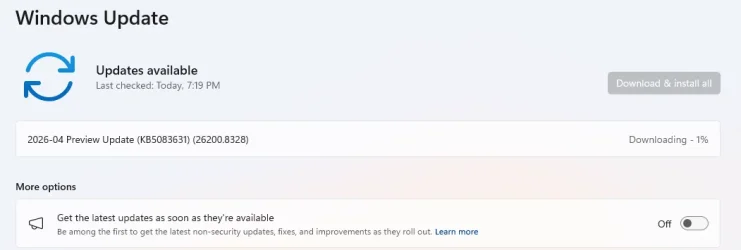
April 30, 2026 - KB5083631 (OS Builds 26200.8328 and 26100.8328) Preview
This non-security update for Windows 11, version 25H2 and 24H2 (KB5083631), includes production-quality improvements. To learn more about differences between security updates, optional non-security preview updates, out-of-band (OOB) updates, and continuous innovation, see Windows monthly updates explained. For information on Windows update terminology, see the different types of Windows software updates.To view the latest updates for this release, go to Windows release health dashboard or the update history page for Windows 11, version 24H2 and version 25H2.
Announcements and messages
This section provides key notifications related to this release, including announcements, change logs, and end-of-support notices.Windows Secure Boot certificate expiration
Important: Secure Boot certificates used by most Windows devices are set to expire starting in June 2026. This might affect the ability of certain personal and business devices to boot securely if not updated in time. To avoid disruption, we recommend reviewing the guidance and taking action to update certificates in advance. For details and preparation steps, see Windows Secure Boot certificate expiration and CA updates.
Updating Microsoft Secure Boot keys before expiration in June 2026
https://support.microsoft.com/en-us/topic/if-you-re-prevented-from-updating-secure-boot-certificates-e01cc486-8721-457f-9bc7-5cb801c1759e UPDATE 4/02: https://support.microsoft.com/en-us/topic/secure-boot-certificate-update-status-in-the-windows-security-app-5ce39986-7dd2-4852-8c21-ef30dd04f046...
www.elevenforum.com
Highlights
This update is available through two release phases: gradual rollout and normal rollout. A gradual rollout delivers an update in phases, so features reach devices over time instead of all at once, meaning availability varies by device. A normal rollout is the broad release to all eligible devices at the same time, usually when it reaches general availability (GA).Gradual rollout
The following summary outlines features from AI-powered Windows 11 PC experiences, along with improvements and fixes. The bold text within the brackets indicates the item or area of the change.
Windows 11 PC experiences
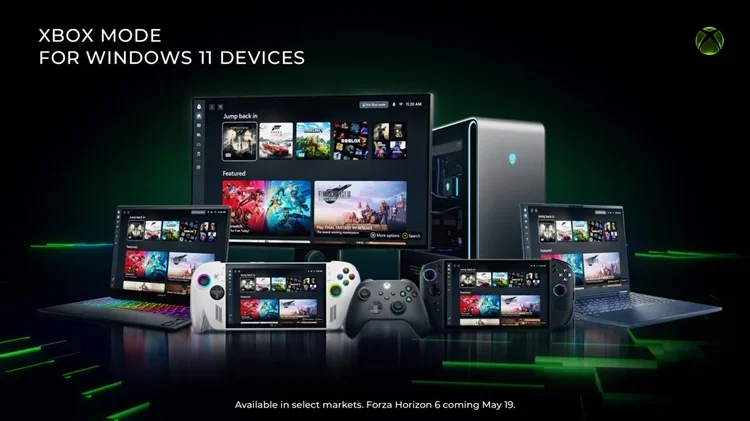
This section highlights some new features and enhancements for Windows 11 PCs, including AI-powered capabilities, continuous innovation, and performance improvements.- [Gaming] New! Xbox mode is now available on Windows 11 PCs, including laptops, desktops, and tablets. Inspired by the Xbox console experience, Xbox mode offers a streamlined, full‑screen interface that puts your games front and center while minimizing background distractions. Xbox mode is designed for those moments when you want to lean back, pick up a controller, and focus on the game. Enter Xbox mode from the Xbox app, Game Bar settings, or by pressing Windows logo key + F11. For more information, see Full screen experience expands to more Windows 11 PC form factors.
Xbox Mode Begins Rolling Out to Players on Windows 11 PCs
Xbox Wire: Beginning today, we’re excited to share that Xbox mode will begin rolling out in select markets to Windows 11 PCs, including laptops, desktops, and tablets, bringing a console-inspired Xbox experience to more players than ever. Whether you’re playing on a high-performance desktop, a...
www.elevenforum.com
- [File Explorer]
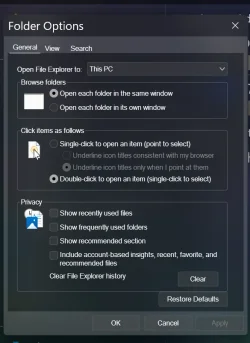
- New! This update expands the list of archive formats that can be used in File Explorer to include uu, cpio, xar, and NuGet Packages (nupkg).
ZIP (compress) Files and Folders in Windows 11
This tutorial will show you how to ZIP files in Windows 11. Zipped (compressed) files take up less storage space and can be transferred to other computers more quickly than uncompressed files. In Windows, you work with zipped files and folders in the same way that you work with uncompressed...
www.elevenforum.com
- With this update, View and Sort preferences are preserved in folders such as Downloads and Documents when apps launch File Explorer directly to those locations.

Change Folder Layout View in Windows 11 File Explorer
This tutorial will show you how to change the layout view of a folder in File Explorer for your account in Windows 11. In Windows 11, you can change the layout view of a folder in File Explorer to show all items in the folder with a extra large icons, large icons, medium icons, small icons...
www.elevenforum.com

Change Folder Group by View in Windows 11 File Explorer
This tutorial will show you how to change the group by view of a folder in File Explorer for your account in Windows 11. In Windows 11, you can change the group by view of a folder in File Explorer to have all items in the folder grouped by the name, date, date modified, size, type, total size...
www.elevenforum.com

Change Folder Sort by View in Windows 11 File Explorer
This tutorial will show you how to change the sort by view of a folder in File Explorer for your account in Windows 11. In Windows 11, you can change the sort by view of a folder in File Explorer to have all items in the folder sorted by the name, date, date modified, size, type, and more file...
www.elevenforum.com
- This update removes a white flash that could appear when opening This PC or while resizing the Details pane in dark mode.
- This update improves the reliability of relevant explorer.exe processes so they stop after closing File Explorer windows.
- New! This update expands the list of archive formats that can be used in File Explorer to include uu, cpio, xar, and NuGet Packages (nupkg).
- [Input]
- New! You can feel haptic feedback effects on compatible input devices when performing certain actions, such as aligning objects in PowerPoint, snapping or resizing windows. These haptic signals can be turned on or off in Settings > Bluetooth & devices > Mouse, Touchpad, or Pen > Haptic signals. This experience is supported on Surface Slim Pen 2, ASUS Pen 3.0, and MSI Pen 2 with haptic feedback. Support for additional compatible devices, including select mice such as Logitech MX Master 4, might become available as hardware partners release updates.

Enable or Disable Mouse Haptic Feedback in Windows 11
This tutorial will show you how to turn on or off mouse haptic feedback for your account in Windows 11. Haptic feedback gives you increased control and precision through vibrations on your mouse device when you snap windows, align objects, and more. Starting with Windows 11 build 26100.8328...
www.elevenforum.com

Enable or Disable Touchpad Haptic Click Feedback in Windows 11
This tutorial will show you how to turn on or off touchpad haptic click feedback for your account in Windows 11. If you have a Precision Touchpad, the haptic motors deliver tactile feedback that simulates the feeling of physical clicks or taps, despite the touchpad itself remaining stationary...
www.elevenforum.com
- New! Voice typing on the touch keyboard now looks simpler and more intuitive. The updated design removes the full‑screen overlay and shows voice typing animations directly on the dictation key, helping you stay focused without extra visual distractions.

Use Voice Typing to Dictate Text in Windows 11
This tutorial will show you how to use voice typing to dictate text with your voice in Windows 11. In Windows 11, dictation has been updated and renamed as voice typing. Like dictation, voice typing uses online speech recognition technologies to power its speech-to-text transcription service...
www.elevenforum.com
- New! The Arabic 101 Legacy keyboard layout is now available. You can add it when selecting a keyboard for Arabic under Time & Language > Language & Region. This option is for those who prefer the keyboard design used before recent changes with AltGr.

Change Keyboard Layout in Windows 11
This tutorial will show you how to change the keyboard layout for your account in Windows 11. In Windows, you can change your keyboard layout to type in another language or input method you want to use.. The language of your keyboard layout controls the characters that appear on your screen...
www.elevenforum.com
- This update improves the reliability of setting custom tools under Settings > Bluetooth & Devices > Wheel.
- This update improves the persistence of Fluid Dictation setting in voice typing.
- This update improves the reliability of keyboard navigation for emoji panels (Windows logo key + Period).
- This update improves the reliability of typing when using the ADLaM keyboard.
- New! You can feel haptic feedback effects on compatible input devices when performing certain actions, such as aligning objects in PowerPoint, snapping or resizing windows. These haptic signals can be turned on or off in Settings > Bluetooth & devices > Mouse, Touchpad, or Pen > Haptic signals. This experience is supported on Surface Slim Pen 2, ASUS Pen 3.0, and MSI Pen 2 with haptic feedback. Support for additional compatible devices, including select mice such as Logitech MX Master 4, might become available as hardware partners release updates.
- [Sharing] New! Drag Tray is now called Drop Tray. Its settings are now under Settings > System > Multitasking (previously Nearby sharing). Drop Tray uses a smaller peek view. This improvement helps prevent the Drop Tray from opening unintentionally and makes it easier to dismiss when you work near the top of the screen.

Enable or Disable Drop Tray in Windows 11
This tutorial will show you how to enable or disable the Drag/Drop Tray feature for your account in Windows 11. Starting with Windows 11 build 26100.4202 (24H2) and build 22631.5413 (23H2), sharing files in Windows is getting a lot easier and quicker with the Drag Tray feature. When you start...
www.elevenforum.com
- [Introducing Agents on Taskbar] New! Windows is adding a new way to monitor your agents from the taskbar. This experience supports agents across first- and third-party apps, with Researcher in the Microsoft 365 Copilot app as the first adopter. When Researcher works on a report, Windows shows progress on the taskbar so you can check updates at a glance. Hover over the Microsoft 365 Copilot icon to see real-time progress. When the report is ready, Windows notifies you. Select the notification or the icon to return to the app and review and use the results.
Developers can learn how to use this API with the Windows.UI.Shell.Tasks API. - [Enterprise State Roaming (ESR)] New! ESR can now be managed through Windows Backup for Organizations policies. This makes setup easier for IT administrators. To learn more, see Enterprise State Roaming.
- [Policy-Based Removal of Preinstalled Microsoft Apps] New! This update adds support for a dynamic app removal list to the “Remove Default Microsoft Store packages” policy for Windows Enterprise and Education. Administrators can remove additional MSIX/APPX-packaged apps by specifying their app package family names using Group Policy. The dynamic list is not currently available in Intune Settings Catalog. Validation must be performed using Group Policy or custom OMA-URI. For more information, see Policy-based in-box app removal.

You can now dynamically remove apps from managed Windows 11 devices
Windows IT Pro Blog: You can now use policy to remove select pre-installed Microsoft Store apps on devices running Windows 11, version 25H2 or version 24H2. We've also made a significant update to this policy: a dynamic app removal list. This feature lets you remove any preinstalled MSIX/APPX...
www.elevenforum.com
- [Printing] New! This update adds a new icon to show where a printer supports Windows Protected Print Mode in print settings.
Enable or Disable Windows Protected Print Mode in Windows 11
This tutorial will show you how to enable or disable Windows protected print mode for all users in Windows 11. Starting with Windows 11 build 26016 (Canary) and build 26052.1100 (Dev), Microsoft has added Windows Protected Print Mode (WPP). Windows protected print mode lets your PC exclusively...
www.elevenforum.com
Check if Printer or Scanner Supports Windows Protected Print Mode
This tutorial will show you how to check if a printer or scanner is compatible with Windows protected print mode (WPP) in Windows 11. Windows protected print mode exclusively uses the Windows modern print stack which provides additional print security benefits on PCs. Enabling Windows protected...
www.elevenforum.com
- [Windows Driver Policy update] New! This update improves Windows security by changing how the Windows kernel trusts third‑party drivers. Default trust for cross‑signed drivers is removed, while drivers from the Windows Hardware Compatibility Program (WHCP) and an allow list of trusted legacy drivers remain allowed. Windows audits driver compatibility for at least 100 hours and three reboots before enabling enforcement. After enforcement, a small number of cross‑signed drivers might be blocked. For more information, see the Windows driver policy and the Advancing Windows driver security blog.
- [Enhanced security and performance for batch files] New! Administrators and Application Control for Business policy authors now have additional control over how the system processes batch files and Command Prompt (CMD) scripts. Starting with this release, administrators can enable a more secure processing mode for batch files. This mode prevents batch files from changing during execution.

Enable or Disable Enhanced Security and Performance for Batch and CMD files in Windows 11
This tutorial will show you how to turn on or off enhanced security and performance for batch and CMD files in Windows 11 Starting with Windows 11 build 26100.8328 (24H2), build 26200.8328 (25H2), and build 28000.2179 (26H1), Administrators and Application Control for Business policy authors...
www.elevenforum.com
To enable this setting, add the following value to the registry:
Registry Key: HKEY_LOCAL_MACHINE\Software\Microsoft\Command Processor
Value name: LockBatchFilesWhenInUse
Type: DWORD
Data to be set: 0 (disabled) or 1 (enabled)
Policy authors can also enable this mode by using the LockBatchFilesWhenInUse application manifest control, as documented in the Application Control for Business manifest schema. - [Microsoft Store] This update reduces unexpected errors when downloading and installing apps from the Microsoft Store, including errors 0x80070057, 0x80240008, and 0x80073d28.
- [Fonts] This update includes improvements to the Leelawadee UI font family for the Thai, Lao, Khmer, and Lontara scripts to enhance glyph sequencing, positioning, and rendering.
- Audio This update improves third-party driver compatibility with midisrv.exe.
- [Taskbar] This update improves the reliability of loading the system tray area of the taskbar.
- [Windows Hello]This update improves:
- Reliability of Windows Hello Face.
- Persistence of Windows Hello Fingerprint across upgrades.
- [Storage]This update improves:
- Performance when viewing storage information for large volumes in Settings > System > Storage > Advanced Storage Settings > Disks & Volumes.
- The size limit for formatting FAT32 volumes from the command line from 32GB to 2TB.
Format Drive in Windows 11
This tutorial will show you different ways to format a connected internal or external drive with an existing partition or volume already assigned a drive letter in Windows 10 and Windows 11. When you format a drive, it erases all existing data on the drive and applies a file system to allow the...
www.elevenforum.com
- [Delivery Optimization] This update improves memory usage, reducing likelihood it will use an unexpectedly large amount of memory.
- [Display and graphics] This update improves persistence and availability of color profile options for supported monitors.
- [Kiosk mode] This update simplifies configuration for allowed packaged apps in kiosks when Microsoft Edge is one of the allowed apps.
- [General Performance] This update improves the performance of launching startup apps after starting your device (apps listed under Settings > Apps > Startup).
- [General Reliability] This update brings underlying changes to help improve explorer.exe reliability, including at sign‑in, when interacting with taskbar menus and Task View, when unpinning items from File Explorer’s Quick Access, and more.
This non-security update includes quality improvements. The following summary outlines key issues addressed by the KB update after you install it. Also, included are available new features. The bold text within the brackets indicates the item or area of the change.
- [Secure Boot] With this update, Windows quality updates include additional high confidence device targeting data, increasing coverage of devices eligible to automatically receive new Secure Boot certificates. Devices receive the new certificates only after demonstrating sufficient successful update signals, maintaining a controlled and phased rollout. For more information, see Windows Secure Boot certificate expiration and CA updates.
- [Authentication (Kerberos)] This update improves Kerberos authentication in Remote Desktop sessions using Remote Credential Guard addressing error 0xc000009a.
- [Remote Desktop (known issue)] Fixed: This update addresses an issue that affects the Remote Desktop Connection security warning dialog. The dialog could render incorrectly in multi-monitor scenario when the monitors had different scaling set. This might occur after installing the April 2026 (KB5083769) security update. For more information, see Understanding security warnings when opening Remote Desktop (RDP) files.
- [Windows Security] This update improves event logging related to CVE‑2024‑30098 by including the name of the affected application. This change makes it easier to identify applications that rely on smart card certificates and may need updates following recent security changes.
AI Components
This release updates the following AI components:AI Component | Version |
|---|---|
| Image Search | 1.2604.515.0 |
| Content Extraction | 1.2604.515.0 |
| Semantic Analysis | 1.2604.515.0 |
| Settings Model | 1.2604.515.0 |
Windows 11 servicing stack update (KB5088467)- 26100.8247
This update makes quality improvements to the servicing stack, which is the component that installs Windows updates. Servicing stack updates (SSU) ensure that you have a robust and reliable servicing stack so that your devices can receive and install Microsoft updates. To learn more about SSUs, see Simplifying on-premises deployment of servicing stack updates.Known issues in this update
Symptom
Some devices with an unrecommended BitLocker Group Policy configuration might be required to enter their BitLocker recovery key on the first restart after installing this update.
This issue only affects a limited number of systems in which ALL of the following conditions are true. These conditions are unlikely to be found on personal devices not managed by IT departments.
Enterprises are recommended to audit their BitLocker group policies for explicit PCR7 inclusion and check msinfo32.exe for their PCR7 binding status before installing this update. (See the Workaround below.)
Workaround
Remove the Group Policy configuration before installing the update (Recommended)
Some devices with an unrecommended BitLocker Group Policy configuration might be required to enter their BitLocker recovery key on the first restart after installing this update.
This issue only affects a limited number of systems in which ALL of the following conditions are true. These conditions are unlikely to be found on personal devices not managed by IT departments.
- BitLocker is enabled on the OS drive.
- The Group Policy "Configure TPM platform validation profile for native UEFI firmware configurations" is configured, and PCR7 is included in the validation profile (or the equivalent registry key is set manually).
- System Information (msinfo32.exe) reports Secure Boot State PCR7 Binding as "Not Possible".
- The Windows UEFI CA 2023 certificate is present in the device’s Secure Boot Signature Database (DB), making the device eligible for the 2023‑signed Windows Boot Manager to be made the default.
- The device is not already running the 2023-signed Windows Boot Manager.
Enterprises are recommended to audit their BitLocker group policies for explicit PCR7 inclusion and check msinfo32.exe for their PCR7 binding status before installing this update. (See the Workaround below.)
Workaround
Remove the Group Policy configuration before installing the update (Recommended)
- Open Group Policy Editor (gpedit.msc) or your Group Policy Management Console.
- Navigate to: Computer Configuration > Administrative Templates > Windows Components > BitLocker Drive Encryption > Operating System Drives.
- Set "Configure TPM platform validation profile for native UEFI firmware configurations" to "Not Configured".
- Run the following command on affected devices to propagate the policy change: gpupdate /force
- Run the following command to suspend BitLocker (where BitLocker is enabled on the C: drive): manage-bde -protectors -disable C:
- Run the following command to resume BitLocker (where BitLocker is enabled on the C: drive): manage-bde -protectors -enable C:
- This updates the BitLocker bindings to use the Windows-selected default PCR profile.
How to get this update
Before you install this updateMicrosoft combines the latest servicing stack update (SSU) for your operating system with the latest cumulative update (LCU). For general information about SSUs, see Servicing stack updates.
Install this update
To install this update, use one of the following Windows and Microsoft release channels.
Available | Next Step |
|---|---|

| Open Start > Settings > Windows Update. > Advanced options > Optional updates. In the Optional updates available area, you will find the link to download and install available updates. Check for optional updates |
|
| To install this release from the Microsoft Update Catalog, select the option that matches your device architecture (arm64 or x64), and then follow the instructions. |
If you want to remove this update
Caution: Before you decide to remove this update, see Understanding the risks: Why you should not uninstall security updates.
To remove this update after installing the combined SSU and LCU package, use the DISM/Remove-Package command line option with the LCU package name as the argument. You can find the package name by using this command: DISM /online /get-packages.
Running Windows Update Standalone Installer (wusa.exe) with the /uninstall switch on the combined package will not work because the combined package contains the SSU. You cannot remove the SSU from the system after installation.
File information
For a list of the files provided in this update, download the file information for cumulative update 5083631.
For a list of the files provided in the servicing stack update, download the file information for the SSU (KB5088467) - version 26100.8247.
Source:
April 30, 2026—KB5083631 (OS Builds 26200.8328 and 26100.8328) Preview | Microsoft Support
April 30, 2026—KB5083631 (OS Builds 26200.8328 and 26100.8328) Preview
support.microsoft.com
Check Windows Updates
UUP Dump:
64-bit ISO download:
Select language for Windows 11, version 24H2 (26100.8328) amd64
Select language for Windows 11, version 24H2 (26100.8328) amd64 on UUP dump. UUP dump lets you download Unified Update Platform files, like Windows Insider updates, directly from Windows Update.
uupdump.net
Select language for Windows 11, version 25H2 (26200.8328) amd64
Select language for Windows 11, version 25H2 (26200.8328) amd64 on UUP dump. UUP dump lets you download Unified Update Platform files, like Windows Insider updates, directly from Windows Update.
uupdump.net
ARM64 ISO download:
Select language for Windows 11, version 24H2 (26100.8328) arm64
Select language for Windows 11, version 24H2 (26100.8328) arm64 on UUP dump. UUP dump lets you download Unified Update Platform files, like Windows Insider updates, directly from Windows Update.
uupdump.net
Select language for Windows 11, version 25H2 (26200.8328) arm64
Select language for Windows 11, version 25H2 (26200.8328) arm64 on UUP dump. UUP dump lets you download Unified Update Platform files, like Windows Insider updates, directly from Windows Update.
uupdump.net
UUP Dump - Download Windows Insider ISO
UUP Dump is the most practical and easy way to get ISO images of any Insider Windows 10 or Windows 11 version, as soon as Microsoft has released a new build. UUP Dump creates a download configuration file according to your choices, downloads necessary files directly from Microsoft servers, and...
www.elevenforum.com
Last edited:


 Apple 13" Macbook Pro 2020 (m1)