Win Update KB5089573 Windows 11 Cumulative Update Preview build 26100.8524 (24H2) and 26200.8524 (25H2) - May 26


 Microsoft Support:

May 26, 2026 - KB5089573 (OS Builds 26200.8524 and 26100.8524) Preview​

This cumulative update for Windows 11, version 25H2 and 24H2 (KB5089573), includes production-quality improvements.
Visit the Windows release health dashboard for the latest status on this release.

Announcements and messages

This section provides key notifications related to this release, including announcements, change logs, and end-of-support notices.

Windows Secure Boot certificate expiration​

Important: Secure Boot certificates used by most Windows devices are set to expire starting in June 2026. This might affect the ability of certain personal and business devices to boot securely if not updated in time. To avoid disruption, we recommend reviewing the guidance and taking action to update certificates in advance. For details and preparation steps, see Windows Secure Boot certificate expiration and CA updates.


Change log​

Change date​
Change description​
May 29, 2026
  • Update: Installation & updates (Known issue) added (normal rollout).
  • Known issue update: The documentation no longer lists the known issue “May 2026 security update fails to install with error 0x800f0922” because this update (KB5089573) addresses the issue.
May 28, 2026Update: Personalization added (gradual rollout).

Highlights

This update is available through two release phases: gradual rollout and normal rollout. A gradual rollout delivers an update in phases, so features reach devices over time instead of all at once, meaning availability varies by device. A normal rollout is the broad release to all eligible devices at the same time, usually when it reaches general availability (GA).

Gradual rollout

The following summary outlines features from AI-powered Windows 11 PC experiences, along with improvements and fixes. The bold text within the brackets indicates the item or area of the change.

Windows 11 PC experiences​

This section highlights some new features and enhancements for Windows 11 PCs, including AI-powered capabilities, continuous innovation, and performance improvements.
  • [Shared Audio] New! Shared Audio enables two people to listen to the same audio from a single Windows 11 PC at the same time. It uses Bluetooth® LE Audio broadcast technology to make sharing easy. For example, you can watch a movie while traveling or listen to music while studying together. To start sharing audio, open Quick settings from the taskbar, select Shared Audio, choose two supported, paired, and connected devices, and then select Start sharing. To learn more about Shared Audio, see Extending Bluetooth® LE Audio on Windows 11 with Shared Audio.

  • [Magnifier in Windows]
    • New! Magnifier now provides clearer and more consistent announcements when working with a screen reader. You’ll hear helpful announcements when you zoom in or out, switch views, turn color inversion on or off, or turn Magnifier on or off. This makes it easy to stay oriented while you work.
    • New! Magnifier now supports magnification of permitted protected content.
    • This update improves smoothness when moving Magnifier in lens mode.

  • [Task Manager]
    • New! Task Manager now offers improved visibility into NPU usage on PCs with an NPU. New optional NPU and NPU Engine columns are available on the Processes, Users, and Details pages, along with NPU Dedicated Memory and NPU Shared Memory optional columns on the Details page. Neural engines that are part of a GPU now appear on the Performance page, providing a more complete view of AI‑related activity.

    • A new optional Isolation column on the Processes and Details pages shows which apps are running in an AppContainer. You can add any of the new columns by right‑clicking a column header in Task Manager and selecting them from the menu.

    • This update improves CPU speed display on the Performance page of Task Manager for VMs, so it doesn’t show higher than unexpected numbers after resuming from hibernate.
  • [Camera] New! Windows 11’s Multi-App Camera feature allows multiple applications to access your camera stream at the same time. Basic Camera mode in Windows 11 enables simplified camera functionality, useful for troubleshooting or improving stability when your camera is not working correctly. Enterprise admin can now set Multi-App Camera mode or Basic Camera mode through Group Policy, under Computer Configuration > Administrative Templates > Windows Components > Camera > Configure Camera Options.

  • [Windows Setup] New! You can now choose a custom name for your user folder on the Device Name page during Windows setup. The updated experience makes it easier to select a custom name during setup only. If this step is skipped, Windows uses the default folder name and continues setup as usual. User folder names must follow standard Windows naming requirements.

  • [General Performance] This update accelerates app launch and core shell experiences such as Start menu, Search, and Action Center.
  • [Personalization] This update improves:
    • Color selection accuracy when adjusting your accent color to match your wallpaper when the automatic accent color selection is enabled in Personalization settings.
    • Wallpaper persistence reliability across restarts and upgrades, including better support for large‑resolution wallpapers and other scenarios to prevent solid color wallpaper fallback.
  • [Windows Hello]
    • This update optimizes the Windows Biometric service (WinBio) to help improve performance when your device resumes from Modern Standby.
    • This update reduces unexpected authentication blocks in Windows Hello Enhanced Sign‑in Security by resolving missing secure enrollment metadata.
    • This update improves sign‑in behavior on the lock screen and sign‑in screen. When Windows Hello face or fingerprint is set up and available, it is now the default sign-in method every time you sign in, even if you used a different method previously. If you need to use your Windows PIN instead and use it three times in a row, Windows will stay with PIN until you switch to another sign-in method.
  • [Windows Search Box] Windows Search will now find and prioritize files with as few as two characters.
  • [Storage]
    • The dialog box for creating a Dev Drive now supports specifying the size in gigabytes (GB) instead of only megabytes (MB). This option is also available when resizing volumes in Settings > System > Storage.
    • In Settings > System > Storage, you now see a User Account Control (UAC) prompt only when you choose to view temporary files, instead of immediately when opening the page.
  • [USB]
    • This update improves reliability for displays attached to USB4 docks and hubs. These displays now light up more consistently, particularly when coming out of standby.
    • The USB3 stack is updated to have additional resiliency and recovery measures in place against certain unexpected hardware faults and conditions. Users will experience higher reliability with USB devices.
  • [Sensors] This update improves resiliency against apps that could keep the sensor hub powered on and drain power, impacting battery life.
  • [Human Interface Device (HID)] This update improves battery life related to the HID and Input stack for failed HID devices. Power hygiene is also improved against applications that might initiate HID transfers during standby.
  • [Input]The update improves:
    • Reliability of the touch keyboard on the sign‑in screen, including when entering or changing a password.
    • Reliability of explorer.exe when closing the input switcher.
    • Performance when opening or navigating to clipboard history.
  • [Fonts] The Times New Roman font family is updated to improve the rendering of combining diacritical marks across Greek and Cyrillic scripts. This update provides more accurate and visually consistent text by addressing mark positioning issues. These changes improve readability, reduce rendering inconsistencies, and better support for global language users working with Greek and Cyrillic content.
  • [Task Scheduler] Task Scheduler now saves column width adjustments in task list view across sessions.
  • [Desktop icons] This update improves reliability of loading desktop app shortcuts.
  • [Microsoft Store]
    • This update includes underlying changes that improve download performance and bandwidth usage.
    • This update improves error reporting when downloads fail due to Windows Update group policy settings being enabled.
  • [Reliability] This update improves Windows reliability on the sign-in and lock screens, in File Explorer, when using touch gestures on touchscreen devices, and when changing themes in Settings.
Normal rollout
This non-security update includes quality improvements. The following summary outlines key issues addressed by the KB update after you install it. Also, included are available new features. The bold text within the brackets indicates the item or area of the change.
  • [Secure Boot]
    • With this update, Windows quality updates include additional high confidence device targeting data, increasing coverage of devices eligible to automatically receive new Secure Boot certificates. Devices receive the new certificates only after demonstrating sufficient successful update signals, maintaining a controlled and phased rollout.
    • This update adds the LimitSecureBootRequiredServiceData Group Policy and mobile device management (MDM) setting under Computer Configuration > Administrative Templates > Windows Components > Secure Boot. When enabled, Windows limits the Secure Boot service data it sends by suppressing the event normally sent to Microsoft. This policy is included in the Windows Restricted Traffic Limited Functionality Baseline. For information about the policy, see Manage connections from Windows 10 and Windows 11 operating system components to Microsoft services.
  • [Installation & updates (Known issue)] Fixed This update addresses an issue where some devices might fail to complete installation with error code 0x800f0922. This can happen when the EFI System Partition (ESP) has limited free space, especially when 10 MB or less is available. This might occur after installing the May 2026 security update KB5089549.
If you installed earlier updates, your device downloads and installs only the new updates contained in this package.

AI Components

This release updates the following AI components:

AI Component​
Version​
Image Search1.2605.856.0
Content Extraction1.2605.856.0
Semantic Analysis1.2605.856.0
Settings Model1.2605.856.0

Windows 11 servicing stack update (KB5092734)- 26100.8519

This update makes quality improvements to the servicing stack, which is the component that installs Windows updates. Servicing stack updates (SSU) ensure that you have a robust and reliable servicing stack so that your devices can receive and install Microsoft updates. To learn more about SSUs, see Simplifying on-premises deployment of servicing stack updates.

Known issues in this update

Microsoft is not currently aware of any issues with this update.

How to get this update

Before you install this update

Microsoft combines the latest servicing stack update (SSU) for your operating system with the latest cumulative update (LCU). For general information about SSUs, see Servicing stack updates.

Install this update

To install this update, use one of the following Windows and Microsoft release channels.

Available​
Next Step​
Included
Open Start > Settings > Windows Update. > Advanced options > Optional updates. In the Optional updates available area, you will find the link to download and install available updates.
Check for optional updates
Included
To install this release from the Microsoft Update Catalog, select the option that matches your device architecture (arm64 or x64), and then follow the instructions.

If you want to remove this update

Caution: Before you decide to remove this update, see Understanding the risks: Why you should not uninstall security updates.

To remove this update after installing the combined SSU and LCU package, use the DISM/Remove-Package command line option with the LCU package name as the argument. You can find the package name by using this command: DISM /online /get-packages.

Running Windows Update Standalone Installer (wusa.exe) with the /uninstall switch on the combined package will not work because the combined package contains the SSU. You cannot remove the SSU from the system after installation.

File information

For a list of the files provided in this update, download the file information for cumulative update 5089573.

For a list of the files provided in the servicing stack update, download the file information for the SSU (KB5092734) - version 26100.8519.


 Source:


Check Windows Updates


UUP Dump:

64-bit ISO download:

ARM64 ISO download:

 
Last edited:

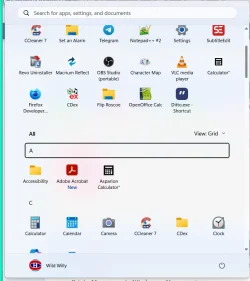
Actually, it's not hard. Click where it says View: Category & change it to View: List. Presto, there's the list of all apps in alphabetical order. It's a bit clumsy to have them all right there in the top level instead of initially not shown. But at least it's there. My pins occupy enough space that the complete alphabetical list is off screen below the pins, so it's more or less unobtrusive. Still, the old way seemed a bit more convenient. OK. I'm done griping. I think I can live with this.

And since I'm experimenting, I think View: Grid might even be a bit nicer. It's more compact & shows essentially the same thing as View: List in less space. It takes a bit of getting used to but you can navigate the whole thing from the keyboard, no mouse needed. You just need to get used to when you have to Tab & when you can use Arrow keys.
 

My Computer

System One

  • OS
    Windows 11 Pro 64-bit 25H2
    Computer type
    PC/Desktop
    Manufacturer/Model
    Self build
    CPU
    Intel Core i9-13900K
    Motherboard
    ASUS Z790-Plus WiFi TUF Gaming
    Memory
    4x32G Teamgroup TForce Vulcan DDR5 6000 DIMMs
    Graphics Card(s)
    MSI/NVidia GeForce RTX 4070 Gaming X Trio 12G GDDR6X + built into motherboard Intel UHD Graphics
    Sound Card
    Built into graphics card + built into motherboard Realtek Audio
    Monitor(s) Displays
    Two connected to the NVidia adapter - Primary: Dell SE2417HGX 23" diagonal connected via HDMI-to-DisplayPort dongle, Secondary: Toshiba TV 32" diagonal connected via HDMI through Onkyo TX-NR717 surround receiver. Third: Viewsonic VS19151 32" diagonal connected wirelessly via WiFi/Miracast & j5create JVAW56 dongle.
    Screen Resolution
    1920x1080 on all 3 monitors
    Hard Drives
    Samsung 970 EVO Plus NVMe M.2 2T
    6xSATA-to-USB 3.0 Fideco external enclosures holding SATA drives of various brands & sizes 1x20T, 2x18T, 2x6T, 1x500G, all connected to a multi-port USB hub
    For backups: USB 3.0 HDDs of various brands & sizes 3x20T, 1x1T + SSDs of various brands & sizes 2x480G, 1x1T, all connected to another multi-port USB hub, powered on only while actually performing backups & (may it never happen) restores
    PSU
    MSI MPG A1000G PCIe5 1000W, TrippLite Smart1500TSU 1200W UPS for the main system, TrippLite ECO850LCD 850W UPS for the DASD & my Internet connectivity boxes (no reason to throw out legacy equipment that stil works fine)
    Case
    Fractal North
    Cooling
    DeepCool AK620 CPU cooler (air, 2 fans), 2 case fans, 1 fan in PSU, 3 fans in graphics adapter; 4xpersonal cooling fans strategically placed to cool the external HDDs
    Keyboard
    Cherry MX 11900 USB (wired)
    Mouse
    Touchpad built into the keyboard
    Internet Speed
    500Mbps via Spectrum cable TV/cell phone bundle
    Browser
    Firefox
    Antivirus
    Built into Windows 11
    Other Info
    The ethernet adapter integrated into the motherboard died. I am now using a TPLink TX201 ethernet adapter in a PCIe expansion slot for Internet connectivity.
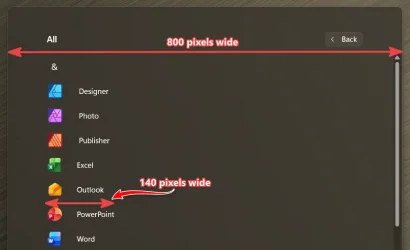
I don't use the Start Menu, but, I always thought it ridiculous to have an 800 pixels wide UI for icons and monikers that only need about 150 pixels!!! 🤷‍♂️

13008.webp
 

My Computers

System One System Two

  • OS
    Windows 11 Pro
    Computer type
    PC/Desktop
    Manufacturer/Model
    ASUS ROG Strix
  • Operating System
    Windows 11 Pro
    Computer type
    Laptop
    Manufacturer/Model
    ASUS VivoBook
Hello again! After the latest May windows updates 05-2026 and the optional Microsoft Corporation AudioProcessingObject Driver Update (10.0.26100.6710) received via windows updates of course, I started having very very often the classic error bug (to my PC desktop, WIN 1125H2 AMD RYZEN 5800X, ASUS ROG STRIX X570F GAMING AND NVIDIA GEFORCE RTX3080, fully updated of course including BIOS):
Faulting application name: NahimicSvc32.exe, version: 2.7.6.0, time stamp: 0x62c7ea47 (this means that the sonic studio3 doesn't open at every PC's restart). There was also an update regarding Armoury Crate UWP App 6.5.7.1 but I do not thing that AC is the culprit..
I am pretty sure that Microsoft is the only one to blame for, because of its latest updates..
The other problem that I have already mentioned is the dism restore health command which ends up at 100% but failing "the repair content couldn't be found anywhere" (yes I know that may users face it and I believe that the best option is to wait for the next updates to fix it because I am seeing the same error for the first time after a long ago format to both of my machines I own: dell alienware laptop ac16250 and the aforementioned desktop PC as well).
Any ideas? Maybe to wait, right? I prefer, for the time being, not to use the reset PC or fix with windows update options...
 

Attachments

  • 2026-05-31_15-08.webp
    2026-05-31_15-08.webp
    95.2 KB · Views: 1
  • 2026-05-31_15-01.webp
    2026-05-31_15-01.webp
    136.1 KB · Views: 1
  • 2026-05-31_15-00.webp
    2026-05-31_15-00.webp
    115.9 KB · Views: 1

My Computer

System One

  • OS
    win 11 pro 25 h2
    Computer type
    PC/Desktop
Hello again! After the latest May windows updates 05-2026 and the optional Microsoft Corporation AudioProcessingObject Driver Update (10.0.26100.6710) received via windows updates of course, I started having very very often the classic error bug (to my PC desktop, WIN 1125H2 AMD RYZEN 5800X, ASUS ROG STRIX X570F GAMING AND NVIDIA GEFORCE RTX3080, fully updated of course including BIOS):
Faulting application name: NahimicSvc32.exe, version: 2.7.6.0, time stamp: 0x62c7ea47 (this means that the sonic studio3 doesn't open at every PC's restart). There was also an update regarding Armoury Crate UWP App 6.5.7.1 but I do not thing that AC is the culprit..
I am pretty sure that Microsoft is the only one to blame for, because of its latest updates..
The other problem that I have already mentioned is the dism restore health command which ends up at 100% but failing "the repair content couldn't be found anywhere" (yes I know that may users face it and I believe that the best option is to wait for the next updates to fix it because I am seeing the same error for the first time after a long ago format to both of my machines I own: dell alienware laptop ac16250 and the aforementioned desktop PC as well).
Any ideas? Maybe to wait, right? I prefer, for the time being, not to use the reset PC or fix with windows update options...

Rollback to 8457, put Windows Update on pause and wait for the Super Tuesday update next month.
 

My Computers

System One System Two

  • OS
    Windows 11 Education For 25H2
    Computer type
    Laptop
    Manufacturer/Model
    HP ZBook G2
    CPU
    Intel® Core i7 5500u
    Motherboard
    HP
    Memory
    8 GB
    Graphics Card(s)
    Intel HD Family Graphics 5500 AMD Firepro 4150M
    Sound Card
    Realtek High Audio
    Hard Drives
    1 TB SSD
    Mouse
    HP USB Mouse
    Antivirus
    Windows Defender
  • Operating System
    Windows 11 Pro For Workstations 25H2
    Computer type
    Laptop
    Manufacturer/Model
    HP Zbook G4
    CPU
    Xeon 1535m v6
    Motherboard
    HP
    Memory
    32 GB
    Graphics card(s)
    AMD Quadro Pro 4100
    Sound Card
    Bang and Olufson Audio
    Hard Drives
    1TB SSD
    Mouse
    HP USB Mouse
    Antivirus
    Windows Defender

Change log​

Change date​
Change description​
May 29, 2026
  • Update: Installation & updates (Known issue) added (normal rollout).
  • Known issue update: The documentation no longer lists the known issue “May 2026 security update fails to install with error 0x800f0922” because this update (KB5089573) addresses the issue.

  • [Installation & updates (Known issue)] Fixed This update addresses an issue where some devices might fail to complete installation with error code 0x800f0922. This can happen when the EFI System Partition (ESP) has limited free space, especially when 10 MB or less is available. This might occur after installing the May 2026 security update KB5089549.
 

My Computers

System One System Two

  • OS
    Windows 11 Pro for Workstations
    Computer type
    PC/Desktop
    Manufacturer/Model
    Custom self build
    CPU
    Intel i7-8700K 5 GHz
    Motherboard
    ASUS ROG Maximus XI Formula Z390
    Memory
    64 GB (4x16GB) G.SKILL TridentZ RGB DDR4 3600 MHz (F4-3600C18D-32GTZR)
    Graphics Card(s)
    ASUS ROG-STRIX-GTX1080TI-O11G-GAMING (11GB GDDR5X)
    Sound Card
    Integrated Digital Audio (S/PDIF)
    Monitor(s) Displays
    2 x Samsung Odyssey G75 27"
    Screen Resolution
    2560x1440
    Hard Drives
    1TB Samsung 990 PRO M.2,
    4TB Samsung 990 PRO M.2,
    TerraMaster F8 SSD Plus NAS
    PSU
    Seasonic Prime Titanium 850W
    Case
    Thermaltake Core P3 wall mounted
    Cooling
    Corsair Hydro H115i
    Keyboard
    Amazon Basics Wired Full Keyboard MD005
    Mouse
    Logitech MX Master 4
    Internet Speed
    2 Gbps Download and 100 Mbps Upload
    Browser
    Chrome and Edge
    Antivirus
    Microsoft Defender
    Other Info
    Logitech Z625 speaker system,
    Logitech BRIO 4K Pro webcam,
    HP Color LaserJet Pro MFP M477fdn,
    CyberPower CP1500PFCLCD
    Galaxy S23 Plus phone
  • Operating System
    Windows 11 Pro
    Computer type
    Laptop
    Manufacturer/Model
    Surface Laptop 7 Copilot+ PC
    CPU
    Snapdragon X Elite (12 core) 3.42 GHz
    Memory
    16 GB LPDDR5x-7467 MHz
    Monitor(s) Displays
    15" HDR
    Screen Resolution
    2496 x 1664
    Hard Drives
    1 TB SSD
    Internet Speed
    Wi-Fi 7 and Bluetooth 5.4
    Browser
    Chrome and Edge
    Antivirus
    Microsoft Defender
Since we're sharing pix of our Start Menus . . .

#01.webp

That shows the bottom part of my pins & the top part of the All list. That looks like the space is being used reasonably efficiently. There was a lot of wasted space in the Start Menu before. But this looks acceptable now, wouldn't you say?
 

My Computer

System One

  • OS
    Windows 11 Pro 64-bit 25H2
    Computer type
    PC/Desktop
    Manufacturer/Model
    Self build
    CPU
    Intel Core i9-13900K
    Motherboard
    ASUS Z790-Plus WiFi TUF Gaming
    Memory
    4x32G Teamgroup TForce Vulcan DDR5 6000 DIMMs
    Graphics Card(s)
    MSI/NVidia GeForce RTX 4070 Gaming X Trio 12G GDDR6X + built into motherboard Intel UHD Graphics
    Sound Card
    Built into graphics card + built into motherboard Realtek Audio
    Monitor(s) Displays
    Two connected to the NVidia adapter - Primary: Dell SE2417HGX 23" diagonal connected via HDMI-to-DisplayPort dongle, Secondary: Toshiba TV 32" diagonal connected via HDMI through Onkyo TX-NR717 surround receiver. Third: Viewsonic VS19151 32" diagonal connected wirelessly via WiFi/Miracast & j5create JVAW56 dongle.
    Screen Resolution
    1920x1080 on all 3 monitors
    Hard Drives
    Samsung 970 EVO Plus NVMe M.2 2T
    6xSATA-to-USB 3.0 Fideco external enclosures holding SATA drives of various brands & sizes 1x20T, 2x18T, 2x6T, 1x500G, all connected to a multi-port USB hub
    For backups: USB 3.0 HDDs of various brands & sizes 3x20T, 1x1T + SSDs of various brands & sizes 2x480G, 1x1T, all connected to another multi-port USB hub, powered on only while actually performing backups & (may it never happen) restores
    PSU
    MSI MPG A1000G PCIe5 1000W, TrippLite Smart1500TSU 1200W UPS for the main system, TrippLite ECO850LCD 850W UPS for the DASD & my Internet connectivity boxes (no reason to throw out legacy equipment that stil works fine)
    Case
    Fractal North
    Cooling
    DeepCool AK620 CPU cooler (air, 2 fans), 2 case fans, 1 fan in PSU, 3 fans in graphics adapter; 4xpersonal cooling fans strategically placed to cool the external HDDs
    Keyboard
    Cherry MX 11900 USB (wired)
    Mouse
    Touchpad built into the keyboard
    Internet Speed
    500Mbps via Spectrum cable TV/cell phone bundle
    Browser
    Firefox
    Antivirus
    Built into Windows 11
    Other Info
    The ethernet adapter integrated into the motherboard died. I am now using a TPLink TX201 ethernet adapter in a PCIe expansion slot for Internet connectivity.
Since we're sharing pix of our Start Menus . . .

View attachment 173034

That shows the bottom part of my pins & the top part of the All list. That looks like the space is being used reasonably efficiently. There was a lot of wasted space in the Start Menu before. But this looks acceptable now, wouldn't you say?
Start menu need this space for Grid/Category options.
 

My Computer

System One

  • OS
    26200.8037
    Computer type
    PC/Desktop
    CPU
    i5-11400F
    Motherboard
    Gigabyte
    Memory
    32GB
    Graphics Card(s)
    Geforce GT-1030
    Keyboard
    Logitech K400
    Mouse
    Logitech M720
    Internet Speed
    600 Mb
    Browser
    Edge
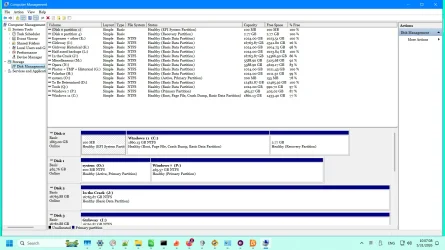
@Brink Interesting. That made me look at my system.

#01.webp#02.webp

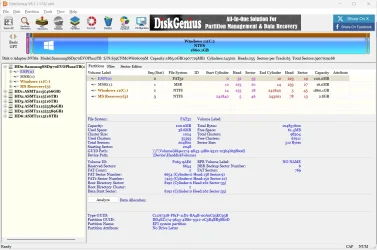
This was just how my Windows 11 install (over 2 years ago) built the drive. Am I just the beneficiary of dumb luck? Or did I do something right by accident? I think it might be helpful to tell people how to make sure they don't fall into the trap of a too small EFI partition from the outset. I don't recall being prompted about this partition. It just happened. Why did it happen just right for me & apparently not right for our friends here who are having trouble with this update?
 

My Computer

System One

  • OS
    Windows 11 Pro 64-bit 25H2
    Computer type
    PC/Desktop
    Manufacturer/Model
    Self build
    CPU
    Intel Core i9-13900K
    Motherboard
    ASUS Z790-Plus WiFi TUF Gaming
    Memory
    4x32G Teamgroup TForce Vulcan DDR5 6000 DIMMs
    Graphics Card(s)
    MSI/NVidia GeForce RTX 4070 Gaming X Trio 12G GDDR6X + built into motherboard Intel UHD Graphics
    Sound Card
    Built into graphics card + built into motherboard Realtek Audio
    Monitor(s) Displays
    Two connected to the NVidia adapter - Primary: Dell SE2417HGX 23" diagonal connected via HDMI-to-DisplayPort dongle, Secondary: Toshiba TV 32" diagonal connected via HDMI through Onkyo TX-NR717 surround receiver. Third: Viewsonic VS19151 32" diagonal connected wirelessly via WiFi/Miracast & j5create JVAW56 dongle.
    Screen Resolution
    1920x1080 on all 3 monitors
    Hard Drives
    Samsung 970 EVO Plus NVMe M.2 2T
    6xSATA-to-USB 3.0 Fideco external enclosures holding SATA drives of various brands & sizes 1x20T, 2x18T, 2x6T, 1x500G, all connected to a multi-port USB hub
    For backups: USB 3.0 HDDs of various brands & sizes 3x20T, 1x1T + SSDs of various brands & sizes 2x480G, 1x1T, all connected to another multi-port USB hub, powered on only while actually performing backups & (may it never happen) restores
    PSU
    MSI MPG A1000G PCIe5 1000W, TrippLite Smart1500TSU 1200W UPS for the main system, TrippLite ECO850LCD 850W UPS for the DASD & my Internet connectivity boxes (no reason to throw out legacy equipment that stil works fine)
    Case
    Fractal North
    Cooling
    DeepCool AK620 CPU cooler (air, 2 fans), 2 case fans, 1 fan in PSU, 3 fans in graphics adapter; 4xpersonal cooling fans strategically placed to cool the external HDDs
    Keyboard
    Cherry MX 11900 USB (wired)
    Mouse
    Touchpad built into the keyboard
    Internet Speed
    500Mbps via Spectrum cable TV/cell phone bundle
    Browser
    Firefox
    Antivirus
    Built into Windows 11
    Other Info
    The ethernet adapter integrated into the motherboard died. I am now using a TPLink TX201 ethernet adapter in a PCIe expansion slot for Internet connectivity.
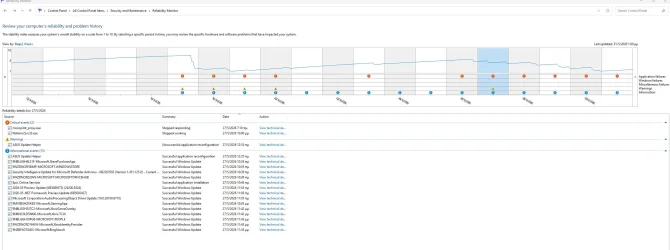
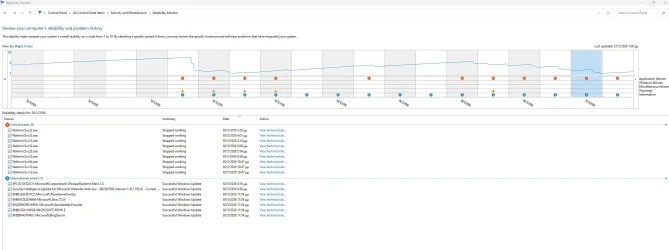
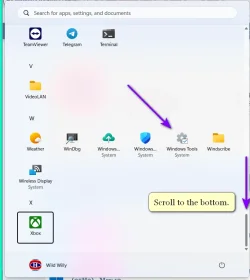
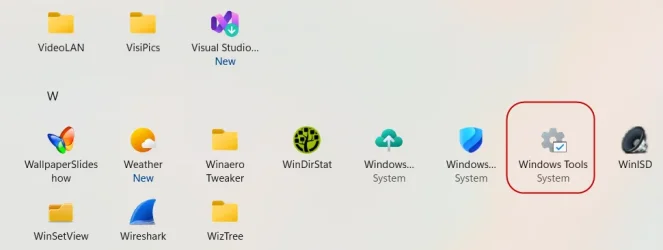
Just noticing that Windows Tools is no longer in the Start Menu and that Reliability History is no longer found as well.
 

My Computers

System One System Two

  • OS
    Win 11 Pro (25H2 RP)
    Computer type
    Laptop
    Manufacturer/Model
    Acer AN515-54
    CPU
    Intel(R) Core(TM) i5-9300H CPU @ 2.40GHz 2.40 GHz
    Memory
    32GB
    Graphics Card(s)
    Nvidia GeForce GTX 1650, Intel UHD 630
    Monitor(s) Displays
    Acer CB272D
    Screen Resolution
    1920x1080
    Hard Drives
    256GB and 1T SSD
    Internet Speed
    500MB
    Browser
    Edge (Stable)
    Antivirus
    Microsoft Defender
  • Operating System
    Win 11 Pro (RP)
    Computer type
    Laptop
    Manufacturer/Model
    Lenovo Legion 5 16IAX10 - Type 83NX
    CPU
    Intel(R) Core(TM) Ultra 9 275HX (2.70 GHz)
    Memory
    32GB DDR5-5600
    Graphics card(s)
    NVIDIA® GeForce RTX™ 5060 8GB
    Monitor(s) Displays
    Acer CB272D
    Screen Resolution
    1920x1080 75Hz
    Hard Drives
    WD Green SN3000 (2TB)
    Samsung Portable T5 (2TB)
    Keyboard
    Logi MX Keys
    Mouse
    Logi MX Anywhere 3
    Internet Speed
    500MB
    Browser
    Edge
    Antivirus
    MS Defender
Since we're sharing pix of our Start Menus . . .

Start menu need this space for Grid/Category options.

That shows the bottom part of my pins & the top part of the All list. That looks like the space is being used reasonably efficiently. There was a lot of wasted space in the Start Menu before. But this looks acceptable now, wouldn't you say?

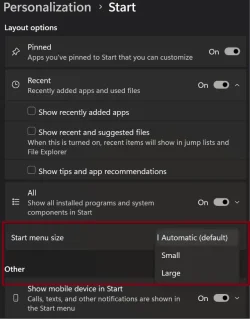
A lot of changes are coming to the Start Menu


My Computers

System One System Two

  • OS
    Windows 11 25H2
    Computer type
    Laptop
    Manufacturer/Model
    Alienware 18 Area-51
    CPU
    Intel Core Ultra 9 275HX (24-Core)
    Motherboard
    Alienware
    Memory
    64GB DDR5 6400MT/s
    Graphics Card(s)
    NVIDIA GeForce RTX 5080 and Intel UHD Graphics
    Sound Card
    Onboard, Realtek high-performance Audio chips (ALC3329 & ALC1708))
    Monitor(s) Displays
    300HZ 18-inch QHD 500 nit Comfort View+
    Screen Resolution
    2560 x 1600
    Hard Drives
    2TB NVMe M.2 PCIe Gen 5 SSD
    Case
    Magnesium Alloy
    Cooling
    Advanced Cryo-Tech Quad-Fan Cooling system & large vapor chamber
    Keyboard
    Cherry MX ultra low profile mechanical keyboard with per key AlienFX RGB lighting
    Mouse
    Logitech MX Master 4
    Browser
    Vivaldi (main), Firefox, Chrome, Edge
    Antivirus
    MS Defender and Malwarebytes Free
  • Operating System
    Windows 11 25H2
    Computer type
    Laptop
    Manufacturer/Model
    Microsoft Surface Laptop 7
    CPU
    Qualcomm Snapdragon X Elite (12 Core) ARM based CPU
    Motherboard
    Microsoft Corp.
    Memory
    16GB LPDDR5
    Graphics card(s)
    Qualcomm Adreno X1-85
    Sound Card
    Omnisonic speakers with Dolby Atmos spatial sound
    Monitor(s) Displays
    120 Hz 13.8-inch 600 nit PixelSense Flow touchscreen
    Screen Resolution
    2304x1536
    Hard Drives
    1TB NVMe Gen 4 SSD
    Case
    Anodized Aluminum
    Cooling
    Traditional active cooling fan system
    Keyboard
    Mechanical QWERTY, backlit when in use
    Mouse
    Logitech MX Master 4 and Surface Arc Mouse
    Browser
    Vivaldi (main), Firefox, Chrome, Edge
    Antivirus
    MS Defender and Malwarebytes Free
I've enabled resizing on my Beta builds with vivetool. Not on the public and RP builds yet though.

Screenshot 2026-05-31 073328.webp
 

My Computers

System One System Two

  • OS
    Windows 11 25H2
    Computer type
    Laptop
    Manufacturer/Model
    Alienware 18 Area-51
    CPU
    Intel Core Ultra 9 275HX (24-Core)
    Motherboard
    Alienware
    Memory
    64GB DDR5 6400MT/s
    Graphics Card(s)
    NVIDIA GeForce RTX 5080 and Intel UHD Graphics
    Sound Card
    Onboard, Realtek high-performance Audio chips (ALC3329 & ALC1708))
    Monitor(s) Displays
    300HZ 18-inch QHD 500 nit Comfort View+
    Screen Resolution
    2560 x 1600
    Hard Drives
    2TB NVMe M.2 PCIe Gen 5 SSD
    Case
    Magnesium Alloy
    Cooling
    Advanced Cryo-Tech Quad-Fan Cooling system & large vapor chamber
    Keyboard
    Cherry MX ultra low profile mechanical keyboard with per key AlienFX RGB lighting
    Mouse
    Logitech MX Master 4
    Browser
    Vivaldi (main), Firefox, Chrome, Edge
    Antivirus
    MS Defender and Malwarebytes Free
  • Operating System
    Windows 11 25H2
    Computer type
    Laptop
    Manufacturer/Model
    Microsoft Surface Laptop 7
    CPU
    Qualcomm Snapdragon X Elite (12 Core) ARM based CPU
    Motherboard
    Microsoft Corp.
    Memory
    16GB LPDDR5
    Graphics card(s)
    Qualcomm Adreno X1-85
    Sound Card
    Omnisonic speakers with Dolby Atmos spatial sound
    Monitor(s) Displays
    120 Hz 13.8-inch 600 nit PixelSense Flow touchscreen
    Screen Resolution
    2304x1536
    Hard Drives
    1TB NVMe Gen 4 SSD
    Case
    Anodized Aluminum
    Cooling
    Traditional active cooling fan system
    Keyboard
    Mechanical QWERTY, backlit when in use
    Mouse
    Logitech MX Master 4 and Surface Arc Mouse
    Browser
    Vivaldi (main), Firefox, Chrome, Edge
    Antivirus
    MS Defender and Malwarebytes Free
@dbartenstein On my system, I found Reliability History by typing that string into the search field at the top of the Start Menu. It opened the old Control Panel at Control Panel -> System and Security -> Security and Maintenance -> Reliability History. It looks to me like if you want that on your Start Menu, you have to drag it there. Actually, that's a rather misinformed statement. I've drilled down through the old Control Panel & found where the button is for this Reliability History. It can't be dragged. Maybe there's some magic Power Shell command that you could put in a script, save that, create a shortcut to it, & pin that to your Start Menu. But I don't know what the magic command would be. There's a tutorial somewhere in here that lists a bunch of such Power Shell commands for a whole host of useful system functions. You would do well to search for that tutorial. It's from Brink. Of course. Who else?

As for Windows Tools . . .

#01.webp

That's with View: Grid as I show in an image in a post upthread here. Is that not the thing you're looking for?
 
Last edited:

My Computer

System One

  • OS
    Windows 11 Pro 64-bit 25H2
    Computer type
    PC/Desktop
    Manufacturer/Model
    Self build
    CPU
    Intel Core i9-13900K
    Motherboard
    ASUS Z790-Plus WiFi TUF Gaming
    Memory
    4x32G Teamgroup TForce Vulcan DDR5 6000 DIMMs
    Graphics Card(s)
    MSI/NVidia GeForce RTX 4070 Gaming X Trio 12G GDDR6X + built into motherboard Intel UHD Graphics
    Sound Card
    Built into graphics card + built into motherboard Realtek Audio
    Monitor(s) Displays
    Two connected to the NVidia adapter - Primary: Dell SE2417HGX 23" diagonal connected via HDMI-to-DisplayPort dongle, Secondary: Toshiba TV 32" diagonal connected via HDMI through Onkyo TX-NR717 surround receiver. Third: Viewsonic VS19151 32" diagonal connected wirelessly via WiFi/Miracast & j5create JVAW56 dongle.
    Screen Resolution
    1920x1080 on all 3 monitors
    Hard Drives
    Samsung 970 EVO Plus NVMe M.2 2T
    6xSATA-to-USB 3.0 Fideco external enclosures holding SATA drives of various brands & sizes 1x20T, 2x18T, 2x6T, 1x500G, all connected to a multi-port USB hub
    For backups: USB 3.0 HDDs of various brands & sizes 3x20T, 1x1T + SSDs of various brands & sizes 2x480G, 1x1T, all connected to another multi-port USB hub, powered on only while actually performing backups & (may it never happen) restores
    PSU
    MSI MPG A1000G PCIe5 1000W, TrippLite Smart1500TSU 1200W UPS for the main system, TrippLite ECO850LCD 850W UPS for the DASD & my Internet connectivity boxes (no reason to throw out legacy equipment that stil works fine)
    Case
    Fractal North
    Cooling
    DeepCool AK620 CPU cooler (air, 2 fans), 2 case fans, 1 fan in PSU, 3 fans in graphics adapter; 4xpersonal cooling fans strategically placed to cool the external HDDs
    Keyboard
    Cherry MX 11900 USB (wired)
    Mouse
    Touchpad built into the keyboard
    Internet Speed
    500Mbps via Spectrum cable TV/cell phone bundle
    Browser
    Firefox
    Antivirus
    Built into Windows 11
    Other Info
    The ethernet adapter integrated into the motherboard died. I am now using a TPLink TX201 ethernet adapter in a PCIe expansion slot for Internet connectivity.
Just noticing that Windows Tools is no longer in the Start Menu and that Reliability History is no longer found as well.

Odd. Both should still be there.


My Computers

System One System Two

  • OS
    Windows 11 Pro for Workstations
    Computer type
    PC/Desktop
    Manufacturer/Model
    Custom self build
    CPU
    Intel i7-8700K 5 GHz
    Motherboard
    ASUS ROG Maximus XI Formula Z390
    Memory
    64 GB (4x16GB) G.SKILL TridentZ RGB DDR4 3600 MHz (F4-3600C18D-32GTZR)
    Graphics Card(s)
    ASUS ROG-STRIX-GTX1080TI-O11G-GAMING (11GB GDDR5X)
    Sound Card
    Integrated Digital Audio (S/PDIF)
    Monitor(s) Displays
    2 x Samsung Odyssey G75 27"
    Screen Resolution
    2560x1440
    Hard Drives
    1TB Samsung 990 PRO M.2,
    4TB Samsung 990 PRO M.2,
    TerraMaster F8 SSD Plus NAS
    PSU
    Seasonic Prime Titanium 850W
    Case
    Thermaltake Core P3 wall mounted
    Cooling
    Corsair Hydro H115i
    Keyboard
    Amazon Basics Wired Full Keyboard MD005
    Mouse
    Logitech MX Master 4
    Internet Speed
    2 Gbps Download and 100 Mbps Upload
    Browser
    Chrome and Edge
    Antivirus
    Microsoft Defender
    Other Info
    Logitech Z625 speaker system,
    Logitech BRIO 4K Pro webcam,
    HP Color LaserJet Pro MFP M477fdn,
    CyberPower CP1500PFCLCD
    Galaxy S23 Plus phone
  • Operating System
    Windows 11 Pro
    Computer type
    Laptop
    Manufacturer/Model
    Surface Laptop 7 Copilot+ PC
    CPU
    Snapdragon X Elite (12 core) 3.42 GHz
    Memory
    16 GB LPDDR5x-7467 MHz
    Monitor(s) Displays
    15" HDR
    Screen Resolution
    2496 x 1664
    Hard Drives
    1 TB SSD
    Internet Speed
    Wi-Fi 7 and Bluetooth 5.4
    Browser
    Chrome and Edge
    Antivirus
    Microsoft Defender
@Brink Your second tutorial, the one about Reliability History, shows how to open Control Panel & navigate to the Reliability History, which I already kind of summarized in a post upthread. That's not the same as opening the Start Menu & finding an icon there for the Reliability History.
 

My Computer

System One

  • OS
    Windows 11 Pro 64-bit 25H2
    Computer type
    PC/Desktop
    Manufacturer/Model
    Self build
    CPU
    Intel Core i9-13900K
    Motherboard
    ASUS Z790-Plus WiFi TUF Gaming
    Memory
    4x32G Teamgroup TForce Vulcan DDR5 6000 DIMMs
    Graphics Card(s)
    MSI/NVidia GeForce RTX 4070 Gaming X Trio 12G GDDR6X + built into motherboard Intel UHD Graphics
    Sound Card
    Built into graphics card + built into motherboard Realtek Audio
    Monitor(s) Displays
    Two connected to the NVidia adapter - Primary: Dell SE2417HGX 23" diagonal connected via HDMI-to-DisplayPort dongle, Secondary: Toshiba TV 32" diagonal connected via HDMI through Onkyo TX-NR717 surround receiver. Third: Viewsonic VS19151 32" diagonal connected wirelessly via WiFi/Miracast & j5create JVAW56 dongle.
    Screen Resolution
    1920x1080 on all 3 monitors
    Hard Drives
    Samsung 970 EVO Plus NVMe M.2 2T
    6xSATA-to-USB 3.0 Fideco external enclosures holding SATA drives of various brands & sizes 1x20T, 2x18T, 2x6T, 1x500G, all connected to a multi-port USB hub
    For backups: USB 3.0 HDDs of various brands & sizes 3x20T, 1x1T + SSDs of various brands & sizes 2x480G, 1x1T, all connected to another multi-port USB hub, powered on only while actually performing backups & (may it never happen) restores
    PSU
    MSI MPG A1000G PCIe5 1000W, TrippLite Smart1500TSU 1200W UPS for the main system, TrippLite ECO850LCD 850W UPS for the DASD & my Internet connectivity boxes (no reason to throw out legacy equipment that stil works fine)
    Case
    Fractal North
    Cooling
    DeepCool AK620 CPU cooler (air, 2 fans), 2 case fans, 1 fan in PSU, 3 fans in graphics adapter; 4xpersonal cooling fans strategically placed to cool the external HDDs
    Keyboard
    Cherry MX 11900 USB (wired)
    Mouse
    Touchpad built into the keyboard
    Internet Speed
    500Mbps via Spectrum cable TV/cell phone bundle
    Browser
    Firefox
    Antivirus
    Built into Windows 11
    Other Info
    The ethernet adapter integrated into the motherboard died. I am now using a TPLink TX201 ethernet adapter in a PCIe expansion slot for Internet connectivity.
Just noticing that Windows Tools is no longer in the Start Menu and that Reliability History is no longer found as well.
They're all there, just right click on them and pin them to the Start Menu if you want them to appear at the top.

1780240254061.webp
 

My Computers

System One System Two

  • OS
    Win 11 Pro 25H2, Build 26200.8524
    Computer type
    PC/Desktop
    Manufacturer/Model
    Home Brew
    CPU
    Intel Core i5 14500
    Motherboard
    Gigabyte B760M G P WIFI
    Memory
    64GB DDR4
    Graphics Card(s)
    GeForce RTX 4060
    Sound Card
    Chipset Realtek
    Monitor(s) Displays
    LG 45" Ultragear, Acer 24" 1080p
    Screen Resolution
    5120x1440, 1920x1080
    Hard Drives
    Crucial P310 2TB 2280 PCIe Gen4 3D NAND NVMe M.2 SSD (O/S)
    Silicon Power 2TB US75 NVMe PCIe Gen4 M.2 2280 SSD (backup)
    Crucial BX500 2TB 3D NAND (2nd backup)
    Seagate 4TB Ironwolf, rotating HDD archive files
    External off-line backup Drives: 2 NVMe 4TB drives in external enclosures
    PSU
    Thermaltake Toughpower GF3 750W
    Case
    LIAN LI LANCOOL 216 E-ATX PC Case
    Cooling
    Lots of fans!
    Keyboard
    Microsoft Comfort Curve 2000
    Mouse
    Logitech G305
    Internet Speed
    Verizon FiOS 1GB
    Browser
    Firefox
    Antivirus
    Malware Bytes & Windows Defender Security
  • Operating System
    Win 11 Pro 25H2, Build 26200.8524
    Computer type
    PC/Desktop
    Manufacturer/Model
    Home Brew
    CPU
    Intel Core i5 14400
    Motherboard
    Gigabyte B760M DS3H AX
    Memory
    32GB DDR5
    Graphics card(s)
    Intel 700 Embedded GPU
    Sound Card
    Realtek Embedded
    Monitor(s) Displays
    27" HP 1080p
    Screen Resolution
    1920x1080
    Hard Drives
    Crucial P310 2TB 2280 PCIe Gen4 eD NAND PCIe SSD
    Samsung EVO 990 2TB NVMe Gen4 SSD
    Samsung 2TB SATA SSD
    PSU
    Thermaltake Smart BM3 650W
    Case
    Okinos Micro ATX Case
    Cooling
    Fans
    Keyboard
    Microsoft Comfort Curve 2000
    Mouse
    Logitech G305
    Internet Speed
    Verizon FiOS 1GB
    Browser
    Firefox
    Antivirus
    Malware Bytes & Windows Defender Security

My Computer

System One

  • OS
    Windows 11 Pro 64-bit 25H2
    Computer type
    PC/Desktop
    Manufacturer/Model
    Self build
    CPU
    Intel Core i9-13900K
    Motherboard
    ASUS Z790-Plus WiFi TUF Gaming
    Memory
    4x32G Teamgroup TForce Vulcan DDR5 6000 DIMMs
    Graphics Card(s)
    MSI/NVidia GeForce RTX 4070 Gaming X Trio 12G GDDR6X + built into motherboard Intel UHD Graphics
    Sound Card
    Built into graphics card + built into motherboard Realtek Audio
    Monitor(s) Displays
    Two connected to the NVidia adapter - Primary: Dell SE2417HGX 23" diagonal connected via HDMI-to-DisplayPort dongle, Secondary: Toshiba TV 32" diagonal connected via HDMI through Onkyo TX-NR717 surround receiver. Third: Viewsonic VS19151 32" diagonal connected wirelessly via WiFi/Miracast & j5create JVAW56 dongle.
    Screen Resolution
    1920x1080 on all 3 monitors
    Hard Drives
    Samsung 970 EVO Plus NVMe M.2 2T
    6xSATA-to-USB 3.0 Fideco external enclosures holding SATA drives of various brands & sizes 1x20T, 2x18T, 2x6T, 1x500G, all connected to a multi-port USB hub
    For backups: USB 3.0 HDDs of various brands & sizes 3x20T, 1x1T + SSDs of various brands & sizes 2x480G, 1x1T, all connected to another multi-port USB hub, powered on only while actually performing backups & (may it never happen) restores
    PSU
    MSI MPG A1000G PCIe5 1000W, TrippLite Smart1500TSU 1200W UPS for the main system, TrippLite ECO850LCD 850W UPS for the DASD & my Internet connectivity boxes (no reason to throw out legacy equipment that stil works fine)
    Case
    Fractal North
    Cooling
    DeepCool AK620 CPU cooler (air, 2 fans), 2 case fans, 1 fan in PSU, 3 fans in graphics adapter; 4xpersonal cooling fans strategically placed to cool the external HDDs
    Keyboard
    Cherry MX 11900 USB (wired)
    Mouse
    Touchpad built into the keyboard
    Internet Speed
    500Mbps via Spectrum cable TV/cell phone bundle
    Browser
    Firefox
    Antivirus
    Built into Windows 11
    Other Info
    The ethernet adapter integrated into the motherboard died. I am now using a TPLink TX201 ethernet adapter in a PCIe expansion slot for Internet connectivity.
@Brink Your second tutorial, the one about Reliability History, shows how to open Control Panel & navigate to the Reliability History, which I already kind of summarized in a post upthread. That's not the same as opening the Start Menu & finding an icon there for the Reliability History.

I suppose you could always add any missing shortcuts back to the Start Menu.

Windows Tools = %windir%\system32\control.exe /name Microsoft.AdministrativeTools


My Computers

System One System Two

  • OS
    Windows 11 Pro for Workstations
    Computer type
    PC/Desktop
    Manufacturer/Model
    Custom self build
    CPU
    Intel i7-8700K 5 GHz
    Motherboard
    ASUS ROG Maximus XI Formula Z390
    Memory
    64 GB (4x16GB) G.SKILL TridentZ RGB DDR4 3600 MHz (F4-3600C18D-32GTZR)
    Graphics Card(s)
    ASUS ROG-STRIX-GTX1080TI-O11G-GAMING (11GB GDDR5X)
    Sound Card
    Integrated Digital Audio (S/PDIF)
    Monitor(s) Displays
    2 x Samsung Odyssey G75 27"
    Screen Resolution
    2560x1440
    Hard Drives
    1TB Samsung 990 PRO M.2,
    4TB Samsung 990 PRO M.2,
    TerraMaster F8 SSD Plus NAS
    PSU
    Seasonic Prime Titanium 850W
    Case
    Thermaltake Core P3 wall mounted
    Cooling
    Corsair Hydro H115i
    Keyboard
    Amazon Basics Wired Full Keyboard MD005
    Mouse
    Logitech MX Master 4
    Internet Speed
    2 Gbps Download and 100 Mbps Upload
    Browser
    Chrome and Edge
    Antivirus
    Microsoft Defender
    Other Info
    Logitech Z625 speaker system,
    Logitech BRIO 4K Pro webcam,
    HP Color LaserJet Pro MFP M477fdn,
    CyberPower CP1500PFCLCD
    Galaxy S23 Plus phone
  • Operating System
    Windows 11 Pro
    Computer type
    Laptop
    Manufacturer/Model
    Surface Laptop 7 Copilot+ PC
    CPU
    Snapdragon X Elite (12 core) 3.42 GHz
    Memory
    16 GB LPDDR5x-7467 MHz
    Monitor(s) Displays
    15" HDR
    Screen Resolution
    2496 x 1664
    Hard Drives
    1 TB SSD
    Internet Speed
    Wi-Fi 7 and Bluetooth 5.4
    Browser
    Chrome and Edge
    Antivirus
    Microsoft Defender
Yes @gunrunnerjohn your image duplicates one I posted upthread. But you're not showing how to put an icon for the Reliability History on the Start Menu.
 

My Computer

System One

  • OS
    Windows 11 Pro 64-bit 25H2
    Computer type
    PC/Desktop
    Manufacturer/Model
    Self build
    CPU
    Intel Core i9-13900K
    Motherboard
    ASUS Z790-Plus WiFi TUF Gaming
    Memory
    4x32G Teamgroup TForce Vulcan DDR5 6000 DIMMs
    Graphics Card(s)
    MSI/NVidia GeForce RTX 4070 Gaming X Trio 12G GDDR6X + built into motherboard Intel UHD Graphics
    Sound Card
    Built into graphics card + built into motherboard Realtek Audio
    Monitor(s) Displays
    Two connected to the NVidia adapter - Primary: Dell SE2417HGX 23" diagonal connected via HDMI-to-DisplayPort dongle, Secondary: Toshiba TV 32" diagonal connected via HDMI through Onkyo TX-NR717 surround receiver. Third: Viewsonic VS19151 32" diagonal connected wirelessly via WiFi/Miracast & j5create JVAW56 dongle.
    Screen Resolution
    1920x1080 on all 3 monitors
    Hard Drives
    Samsung 970 EVO Plus NVMe M.2 2T
    6xSATA-to-USB 3.0 Fideco external enclosures holding SATA drives of various brands & sizes 1x20T, 2x18T, 2x6T, 1x500G, all connected to a multi-port USB hub
    For backups: USB 3.0 HDDs of various brands & sizes 3x20T, 1x1T + SSDs of various brands & sizes 2x480G, 1x1T, all connected to another multi-port USB hub, powered on only while actually performing backups & (may it never happen) restores
    PSU
    MSI MPG A1000G PCIe5 1000W, TrippLite Smart1500TSU 1200W UPS for the main system, TrippLite ECO850LCD 850W UPS for the DASD & my Internet connectivity boxes (no reason to throw out legacy equipment that stil works fine)
    Case
    Fractal North
    Cooling
    DeepCool AK620 CPU cooler (air, 2 fans), 2 case fans, 1 fan in PSU, 3 fans in graphics adapter; 4xpersonal cooling fans strategically placed to cool the external HDDs
    Keyboard
    Cherry MX 11900 USB (wired)
    Mouse
    Touchpad built into the keyboard
    Internet Speed
    500Mbps via Spectrum cable TV/cell phone bundle
    Browser
    Firefox
    Antivirus
    Built into Windows 11
    Other Info
    The ethernet adapter integrated into the motherboard died. I am now using a TPLink TX201 ethernet adapter in a PCIe expansion slot for Internet connectivity.
@Brink That's all well & good. But the Reliability History is just a clickable button in the old fashioned Control Panel. I clicked mouse button 2 on it & no context menu popped up. I tried dragging it & it wouldn't drag. So the question still remains: How do you put an icon for that in the Start Menu? I don't think it really matters whether you add it to your personal pins or you add it to the All section. How do you add it anywhere?

By the way, it's rather hard to find Control Panel. You have to do a search before you can open it. I know Control Panel is meant to be deprecated. But until all the functions in there have ultimately been migrated to the new Settings dialog, it really ought to be easier to open it. A direct icon in the Start Menu would be nice. Once all the work has been done, they can quietly remove that icon. But until then, they really ought to be providing an icon for it to make it simpler to run.
 
Last edited:

My Computer

System One

  • OS
    Windows 11 Pro 64-bit 25H2
    Computer type
    PC/Desktop
    Manufacturer/Model
    Self build
    CPU
    Intel Core i9-13900K
    Motherboard
    ASUS Z790-Plus WiFi TUF Gaming
    Memory
    4x32G Teamgroup TForce Vulcan DDR5 6000 DIMMs
    Graphics Card(s)
    MSI/NVidia GeForce RTX 4070 Gaming X Trio 12G GDDR6X + built into motherboard Intel UHD Graphics
    Sound Card
    Built into graphics card + built into motherboard Realtek Audio
    Monitor(s) Displays
    Two connected to the NVidia adapter - Primary: Dell SE2417HGX 23" diagonal connected via HDMI-to-DisplayPort dongle, Secondary: Toshiba TV 32" diagonal connected via HDMI through Onkyo TX-NR717 surround receiver. Third: Viewsonic VS19151 32" diagonal connected wirelessly via WiFi/Miracast & j5create JVAW56 dongle.

    Screen Resolution
    1920x1080 on all 3 monitors
    Hard Drives
    Samsung 970 EVO Plus NVMe M.2 2T
    6xSATA-to-USB 3.0 Fideco external enclosures holding SATA drives of various brands & sizes 1x20T, 2x18T, 2x6T, 1x500G, all connected to a multi-port USB hub
    For backups: USB 3.0 HDDs of various brands & sizes 3x20T, 1x1T + SSDs of various brands & sizes 2x480G, 1x1T, all connected to another multi-port USB hub, powered on only while actually performing backups & (may it never happen) restores
    PSU
    MSI MPG A1000G PCIe5 1000W, TrippLite Smart1500TSU 1200W UPS for the main system, TrippLite ECO850LCD 850W UPS for the DASD & my Internet connectivity boxes (no reason to throw out legacy equipment that stil works fine)
    Case
    Fractal North
    Cooling
    DeepCool AK620 CPU cooler (air, 2 fans), 2 case fans, 1 fan in PSU, 3 fans in graphics adapter; 4xpersonal cooling fans strategically placed to cool the external HDDs
    Keyboard
    Cherry MX 11900 USB (wired)
    Mouse
    Touchpad built into the keyboard
    Internet Speed
    500Mbps via Spectrum cable TV/cell phone bundle
    Browser
    Firefox
    Antivirus
    Built into Windows 11
    Other Info
    The ethernet adapter integrated into the motherboard died. I am now using a TPLink TX201 ethernet adapter in a PCIe expansion slot for Internet connectivity.
I'm looking at Complete List of Rundll32 Commands in Windows 11. I don't see an entry there for the Reliability History. I'm concluding that it's not possible to put an icon on the Start Menu for that, nor to do any sort of process automation for opening that display.
 

My Computer

System One

  • OS
    Windows 11 Pro 64-bit 25H2
    Computer type
    PC/Desktop
    Manufacturer/Model
    Self build
    CPU
    Intel Core i9-13900K
    Motherboard
    ASUS Z790-Plus WiFi TUF Gaming
    Memory
    4x32G Teamgroup TForce Vulcan DDR5 6000 DIMMs
    Graphics Card(s)
    MSI/NVidia GeForce RTX 4070 Gaming X Trio 12G GDDR6X + built into motherboard Intel UHD Graphics
    Sound Card
    Built into graphics card + built into motherboard Realtek Audio
    Monitor(s) Displays
    Two connected to the NVidia adapter - Primary: Dell SE2417HGX 23" diagonal connected via HDMI-to-DisplayPort dongle, Secondary: Toshiba TV 32" diagonal connected via HDMI through Onkyo TX-NR717 surround receiver. Third: Viewsonic VS19151 32" diagonal connected wirelessly via WiFi/Miracast & j5create JVAW56 dongle.
    Screen Resolution
    1920x1080 on all 3 monitors
    Hard Drives
    Samsung 970 EVO Plus NVMe M.2 2T
    6xSATA-to-USB 3.0 Fideco external enclosures holding SATA drives of various brands & sizes 1x20T, 2x18T, 2x6T, 1x500G, all connected to a multi-port USB hub
    For backups: USB 3.0 HDDs of various brands & sizes 3x20T, 1x1T + SSDs of various brands & sizes 2x480G, 1x1T, all connected to another multi-port USB hub, powered on only while actually performing backups & (may it never happen) restores
    PSU
    MSI MPG A1000G PCIe5 1000W, TrippLite Smart1500TSU 1200W UPS for the main system, TrippLite ECO850LCD 850W UPS for the DASD & my Internet connectivity boxes (no reason to throw out legacy equipment that stil works fine)
    Case
    Fractal North
    Cooling
    DeepCool AK620 CPU cooler (air, 2 fans), 2 case fans, 1 fan in PSU, 3 fans in graphics adapter; 4xpersonal cooling fans strategically placed to cool the external HDDs
    Keyboard
    Cherry MX 11900 USB (wired)
    Mouse
    Touchpad built into the keyboard
    Internet Speed
    500Mbps via Spectrum cable TV/cell phone bundle
    Browser
    Firefox
    Antivirus
    Built into Windows 11
    Other Info
    The ethernet adapter integrated into the motherboard died. I am now using a TPLink TX201 ethernet adapter in a PCIe expansion slot for Internet connectivity.
Back
Top Bottom