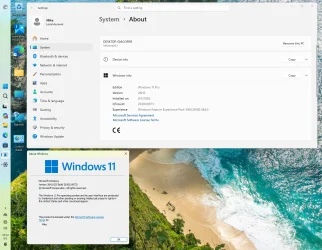
UPDATE 8/11:
 www.elevenforum.com
This cumulative update for Windows 11, version 25H2 and 24H2 (KB5101684), includes production-quality improvements.
Windows Secure Boot certificate expiration
Important: Secure Boot certificates used by most Windows devices expire starting in June 2026. Microsoft has been updating these certificates on consumer and non-managed business devices over the past several months. Devices that haven’t received the newer certificates will continue to start and operate normally, and standard Windows updates will continue to install. Updated certificates will continue to be delivered through Windows Update in the coming months. For more information, see Windows Secure Boot certificate expiration and CA updates.
End of updates
Windows 11, version 24H2 Home and Pro editions will reach end of updates on October 13, 2026. Devices running these editions will no longer receive fixes for known issues, time zone updates, technical support, or monthly security and preview updates containing protections from the latest security threats. Enterprise and Education editions remain supported until October 12, 2027.
To stay protected and up to date, we recommend you upgrade to the latest version of Windows 11.
Change log
The following summary outlines features from AI-powered Windows 11 PC experiences, along with improvements and fixes. The bold text within the brackets indicates the item or area of the change.
Windows 11 PC experiences
This section highlights some new features and enhancements for Windows 11 PCs, including AI-powered capabilities, continuous innovation, and performance improvements.
This non-security update includes quality improvements. The following summary outlines key issues addressed by the KB update after you install it. Also, included are available new features. The bold text within the brackets indicates the item or area of the change.
This release updates the following AI components to version 1.2607.840.0: Image Search, Content Extraction, Semantic Analysis, and Settings Model.
To learn more, see Release information for AI components.
Servicing stack update (SSU)
Includes KB5101711 (Build 26100.8962), which improves the reliability of the Windows update installation process. To learn more about SSUs, see Simplifying on-premises deployment of servicing stack updates.
Microsoft combines the latest servicing stack update (SSU) for your operating system with the latest cumulative update (LCU). For general information about SSUs, see Servicing stack updates.
Note
The boot.stl file is used during Secure Boot validation and must match the Windows version and architecture of the image you are updating.
To ensure the boot.stl file is included as part of the installation media, do one of the following:
For a list of the files provided in the servicing stack update, download the file information for the SSU (KB5101711) - version 26100.8962.
 support.microsoft.com
Check Windows Updates
UUP Dump:
64-bit ISO download:

ARM64 ISO download:
 www.elevenforum.com
KB5121003 Windows 11 Cumulative Update build 26100.9168 (24H2) and 26200.9168 (25H2) - Aug. 11
UPDATE 8/27: https://www.elevenforum.com/t/kb5120998-windows-11-cumulative-update-preview-build-26100-9278-24h2-and-26200-9278-25h2-aug-27.49063/ Microsoft Support: Announcements and messages This section provides key notifications related to this release, including announcements, change logs...
www.elevenforum.com
Microsoft Support:
This cumulative update for Windows 11, version 25H2 and 24H2 (KB5101684), includes production-quality improvements.
Announcements and messages
This section provides key notifications related to this release, including announcements, change logs, and end-of-support notices.Windows Secure Boot certificate expiration
Important: Secure Boot certificates used by most Windows devices expire starting in June 2026. Microsoft has been updating these certificates on consumer and non-managed business devices over the past several months. Devices that haven’t received the newer certificates will continue to start and operate normally, and standard Windows updates will continue to install. Updated certificates will continue to be delivered through Windows Update in the coming months. For more information, see Windows Secure Boot certificate expiration and CA updates.
End of updates
Windows 11, version 24H2 Home and Pro editions will reach end of updates on October 13, 2026. Devices running these editions will no longer receive fixes for known issues, time zone updates, technical support, or monthly security and preview updates containing protections from the latest security threats. Enterprise and Education editions remain supported until October 12, 2027.
To stay protected and up to date, we recommend you upgrade to the latest version of Windows 11.
Change log
Change date | Change description |
|---|---|
| August 14, 2026 | Update added [Windows Update] This update reduces the number of restarts required to keep your device up to date by installing eligible updates together with the monthly security update whenever possible. You can still view and install individual updates under Settings > Windows Update > Available updates. Expedited or critical updates may continue to install separately. For more information, see One restart a month for Windows updates. |
Highlights
This update is available through two release phases: gradual rollout and normal rollout. A gradual rollout delivers an update in phases, so features reach devices over time instead of all at once, meaning availability varies by device. A normal rollout is the broad release to all eligible devices at the same time, usually when it reaches general availability (GA). Gradual rollout
The following summary outlines features from AI-powered Windows 11 PC experiences, along with improvements and fixes. The bold text within the brackets indicates the item or area of the change.
Windows 11 PC experiences
This section highlights some new features and enhancements for Windows 11 PCs, including AI-powered capabilities, continuous innovation, and performance improvements.
File Explorer
- File sizes in the Details view now display using appropriate units (KB, MB, GB) instead of KB-only, making them easier to understand at a glance.
- Middle click to open a folder in a new tab is now supported in the Address Bar and the Home page for a more consistent and efficient tabbed navigation experience across File Explorer.
- This update eliminates a grey flash on load and unexpected scrolling to the top on the Home page in certain cases.
- This update improves the appearance of file thumbnails in the Recommended section on the Home page so they’re crisper and easier to read.
Windows Search
- This update improves app search to better handle typos and partial app names when finding installed apps.
- This update improves Settings relevance to surface more useful settings higher in search results.
Windows Update
- This update reduces the number of restarts required to keep your device up to date by installing eligible updates together with the monthly security update whenever possible. You can still view and install individual updates under Settings > Windows Update > Available updates. Expedited or critical updates may continue to install separately. For more information, see One restart a month for Windows updates.
- This update improves calculation of update progress progression in Windows Update Settings.
- This update includes changes to update clean-up logic to improve system performance immediately following an update.

Now only one restart a month for Windows 11 updates
Microsoft Support: Introduction Windows helps keep your device secure and reliable by downloading and installing updates automatically. Some of these updates need your device to restart before installation can finish. In the past, different types of updates could each ask you to restart at...
www.elevenforum.com
Voice Access
- New! This update adds Voice Isolation to Voice Access, helping it better recognize your voice by reducing interference from other speakers and background noise. Voice Access now offers three speed recognition modes under Voice Access settings > Improve speech recognition:

Set Up Voice Isolation in Voice Access on Windows 11
This tutorial will show you how to set up Voice isolation in Voice Access for your account in Windows 11. Voice access in Windows 11 enables everyone, including people with mobility disabilities, to control their PC and author text using their voice. For example, you can open and switch between...
www.elevenforum.com
- Voice Isolation — Filters out other speakers and background noise (one-time voice setup required).
- Remove background noise only — Filters out non-speech sounds like typing or door slams. No additional setup needed.
- No filtering — Default microphone input with no additional processing.
- To set up Voice Isolation, go to Voice Access settings > Improve speech recognition and select Voice Isolation.
- New! This update adds Korean language support for voice access.
- This update improves the realiability of starting Voice Access.
Widgets
- New! Taskbar notification badges now use your Windows accent color instead of appearing red, helping reduce unnecessary attention-grabbing alerts.

Enable or Disable Notification Badges for Widgets on Taskbar in Windows 11
This tutorial will show you how to turn on or off whether Widgets will show notification badging on the Widgets taskbar icon for your account in Windows 11. Widgets in Windows are interactive elements that display dynamic content and provide quick access to various apps and features. You can...
www.elevenforum.com
- New! This update also simplifies the Lock screen Widgets experience. For new users, Weather is now the only widget shown on the Lock screen by default.

Add and Remove Widgets on Lock Screen in Windows 11
This tutorial will show you how to add and remove widgets on the lock screen for your account in Windows 11. You can stay informed and efficient with dynamic updates that bring weather, finance, sports, traffic, and app notifications right to your lock screen. Starting with Windows 11 build...
www.elevenforum.com
Touchpad
- New! New gesture controls for precision touchpads are available in Settings > Bluetooth & devices > Touchpad:
- Scroll and zoom speed — Adjust the baseline speed for scroll and zoom gestures.

Change Touchpad Scroll Speed in Windows 11
This tutorial will show you how to change touchpad scroll speed for your account in Windows 11. Starting with Windows 11 build 26100.8973 (24H2), build 26200.8973 (25H2), and build 28000.2804 (26H1), Microsoft is adding new gesturing-related functionality to precision touchpads in Settings. The...
www.elevenforum.com

Change Touchpad Zoom Speed in Windows 11
This tutorial will show you how to change touchpad zoom speed for your account in Windows 11. Starting with Windows 11 build 26100.8973 (24H2), build 26200.8973 (25H2), and build 28000.2804 (26H1), Microsoft is adding new gesturing-related functionality to precision touchpads in Settings. The...
www.elevenforum.com
- Accelerated scrolling — Scroll faster the more you repeat the gesture, so you can move quickly through long documents.

Turn On or Off Accelerated Scrolling on Touchpad in Windows 11
This tutorial will show you how to turn on or off accelerated scrolling on the touchpad for your account in Windows 11. Starting with Windows 11 build 26100.8973 (24H2), build 26200.8973 (25H2), and build 28000.2804 (26H1), Microsoft is adding new gesturing-related functionality to precision...
www.elevenforum.com
- Scroll and zoom speed — Adjust the baseline speed for scroll and zoom gestures.
Start menu
- The update improves the reliability of Start menu view preferences, ensuring your selected view is retained.
- This update improves keyboard navigation when keyboard focus was set to the apps list within Start menu.
Voice Typing
- Fluid dictation is now off by default for new users. A teaching tip is also available when the feature is used for the first time.

Enable or Disable Fluid Dictation in Voice Typing on Windows 11
This tutorial will show you how to turn on or off the fluid dictation feature in voice typing for your account on Windows 11 Copilot+ PCs. Voice typing allows you to enter text on your PC by speaking. You can use voice typing commands to manually insert punctuation marks. Starting with...
www.elevenforum.com
Input
- This update improves persistence of mouse cursor size.
Windowing
- This update ensures system dialogs open at the appropriate size on small tablets.
Accessibility
- This update improves the Magnifier experience on touch-enabled devices. The horizontal and vertical touch bars used to pan the magnified view are now off by default, so they no longer obstruct magnified content. If you use touch to pan, you can turn the bars back on in Settings > Accessibility > Magnifier.

Enable or Disable Touch Bars on Touchscreen for Magnifier in Windows 11
This tutorial will show you how to turn on or off showing touch bars for Magnifier when using a touchscreen device for your account in Windows 11. Magnifier makes part or all of your screen bigger so you can see words and images better. Starting with Windows 11 build 26100.8973 (24H2), build...
www.elevenforum.com
Windows Hello
- New! Windows Hello Enhanced Sign-in Security (ESS) now supports peripheral fingerprint sensors. This update extends this secure sign in option beyond devices with built in fingerprint sensors to include desktops and other Windows 11 PCs, including Copilot+ PCs. To get started, plug in a supported ESS fingerprint reader, go to Settings > Accounts > Sign in options, and follow the prompts to enroll. This feature was previously disclosed in January 2026 (KB5074105) and is now beginning to roll out.

Enable or Disable Enhanced Sign-in Security in Windows 11
This tutorial will show you how to enable or disable Enhanced Sign-in Security for all users in Windows 11. Windows Hello enables biometrics or PIN authentication, eliminating the need for a password. Biometric authentication uses facial recognition or fingerprint to prove a user's identity in...
www.elevenforum.com
Fonts
- This update restores support for Unicode variation sequences in the Myanmar Text font.
- This update improves character shaping and rendering for Mongolian Baiti font, providing more accurate and consistent text display.
Account Control
- This update refreshes the design of the Start menu account control and adds a badge that displays your subscription status. To view your account control, open the Start menu and select your account picture in the lower-left corner. This experience is available for users signed in with a Microsoft account. 1
Enable or Disable Notification Badging for Microsoft Accounts on Start menu in Windows 11
This tutorial will show you how to enable or disable showing notification badging for Microsoft accounts on the Start menu and Settings for your account in Windows 10 and Windows 11. Starting with Windows 11 build 22621.1928, Microsoft expands the roll out of notification badging for Microsoft...
www.elevenforum.com
Taskbar
- This update improves reliability of loading the system tray area of the taskbar when using the taskbar on touch devices in a tablet posture.
AI Component
- This update allows you to remove the Image Generation AI component from supported Copilot+ PCs where the component is installed.

Uninstall AI Components on Windows 11 PC
This tutorial will show you how to uninstall AI components on your Windows 11 PC. If your Windows 11 device (ex: Copilot+ PC) has a NPU, you will have a System > AI components page in Settings. AI components are used on Copilot+ PCs and enable AI models to run locally, directly on the device...
www.elevenforum.com
Windows Setup
- This update adds a parental controls notice during Windows setup that highlights available family safety features.
Power and Battery
- This update improves the reliability of power settings by applying changes made in Settings to all power plans. This includes display, sleep, hibernate, power button, sleep button, and lid-close settings, helping ensure your preferences are consistently maintained.
Change When to Put Computer to Sleep Timeout in Windows 11
This tutorial will show you how to change how long after your computer is inactive (idle) before automatically put to sleep in Windows 11. Sleep uses very little power, your PC starts up faster, and you’re instantly back to where you left off. You don’t have to worry that you'll lose your work...
www.elevenforum.com

Change Computer Hibernate after Idle Timeout in Windows 11
This tutorial will show you how to change how long after your computer is inactive (idle) before automatically enters hibernation in Windows 11. Hibernate was designed for laptops and might not be available for all PCs. (For example, PCs with Modern Standby may not have the hibernate option.)...
www.elevenforum.com

Change Power Button Action in Windows 11
This tutorial will show you how to change the default action to take when pressing the power button in Windows 10 and Windows 11. The power button action setting lets users specify the default action to take when the system hardware power button on the PC is pressed. Users can specify one of...
www.elevenforum.com
Change Sleep Button Action in Windows 11
This tutorial will show you how to change the default action to take when pressing the sleep button in Windows 10 and Windows 11. The sleep button action setting lets users specify the default action to take when the system hardware sleep button (if available) on the PC is pressed. Users can...
www.elevenforum.com
Change Lid Close Action in Windows 11
This tutorial will show you how to change the default action to take when closing the lid of your laptop in Windows 10 and Windows 11. The lid switch close action specifies the action to take when the system lid is closed. Users can specify one of the following actions to take: Do Nothing =...
www.elevenforum.com
- This update restores the ability to set a threshold for when energy saver should enable within Settings > System > Power & Battery.
Windows Update
- This update improves calculation of update progress progression in Windows Update Settings.
- This update includes changes to update clean-up logic to improve system performance immediately following an update.
Sounds
- This update improves system sounds when using Windows in dark mode.
Date and Time
- This update improves detection for triggering time zone change notifications.
- This update improves daylight saving time (DST) data accuracy for Middle East Standard Time (Beirut), Morocco Standard Time (Casablanca), Israel Standard Time (Jerusalem), and Greenland Standard Time (Nuuk).
Network
- This update improves the reliability of DHCP renewals in a few scenarios, particularly in the case of NACKs received from the DHCP server, as well as on devices that use Modern Standby.
Print
- This update improves print time performance (page per minute) for IPPS (Internet Printing Protocol Secure) printers.
Clipboard
- This update improves clipboard reliability in some Remote Desktop and Azure Virtual Desktop (AVD) scenarios.
General Reliability
- This update improves explorer.exe reliability, including when opening Jump Lists and recent files, when sharing files and folders, and when using Task View and multiple desktops.
- This update improves the reliability of the Windows sign-in and lock screens, especially when system memory is low. It also improves the reliability of the Start menu and taskbar during startup.
Normal rollout
This non-security update includes quality improvements. The following summary outlines key issues addressed by the KB update after you install it. Also, included are available new features. The bold text within the brackets indicates the item or area of the change.
Secure Boot
- This update includes additional high confidence device targeting data, increasing coverage of devices eligible to automatically receive new Secure Boot certificates. Certificate deployment via Windows updates continues across supported PCs and non-managed business devices in the coming months.
App
- This update improves the stability of Office applications used in virtualized environments. Users should experience a more reliable experience when working with and closing Office apps.
File Explorer
- This update addresses an issue where files stored on a DFS mapped drive could be incorrectly treated as originating from the Internet after the device started while disconnected from the network and later reconnected. This could cause File Explorer’s Preview Pane to display the message, “The file you are attempting to preview could harm your computer,” or cause files copied from the DFS drive to receive an unexpected Mark of the Web.
Mobile device management (MDM)
This update addresses an issue affecting newly provisioned or newly recovered Windows devices running versions of Windows released on or after July 14, 2026 (KB5101650). After enrollment in a mobile device management (MDM) service such as Microsoft Intune, affected devices could remain in an incorrect noncompliant state and be unable to access corporate resources.
Storage
- This update fixes an issue that affects File History automatic backups to network shares using Server Message Block (SMB). Backups did not work because Windows showed a false “invalid credentials” error when connecting to SMB shares.
Components updates
AI componentsThis release updates the following AI components to version 1.2607.840.0: Image Search, Content Extraction, Semantic Analysis, and Settings Model.
To learn more, see Release information for AI components.
Servicing stack update (SSU)
Includes KB5101711 (Build 26100.8962), which improves the reliability of the Windows update installation process. To learn more about SSUs, see Simplifying on-premises deployment of servicing stack updates.
Known issues in this update
Microsoft is not currently aware of any issues with this update.How to get this update
Before you install this updateMicrosoft combines the latest servicing stack update (SSU) for your operating system with the latest cumulative update (LCU). For general information about SSUs, see Servicing stack updates.
Deployment
If you deploy dynamic updates such as this update to an existing Windows image, ensure the boot.stl file is included as part of the installation media. Failure to include the file might prevent devices from successfully starting from the installation media and can result in error code 0xc0430001.Note
The boot.stl file is used during Secure Boot validation and must match the Windows version and architecture of the image you are updating.
To ensure the boot.stl file is included as part of the installation media, do one of the following:
- Use the Update WinPE script to update an existing Windows image. (Recommended)
- Manually copy the boot.stl file from the device Windows\Boot\EFI folder to the corresponding folder on your installation media before deploying the update.
Install this update
To install this update, use one of the following Windows and Microsoft release channels.Available | Next Step |
|---|---|

| Open Start 

Check for optional updates |
|
| To install this release from the Microsoft Update Catalog, select the option that matches your device architecture (arm64 or x64), and then follow the instructions. |
File information
For a list of the files provided in this update, download the file information for cumulative update 5101684.For a list of the files provided in the servicing stack update, download the file information for the SSU (KB5101711) - version 26100.8962.
Source:
July 28, 2026—KB5101684 (OS Builds 26200.8973 and 26100.8973) Preview | Microsoft Support
July 28, 2026—KB5101684 (OS Builds 26200.8973 and 26100.8973) Preview
support.microsoft.com
Check Windows Updates
UUP Dump:
64-bit ISO download:
Select language for Windows 11, version 24H2 (26100.8973) amd64
Select language for Windows 11, version 24H2 (26100.8973) amd64 on UUP dump. UUP dump lets you download Unified Update Platform files, like Windows Insider updates, directly from Windows Update.
uupdump.net
Select language for Windows 11, version 25H2 (26200.8973) amd64
Select language for Windows 11, version 25H2 (26200.8973) amd64 on UUP dump. UUP dump lets you download Unified Update Platform files, like Windows Insider updates, directly from Windows Update.
uupdump.net
ARM64 ISO download:
Select language for Windows 11, version 24H2 (26100.8973) arm64
Select language for Windows 11, version 24H2 (26100.8973) arm64 on UUP dump. UUP dump lets you download Unified Update Platform files, like Windows Insider updates, directly from Windows Update.
uupdump.net
Select language for Windows 11, version 25H2 (26200.8973) arm64
Select language for Windows 11, version 25H2 (26200.8973) arm64 on UUP dump. UUP dump lets you download Unified Update Platform files, like Windows Insider updates, directly from Windows Update.
uupdump.net
UUP Dump - Download Windows Insider ISO
UUP Dump is the most practical and easy way to get ISO images of any Insider Windows 10 or Windows 11 version, as soon as Microsoft has released a new build. UUP Dump creates a download configuration file according to your choices, downloads necessary files directly from Microsoft servers, and...
www.elevenforum.com
Last edited:

 Apple 13" Macbook Pro 2020 (m1)