Microsoft Support:
Changes and improvements gradually being rolled out
[Cross-device resume improvements]
- We're making it easier to continue where you left off on your PC. When you resume a webpage from your phone and the phone's browser isn't installed on your PC, the Resume hovercard now gives you two options: open the page directly in your PC's default browser or install the phone's browser for a native experience. This update helps you continue your work immediately without requiring an app installation first.

Resume Apps from Android Phone on Windows 11 PC
This tutorial will show you how to seamlessly resume using your favorite apps from your Android phone on your Windows 11 PC. Starting with Windows 11 build 26200.5761 (Dev 25H2), build 26120.5761 (Beta 24H2), and build 28020.1619 (Canary 26H1), Microsoft is beginning to gradually roll out the... www.elevenforum.com

Enable or Disable Resume App from Device and Continue on Windows 11 PC
This tutorial will show you how to enable or disable cross device Resume (aka: Hand Off) apps for your account or all users in Windows 11. Resume (aka: Hand Off) allows you to start something in an app on one device (ex: Android phone) and continue on your PC. Starting with Windows 11 build...
www.elevenforum.com

The Resume hovercard provides an option to open the webpage in the PC's default browser.

The Resume hovercard provides an option to install the originating phone browser.


[Settings - Home]
- We're beginning to expand the new Device Info Card experience for Settings Home to additional markets globally. Available for Windows Insiders signed in with their Microsoft account, the Device Info Card provides a quick snapshot of your PC's key specifications and usage. From the card, you can go directly to Settings > System > About to see more detailed information about your PC.
- Note: We've been previewing the Device Info Card with Windows Insiders in the U.S. and on Settings Home for IT-managed PCs signed in with a Microsoft Entra ID.

The new Device Info Card in Settings Home provides a quick view of key PC specifications and storage usage.

[Settings - Privacy & security]
- The improved Privacy & security page in Windows Settings helps you find the Camera, Microphone, and Location privacy controls more easily. It groups similar controls across the page and brings usage information from deeper linked pages onto this page.
[Family Safety]
- Improved family safety messaging when applications are blocked because of age-restricted parental controls.
[Taskbar & system tray]
- We're restarting the rollout of enhanced taskbar preview animations, providing smoother transitions between app groups.
[File Explorer]
- Key file information, such as name, location, and date, now appears in a consistent layout on the File Explorer search results page, making search results easier to scan.
[Narrator]
Read and explore math equations with NarratorWe're adding math reading and navigation support in Narrator, bringing clearer and more natural math experiences to users who are blind or have low vision. Math is at the heart of STEM education and learning, and this update helps students and professionals independently read, understand, and explore equations, formulas, and scientific notation with confidence.
With this update, Narrator can read math equations aloud in supported Microsoft 365 apps, including Word and PowerPoint. Instead of announcing every symbol individually, Narrator reads equations in a structured, natural way that reflects how they're meant to be understood. For example, when Narrator reaches a fraction, it reads the numerator and denominator together so you can understand the relationship between them.
You can also explore equations in more detail with a dedicated math navigation mode. Press Narrator key + Alt + N to turn on math navigation, then use the arrow keys to move through different parts of the equation, such as fractions, exponents, and roots. This mode lets you move through an equation one part at a time instead of hearing the full expression all at once. Press Esc to exit math navigation mode.
Math reading is available as soon as you install this build, with no additional download or setup required. To try it, turn on Narrator by pressing Windows key + Ctrl + Enter, then open a supported document that contains mathematical equations and use your standard Narrator reading commands. You can also personalize the experience in Math reading settings in Narrator settings, including speech style and math navigation preferences.
We're continuing to refine this experience and plan to expand it to more scenarios over time. We're beginning to roll this out to Windows Insiders, so it might not be available to everyone right away.

Enable or Disable Math Reading for Narrator in Windows 11
This tutorial will show you how to turn on or off math reading in Narrator for your account in Windows 11. Narrator is a screen reader included with Windows 11 that describes what's on your screen. Narrator lets you use your PC without a mouse to complete common tasks if you’re blind or have...
www.elevenforum.com

The Narrator Math reading settings page in Windows Settings.
Feedback: Share your thoughts in Feedback Hub (WIN + F) under Accessibility > Narrator.
[Magnifier]
Magnifier now understands each of your displays- More and more of the work people do happens across more than one screen. You draft on one display and keep source material open on another. You fill in a form while a reference document sits beside it. Those extra displays can be more helpful when each one can do its own job, and now Magnifier supports exactly that.
- To use this update, set your monitors to Extend in System > Display, not Duplicate, so Windows treats each screen as its own space.

Change How to Project Display with Multiple Displays in Windows 11
This tutorial will show you how to project the main display to the PC screen only, duplicate, extend, or second screen only for all users in Windows 11. If you have more than one display connected in Windows, you can use choose a display option with Project to change what shows on your...
www.elevenforum.com
- Every screen keeps its own view at its own zoom. In earlier versions of Magnifier, zooming in stretched a single magnified view across all of your displays, so one screen's zoom followed you everywhere and screen edges blurred together. With this update, each monitor's boundary is respected, and each monitor can have its own zoom percentage. Your writing screen can be at 300% while your reference screen stays at 150%, and the magnified view no longer spills from one display into the next. This behavior matters because different tasks and screen resolutions often require different levels of magnification to remain comfortable to read.
- Move your mouse pointer onto the screen you want to adjust, then press Windows key + Plus (+) or Windows key + Minus (-), or hold Ctrl + Alt and rotate your mouse wheel.
- Set the percentages directly in Accessibility > Magnifier.
- Drag the Magnifier toolbar onto a specific screen to adjust that screen from its on-screen controls.

Magnifier with Zoom per display enabled, allowing each monitor to maintain its own zoom level.
- Per-monitor zoom is turned on by default. If you prefer the classic behavior where a single zoom spans all of your displays, you can turn per-monitor zoom off at any time from either the Magnifier toolbar or Accessibility > Magnifier. You can turn it back on whenever you like.
- As you move your mouse from screen to screen, the magnified view naturally follows your pointer. Sometimes this might cause you to lose sight of the content that you're actively working on.
- Viewport locking keeps that view in place. For example, you might be drafting an email based on a section of a document open on another display. Position that display so the paragraph you need is in view, press Ctrl + Windows key + K, and the screen holds its view steady while you move your cursor over to write. The locked screen stays fully live and interactive, so you can glance back, click, or copy from it whenever you need to, and its view stays put until you release it.
- A message appears on the screen when it's locked, so you always know what's being held. To lock or unlock a screen, point your mouse at that screen and press Ctrl + Windows key + K again. To release everything at once, press Windows key + Esc to dismiss all locks. You can change the lock shortcut to Ctrl + Alt + P in Accessibility > Magnifier.

Magnifier's multiple display controls include independent zoom and view locking options.
[Sound Settings]
We've made several improvements to Settings > System > Sound. These improvements include:- We've updated the design of the volume sliders in Sound Settings so that they display audio activity on the side when audio is playing.

The updated volume slider in Sound Settings displays active audio levels. - If your audio device supports hardware acceleration, an option to allow hardware acceleration is now available in the Advanced section of the device's properties.

Enable or Disable Audio Hardware Acceleration in Windows 11
This tutorial will show you how to enable or disable audio hardware acceleration for sound device(s) in Windows 11. Hardware acceleration allows certain audio tasks to be performed on the device or driver itself, freeing up the CPU from intensive work. Starting with Windows 11 build 29576.1000...
www.elevenforum.com
- You can now configure exclusive mode for an audio device in the Advanced section of the device's properties, so you don't have to go to Control Panel.

Enable or Disable Exclusive Mode for Audio Device in Windows 11
This tutorial will show you how to enable or disable exclusive mode for audio devices in Windows 11. Exclusive mode allows applications to take exclusive control of an audio device, bypassing Windows audio processing and preventing other apps from using the device simultaneously.. You can also...
www.elevenforum.com
- You can now configure adaptive communication sound levels, which reduce the volume of other sounds when communications activity is detected, directly in Settings.

Change Adaptive Communication Sound Levels in Windows 11
This tutorial will show you how to change adaptive communication sound levels to allow Windows to reduce volume of other sounds when communications activity is detected for your account in Windows 11. Option One: Change Adaptive Communication Sound Levels in Settings Option Two: Change...
www.elevenforum.com
- The option to set an audio device as the default sound device for communication now always appears in Properties. The option is unavailable if the device is already the default instead of being hidden.

Change Default Sound Output Device in Windows 11
This tutorial will show you different ways to change the default audio playback (output) device for your account in Windows 11. The default audio playback device is the device that Windows uses to output (play) sound. When you connect multiple audio output devices such as speakers, headphones...
www.elevenforum.com

Change Default Sound Input Device in Windows 11
This tutorial will show you different ways to change the default sound input device for your account in Windows 11. The default sound input device is the device that Windows uses for speaking or recording. When you connect more than one microphone or other recording devices to your PC, you can...
www.elevenforum.com
- We've updated the text for allowing audio devices to make it clearer.
- We've added a new banner when mono audio is enabled to make it clear that some properties don't take effect while mono audio is active.

Turn On or Off Mono Audio in Windows 11
This tutorial will show you how to turn on or off mono audio for your account in Windows 11. Windows lets you convert stereo sound into a single channel with mono audio so you can hear everything, even if you're using just one headphone. People with partial hearing loss or deafness in one ear...
www.elevenforum.com
- We've updated the All sound devices page:
- You can now change default devices from this page.
- We've adjusted the page design so that you can filter whether you're viewing input or output devices.
- We've added toggles so that you can choose whether to hide or show disabled, disconnected, and unplugged devices.
- We've also updated the input and output audio properties pages in Settings to include jack information for devices that need it.
[Fonts]
Unicode has announced the encoding of two African writing systems in recent Unicode releases:- Garay was encoded in Unicode 16.0, released in September 2024.
- Beria Erfe was encoded in Unicode 17.0, released in September 2025.

A sample of Beria Erfe in the Ebrima font.

A sample of Garay in the Ebrima font.
[Print Management]
- We're temporarily removing the modernized Print Management experience from Windows Insider Preview builds while we continue refining the experience based on feedback. The existing Print Management tools remain available and are unaffected.
- We plan to bring the updated Print Management experience back to Windows Insiders in a future build after additional improvements are complete.
[Notification Center]
- Notification tips can now be saved to Notification Center after they're dismissed or time out, making them easier to find again later.
[Taskbar]
- Fixed an issue where the taskbar app preview window might not respond correctly to dark and light mode changes.
[Input]
- Fixed an issue causing the mouse cursor to move in the wrong direction on portrait monitors for some Insiders after the latest flights.
[Admin Protection]
- Fixed an issue in the previous flight that caused the UAC dialog not to appear for some Insiders when Admin Protection was enabled.
[Assisted Setup in OOBE]
- Assisted Setup is a new, optional way to finish setting up a Windows PC. At the end of setup, you can choose to have Windows guide you through installing apps, personalizing your device, and getting up to date so that the PC is ready to use. The experience is entirely optional, and you can skip it to go directly to the desktop.
[General reliability]
- Fixed an issue that caused some Insiders to see a SYSTEM SERVICE EXCEPTION bug check after the previous flight when launching or closing certain apps.
Known issues
- We're working on a fix for an issue causing mouse cursor customization not to work correctly.
- We're working on a fix for an issue causing desktop background customization not to persist after a reboot.
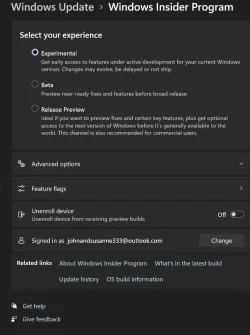
Reminders for Windows Insiders in the Experimental channel
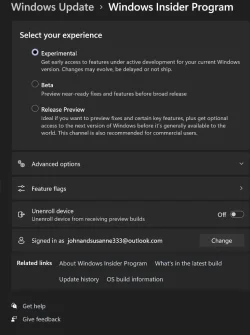
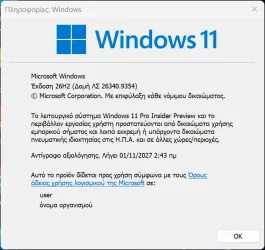
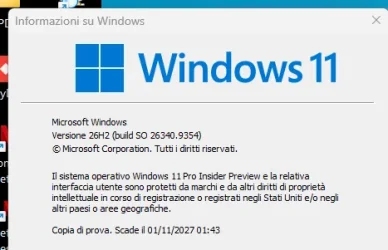
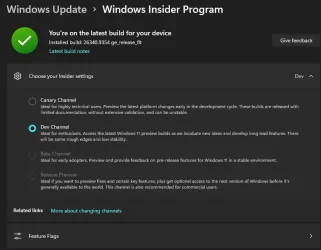
- Updates are based on Windows 11, version 26H2 via an enablement package (Build 26340.9354).
- Many features are rolled out using Controlled Feature Rollout technology, starting with a subset of Insiders and ramping up over time. We monitor feedback to see how they land before pushing them out to everyone in this channel.
- The desktop watermark shown at the lower right corner of the desktop is normal for Windows Insider pre-release builds.
- Features and experiences included in these builds might never get released as we try out different concepts and get feedback. Features might change over time, be removed, or replaced and never get released beyond Windows Insiders. Some of these features and experiences could show up in future Windows releases when they're ready.
- Some features in active development we preview with Windows Insiders might not be fully localized, and localization will happen over time as features are finalized. As you see issues with localization in your language, report those issues to us via Feedback Hub.
- Check out Flight Hub for a complete look at what build is in which Insider channel.
Source:
Announcing new builds for 8 September 2026
Hello Windows Insiders, Today, we’re releasing new Windows 11 Insider Preview builds to the Beta and Experimental channels. New builds this week Select your channel below to view its release notes: Beta:
 blogs.windows.com

Windows 11 Insider Experimental Preview Build 26340.9354 - Windows Insider Program
Release notes for Windows 11 Insider Experimental Preview Build 26340.9354
learn.microsoft.com
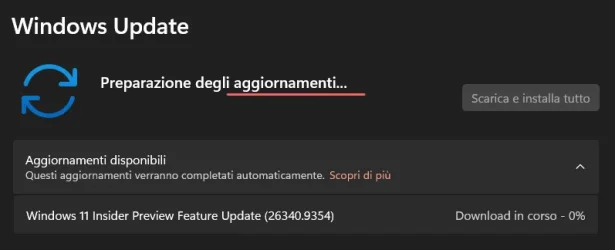
Check Windows Updates
UUP Dump:
64-bit ISO download:

Select language for Windows 11 Insider Preview Feature Update (26340.9354) amd64
Select language for Windows 11 Insider Preview Feature Update (26340.9354) amd64 on UUP dump. UUP dump lets you download Unified Update Platform files, like Windows Insider updates, directly from Windows Update.
uupdump.net
ARM64 ISO download:
Select language for Windows 11 Insider Preview Feature Update (26340.9354) arm64
Select language for Windows 11 Insider Preview Feature Update (26340.9354) arm64 on UUP dump. UUP dump lets you download Unified Update Platform files, like Windows Insider updates, directly from Windows Update.
uupdump.net
UUP Dump - Download Windows Insider ISO
UUP Dump is the most practical and easy way to get ISO images of any Insider Windows 10 or Windows 11 version, as soon as Microsoft has released a new build. UUP Dump creates a download configuration file according to your choices, downloads necessary files directly from Microsoft servers, and...
www.elevenforum.com
Last edited: