UPDATE 10/23:
 www.elevenforum.com

 blogs.windows.com
Check Windows Updates
UUP Dump:
64-bit ISO download:

ARM64 ISO download:
 www.elevenforum.com
Windows 11 Insider Experimental (26H2) build 26340.9767 - Oct. 23
Microsoft Support: Source: Check Windows Updates UUP Dump: 64-bit ISO download: https://uupdump.net/selectlang.php?id=d63ae637-0511-4ee2-a034-5ee555b16788 ARM64 ISO download: https://uupdump.net/selectlang.php?id=02fcd0b0-08f7-4bff-bf92-c7d68bc14cc1...
www.elevenforum.com
Microsoft Support:
Changes and improvements gradually being rolled out
[Gaming]
- We're introducing a refreshed Gaming Task View experience in XBOX mode, featuring a new navigation bar that provides quick access to Exit to Desktop and Power Options. This update makes key system actions easier to access while gaming.
Enter and Exit Xbox Mode in Windows 11
This tutorial will show you how to enter and exit Xbox mode for full screen gaming for your account on Windows 11. Starting with Windows 11 build 26100.8328 (24H2), build 26200.8328 (25H2), and build 28000.2179 (26H1), Xbox mode is now available on Windows 11 PCs, including laptops, desktops...
www.elevenforum.com
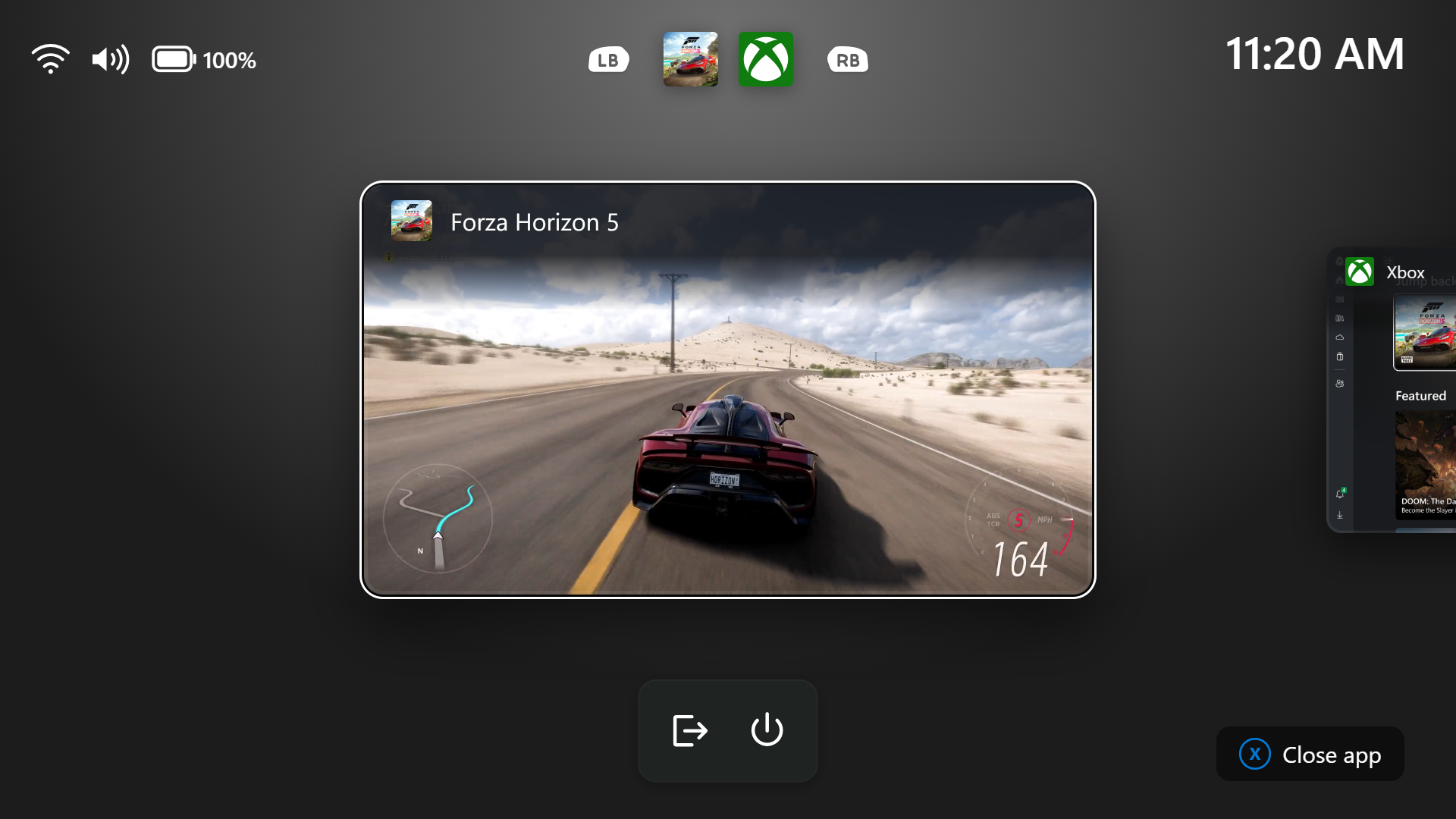
Gaming Task View showing the new navigation bar with Exit to Desktop and Power options.
[Web sign-in]
- Web sign-in now works on Microsoft Entra hybrid joined devices. Before this update, it was only available on Microsoft Entra joined devices. You can sign in to Windows at the lock screen with a passwordless credential: a FIDO2 security key, a passkey on your phone, or a Temporary Access Pass (TAP). You don't need a password. Once you're signed in, Windows gets a Kerberos ticket, so on-premises file shares and internal sites keep working. For more information, see Use web sign-in to enable passwordless sign-in in Windows.
[Windows Hello]
- Windows Hello facial recognition can temporarily brighten your screen to help you sign in when you're in a dark or dimly lit room.
- To turn on this feature, go to Settings > Accounts > Sign-in options > Facial recognition (Windows Hello) and turn on Automatically adjust screen brightness during face recognition.

Turn On or Off Auto Adjust Screen Brightness during Face Recognition in Windows 11
This tutorial will show you how to turn on or off automatically adjust screen brightness during Windows Hello facial recognition for your account in Windows 11. You can set up facial recognition sign-in with your PC's infrared camera or an external infrared camera. Starting with Windows 11...
www.elevenforum.com
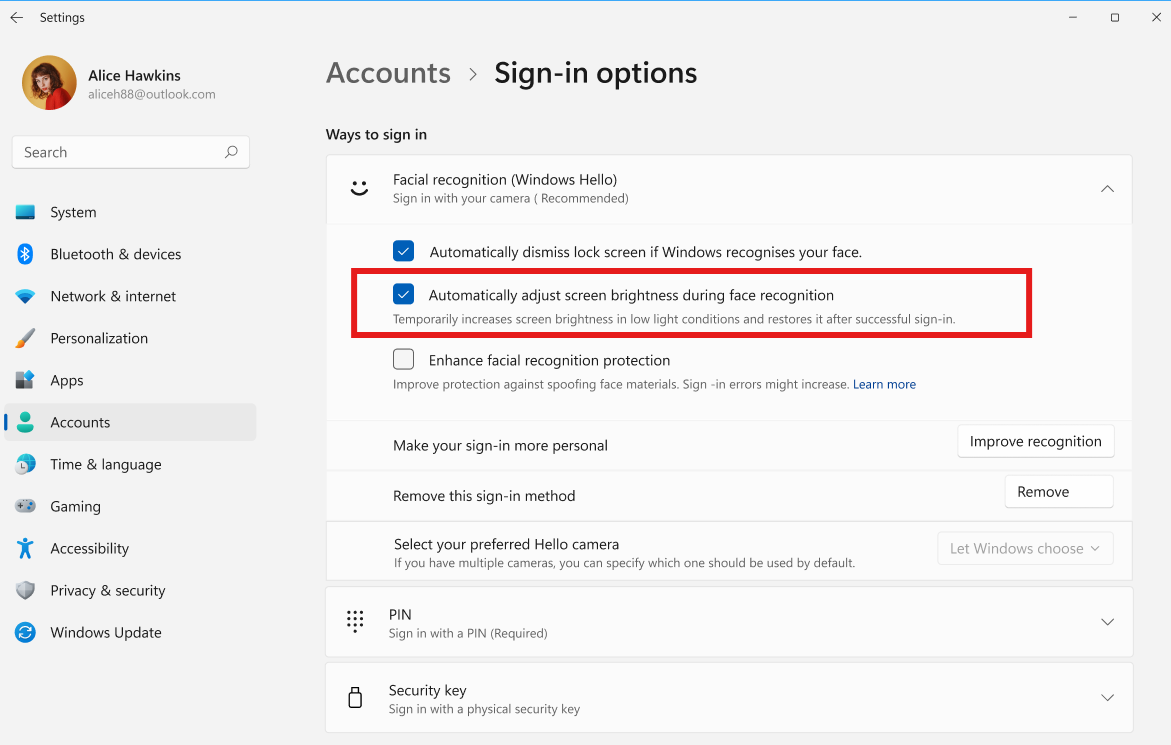
The setting to automatically adjust screen brightness during Windows Hello facial recognition.
[File Explorer]
- Improved responsiveness of folder views so they update and sort correctly when files and folders are added or renamed.
[Windows Search]
- Addressed underlying issues that could cause search to appear missing or stop working after the previous update, including if you rapidly clicked the search icon repeatedly.
[Run]
For Insiders with the new Run dialog enabled:- Improved the window position when using an Arabic or Hebrew display language.
- Improved performance of the Run dialog when navigating to very large folders.
- Fixed an issue where your text might unexpectedly disappear if you started typing too quickly after opening Run.
- Made a few other small visual fixes and refinements.

Enable or Disable Modern Run Dialog in Windows 11
This tutorial will show you how to enable or disable using the modern Run dialog when pressing the Win+R keys for your account in Windows 11. The Run dialog allows you to type the name of a command, program, folder, document, or internet resource to open or run in Windows. Starting with...
www.elevenforum.com
[Other]
- Improved shutdown reliability, reducing the chance of a hang on shutdown in certain cases.
- The dialog for certain system messages, like low battery and permissions, should use the expected modern design again.
Reminders for Windows Insiders in the Experimental channel
- Updates are based on Windows 11, version 26H2 via an enablement package (Build 26340.9750).
- Many features are rolled out using Controlled Feature Rollout technology, starting with a subset of Insiders and ramping up over time. We monitor feedback to see how they land before pushing them out to everyone in this channel.
- The desktop watermark shown at the lower right corner of the desktop is normal for Windows Insider pre-release builds.
- Features and experiences included in these builds might never get released as we try out different concepts and get feedback. Features might change over time, be removed, or replaced and never get released beyond Windows Insiders. Some of these features and experiences could show up in future Windows releases when they're ready.
- Some features in active development we preview with Windows Insiders might not be fully localized, and localization will happen over time as features are finalized. As you see issues with localization in your language, report those issues to us via Feedback Hub.
- Check out Flight Hub for a complete look at what build is in which Insider channel.
Source:
Windows 11 Insider Experimental Preview Build 26340.9750 - Windows Insider Program
Release notes for Windows 11 Insider Experimental Preview Build 26340.9750
learn.microsoft.com
Announcing new builds for 16 October 2026
Hello Windows Insiders, Today, we’re releasing new Windows 11 Insider Preview builds to the Beta, Experimental, and Release Preview channels. New builds this week Select your channel below to view its release notes: B
blogs.windows.com
Check Windows Updates
UUP Dump:
64-bit ISO download:
Select language for Windows 11 Insider Preview Feature Update (26340.9750) amd64
Select language for Windows 11 Insider Preview Feature Update (26340.9750) amd64 on UUP dump. UUP dump lets you download Unified Update Platform files, like Windows Insider updates, directly from Windows Update.
uupdump.net
ARM64 ISO download:
Select language for Windows 11 Insider Preview Feature Update (26340.9750) arm64
Select language for Windows 11 Insider Preview Feature Update (26340.9750) arm64 on UUP dump. UUP dump lets you download Unified Update Platform files, like Windows Insider updates, directly from Windows Update.
uupdump.net
UUP Dump - Download Windows Insider ISO
UUP Dump is the most practical and easy way to get ISO images of any Insider Windows 10 or Windows 11 version, as soon as Microsoft has released a new build. UUP Dump creates a download configuration file according to your choices, downloads necessary files directly from Microsoft servers, and...
www.elevenforum.com
Last edited: