Language Features Bug


Markos123

New member
Local time
1:22 PM
Posts
5
OS
Windows 11, 64 bit
Hello,

I have a language problem with Windows 11 on my new Lenovo laptop.

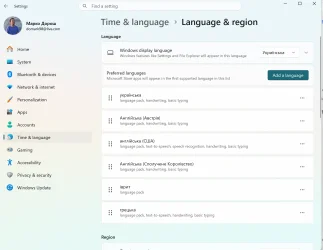
I set Ukrainian as the Windows display language, but Windows remains partly in English. Some Settings menus and system elements are in Ukrainian, while others remain in English. I would like the entire Windows interface to be Ukrainian.

My region is correctly set to Austria, where I currently live and where I bought the laptop. This should not be a problem, as my old laptop is also set to Austria but has the Windows interface 100% in Ukrainian.

I have already tried the following:

  1. Settings → Time & language → Language & region:
    • set Ukrainian as the Windows display language;
    • checked that Ukrainian is installed;
    • moved Ukrainian to the appropriate position in the preferred languages list;
    • checked the regional format and related language settings.
  2. I signed out of Windows and restarted the laptop several times after changing the language settings.
  3. I removed/re-added the Ukrainian language settings and language pack and applied Ukrainian as the display language again.
  4. I checked the Windows language settings using PowerShell and tried changing the Windows language/locale settings through PowerShell commands.
  5. I ran Windows system repair checks, including DISM /Online /Cleanup-Image /RestoreHealth. The process stopped at around 64% and did not appear to complete even after waiting approximately 10–15 minutes.
  6. I also restarted Windows Explorer and cleared/rebuilt relevant Windows caches, but this did not change the language of the affected system elements.
  7. I have restarted the laptop multiple times throughout the process, but the English parts of Windows remain unchanged.
What makes this especially confusing is that my old laptop has Windows with the same Ukrainian display language and its entire interface is 100% Ukrainian. So I know that Ukrainian should be available as a complete Windows interface language.

Could someone please help me identify what is causing certain parts of Windows 11 to remain in English and how I can make the entire interface Ukrainian?

I would especially appreciate suggestions beyond the standard “set Ukrainian as the display language” step, as I have already tried that and the other troubleshooting steps above.

Thank you!
 
Windows Build/Version
Windows 11, 64 bit

Attachments

  • Знімок екрана 2026-09-12 204815.webp
    Знімок екрана 2026-09-12 204815.webp
    97.1 KB · Views: 1

My Computer My Computer

At a glance

Windows 11, 64 bit
OS
Windows 11, 64 bit
Computer type
Laptop
Manufacturer/Model
Lenovo E14, Gen 7
Try these:

---
Copy Language Settings to System Accounts

Changing the display language for your user account does not automatically apply it across system-level interfaces or legacy menus.

  1. Open Settings ($\text{Win} + \text{I}$) $\rightarrow$ Time & language $\rightarrow$ Language & region.
  2. Scroll down and click on Administrative language settings.
  3. In the Region window, go to the Administrative tab.
  4. Click the Copy settings... button.
  5. Check both boxes at the bottom:
    • Welcome screen and system accounts
    • New user accounts
  6. Click OK and restart your computer.
---

Force Reinstall of Language Features via PowerShell​

1) Open Terminal as an admin.
2) Insert:
Remove-Language uk-UA
3) Restart the computer
4) Open Terminal as an admin.
5) Insert:
Install-Language uk-UA
6) Insert:
Set-SystemPreferredUILanguage uk-UA
Restart the computer.
---
 

My Computer My Computer

At a glance

Windows 11
OS
Windows 11
Computer type
PC/Desktop
Manufacturer/Model
Custom Built
Try these:

---
Copy Language Settings to System Accounts

Changing the display language for your user account does not automatically apply it across system-level interfaces or legacy menus.

  1. Open Settings ($\text{Win} + \text{I}$) $\rightarrow$ Time & language $\rightarrow$ Language & region.
  2. Scroll down and click on Administrative language settings.
  3. In the Region window, go to the Administrative tab.
  4. Click the Copy settings... button.
  5. Check both boxes at the bottom:
    • Welcome screen and system accounts
    • New user accounts
  6. Click OK and restart your computer.
---

Force Reinstall of Language Features via PowerShell​

1) Open Terminal as an admin.
2) Insert:
Remove-Language uk-UA
3) Restart the computer
4) Open Terminal as an admin.
5) Insert:
Install-Language uk-UA
6) Insert:
Set-SystemPreferredUILanguage uk-UA
Restart the computer.
---

Thank you very much! I tried the first option, did not help. Will try the second as soon as I have a better internet
 

My Computer My Computer

At a glance

Windows 11, 64 bit
OS
Windows 11, 64 bit
Computer type
Laptop
Manufacturer/Model
Lenovo E14, Gen 7
Go to Taskmanager>Startup Apps and disable all non-Microsoft apps from auto starting.
Power off shutdown and restart.
Run dism---restorehealth and be patient,there is often a significant delay in completing,Internet connection and speed can cause the extended time.
When completed,run---sfc /scannow---and run it until a clean report is given.
Have a look in Reliability History for any flagged entries.Start typing ---reliability ---into the Seach box.
 

My Computer My Computer

At a glance

win 10amd ryzen 5-2600ng skill sniper x 16gbnvidea gtx 1050
OS
win 10
Computer type
PC/Desktop
Manufacturer/Model
home built
CPU
amd ryzen 5-2600
Motherboard
gigabyte b450m-ds3h
Memory
ng skill sniper x 16gb
Graphics Card(s)
nvidea gtx 1050
Monitor(s) Displays
benq fp 92
Hard Drives
samsung 860 evo 500gb m2 ssd
PSU
antec ea550g
Case
nzxt noctis 450
Browser
edge
The official MS rule is after you have installed any Language Packs, the last Monthly Update must always be re-installed.

Normally the install order is expected to be:
1. Install a base Windows version
2. Add optional Language Packs and Features on Demand
3. Add the latest Monthly Update to patch over the LP's and FOD's

If you don't re-install the CU after adding a LP, Windows will be inconsistently displayed in different languages.

1. Install or re-install your LP, usingInstall-Language uk-UA

2. You can find the most recent CU from the Microsoft Update Catalog:

Download and re-install the MSU file:
Code:
wusa.exe windows11.0-kb5043080-x64.msu

3. Restart Windows
 

My Computer My Computer

At a glance

Windows 7
OS
Windows 7
The official MS rule is after you have installed any Language Packs, the last Monthly Update must always be re-installed.

Normally the install order is expected to be:
1. Install a base Windows version
2. Add optional Language Packs and Features on Demand
3. Add the latest Monthly Update to patch over the LP's and FOD's

If you don't re-install the CU after adding a LP, Windows will be inconsistently displayed in different languages.

1. Install or re-install your LP, usingInstall-Language uk-UA

2. You can find the most recent CU from the Microsoft Update Catalog:

Download and re-install the MSU file:
Code:
wusa.exe windows11.0-kb5043080-x64.msu

3. Restart Windows

I actually did it initially the way you described. But I will delete Ukrainian and try again! Thank you!
 

My Computer My Computer

At a glance

Windows 11, 64 bit
OS
Windows 11, 64 bit
Computer type
Laptop
Manufacturer/Model
Lenovo E14, Gen 7
Update: unfortunately, the problem is still not solved.

I completely removed Ukrainian from Windows and then reinstalled the Ukrainian language pack from scratch, but the bug persists exactly as before.

At this point, I have basically tried all the things people suggested, including:

  • removing and reinstalling the Ukrainian language pack;
  • checking and correcting the Windows display-language and language-preference settings;
  • checking the regional and location settings;
  • changing the preferred language order;
  • using PowerShell to check/correct the installed language components;
  • running DISM and SFC;
  • restarting the computer multiple times and applying the available Windows updates.
Despite all this, Windows still sometimes switches to Ukrainian after I reopen the laptop lid, instead of retaining the language I was using before closing it.

On my previous ASUS laptop, the Windows interface was completely and consistently Ukrainian, so this behaviour is particularly strange.

If anyone has an idea that goes beyond the usual language-pack/settings fixes, I would be very grateful for any suggestions.
 

My Computer My Computer

At a glance

Windows 11, 64 bit
OS
Windows 11, 64 bit
Computer type
Laptop
Manufacturer/Model
Lenovo E14, Gen 7
My region is correctly set to Austria, where I currently live and where I bought the laptop. This should not be a problem, as my old laptop is also set to Austria but has the Windows interface 100% in Ukrainian.
Is there any reason why when you purchased the laptop that you didn’t set the region to your native Ukraine? Just because you live in Austria doesn’t mean that the device region is required to be set to Austria. I live in the UK but to take advantage of the EU DMA, I set my device region to Ireland just so I could uninstall Edge without any problems.

Perhaps resetting your laptop using the Out of Box Experience (OOBE) and changing your device region to Ukraine, it might resolve your problem 🤷‍♂️
 

My Computers My Computers

  • At a glance

    W11 Pro 26H2 26300.9550 W.F.E 1000.26100.372.0Intel i5 10400x2 8gb Corsair Vengeance LPX 3600Intel(R) UHD Graphics 630
    OS
    W11 Pro 26H2 26300.9550 W.F.E 1000.26100.372.0
    Computer type
    PC/Desktop
    Manufacturer/Model
    MSI
    CPU
    Intel i5 10400
    Motherboard
    B560M PRO-VDH WiFi BIOS 1.A1
    Memory
    x2 8gb Corsair Vengeance LPX 3600
    Graphics Card(s)
    Intel(R) UHD Graphics 630
    Sound Card
    Realtek onboard AL897
    Monitor(s) Displays
    MSI MAG Artymis 242C
    Screen Resolution
    1920 x 1080
    Hard Drives
    Samsung 970 Evo Plus 500gb
    PSU
    EVGA SuperNova 650w G3
    Case
    Gaming case
    Keyboard
    MSI GK20
    Mouse
    MSI Versa 300
    Internet Speed
    500mbps
    Browser
    Brave
    Antivirus
    Bitdefender
    Other Info
    MSI Herald BE9400 WiFi PCIe
    Printer - Brother MFC-L2750DW
  • At a glance

    Windows 11 Home 25H2 26300.955012th Gen Intel(R) Core(TM) i3-1215U8GBIntel(R) UHD Graphics (128 MB)
    Operating System
    Windows 11 Home 25H2 26300.9550
    Computer type
    Laptop
    Manufacturer/Model
    MSI Modern 14 C12M 637UK
    CPU
    12th Gen Intel(R) Core(TM) i3-1215U
    Motherboard
    Micro-Star International Co., Ltd. MS-14J1 (U3E1)
    Memory
    8GB
    Graphics card(s)
    Intel(R) UHD Graphics (128 MB)
    Sound Card
    Intel Smart Sound Technology for Bluetooth Audio
    Internet Speed
    500mbps
    Browser
    Brave
    Antivirus
    BitDefender
Is there any reason why when you purchased the laptop that you didn’t set the region to your native Ukraine? Just because you live in Austria doesn’t mean that the device region is required to be set to Austria. I live in the UK but to take advantage of the EU DMA, I set my device region to Ireland just so I could uninstall Edge without any problems.

Perhaps resetting your laptop using the Out of Box Experience (OOBE) and changing your device region to Ukraine, it might resolve your problem 🤷‍♂️

I think I just accepted the default region it gave me.

Can I run the OOBE anew? How? Thanks
 

My Computer My Computer

At a glance

Windows 11, 64 bit
OS
Windows 11, 64 bit
Computer type
Laptop
Manufacturer/Model
Lenovo E14, Gen 7
I think I just accepted the default region it gave me.

Can I run the OOBE anew? How? Thanks
That’s what most new PC/Laptop users do, just accept the region for the country they happen to live in during setup mostly I suspect due to the language option available. As a native English speaker, Ireland was the obvious choice for me specifically for EU DMA protection otherwise it’s made absolutely no difference to my everyday experience.

There are tutorials on this forum about how to change your PC region. All I did was to go to reset my PC and choose the OOBE setup method keeping all my personal files. In your case, you’d obviously choose Ukraine as your device region. This method will delete all your downloaded Apps so you would have to reload them. The trade off for me was worth it just to get rid of Edge properly without issues. At the end of the day, it’s ultimately whether you can be bothered to go through the process. Here is a link that describes the process:


Whichever way you do it, you must follow any instructions explicitly as obviously it’s down to you at the end of the day.
 

My Computers My Computers

  • At a glance

    W11 Pro 26H2 26300.9550 W.F.E 1000.26100.372.0Intel i5 10400x2 8gb Corsair Vengeance LPX 3600Intel(R) UHD Graphics 630
    OS
    W11 Pro 26H2 26300.9550 W.F.E 1000.26100.372.0
    Computer type
    PC/Desktop
    Manufacturer/Model
    MSI
    CPU
    Intel i5 10400
    Motherboard
    B560M PRO-VDH WiFi BIOS 1.A1
    Memory
    x2 8gb Corsair Vengeance LPX 3600
    Graphics Card(s)
    Intel(R) UHD Graphics 630
    Sound Card
    Realtek onboard AL897
    Monitor(s) Displays
    MSI MAG Artymis 242C
    Screen Resolution
    1920 x 1080
    Hard Drives
    Samsung 970 Evo Plus 500gb
    PSU
    EVGA SuperNova 650w G3
    Case
    Gaming case
    Keyboard
    MSI GK20
    Mouse
    MSI Versa 300
    Internet Speed
    500mbps
    Browser
    Brave
    Antivirus
    Bitdefender
    Other Info
    MSI Herald BE9400 WiFi PCIe
    Printer - Brother MFC-L2750DW
  • At a glance

    Windows 11 Home 25H2 26300.955012th Gen Intel(R) Core(TM) i3-1215U8GBIntel(R) UHD Graphics (128 MB)
    Operating System
    Windows 11 Home 25H2 26300.9550
    Computer type
    Laptop
    Manufacturer/Model
    MSI Modern 14 C12M 637UK
    CPU
    12th Gen Intel(R) Core(TM) i3-1215U
    Motherboard
    Micro-Star International Co., Ltd. MS-14J1 (U3E1)
    Memory
    8GB
    Graphics card(s)
    Intel(R) UHD Graphics (128 MB)
    Sound Card
    Intel Smart Sound Technology for Bluetooth Audio
    Internet Speed
    500mbps
    Browser
    Brave
    Antivirus
    BitDefender
According to AI:

1) Which edition of Windows 11 are you using?
Go to: Settings -> System -> About
Under Windows specifications, check Edition.
If it says Home Single Language, you must upgrade to Windows 11 Home/Pro or reinstall Windows 11 using a multi-language ISO to get full localization support.

2) Install the Local Experience Pack (LXP) via Microsoft Store
Open Microsoft Store
Search for, and install: Ukrainian Local Experience Pack
Once installed, go to: Settings -> Time & language -> Language & region
And set it as the primary display language.
 

My Computer My Computer

At a glance

Windows 11
OS
Windows 11
Computer type
PC/Desktop
Manufacturer/Model
Custom Built

Latest Support Threads

Back
Top Bottom