

Multiple DEV versions going back 6 months? Took me a while to figure out what the problem was.
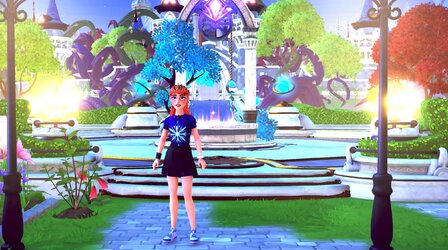
I wonder if anyone has come up with a way to capture a screenshot in a game or on Chrome with Windows 11 HDR on without there being a massive oversaturated light bloom making the image way too bright. There is a fix for Chrome by basically turning off HDR in Chrome. I can do the same in a game by temporarily turning off Win 11 HDR but what a pain... I put in a bug report to Dev team.
I wonder if anyone has come up with a way to capture a screenshot in a game or on Chrome with Windows 11 HDR on without there being a massive oversaturated light bloom making the image way too bright. There is a fix for Chrome by basically turning off HDR in Chrome. I can do the same in a game by temporarily turning off Win 11 HDR but what a pain... I put in a bug report to Dev team.
Attachments

My Computer
At a glance
Windows 11 version 26200Intel Core Ultra 7 Desktop Processor 265K64GBASUS TUF RTX 4090 OC card
- OS
- Windows 11 version 26200
- Computer type
- PC/Desktop
- Manufacturer/Model
- home built
- CPU
- Intel Core Ultra 7 Desktop Processor 265K
- Motherboard
- ASUS Rog Strix Z890-F Gaming
- Memory
- 64GB
- Graphics Card(s)
- ASUS TUF RTX 4090 OC card
- Sound Card
- Alpha Wireless 5.1 Headphones
- Monitor(s) Displays
- Gigabyte M32U 32 inch 4k IPS 144Hz monitor
- Screen Resolution
- 3340 by 2160 144 Hz with HDR 10
- Hard Drives
- 4TB Samsung 9100 Pro NVME, 3X Samsung 4TB 860 EVO
- PSU
- Corsair RM850e modular
- Case
- Corsair Graphite 780T
- Cooling
- Cooler Master Hyper 3DHP air cooled 58C under full load.
- Keyboard
- Corsair K95 RGB
- Mouse
- Logitech G502 wired
- Internet Speed
- Frontier 990Mbps up/down Fiber to the home
- Browser
- Chrome
- Antivirus
- MS Defender






