“Location is not accessible” error while writing ISO to USB with Rufus


Rufiq

Well-known member
Local time
12:14 PM
Posts
35
OS
Windows 11
Hello,

I am trying to create a bootable USB drive using the Norton Bootable Recovery Tool ISO file so that I can scan my laptop. However, I am unable to successfully boot from it. I have tried multiple programs, including Rufus and Ventoy, but the result is the same — the system does not boot the Norton recovery environment. Secure Boot is disabled, yet it still refuses to boot.

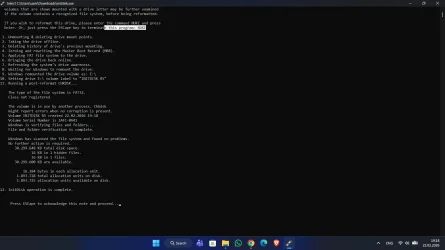
The USB flash drive is brand new and was purchased directly from Corsair’s official website, so it is unlikely that the device itself is faulty. During the ISO writing process, I receive an error message stating “Location is not accessible” or prompting me to insert the USB drive, even though it is already connected.

I also tried writing a Windows ISO file to the same USB drive. It does boot successfully, but the same “Location is not accessible” error still appears during the process. Even though Windows eventually boots, this recurring error message is concerning and frustrating.

I have attempted formatting the USB drive using command-line tools and tried different configurations, but the issue persists. At this point, I am not sure whether the problem is related to the ISO file, the USB drive, or something else entirely.

Any help or suggestions would be greatly appreciated.


1771772510967.webp
 
Windows Build/Version
26200.7628

My Computer My Computer

At a glance

Windows 11
OS
Windows 11
Even though I did everything you said, the problem still persists.
 

My Computer My Computer

At a glance

Windows 11
OS
Windows 11
Hi

Possible reason, unless you know this. Do you have the most resent release, because apparently older Norton’s ISO are not UEFI‑bootable. Older ISO’s apparently:
  • The Norton Bootable Recovery Tool ISO only supports Legacy BIOS booting.
  • It does not support UEFI boot mode, even with Secure Boot disabled.
  • Modern laptops without CSM/Legacy Boot will refuse to boot it every time.
If you use a UEFI-enabled computer, you could try and select the recovery media under the Legacy Boot option instead of the UEFI Boot option
 

My Computers My Computers

  • At a glance

    Windows 11 Pro 25H2 Build 26200.8655Intel(R) Core(TM) i7-4770K CPU @ 3.50GHz32.0 GB of I forget and the box is in storage.Gigabyte nVidia GeForce GTX 1660 Super OC 6GB
    OS
    Windows 11 Pro 25H2 Build 26200.8655
    Computer type
    PC/Desktop
    Manufacturer/Model
    Sin-built 2013
    CPU
    Intel(R) Core(TM) i7-4770K CPU @ 3.50GHz
    Motherboard
    ASUS ROG Maximus VI Formula
    Memory
    32.0 GB of I forget and the box is in storage.
    Graphics Card(s)
    Gigabyte nVidia GeForce GTX 1660 Super OC 6GB
    Sound Card
    ROG SupremeFX Formula 8-Channel High Definition Audio
    Monitor(s) Displays
    5 x LG 25MS500-B - 1 x 24MK430H-B - 1 x Wacom Pro 22" Touch Screen Tablet
    Screen Resolution
    All over the place
    Hard Drives
    Too many to list. OS on Samsung 1TB 870 QVO SATA
    PSU
    Silverstone 1500
    Case
    NZXT Phantom 820 Full-Tower Case
    Cooling
    Noctua NH-D15 Elite Class Dual Tower CPU Cooler / 6 x EziDIY 120mm / 2 x Corsair 140mm somethings / 1 x 140mm Thermaltake something / 2 x 200mm Corsair.
    Keyboard
    Corsair K95 / Logitech diNovo Edge Wireless
    Mouse
    Logitech: G402 / G502 / Mx Masters / Mx Air Cordless
    Internet Speed
    2000/500Mbps
    Browser
    All sorts
    Antivirus
    Kaspersky Premium
    Other Info
    ㅤㅤㅤㅤㅤㅤㅤㅤㅤㅤㅤㅤㅤㅤㅤㅤㅤㅤㅤㅤㅤㅤㅤㅤㅤㅤㅤㅤㅤㅤㅤㅤㅤㅤㅤㅤㅤㅤㅤㅤ⠀⠀⠀⠀⠀⠀⠀⠀⠀⠀
    TP-Link BE9300 WiFi 7 Bluetooth 5.4 (Archer TBE550E)
    TP-Link TX201 V1 2.5GB Lan

    Grandstream HT812 - VoIP
    ASUS DSL-AX82U - Mesh
    ASUS RT-AC68U - Mesh
    ASUS RT-BE88U Router

    Brother MFC-L2880DW Printer

    I’m on a horse.
  • At a glance

    Windows 11 Pro 25H2 Build 26200.8655 (Wifes)13th Generation Intel® Core™ i5-1340P Process...16GB LPDDR5-52001x Intel® Iris® Xe Graphics
    Operating System
    Windows 11 Pro 25H2 Build 26200.8655 (Wifes)
    Computer type
    Laptop
    Manufacturer/Model
    LENOVO Yoga 7 14IRL8 - Type 82YL
    CPU
    13th Generation Intel® Core™ i5-1340P Processor(Core™ i5-1340P)
    Memory
    16GB LPDDR5-5200
    Graphics card(s)
    1x Intel® Iris® Xe Graphics
    Sound Card
    Optimized with Dolby Atmos®
    Screen Resolution
    QHD 2880 x 1800 OLED
    Hard Drives
    M.2 512 GB SSD PCIe
    Mouse
    Logiteck MX Master 3S
    Internet Speed
    2000/500
    Antivirus
    Defender / Malwarebytes
    Other Info
    …still on a horse.


    Wireless Network: Wi-Fi 6E 2x2 AX; Bluetooth® 5.1 or above
    Ports: 1x 1 Novo button; 2 in 1 Audio Combo jack; Micro SD Card Reader; HDMI 1.4b; 2 x USB Type-C (TBT4)
    USB 3.2 Gen 2 DP 1.4a
    PD 3.0); 1 x USB 3.2 Gen1 Type A
    Camera
    1x 1080P FHD IR/RGB Hybrid with Privacy Shutter and Dual Array Microphone
    Graphics
    1x Intel® Iris® Xe Graphics
    Monitor
    14" WUXGA
    Form Factor
    Convertible Notebook
  • Windows 11 Pro 25H2 Build 26200.8655 (Wifes)

    Yoga 7 2-in-1 14IML9 - Type 83DJ

    Processor: Intel® Core™ Ultra 7 155H Processor(Core™ Ultra 7 155H)

    Memory: 32GB LPD5X-7467

    Hard Drive: 1 TB SSD PCIe

    Wireless Network: 1x Wi-Fi 6E 2x2 AX; Bluetooth® 5.1 or above

    Ports: 1 x HDMI 2.1 TMDS; 1 x Novo Button; 1 x Combo Audio Jack
    2 x USB-C (USB 4.0)
    1 x USB-A 3.2 Gen 1

    Camera: 1080P FHD IR Hybrid with Dual Microphone

    Graphics: Intel® Arc™ Graphics

    Monitor: 14" 2.8K

    ...Where's my horse?
The post #1 error sounds to something physical, maybe you have a flaky pendrive or system's USB. Try another port. You might be getting a corrupted pendrive. Try copying normal random files first, preferably many occupying remarkable space.

To "burn" a bootable iso in a pendrive w/o 3rd party software you can run diskpart in a cmd window (not sure if "as administrator" is needed for this but it wouldn't hurt; don't try to win a race when using diskpart). Use the following commands (*):

list disk (will list the attached disks and some basic characteristics)

select disk "n" (being "n" the pendrive's number w/o quotes like select disk 7 but use the number you're seeing in the list, you'll see it by the size)

list partition (this isn't necessary, but if you have failed to select the correct disk you'll notice it here as a list of several partitions of one with mismatched size; if the pendrive is correctly formatted it will have just one partition the same size as the device, typically 14 GB for a commercially 16 GB one, 28 GB for a 32 one, 57 GB for a 64 one and so on; if it's okay follow on)

clean (this will delete all partitions if there's any)

create partition primary (creates an empty partition with offset 1 MB using all the pendrive's space once cleaned, this partition will become automatically selected)

active (makes "active" the recently created partition, what means bootable)

format fs=fat32 quick (formats the partition in FAT32, if you forget "quick" it will be also overwritten, what's nearly never necessary takes time and stresses the drive; if you want to "wipe" the drive, better use "clean all" instead of "clean" above, but as said this isn't necessary in general)

assign letter="letter" (for example assign letter=E -if you want to use the typical letter your pendrives get- or assign letter=Z -a typical trick to neither "disturb" nor "being disturbed" by other drives-; Windows will remember the letter but it won't reserve it, meaning other drive could catch it, upon inserting a drive Windows assigns the first available letter)

To mount the iso so its files can be copied to the recently prepped drive, right click on it -> Open with -> Windows Explorer. In my system this opens automaticly 2 Explorer windows of say F:\ (next available letter) and I just close one (Idk if the "normal behaviour" is opening 2, 1 or 0 windows, but only one is necessary). Select all the folders and files and drag them to the pendrive's root folder. Afterwards dismount the iso by opening "This PC", right-clicking the iso drive and selecting "Eject".

All this should work well regardless of if the iso is actually bootable or not, in itself or for the firmware settings. If the iso is bootable the pendrive will boot. If it isn't bootable it won't boot, but if you don't get the errors you'll be sure the files have been copied just fine.

-----------------------------------------

(*): I've recently done this countless times, always with 16 GB pendrives, trying different things to be able to boot w/ Secure Boot recently updated to CA2023 and enabled. At first I was succeeding to boot really bootable isos (including firmware constraints) with NTFS instead of FAT32, although FAT32 should be the way and I changed to FAT32 only for this reason. With NTFS diskpart uses 4 kB clusters with any disk size, while it uses 8 kB clusters with my 16 GB pendrives and it seems to use 16 kB clusters with your 32 GB one (Idk InitDisk but I guess it's kind of a shell for diskpart).

- This whole FAT32/NTFS/cluster size thing doesn't matter at all for the post #1 error. You shouldn't be getting it but I think it's a physical error. It may be corrupting the recorded pendrives or not.

- As for bootability of a well recorded pendrive, "this whole FAT32/NTFS/cluster size thing" may count. So I'd try NTFS (format fs=ntfs quick instead of the above), while NTFS is "inferior" for this, its 4 kB cluster size might be superior and you might succeed (although with the errors you don't have any guarantee that the pendrive is being recorded correctly).
 

My Computer My Computer

At a glance

Windows 11Celeron J4125 (10th gen)8GB DDR4
OS
Windows 11
Manufacturer/Model
MeLE Quieter 2Q (fanless miniPC)
CPU
Celeron J4125 (10th gen)
Memory
8GB DDR4
Monitor(s) Displays
Samsung SyncMaster T260
Screen Resolution
1920x1200
Hard Drives
256GB eMMC (Windows)
2TB USB3 HDD Toshiba (Data)
Back
Top Bottom