Solved Lock Screen "Windows Spotlight", Without the Travel Pop-Ups?


pacificSurf

Well-known member
Member
Local time
10:35 AM
Posts
168
OS
windwos 11 pro
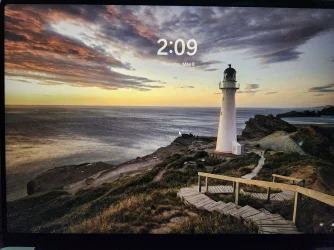
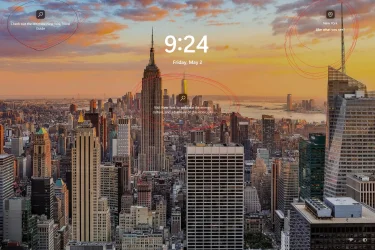
I dont mind the slideshow factory photos and everything on the lock screen. I want to remove just these search bar travel guide spam things that I circled in red below. is there a way to do that?

I can turn off windows spotlight, but that removes the whole background too. So is there no way to keep this background effect without the travel & search popups?

Untitled.webp


Screenshot 2025-05-03 162511.webp
 
Windows Build/Version
Windows 11 Pro Version 24H2 OS build 26100.3775 Experience Windows Feature Experience Pack 1000.26100.66.0

My Computer

System One

  • OS
    windwos 11 pro
If you use windows spotlight as your lock screen, there is not way to remove the text overlay AFAIK. You would need to set your lock screen as picture or slideshow to get rid of the text.
 

My Computers

System One System Two

  • OS
    Windows 11 Pro 25H2
    Computer type
    PC/Desktop
    Manufacturer/Model
    Dell Optiplex 7080
    CPU
    i9-10900 10 core 20 threads
    Motherboard
    DELL 0J37VM
    Memory
    32 gb
    Graphics Card(s)
    none-Intel UHD Graphics 630
    Sound Card
    Integrated Realtek
    Monitor(s) Displays
    Benq 27
    Screen Resolution
    2560x1440
    Hard Drives
    2x1tb Solidigm m.2 nvme /External drives 512gb Samsung m.2 sata+2tb Kingston m2.nvme
    PSU
    500w
    Case
    MT
    Cooling
    Dell Premium
    Keyboard
    Logitech wired
    Mouse
    Logitech wireless
    Internet Speed
    so slow I'm too embarrassed to tell
    Browser
    #1 Edge #2 Firefox
    Antivirus
    Defender+MWB Premium
  • Operating System
    Windows 11 Pro 24H2 26200.8457
    Computer type
    PC/Desktop
    Manufacturer/Model
    Beelink Mini PC SER5
    CPU
    AMD Ryzen 7 6800U
    Memory
    32 gb
    Graphics card(s)
    integrated
    Sound Card
    integrated
    Monitor(s) Displays
    Benq 27
    Screen Resolution
    2560x1440
    Hard Drives
    1TB Crucial nvme
    Keyboard
    Logitech wired
    Mouse
    Logitech wireless
    Internet Speed
    still too embarrassed to tell
    Browser
    Firefox
    Antivirus
    Defender
    Other Info
    System 3 is non compliant Dell 9020 i7-4770/24gb ram Win11 PRO 26200.8457
I did a little reading, try this per our friend co-pilot..
  1. Open Settings: Press the Windows key + i to open Settings.

  2. Go to Personalization: Click on "Personalization".

  3. Go to Lock screen: Click on "Lock screen".

  4. Change the Background:
    • Temporary Change (for disabling tips): If you want to disable the tips and tricks while keeping Windows Spotlight, change the background to "Picture" or "Slideshow" temporarily.

    • Permanent Change: You can change the background to "Picture" or "Slideshow" permanently if you prefer not to have the Windows Spotlight background.
  5. Disable Tips and Tricks:
    • When the background is set to "Picture" or "Slideshow", you should see a setting that says "Get fun facts, tips, and more on your lock screen." Turn it off by toggling the switch to the "off" position.
  6. Switch Back to Windows Spotlight (Optional): If you want to switch back to Windows Spotlight later, you can do so. The tips and tricks will remain disabled, as the setting was disabled in step 5.
 

My Computers

System One System Two

  • OS
    Windows 11 Pro 25H2
    Computer type
    PC/Desktop
    Manufacturer/Model
    Dell Optiplex 7080
    CPU
    i9-10900 10 core 20 threads
    Motherboard
    DELL 0J37VM
    Memory
    32 gb
    Graphics Card(s)
    none-Intel UHD Graphics 630
    Sound Card
    Integrated Realtek
    Monitor(s) Displays
    Benq 27
    Screen Resolution
    2560x1440
    Hard Drives
    2x1tb Solidigm m.2 nvme /External drives 512gb Samsung m.2 sata+2tb Kingston m2.nvme
    PSU
    500w
    Case
    MT
    Cooling
    Dell Premium
    Keyboard
    Logitech wired
    Mouse
    Logitech wireless
    Internet Speed
    so slow I'm too embarrassed to tell
    Browser
    #1 Edge #2 Firefox
    Antivirus
    Defender+MWB Premium
  • Operating System
    Windows 11 Pro 24H2 26200.8457
    Computer type
    PC/Desktop
    Manufacturer/Model
    Beelink Mini PC SER5
    CPU
    AMD Ryzen 7 6800U
    Memory
    32 gb
    Graphics card(s)
    integrated
    Sound Card
    integrated
    Monitor(s) Displays
    Benq 27
    Screen Resolution
    2560x1440
    Hard Drives
    1TB Crucial nvme
    Keyboard
    Logitech wired
    Mouse
    Logitech wireless
    Internet Speed
    still too embarrassed to tell
    Browser
    Firefox
    Antivirus
    Defender
    Other Info
    System 3 is non compliant Dell 9020 i7-4770/24gb ram Win11 PRO 26200.8457
I did a little reading, try this per our friend co-pilot..
  1. Open Settings: Press the Windows key + i to open Settings.

  2. Go to Personalization: Click on "Personalization".

  3. Go to Lock screen: Click on "Lock screen".

  4. Change the Background:
    • Temporary Change (for disabling tips): If you want to disable the tips and tricks while keeping Windows Spotlight, change the background to "Picture" or "Slideshow" temporarily.

    • Permanent Change: You can change the background to "Picture" or "Slideshow" permanently if you prefer not to have the Windows Spotlight background.
  5. Disable Tips and Tricks:
    • When the background is set to "Picture" or "Slideshow", you should see a setting that says "Get fun facts, tips, and more on your lock screen." Turn it off by toggling the switch to the "off" position.
  6. Switch Back to Windows Spotlight (Optional): If you want to switch back to Windows Spotlight later, you can do so. The tips and tricks will remain disabled, as the setting was disabled in step 5.
Thanks, gave it a try, but did not work. Still has the tips travel pop up things. Guess it's just not possible we'll have to use a different lock screen option
 

My Computer

System One

  • OS
    windwos 11 pro
Try the Dynamic Theme app which lets you set Bing as the picture and other options.
 

My Computer

System One

  • OS
    Windows 11 Pro
    Computer type
    PC/Desktop
    Manufacturer/Model
    Self build
    CPU
    Core i7-13700K
    Motherboard
    Asus TUF Gaming Plus WiFi Z790
    Memory
    64 GB Kingston Fury Beast DDR5
    Graphics Card(s)
    Gigabyte GeForce RTX 2060 Super Gaming OC 8G
    Sound Card
    Realtek S1200A
    Monitor(s) Displays
    Viewsonic VP2770 & Dell (secondary)
    Screen Resolution
    2560 x 1440
    Hard Drives
    Kingston KC3000 2TB NVME SSD & SATA HDDs & SSD
    PSU
    EVGA SuperNova G2 850W
    Case
    Nanoxia Deep Silence 1
    Cooling
    Noctua NH-D14
    Keyboard
    Microsoft Digital Media Pro
    Mouse
    Logitech Wireless
    Internet Speed
    80 Mb / s
    Browser
    Chrome
    Antivirus
    Defender, Malwarebytes Free & AdwCleaner
Run these commands as Administrator:
Code:
reg add HKCU\Software\Microsoft\Windows\CurrentVersion\ContentDeliveryManager /v "RotatingLockScreenOverlayEnabled" /t REG_DWORD /d 1 /f
reg add HKCU\Software\Microsoft\Windows\CurrentVersion\ContentDeliveryManager /v "SubscribedContent-338387Enabled" /t REG_DWORD /d 1 /f
 

My Computer

System One

  • OS
    Windows 7
Run these commands as Administrator:
Code:
reg add HKCU\Software\Microsoft\Windows\CurrentVersion\ContentDeliveryManager /v "RotatingLockScreenOverlayEnabled" /t REG_DWORD /d 1 /f
reg add HKCU\Software\Microsoft\Windows\CurrentVersion\ContentDeliveryManager /v "SubscribedContent-338387Enabled" /t REG_DWORD /d 1 /f
Added those and restarted, did not effect it. Oh well, was worth the try!
 

My Computer

System One

  • OS
    windwos 11 pro
Oops, my bad! The value should be "/d 0" not /d 1".
Tried, restarted, but still didnt work. I wonder if it has anything to do with the fact that I first ran those keys with 1. But I then re-ran them correctly with the 0. Are there duplicates with "1" interfering?
Screenshot 2025-05-07 183744.webp
 

My Computer

System One

  • OS
    windwos 11 pro
Each of the SubscribedContents is a different data feed, ie. Wallpapers, Tips, etc.

I noticed the flags switched back to 1 (again). Are you using a MS Account, belong to a domain or something special about your user account? Some of those factors might resync the settings to a different default.
 

My Computer

System One

  • OS
    Windows 7
Each of the SubscribedContents is a different data feed, ie. Wallpapers, Tips, etc.

I noticed the flags switched back to 1 (again). Are you using a MS Account, belong to a domain or something special about your user account? Some of those factors might resync the settings to a different default.
No, setup with a local account. No MS account or domain/work thing. 11 pro. Just my local admin account.

The RotatingScreenOverlay is still set to 0, correctly, right? It looks like it's just the subscribedkey value that is still 1, right?

If so, could it be because I pasted both of those strings into CMD at the same time, and hit enter, it said successfully added. But maybe only the first string is going to get added, you can't add two strings at the same time simultaneously? So the 2nd was ignored?
 

My Computer

System One

  • OS
    windwos 11 pro
If you copy two different lines into a CMD window, it counts as two different commands (in a row) because of the line break.
 

My Computer

System One

  • OS
    Windows 7
If you copy two different lines into a CMD window, it counts as two different commands (in a row) because of the line break.
Okay, nevermind then on that theory.
So I just changed the value of the subscribedcontent string to "0" manually in regedit, restarted, and it worked!
So It must have just not registered the change the 1st time when I did it via CMD for some reason. But the sign in screen is now popup/spam free! Thanks so much

20250508_140957.webp
 

My Computer

System One

  • OS
    windwos 11 pro
Found this thread on 2025-12-01 - at this time, setting these registry settings to 0 properly disables the Microsoft tips while still using the Spotlight background images.

Thanks, this is exactly what I needed!
 

My Computers

System One System Two

  • OS
    Windows 11 Pro
    Computer type
    Laptop
    Manufacturer/Model
    Dell Latitude 5520
    CPU
    i7-1185G7
  • Operating System
    Windows 10 Pro
    Computer type
    PC/Desktop
    Manufacturer/Model
    Custom
    CPU
    AMD FX 8350
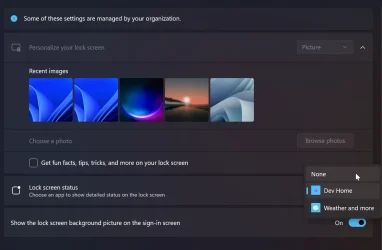
my windows spotlight option dissapeared from the drop down, and I now just have a blue lockscreen. Did it get renamed to "weather and more" ??

FYI, I have no organization managing my settings idk why it says that. This is a personal computer. Windows 11 pro admin account.
loklskzi4G.webp
 

My Computer

System One

  • OS
    windwos 11 pro
Found this thread on 2025-12-01 - at this time, setting these registry settings to 0 properly disables the Microsoft tips while still using the Spotlight background images.

Thanks, this is exactly what I needed!

Can't figure out how to edit my previous post.

Upon setting SubscribedContent-338387Enabled to 0, my lock screen continue to display the Windows Spotlight images, but the text disappeared. However, upon reboot, my system set itself to use a static image as my lock screen (it reused the desktop background).

For the record, I am using an Administrator account that is tied to my Microsoft account. Unsure if this would work differently if I was using a local-only account, and/or if I was using a user-level account. This laptop is new-to-me, so I have left myself as an admin in the short run, while I am setting things up. I'll be creating a local-only administrator and demoting my account to a user once I have gotten most of my basics installed and configured.
 

My Computers

System One System Two

  • OS
    Windows 11 Pro
    Computer type
    Laptop
    Manufacturer/Model
    Dell Latitude 5520
    CPU
    i7-1185G7
  • Operating System
    Windows 10 Pro
    Computer type
    PC/Desktop
    Manufacturer/Model
    Custom
    CPU
    AMD FX 8350
Can't figure out how to edit my previous post.

Upon setting SubscribedContent-338387Enabled to 0, my lock screen continue to display the Windows Spotlight images, but the text disappeared. However, upon reboot, my system set itself to use a static image as my lock screen (it reused the desktop background).

For the record, I am using an Administrator account that is tied to my Microsoft account. Unsure if this would work differently if I was using a local-only account, and/or if I was using a user-level account. This laptop is new-to-me, so I have left myself as an admin in the short run, while I am setting things up. I'll be creating a local-only administrator and demoting my account to a user once I have gotten most of my basics installed and configured.
I can confirm new behavior!

So I manually went into regedit and changed the value of SubscribedContent-338387 to 0, went to lockscreen settings, chose windows spotlight.

Went back to Regedit, and SubscribedContent-338387Enabled is back to a value of 1! Tried restarting too. it seems to self correct the registry back to a vlaue of 1 now if you attempt to use windows spotlight feature.

I have local account only, admin. So I dont think that will make difference.

My GIF recording too big to attach here, but you can see when I changed value to zero, the windows spotlight auto changed to "Picture". I then change it back to spotlight, close regedit and reopen regedit, and that value is back to 1! See here brave_ubt3cm0qfG.gif
 

My Computer

System One

  • OS
    windwos 11 pro
Upon setting SubscribedContent-338387Enabled to 0, my lock screen continue to display the Windows Spotlight images, but the text disappeared. However, upon reboot, my system set itself to use a static image as my lock screen (it reused the desktop background).

Yep, same for me, checked after a few days when the Default blue window kept appearing on the lock screen and sure enough "lock screen background" had changed to picture.
Looks like we're stuck with either seeing ads or using a static picture :confused::mad:
Using MS Admin Account BTW
 

My Computer

System One

  • OS
    Windows 11 Pro 25H2
    Computer type
    Laptop
    Manufacturer/Model
    HP 15s-fq5xxx
    CPU
    12th Gen Intel(R) Core(TM) i7-1255U (1.70 GHz
    Memory
    16.0 GB
    Graphics Card(s)
    Intel iRIS Xe
    Screen Resolution
    1920 x 1080
    Hard Drives
    Samsung SSD 512 GB
    Mouse
    Logitech Pebble
    Internet Speed
    500/50 Mb/sec
    Browser
    Chrome
    Antivirus
    Defender
Back
Top Bottom