Windows Server News and Best Practices:
Trusted Launch for virtual machines
We are excited to announce Trusted Launch for virtual machines (TVMs) in Windows Server Insider Preview. Trusted Launch is a security feature you can enable when creating Hyper-V Generation 2 VMs. It enables Secure Boot, installs a virtual Trusted Platform Module (vTPM), protects vTPM state at rest, and supports boot integrity verification (ability to verify if the VM started in a well-known good state).Further, when the VM runs in a Failover Cluster, the vTPM state is automatically made available when the VM live migrates or fails over to other nodes in the cluster – this ensures the VM remains available after migration or failover. This is unlike a Generation 2 VM with a vTPM, which will not start after migration or failover to another node in the cluster – the TPM state protection key needs to be moved to the destination node manually so the VM can start.
With boot integrity verification, the entire boot path is measured and compared to golden measurements stored in Microsoft Azure Attestation service. This helps detect any alterations to the boot path or boot components. Such alterations, e.g. implanting malware in the boot path, can be detected by boot integrity verification.
Increasingly attackers prefer implanting malware in the boot path for a variety of reasons: the OS layer is usually well protected, while firmware – as highly privileged code – can be used to alter what gets loaded (boot loader and drivers). Such alterations are not easily detectable by anti-virus software running at the OS layer. Boot integrity verification helps detect such alterations so a relying party (such as an app or service) can take suitable remediation actions, e.g. shutting down the VM. Boot integrity verification is an important part of establishing trust by verifying that the virtual machine started in a well-known good state.
Insider preview
TVMs are available for preview starting with Windows Server Insider preview build 29621. This initial preview only supports some of the Trusted Launch capabilities: Secure boot, vTPM, and vTPM state protection (at rest). You can create and manage TVMs using PowerShell.Guest state protection: The guest state (including the vTPM state) for each TVM is protected using a unique key that is stored in a KSP (Key Storage Provider) local to the server. Without this key, the VM will not start. Moving the VM to another server is not supported in this release.
Not supported in this release:
- Moving TVMs to another server.
- TVMs in failover clusters or Hyper-V Replica.
- Boot integrity verification.
- Support for TVMs in Windows Admin Center (WAC).
Instructions
At a high-level, the steps involve:- Install Windows Server Insider preview build on your server
- Enable Hyper-V
- Enable Trusted Launch feature
- Verify guest state protection
1. Install Windows Server Insider preview build
Trusted Launch for virtual machines is available starting with the Windows Insider preview build number 29621. Install this build or a later build on your server. (Join Windows Server Insiders if you haven’t already!)
2. Enable Hyper-V (if it is not already enabled)
Install-WindowsFeature -Name Hyper-V -IncludeManagementTools -RestartAfter enabling Hyper-V, the server needs to be restarted.
3. Set registry key property value (required to enable the Trusted Launch feature)
New-Item -Path "HKLM:\SOFTWARE\Microsoft\AszIgvmAgent" -ForceNew-ItemProperty -Path "HKLM:\SOFTWARE\Microsoft\AszIgvmAgent" -Name "TvmWinServer" -Value 1 -PropertyType DWord -Force Setting the above regkey informs relevant system components that the Trusted Launch feature is being used in a Windows Server environment.
4. Enable Trusted Launch feature
Enable-WindowsOptionalFeature -Online -FeatureName "IsolatedGuestVm" -NoRestart 5. Verify if IgvmAgent is running
IgvmAgent (Isolated Guest Virtual Machine agent) is a system-level service that helps support Trusted Launch capabilities.
Get-Service -Name "IGVmAgent"The output should show Status as Running.
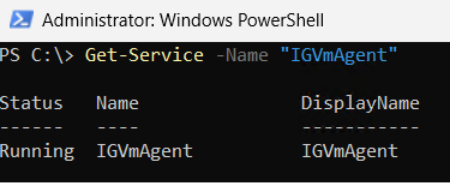
If the Status is Running, you can skip to next step.
If the Status is not Running, please report the issue. Add the following event logs to the report:
- Event Viewer: Applications and Services Logs => Microsoft => Windows => IGVmAgent => Operational
- Event Viewer: Applications and Services Logs => Microsoft => Windows => IGVmSystem => Operational
Press Win + R → type "eventvwr.msc" → press Enter
6. Create an external virtual switch (if you don't already have one you can use)
Create and configure a virtual switch with Hyper-V | Microsoft Learn
To see available external virtual switches:
(Get-VMSwitch | Where-Object { $_.SwitchType -eq "External" }).Name7. Create TVM
If you already have a virtual hard disk (VHD or VHDX) for a Gen 2 VM with an installed guest OS, run:
New-VM -Name <VMName> -Generation 2 -GuestStateIsolationType TrustedLaunch -SwitchName <virtual switch name> -VHDPath <path to vhdx> -Path <path to where VM config files will be stored>Else, run:
New-VM -Name <VMName> -SwitchName <virtual switch name> -NewVHDPath <path to where new VHD will be stored> -NewVHDSizeBytes 40GB -Generation 2 -GuestStateIsolationType TrustedLaunch -Path <path to where VM config files will be stored>Then, add to the VM a virtual DVD drive containing an ISO image for the guest OS (Windows or Linux OS-compatible with Hyper-V Gen 2 virtual machine).
Add-VMDvdDrive -VMName <VMName> -Path <Guest OS ISO image path>Note: The guest OS will be installed when the VM starts up. When connecting to the VM you will be prompted to install the guest OS from the DVD drive. Make sure that the DVD drive is at the top of the boot order specified in the firmware so the VM will boot from the DVD drive.
For more information, see New-VM.
8. Verify VM guest state isolation type
(Get-VM -name <VMName>).GuestStateIsolationTypeshould return "TrustedLaunch".
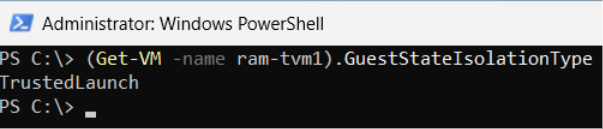
9. Verify guest state protection
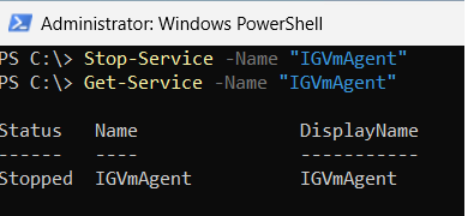
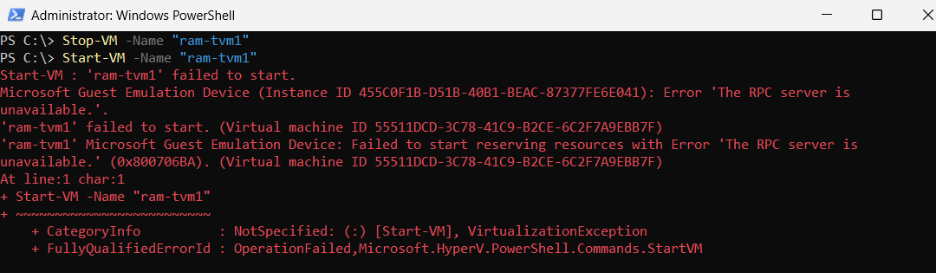
To verify guest state protection, stop IGVmAgent service and restart the VM.
Without IGVmAgent in Running state, a TVM with guest state protection will not start.
Call to action
Trusted Launch brings foundational VM security — Secure Boot, a vTPM, and protected guest state — to Windows Server, helping safeguard your VMs against boot-level and firmware threats. Please try out TVMs and provide your feedback via the Windows Server Insiders Forum.—
Christina Curlette and Ram Jeyaraman (and the Windows Server team)
Source: