Solved Microsoft blocks all options to bypass MS Account on new Installs


Spitz

Active member
Local time
5:29 AM
Posts
2
Location
AU
OS
23H2
Hi all, newbie here (have been sitting on the sidelines watching and learning for some time tho!) please excuse my error if this appears in the wrong thread.

I have been attempting to install version 22631.2506 via ISO install to my notebook.

Previous attempts to by pass the MS Account requirement have not been an issue.

Version 23H2 appears that MS have used the anti and blocked all possible options including Rufus & NT Lite versions.

I am hoping to be proven wrong, although with my upwards of 50 attempts to by pass MS Account have been unsuccessful.

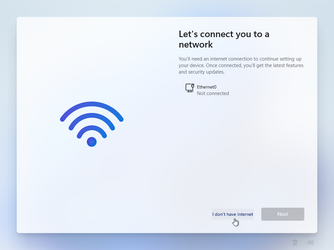
When attempting to bypass connecting to the net, or bypass NRO via CMD the system returns you back the start of the on-boarding process in a continuous loop!
 

My Computer My Computer

At a glance

23H2
OS
23H2
Press Shift+F10 when it asks for an internet connection.

Type: OOBE\BYPASSNRO


If that doesn’t work,

Press Shift+F10 when it asks for an internet connection.
Type taskmgr and hit the Enter button.
Click on the More details button.
Find the Network Connection Flow process.
Select it and click the End task button.
Close all windows and enter your name and password to continue.


**IF YOU HAVE ALREADY CONNECTED TO THE INTERNET DURING SETUP**

Press Shift+F10 to launch Command Prompt as Administrator

Type:
netsh wlan show interfaces
annotate your network name

Type:
netsh interface set interface name="WirelessNetworkName" admin=DISABLED

*Replace “WirelessNetworkName” with your Wi-Fi Interface Name*

• Close Command Prompt

After Windows 11 Install, Go to Device Manager and Enable Wireless NIC
 
Last edited:

My Computer My Computer

At a glance

Windows 11 Pro
OS
Windows 11 Pro
Have attempted all the bypass options. They do not work.

I am confident to state MS has blocked all options as stated.

No issue with Vers 22000.2506 with bypassing the MS account setup on install.

Have just attempted to install over the top of Vers 22000.2506 with IOS Ver 23H2 with the option to keep 11 Pro and keep nothing. This has also failed to work past the bypass option - even when connecting to the net option!

I am attempting to reinstall again over the top of 22000.2506 with the option to install 11 Pro and keep everything.

I have not changed any other functions using NT Lite they have all been the same process which have worked previously. With hitting this wall I have now reduced any mods via NT Lite and the brick wall keeps appearing!
 

My Computer My Computer

At a glance

23H2
OS
23H2
It works for me still.
And a 2nd note - if using ntlite, why not just bake in the local acct, create with Microsoft acct and then delete Microsoft profile post install if you can’t get around it?

Got my 22631 iso from uup ee if that is any diff than yours
 

My Computer My Computer

At a glance

Windows 11 Pro
OS
Windows 11 Pro
Well, I have installed Home 23H2 22631.2506 as an inplace upgrade over an existing 22621.2428 installation. I found no impediments to installing to a Local Account. The only (minor) nuisances I had were the usual non-transfer of font choices and home network password security again implemented for the other individual network machines. Obviously simple to edit, if slightly annoying.

The ISO file was created through UUPDUMP.CN for Home 22631.2506, bog standard procedure.

Rufus version 4.3 (portable) was used to translate the ISO to a USB drive to use as a Setup.exe inplace upgrade. Rufus offered its' usual checklist of options prior to translating the ISO to the USB drive, including the Local Account tickbox. No impediments at all.

I've now done this specific inplace upgrade twice, once on each my two Win11 home network laptops. Both times successful, so I've just done a full image backup for each machine - now back to incrementals, thank goodness.

The only suggestion I can offer here is to re-create your ISO file from either UUPDUMP.CN or UUPDUMP.NET, and use Rufus again to dump across to the USB drive.
 

My Computer My Computer

At a glance

Windows 11Intel i5 10210U16GbIntel UHD
OS
Windows 11
Computer type
Laptop
Manufacturer/Model
HP 15s_du1xxx
CPU
Intel i5 10210U
Motherboard
85F1
Memory
16Gb
Graphics Card(s)
Intel UHD
Sound Card
Realtek
Screen Resolution
1920 x 1080
Am I surprised? They took away the option to "activate" by phone
 

My Computer My Computer

At a glance

Fedora Silverblue Rawhide Debian 13 Ubuntu 25...AMD Ryzen 7 7800X3D 8-Core64GBNvidia
OS
Fedora Silverblue Rawhide Debian 13 Ubuntu 25.10,
Computer type
PC/Desktop
Manufacturer/Model
HomeBrew
CPU
AMD Ryzen 7 7800X3D 8-Core
Motherboard
Gigabyte
Memory
64GB
Graphics Card(s)
Nvidia
Monitor(s) Displays
Dell
Hard Drives
3 ssd 2 spinners configured as raid 0
Keyboard
Eluktronics
Mouse
Eluktronics
Browser
Firefox and Chromium
Other Info
Gnome 46

My Computer My Computer

At a glance

Windows 11 Pro
OS
Windows 11 Pro
Other users have reported the bypass still works. If it doesn't for you, you can do one of 2 things:

1. set up using MS account, then create a new local account with administrative privileges. Restart. Login to the new account and delete the MS account.
2. Change MS account to local account settings>accounts>your info>signin with a local account instead.

IMO Option 1 is preferable if you want your local user folders default location to be on your drive under your new account name and to not have any association with Onedrive..
Using Option 2 will leave your user folder the first 5 letters of your MS account and Onedrive will still be in the mix..

However, know that some of Windows 11 features (like co-pilot) require a MS account.


My Computers My Computers

  • At a glance

    Windows 11 Pro 25H2 26200.8875i9-10900 10 core 20 threads32 gbnone-Intel UHD Graphics 630
    OS
    Windows 11 Pro 25H2 26200.8875
    Computer type
    PC/Desktop
    Manufacturer/Model
    Dell Optiplex 7080
    CPU
    i9-10900 10 core 20 threads
    Motherboard
    DELL 0J37VM
    Memory
    32 gb
    Graphics Card(s)
    none-Intel UHD Graphics 630
    Sound Card
    Integrated Realtek
    Monitor(s) Displays
    Benq 27
    Screen Resolution
    2560x1440
    Hard Drives
    2x1tb Solidigm m.2 nvme /External drives 512gb Samsung m.2 sata+2tb Kingston m2.nvme
    PSU
    500w
    Case
    MT
    Cooling
    Dell Premium
    Keyboard
    Logitech wired
    Mouse
    Logitech wireless
    Internet Speed
    so slow I'm too embarrassed to tell
    Browser
    #1 Edge #2 Firefox
    Antivirus
    Defender+MWB Premium
  • At a glance

    Windows 11 Pro 24H2 26200.8875AMD Ryzen 7 6800U32 gbintegrated
    Operating System
    Windows 11 Pro 24H2 26200.8875
    Computer type
    PC/Desktop
    Manufacturer/Model
    Beelink Mini PC SER5
    CPU
    AMD Ryzen 7 6800U
    Memory
    32 gb
    Graphics card(s)
    integrated
    Sound Card
    integrated
    Monitor(s) Displays
    Benq 27
    Screen Resolution
    2560x1440
    Hard Drives
    1TB Crucial nvme
    Keyboard
    Logitech wired
    Mouse
    Logitech wireless
    Internet Speed
    still too embarrassed to tell
    Browser
    Firefox
    Antivirus
    Defender
    Other Info
    System 3 is non compliant Dell 9020 i7-4770/24gb ram Win11 PRO 26200.8875
You could also just create with Microsoft acct, change it to local and rename/create symlink for the user profile folder. There’s a tutorial here somewhere if you aren’t sure how to do that. It’s simple.
 

My Computer My Computer

At a glance

Windows 11 Pro
OS
Windows 11 Pro
To use a local account when installing Windows 11, when it asks for your Microsoft credentials, use a bogus email address and password.

You will see a message, Oops, something went wrong. Continue through the process and it will setup a local account for you.
 

My Computer My Computer

At a glance

Windows 11 ProRyzen 9 3900XG-Skill RipjawsV F4-3600C18 (16GB x 2)Gigabyte RX 5700 XT Gaming OC
OS
Windows 11 Pro
Computer type
PC/Desktop
CPU
Ryzen 9 3900X
Motherboard
ASUS ROG Strix X570-E Gaming
Memory
G-Skill RipjawsV F4-3600C18 (16GB x 2)
Graphics Card(s)
Gigabyte RX 5700 XT Gaming OC
Sound Card
Realtek ALC1220P
Monitor(s) Displays
ASUS VE278 (x 2)
Screen Resolution
1920x1080
Hard Drives
Samsung 850 Pro 256GB
Samsung 970 Pro NVMe 512GB (x 2)
ST10000VN0004 10TB (x 2)
ST10000VN0008 10TB (x 2)
ST4000VN000 4TB (x 2)
PSU
Corsair HX1000
Case
Corsair Carbide 400R
Cooling
AMD Wraith Prism (Stock)
Keyboard
Logitech G213
Mouse
Logitech G502
Internet Speed
100Mbps down / 40Mbps up
Browser
Firefox - Chrome - Edge
Antivirus
Windows Defender - Clamwin

My Computer My Computer

At a glance

Windows 11 Pro + Win11 Canary VM.I9 13th gen i9-13900H 2.60 GHZ16 GB solderedIntegrated Intel Iris XE
OS
Windows 11 Pro + Win11 Canary VM.
Computer type
Laptop
Manufacturer/Model
ASUS Zenbook 14
CPU
I9 13th gen i9-13900H 2.60 GHZ
Motherboard
Yep, Laptop has one.
Memory
16 GB soldered
Graphics Card(s)
Integrated Intel Iris XE
Sound Card
Realtek built in
Monitor(s) Displays
laptop OLED screen
Screen Resolution
2880x1800 touchscreen
Hard Drives
1 TB NVME SSD (only weakness is only one slot)
PSU
Internal + 65W thunderbolt USB4 charger
Case
Yep, got one
Cooling
Stella Artois (UK pint cans - 568 ml) - extra cost.
Keyboard
Built in UK keybd
Mouse
Bluetooth , wireless dongled, wired
Internet Speed
900 mbs (ethernet), wifi 6 typical 350-450 mb/s both up and down
Browser
Edge
Antivirus
Defender
Other Info
TPM 2.0, 2xUSB4 thunderbolt, 1xUsb3 (usb a), 1xUsb-c, hdmi out, 3.5 mm audio out/in combo, ASUS backlit trackpad (inc. switchable number pad)

Macrium Reflect Home V8
Office 365 Family (6 users each 1TB onedrive space)
Hyper-V (a vm runs almost as fast as my older laptop)
I used F10 - "oobe\bypassnro" all the time.
Sometimes it diddnt work (... if internet connection was allready established) ....

now I allways use the way trumpy81 allready stated:

type email: [email protected] (or whatever other email).
type password: 1234 (or whatever other password).

It wont be able to log in and give you the option to create a local account.
 

My Computer My Computer

At a glance

Windows 10Ryzen 7 5700X2 x 16 GB DDR 4 - 3200 - G.Skill RipJaws VASUS TUF Gaming GeForce RTX 4070
OS
Windows 10
Computer type
PC/Desktop
Manufacturer/Model
Custom
CPU
Ryzen 7 5700X
Motherboard
Gigabyte B550 Aorus Elite V2
Memory
2 x 16 GB DDR 4 - 3200 - G.Skill RipJaws V
Graphics Card(s)
ASUS TUF Gaming GeForce RTX 4070
Sound Card
OnBoard Realtek
Monitor(s) Displays
2 x Dell S2721DGF
Screen Resolution
2560 x 1440 @ 165 MHZ
Hard Drives
1 TB Kingston KC3000 M.2PCIe 4.0
PSU
be quiet! Pure Power 12 M Modular 80+ Gold
Case
Phanteks Eclipse P600s
Cooling
be quit! Dark Rock Pro 4
Keyboard
Logitech G213 Prodigy
Mouse
Logitech G502 Hero
Internet Speed
1000 MBit Cable DSL
Browser
Firefox
Antivirus
Microsoft Defender
I have been attempting to install version 22631.2506 via ISO install to my notebook.
Could you please clarify one detail for me? I just want to be certain that I am following your procedure correctly. Are you attempting to perform an upgrade installation or are you doing a clean install by booting from a thumb drive?

If you are doing a clean install, I have a guaranteed way to do this, but I need to make sure I understand your situation fully first.
 

My Computers My Computers

  • At a glance

    Win11 Pro 25H2 (RTM+)Intel i7-14650HX32 GBNo GPU - Built-in Intel Graphics
    OS
    Win11 Pro 25H2 (RTM+)
    Computer type
    PC/Desktop
    Manufacturer/Model
    Acemagic
    CPU
    Intel i7-14650HX
    Memory
    32 GB
    Graphics Card(s)
    No GPU - Built-in Intel Graphics
    Sound Card
    Integrated
    Monitor(s) Displays
    Varies as machine will often be moved to locations with different monitors
    Screen Resolution
    Varies
    Hard Drives
    1 x 1TB Gen 4 NVMe SSD
    PSU
    120W Power Brick
    Keyboard
    Corsair K70 Max RGB Magnetic Keyboard
    Mouse
    Logitech MX Master 3
    Internet Speed
    1Gb Up / 1 Gb Down
    Browser
    Edge
    Antivirus
    Windows Defender
  • At a glance

    Win11 Pro 25H2 (RTM+)Intel i7-1255U16 GBIntel Iris Xe Graphics
    Operating System
    Win11 Pro 25H2 (RTM+)
    Computer type
    Laptop
    Manufacturer/Model
    Lenovo ThinkBook 13x Gen 2
    CPU
    Intel i7-1255U
    Memory
    16 GB
    Graphics card(s)
    Intel Iris Xe Graphics
    Sound Card
    Realtek® ALC3306-CG codec
    Monitor(s) Displays
    13.3-inch IPS Display
    Screen Resolution
    WQXGA (2560 x 1600)
    Hard Drives
    2 TB 4 x 4 NVMe SSD
    PSU
    USB-C / Thunderbolt 4 Power / Charging
    Keyboard
    Backlit, spill resistant keyboard
    Mouse
    Buttonless Glass Precision Touchpad
    Internet Speed
    1Gb Up / 1Gb Down
    Browser
    Edge
    Antivirus
    Windows Defender
    Other Info
    WiFi 6e / Bluetooth 5.1 / Facial Recognition / Fingerprint Sensor / ToF (Time of Flight) Human Presence Sensor
Your problem isn't NTLite or Rufus.

For testing purposes, I tried 22631.2361 from the Insider ISO download page. Whether it's not the final RTM or GA release doesn't matter because the bypass works the same. Enable the Bypass RNO setting from NTLite, and create your ISO.

The trick with 22H2 or later releases is Bypass RNO doesn't work if Windows finds a valid network connection. When there's a network present, it knows you're trying to cheat. 21H2 was far more trusting, and didn't care if you had network access.

Wait for the part where installation reboots from the black screen and spinning white circle. Quickly unplug the network cable, or pretend you can't use any of the listed Wi-Fi networks. You should get these screens:

Windows 10 x64-2023-10-31-01-17-51.png
Windows 10 x64-2023-10-31-01-18-12.png
Windows 10 x64-2023-10-31-01-18-28.png

If you're using NTLite, creating a Local Account in Unattended mode will skip this whole mess. But BypassRNO now requires Windows to think you don't have a working network.
 

My Computer My Computer

At a glance

Windows 7
OS
Windows 7
Press Shift+F10 when it asks for an internet connection.

Type: OOBE\PASSNRO


If that doesn’t work,

Press Shift+F10 when it asks for an internet connection.
Type taskmgr and hit the Enter button.
Click on the More details button.
Find the Network Connection Flow process.
Select it and click the End task button.
Close all windows and enter your name and password to continue.


**IF YOU HAVE ALREADY CONNECTED TO THE INTERNET DURING SETUP**

Press Shift+F10 to launch Command Prompt as Administrator

Type:
netsh wlan show interfaces
annotate your network name

Type:
netsh interface set interface name="WirelessNetworkName" admin=DISABLED

*Replace “WirelessNetworkName” with your Wi-Fi Interface Name*

• Close Command Prompt

After Windows 11 Install, Go to Device Manager and Enable Wireless NIC
@dacrone, you need to use BYPASSNRO, not PASSNRO.

Also, to disable the network, couldn't you simply open a command prompt and issue an ipconfig /release?
 

My Computers My Computers

  • At a glance

    Win11 Pro 25H2 (RTM+)Intel i7-14650HX32 GBNo GPU - Built-in Intel Graphics
    OS
    Win11 Pro 25H2 (RTM+)
    Computer type
    PC/Desktop
    Manufacturer/Model
    Acemagic
    CPU
    Intel i7-14650HX
    Memory
    32 GB
    Graphics Card(s)
    No GPU - Built-in Intel Graphics
    Sound Card
    Integrated
    Monitor(s) Displays
    Varies as machine will often be moved to locations with different monitors
    Screen Resolution
    Varies
    Hard Drives
    1 x 1TB Gen 4 NVMe SSD
    PSU
    120W Power Brick
    Keyboard
    Corsair K70 Max RGB Magnetic Keyboard
    Mouse
    Logitech MX Master 3
    Internet Speed
    1Gb Up / 1 Gb Down
    Browser
    Edge
    Antivirus
    Windows Defender
  • At a glance

    Win11 Pro 25H2 (RTM+)Intel i7-1255U16 GBIntel Iris Xe Graphics
    Operating System
    Win11 Pro 25H2 (RTM+)
    Computer type
    Laptop
    Manufacturer/Model
    Lenovo ThinkBook 13x Gen 2
    CPU
    Intel i7-1255U
    Memory
    16 GB
    Graphics card(s)
    Intel Iris Xe Graphics
    Sound Card
    Realtek® ALC3306-CG codec
    Monitor(s) Displays
    13.3-inch IPS Display
    Screen Resolution
    WQXGA (2560 x 1600)
    Hard Drives
    2 TB 4 x 4 NVMe SSD
    PSU
    USB-C / Thunderbolt 4 Power / Charging
    Keyboard
    Backlit, spill resistant keyboard
    Mouse
    Buttonless Glass Precision Touchpad
    Internet Speed
    1Gb Up / 1Gb Down
    Browser
    Edge
    Antivirus
    Windows Defender
    Other Info
    WiFi 6e / Bluetooth 5.1 / Facial Recognition / Fingerprint Sensor / ToF (Time of Flight) Human Presence Sensor
Okay, I just tried the procedure below with build 2506 and it worked flawlessly:

During installation, Windows will reboot. You will eventually get to a screen asking "Is this the right country or region?". At that screen, press SHIFT + F10 to open a command prompt. At the command prompt, type "OOBE\BypassNRO" and then press ENTER. The system will reboot. After the reboot, you will again arrive at the screen that asks "Is this the right country or region?". Once again, press SHIFT + F10 to open a command prompt. Run the command "ipconfig /release" and press ENTER. Close the command prompt and proceed with setup. When you get to the screen that says "Let's connect you to a network" select "I don't have internet". On the next screen, select "Continue with limited setup". Continue the installation as normal.

As I had noted before, there is another guaranteed way to accomplish this:

You can simply drop an unattended installation answer file on your installation disk. Note that you can craft an answer file that DOES NOT automate installation. It does nothing other than to create a local user account, bypassing the screen where you need to create an account.

If this is of interest to you, let me know and I will post a sample here.
 

My Computers My Computers

  • At a glance

    Win11 Pro 25H2 (RTM+)Intel i7-14650HX32 GBNo GPU - Built-in Intel Graphics
    OS
    Win11 Pro 25H2 (RTM+)
    Computer type
    PC/Desktop
    Manufacturer/Model
    Acemagic
    CPU
    Intel i7-14650HX
    Memory
    32 GB
    Graphics Card(s)
    No GPU - Built-in Intel Graphics
    Sound Card
    Integrated
    Monitor(s) Displays
    Varies as machine will often be moved to locations with different monitors
    Screen Resolution
    Varies
    Hard Drives
    1 x 1TB Gen 4 NVMe SSD
    PSU
    120W Power Brick
    Keyboard
    Corsair K70 Max RGB Magnetic Keyboard
    Mouse
    Logitech MX Master 3
    Internet Speed
    1Gb Up / 1 Gb Down
    Browser
    Edge
    Antivirus
    Windows Defender
  • At a glance

    Win11 Pro 25H2 (RTM+)Intel i7-1255U16 GBIntel Iris Xe Graphics
    Operating System
    Win11 Pro 25H2 (RTM+)
    Computer type
    Laptop
    Manufacturer/Model
    Lenovo ThinkBook 13x Gen 2
    CPU
    Intel i7-1255U
    Memory
    16 GB
    Graphics card(s)
    Intel Iris Xe Graphics
    Sound Card
    Realtek® ALC3306-CG codec
    Monitor(s) Displays
    13.3-inch IPS Display
    Screen Resolution
    WQXGA (2560 x 1600)
    Hard Drives
    2 TB 4 x 4 NVMe SSD
    PSU
    USB-C / Thunderbolt 4 Power / Charging
    Keyboard
    Backlit, spill resistant keyboard
    Mouse
    Buttonless Glass Precision Touchpad
    Internet Speed
    1Gb Up / 1Gb Down
    Browser
    Edge
    Antivirus
    Windows Defender
    Other Info
    WiFi 6e / Bluetooth 5.1 / Facial Recognition / Fingerprint Sensor / ToF (Time of Flight) Human Presence Sensor
Hi there
the easiest way bar none is simply at enter / create ms account (for "attended installs")

just type at username : [email protected]
password: anythingyoulike

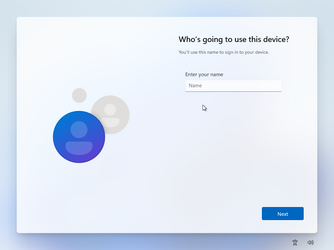
then at the "Oops something went wrong" message click the next button and it then asks who is going to use this computer - and will set up a local account.

can't see anything easier than that and its still working (at least on W11 PRO editions).

cheers
jimbo
 

My Computer My Computer

At a glance

Windows XP,11 Linux Fedora Rawhide pre-releas...2 X Intel i7
OS
Windows XP,11 Linux Fedora Rawhide pre-release 45
Computer type
PC/Desktop
CPU
2 X Intel i7
Screen Resolution
4KUHD X 2
I just tried ALL of the below options with Windows 11 Pro, 22621.2506 and each and every one of them work fine. In addition I tried the answer file that I noted earlier and that also works.

If you have a network connection

If your system has a network adapter such as WiFi or Ethernet, then you should perform ANY ONE of the four options below. You may want to read all options before choosing.

1) During installation of Windows 11, you will be presented a screen that says "Let's add your Microsoft account". At this screen, enter a fake e-mail address. Note that not every fake address will work. Try using the address "[email protected]". On the next screen you will be asked for a password. Enter any fake password and then click on "Sign in". On the next screen the message "Oops, something went wrong" will be displayed. Click on "Next". On the next screen you will be able to enter a local account name. Do this and proceed with installation.

2) If you have an Ethernet cable and no WiFi, unplug the cable. If your system has WiFi use one of the other options. After unplugging the cable, press SHIFT + F10 to open a command prompt. At the command prompt, type "OOBE\BypassNRO" and then press ENTER. The system will reboot. When you get to the "Let's connect you to a network" screen, you will have an option to select "I don't have internet". Choose that option. On the next screen, select "Continue with limited setup". Enter your local user account name, and then continue with setup as usual.

3) During installation, Windows will reboot. After a period of time you will be presented a screen asking "Is this the right country or region?". At that screen, press SHIFT + F10 to open a command prompt. At the command prompt, type "OOBE\BypassNRO" and then press ENTER. The system will reboot. After the reboot, you will again arrive at the screen that asks "Is this the right country or region?". Once again, press SHIFT + F10 to open a command prompt. Run the command "ipconfig /release" and press ENTER. Close the command prompt and proceed with setup. When you get to the screen that says "Let's connect you to a network" select "I don't have internet". On the next screen, select "Continue with limited setup". Continue the installation as normal.

4) Proceed with installation of Windows until you arrive at a screen where you have a choice to "Set up for personal use" or "Set up for work or school", select "Set up for work or school" and click on "Next".

On the next screen, select "Sign-in options", then "Domain join instead". Don't worry, we are not joining a domain!

On the next screen, supply the local username that you want to create and then continue through setup as normal.


If you do NOT have an Internet connection

During installation, Windows will reboot. After a period of time, you will be presented a screen asking, "Is this the right country or region?". At that screen, press SHIFT + F10 to open a command prompt. At the command prompt, type "OOBE\BypassNRO" and then press ENTER. The system will reboot. When you get to the "Let's connect you to a network" screen, you will have an option to select "I don't have internet". Choose that option. On the next screen, select "Continue with limited setup". Enter your local user account name, and then continue with setup as usual.
 

My Computers My Computers

  • At a glance

    Win11 Pro 25H2 (RTM+)Intel i7-14650HX32 GBNo GPU - Built-in Intel Graphics
    OS
    Win11 Pro 25H2 (RTM+)
    Computer type
    PC/Desktop
    Manufacturer/Model
    Acemagic
    CPU
    Intel i7-14650HX
    Memory
    32 GB
    Graphics Card(s)
    No GPU - Built-in Intel Graphics
    Sound Card
    Integrated
    Monitor(s) Displays
    Varies as machine will often be moved to locations with different monitors
    Screen Resolution
    Varies
    Hard Drives
    1 x 1TB Gen 4 NVMe SSD
    PSU
    120W Power Brick
    Keyboard
    Corsair K70 Max RGB Magnetic Keyboard
    Mouse
    Logitech MX Master 3
    Internet Speed
    1Gb Up / 1 Gb Down
    Browser
    Edge
    Antivirus
    Windows Defender
  • At a glance

    Win11 Pro 25H2 (RTM+)Intel i7-1255U16 GBIntel Iris Xe Graphics
    Operating System
    Win11 Pro 25H2 (RTM+)
    Computer type
    Laptop
    Manufacturer/Model
    Lenovo ThinkBook 13x Gen 2
    CPU
    Intel i7-1255U
    Memory
    16 GB
    Graphics card(s)
    Intel Iris Xe Graphics
    Sound Card
    Realtek® ALC3306-CG codec
    Monitor(s) Displays
    13.3-inch IPS Display
    Screen Resolution
    WQXGA (2560 x 1600)
    Hard Drives
    2 TB 4 x 4 NVMe SSD
    PSU
    USB-C / Thunderbolt 4 Power / Charging
    Keyboard
    Backlit, spill resistant keyboard
    Mouse
    Buttonless Glass Precision Touchpad
    Internet Speed
    1Gb Up / 1Gb Down
    Browser
    Edge
    Antivirus
    Windows Defender
    Other Info
    WiFi 6e / Bluetooth 5.1 / Facial Recognition / Fingerprint Sensor / ToF (Time of Flight) Human Presence Sensor
I just tried ALL of the below options with Windows 11 Pro, 22621.2506 and each and every one of them work fine. In addition I tried the answer file that I noted earlier and that also works.

If you have a network connection

If your system has a network adapter such as WiFi or Ethernet, then you should perform ANY ONE of the four options below. You may want to read all options before choosing.

1) During installation of Windows 11, you will be presented a screen that says "Let's add your Microsoft account". At this screen, enter a fake e-mail address. Note that not every fake address will work. Try using the address "[email protected]". On the next screen you will be asked for a password. Enter any fake password and then click on "Sign in". On the next screen the message "Oops, something went wrong" will be displayed. Click on "Next". On the next screen you will be able to enter a local account name. Do this and proceed with installation.

2) If you have an Ethernet cable and no WiFi, unplug the cable. If your system has WiFi use one of the other options. After unplugging the cable, press SHIFT + F10 to open a command prompt. At the command prompt, type "OOBE\BypassNRO" and then press ENTER. The system will reboot. When you get to the "Let's connect you to a network" screen, you will have an option to select "I don't have internet". Choose that option. On the next screen, select "Continue with limited setup". Enter your local user account name, and then continue with setup as usual.

3) During installation, Windows will reboot. After a period of time you will be presented a screen asking "Is this the right country or region?". At that screen, press SHIFT + F10 to open a command prompt. At the command prompt, type "OOBE\BypassNRO" and then press ENTER. The system will reboot. After the reboot, you will again arrive at the screen that asks "Is this the right country or region?". Once again, press SHIFT + F10 to open a command prompt. Run the command "ipconfig /release" and press ENTER. Close the command prompt and proceed with setup. When you get to the screen that says "Let's connect you to a network" select "I don't have internet". On the next screen, select "Continue with limited setup". Continue the installation as normal.

4) Proceed with installation of Windows until you arrive at a screen where you have a choice to "Set up for personal use" or "Set up for work or school", select "Set up for work or school" and click on "Next".

On the next screen, select "Sign-in options", then "Domain join instead". Don't worry, we are not joining a domain!

On the next screen, supply the local username that you want to create and then continue through setup as normal.


If you do NOT have an Internet connection

During installation, Windows will reboot. After a period of time, you will be presented a screen asking, "Is this the right country or region?". At that screen, press SHIFT + F10 to open a command prompt. At the command prompt, type "OOBE\BypassNRO" and then press ENTER. The system will reboot. When you get to the "Let's connect you to a network" screen, you will have an option to select "I don't have internet". Choose that option. On the next screen, select "Continue with limited setup". Enter your local user account name, and then continue with setup as usual.
Hi there
All those work currently at least on Windows PRO (I don't have Windows Home so I can't test that - but some posters seem to think you have to have an internet connection to install Windows Home).

However as in real life so many people are so biased in their own ways that they just ignore even TRYING any solution or even suggestion but just moan. That's human nature unfortunately. Perhaps they should kick the dog more often etc. instead.

cheers
jimbo
 

My Computer My Computer

At a glance

Windows XP,11 Linux Fedora Rawhide pre-releas...2 X Intel i7
OS
Windows XP,11 Linux Fedora Rawhide pre-release 45
Computer type
PC/Desktop
CPU
2 X Intel i7
Screen Resolution
4KUHD X 2
some posters seem to think you have to have an internet connection to install Windows Home
Testing with Home edition now. But I already know for 100% sure that one of the methods will work with Home Edition, and that is the answer file. I'll post back results shortly.
 

My Computers My Computers

  • At a glance

    Win11 Pro 25H2 (RTM+)Intel i7-14650HX32 GBNo GPU - Built-in Intel Graphics
    OS
    Win11 Pro 25H2 (RTM+)
    Computer type
    PC/Desktop
    Manufacturer/Model
    Acemagic
    CPU
    Intel i7-14650HX
    Memory
    32 GB
    Graphics Card(s)
    No GPU - Built-in Intel Graphics
    Sound Card
    Integrated
    Monitor(s) Displays
    Varies as machine will often be moved to locations with different monitors
    Screen Resolution
    Varies
    Hard Drives
    1 x 1TB Gen 4 NVMe SSD
    PSU
    120W Power Brick
    Keyboard
    Corsair K70 Max RGB Magnetic Keyboard
    Mouse
    Logitech MX Master 3
    Internet Speed
    1Gb Up / 1 Gb Down
    Browser
    Edge
    Antivirus
    Windows Defender
  • At a glance

    Win11 Pro 25H2 (RTM+)Intel i7-1255U16 GBIntel Iris Xe Graphics
    Operating System
    Win11 Pro 25H2 (RTM+)
    Computer type
    Laptop
    Manufacturer/Model
    Lenovo ThinkBook 13x Gen 2
    CPU
    Intel i7-1255U
    Memory
    16 GB
    Graphics card(s)
    Intel Iris Xe Graphics
    Sound Card
    Realtek® ALC3306-CG codec
    Monitor(s) Displays
    13.3-inch IPS Display
    Screen Resolution
    WQXGA (2560 x 1600)
    Hard Drives
    2 TB 4 x 4 NVMe SSD
    PSU
    USB-C / Thunderbolt 4 Power / Charging
    Keyboard
    Backlit, spill resistant keyboard
    Mouse
    Buttonless Glass Precision Touchpad
    Internet Speed
    1Gb Up / 1Gb Down
    Browser
    Edge
    Antivirus
    Windows Defender
    Other Info
    WiFi 6e / Bluetooth 5.1 / Facial Recognition / Fingerprint Sensor / ToF (Time of Flight) Human Presence Sensor
Back
Top Bottom