Microsoft Partner News:
A new compatibility icon highlights printers that support Windows protected print mode (WPP), helping users identify devices ready for secure, modern IPP-based printing
As the Windows print ecosystem continues transitioning away from legacy driver‑based architectures, Windows Protected Print Mode (WPP) helps improve system security by enforcing use of the Windows modern print stack and introducing additional security features.

Enable or Disable Windows Protected Print Mode in Windows 11
This tutorial will show you how to enable or disable Windows protected print mode for all users in Windows 11. Starting with Windows 11 build 26016 (Canary) and build 26052.1100 (Dev), Microsoft has added Windows Protected Print Mode (WPP). Windows protected print mode lets your PC exclusively...
 www.elevenforum.com
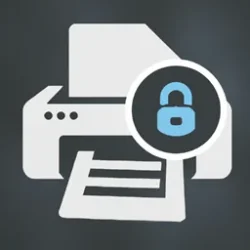
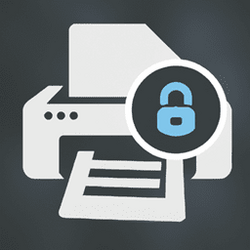
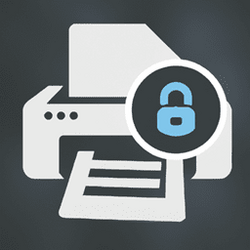
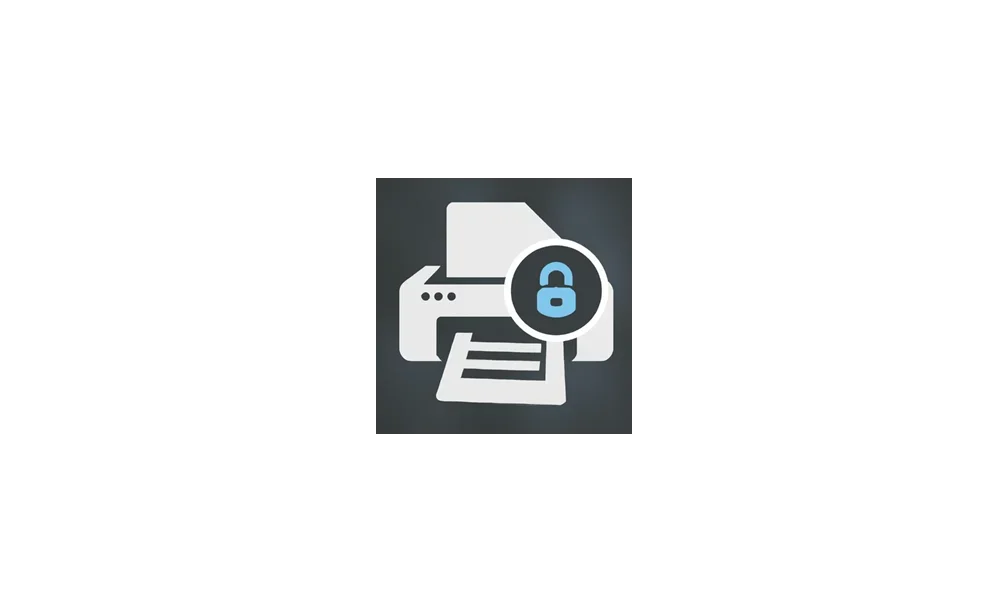
To increase transparency for users and support industry readiness for modern print environments, Windows is introducing a new compatibility icon that can be found in Settings > Bluetooth & devices > Printers & scanners:

This icon appears next to each installed printer that supports Windows protected print mode, which requires IPP capabilities.
Check if Printer or Scanner Supports Windows Protected Print Mode
This tutorial will show you how to check if a printer or scanner is compatible with Windows protected print mode (WPP) in Windows 11. Windows protected print mode exclusively uses the Windows modern print stack which provides additional print security benefits on PCs. Enabling Windows protected...
www.elevenforum.com
To provide the best experience for customers using Windows protected print mode, printer manufacturers can create Print Support Apps (PSAs) to replicate driver customization features.
Source:
Making it easier to identify Windows protected print mode compatible devices | Microsoft Community Hub
As the Windows print ecosystem continues transitioning away from legacy driver‑based architectures, Windows Protected Print Mode (WPP) helps...
 techcommunity.microsoft.com
Last edited: