Hi, Microsoft 365 Insiders! We are excited to share the availability of a view in Teams meetings in Teams Public Preview: Speaker view.
Speaker view in Teams meetings
Speaker view can be selected from the view switcher within meetings, and allows meeting attendees to effortlessly track the current active speaker. It is particularly effective in scenarios with a limited number of key speakers and a large audience, such as town halls, trainings, or lectures – especially from the student’s perspective.
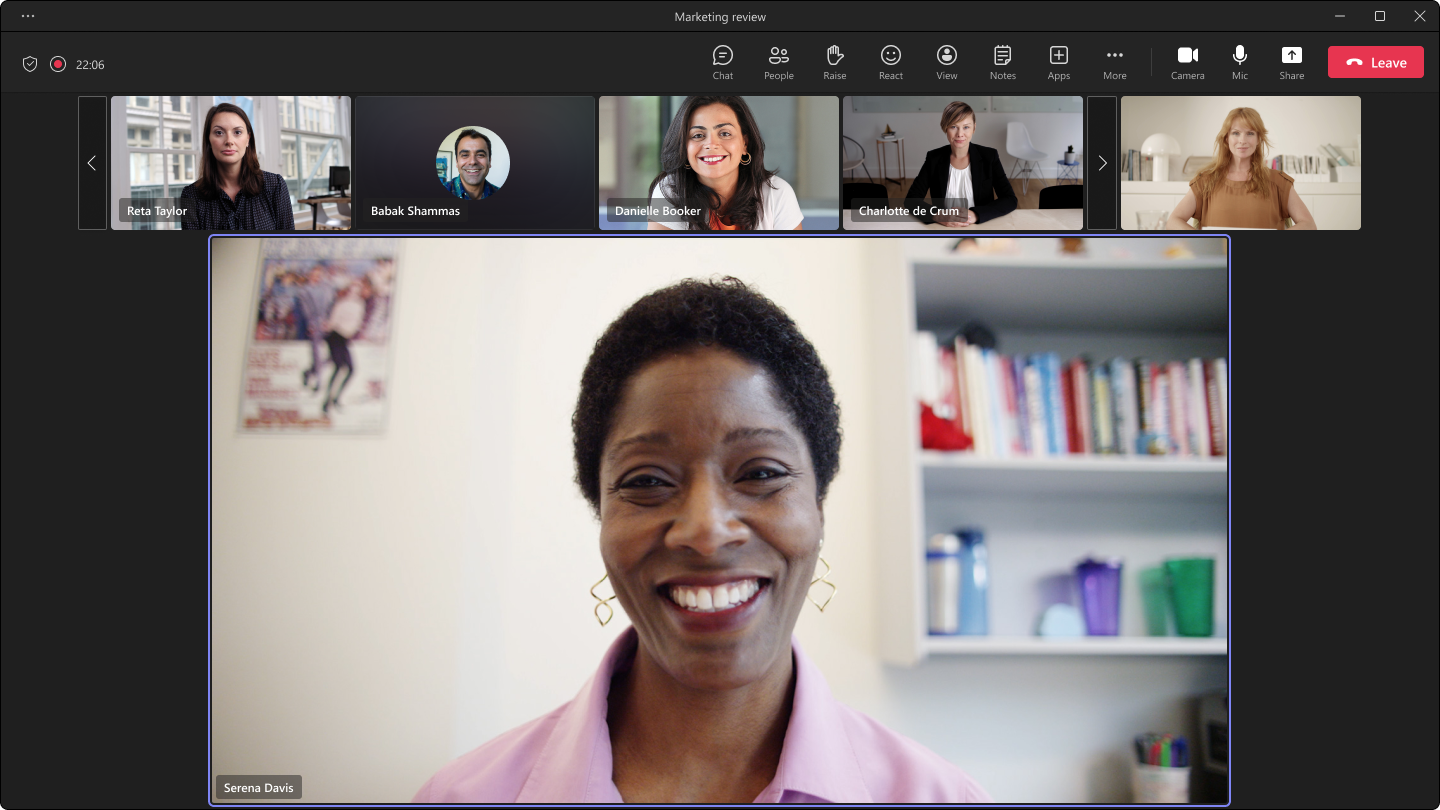
The Speaker View offers several enhancements, including:
- Easy tracking of the active speaker: The view includes a primary area on the stage to focus on key participants in the meeting.
- Better visual clarity: The active speaker’s video is rendered at a higher resolution.
- Equal representation for audio and video participants: All attendees are equally represented in the meeting, regardless of whether their video is enabled or disabled.
- Inclusive by default: This view utilizes 16:9 tiles, providing ample space to fully display hand gestures and body language.
- Predictable experience:
- The use of 16:9 tiles and consistent placement of audio and video participants on the same stage ensures a fluid experience.
- Users toggling their videos on or off do not cause the entire stage to be re-rendered.
- The main area designated for the active speaker is also utilized for shared content, enabling seamless transitions during presentations.
How it works
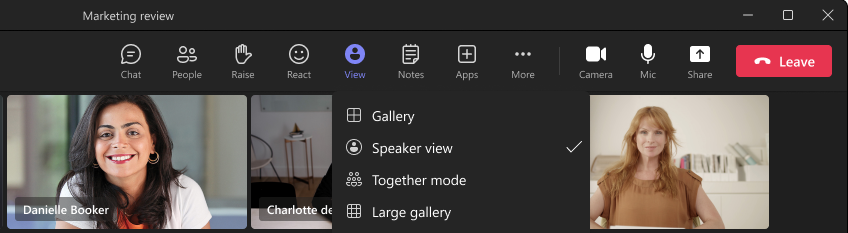
- Join a meeting, and then select View > Speaker view.
Availability
To be able to use this feature, users need to be members of the Teams Public Preview, and use Windows or macOS Teams client. Other users are not required to be members of the Teams Public Preview.
To enable your Teams client for the Public Preview, IT admins need to set an update policy that turns on Show preview features. Learn how at Public preview in Microsoft Teams.
- If the Follow Office Preview option is selected, it will automatically enable Teams Public Preview features for any user enrolled in Office Current Channel (Preview). There are no more actions required by the end user.
- If the Enabled option is selected, the end user must also opt in to Teams public preview in their Teams app to get access to Teams Public Preview features.
Feedback
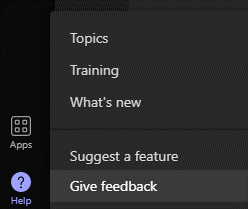
We want to hear from you! Please click Help > Give feedback to send us your thoughts about this feature. This is located in the bottom left corner of your Teams client.
Source:

Speaker view in Teams meetings
Try Speaker view effortlessly track the current active speaker in large meetings, such as town halls, trainings, or lectures.