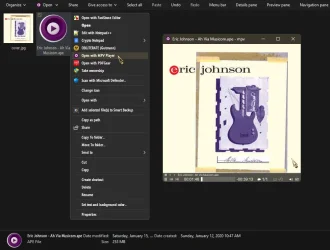
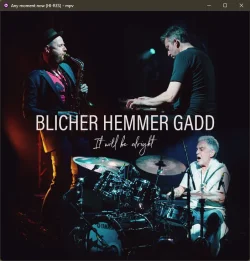
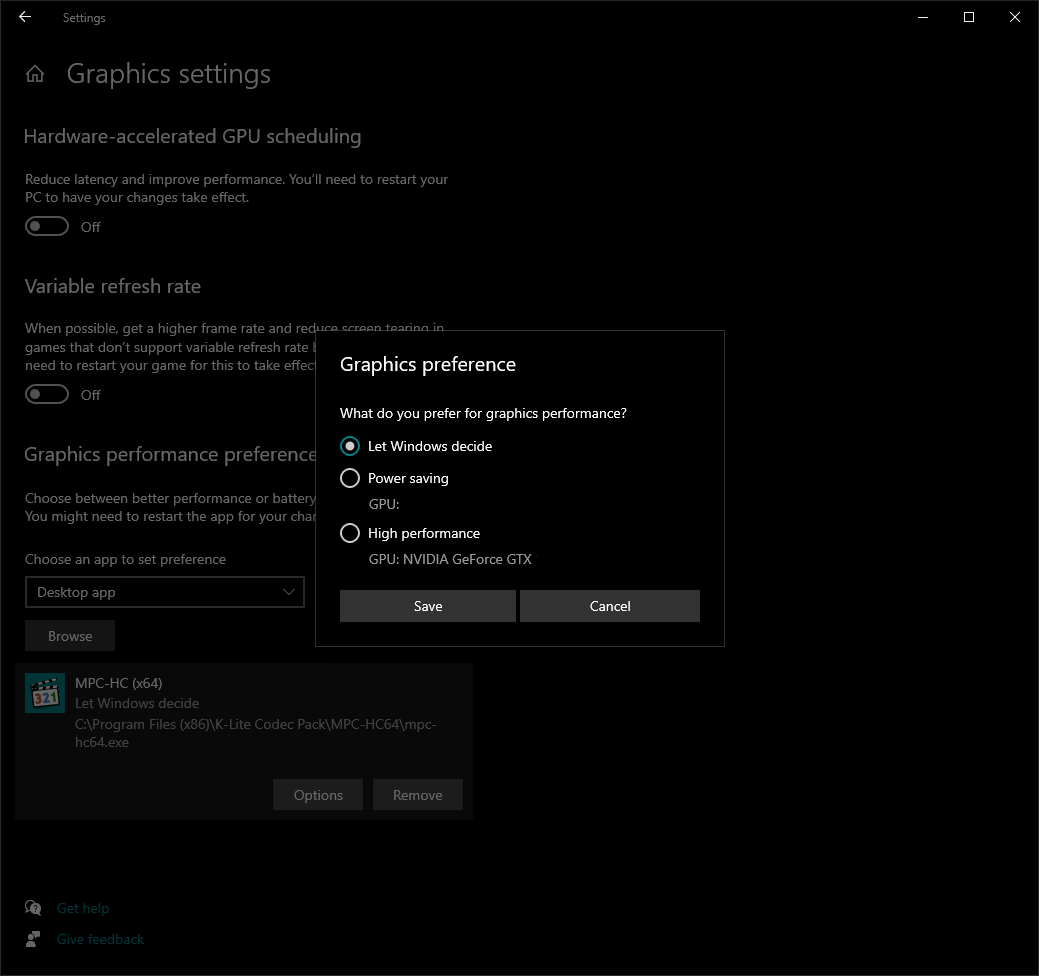
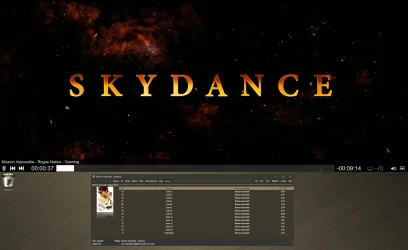
Yeah, that was my first impression, but, I figured, for now, I'll just create an association or a right click entry...
Yep, have it set as default player.
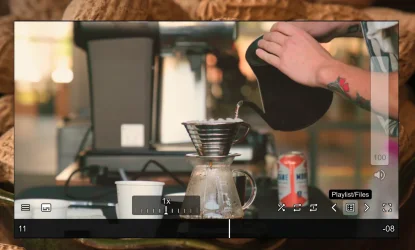
Also added a script - which adds a simplistic UI for the sake of practicality:
Feature-rich minimalist proximity-based UI for MPV player. - tomasklaen/uosc

github.com
As in...


By default, it simply uses the "default" profile (some find it appealing like that - as a fast and simplistic player), but i tweaked tons of things - for sightly better audio, better subtitles, even better visuals. To add custom settings - you create a text file (you can use even notepad - i prefer notepad++) and save it as
mpv.conf (it's .conf not .comf - my bad) - then place it here...
C:\Mpv\mpv
...or where you extracted MPV, mine for example is in: C:\PortableApps\Mpv\mpv
Then you add line, for example:
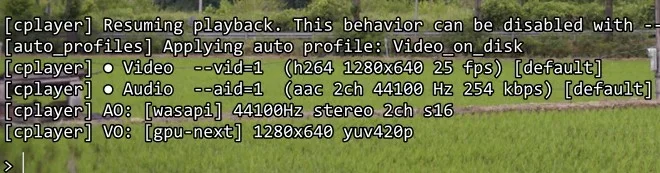
vo=gpu-next
And that setting is already active. If you use multiple variable for same setting, as in:
vo=gpu-next
- as an active setting, to disable the other - you simply add "
#" in front which disables that setting - such as:
#vo=gpu
A personal example, i'm usig
d3d11 for rendering and video acceleration - but also have
Vulkan as an alternative, so have mine set like this - where d3d11 is active and vulkan disabled:
gpu-api=d3d11
gpu-context=d3d11
d3d11-adapter="NVIDIA GeForce RTX 2060" # Select a specific D3D11 adapter to utilize for D3D11 rendering.
d3d11-sync-interval=3 # Schedule each frame to be presented for this number of VBlank intervals. (default: 1) Setting to 1 will enable VSync, setting to 0 will disable it.
d3d11-output-format=rgb10_a2 # Select a specific D3D11 output format to utilize for D3D11 rendering.
d3d11-output-csp=srgb # Select a specific D3D11 output color space to utilize for D3D11 rendering.
d3d11-feature-level=12_1
d3d11-flip=yes # Enable flip-model presentation, which avoids unnecessarily copying the backbuffer by sharing surfaces with the DWM (default: yes). This may cause performance issues with older drivers.
#gpu-api=vulkan
#gpu-context=winvk
#vulkan-device="NVIDIA GeForce RTX 2060"
#vulkan-swap-mode=fifo
#vulkan-async-compute=no
#vulkan-async-transfer=yes
#vulkan-queue-count=1
#vd-lavc-dr=yes
That's all there is to it (an active setting vs disabled). There's tons of
mpv.conf examples on the internet - at first i used to copy and try them out, but with time i started learning what the settings do - and added only what i was interested in - even added a description as can be seen above. So, to add a description after a setting - you simply add another "#" - so the description doesn't interfere with the actual setting, as can be seen above (with all the d3d11 setting - with a description at the end).
Obviously, we all have - our own specific systems - so copying someone else's
mpv.conf (custom settings) - you won't get the same advantages. For example - have a specific audio setting which helps my headset - but used on a different headset - might sound worst (than default). So yeah, this is a modular video player in this sense - somehow similar to foobar2000 - where you have the base player - but you can custom modify/improve it - based on particular needs. It's not like Videolan - where was you see is what you get, even tho - they have some things in common under the hood and development wise. :)


 www.videohelp.com