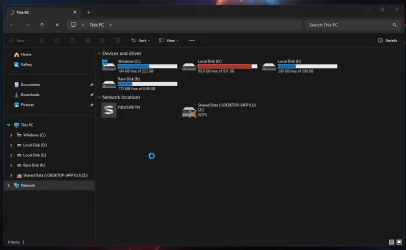
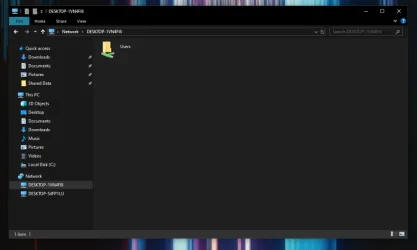
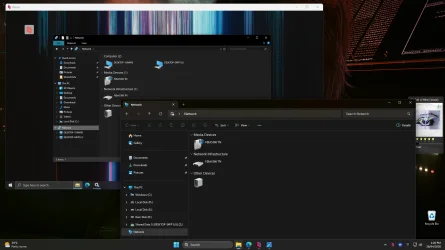
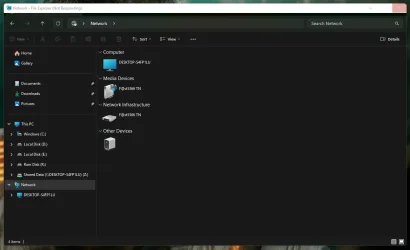
This has been an on-going issue for some since 24h2 and seems to happen most when different versions of Windows are in the network.
This solution has worked for some folks.
Computers not seen in network map. Do this on all systems in network..
add "LanmanWorkstation" as an additional startup dependency for the "Function Discovery Resource Publication" (FDResPub) service, which seems to do the trick. To do this, you simply open an elevated command prompt (i.e. use the "run as administrator" right-click context menu option to start cmd.exe), then execute the following command:
sc config fdrespub depend= RpcSs/http/fdphost/LanmanWorkstation
Reboot each device after executing this command, and the devices should see each other more reliably in Network and File Manager. reference
a fix for Function Discovery Resource Publication. (FDResPub service) - Microsoft Q&A
Make sure these services are set to automatic and running
DNS-Client – Server
Function Discovery Provider Host
Function Discovery Resource Publication
SSDP Discovery
UPNP Device Host
Windows Defender Firewall
If it still does not show in Network map you can use this workaround method to access the host computer.
- Open File Explorer.
- In the address bar, type the following: \\computername (replace "computername" with the name of the computer you're connecting to).
- Press Enter.
- Note: You can also use ip address in address bar but if you do assign your devices static ip addresses because they will not always be assigned the same ip address by the router.
- Whichever of these methods allows you to get to the other machine, create a shortcut to it on desktop, and pin that shortcut to quick access. You can then delete the shortcut from desktop.