Microsoft 365 Insider Blog:
Hi, Insiders! I’m Shweta Bothra, a Senior Program Manager on the Microsoft 365 Copilot team. I’m excited to introduce the Memory feature in Microsoft 365 Copilot: a new capability that makes your Copilot smarter, more helpful, and more in tune with how you work.
Unlock the power of personalization: Copilot Memory in Microsoft 365
Ever wish Copilot remembered your preferences, like favoring bullet points or keeping responses concise, without you having to repeat them every time? That’s exactly what Copilot Memory does. It remembers key facts you choose to share, such as your working style, communication preferences, and recurring topics, so Copilot can tailor its responses and recommendations to fit you. That means:- Less repetition: No need to restate your preferences.
- More personalization: Responses feel like they are written for you.
- Full control: View, edit, or delete memories anytime.
Watch it in action:
How it works
- Open Microsoft 365 Copilot and sign in with your Microsoft account.
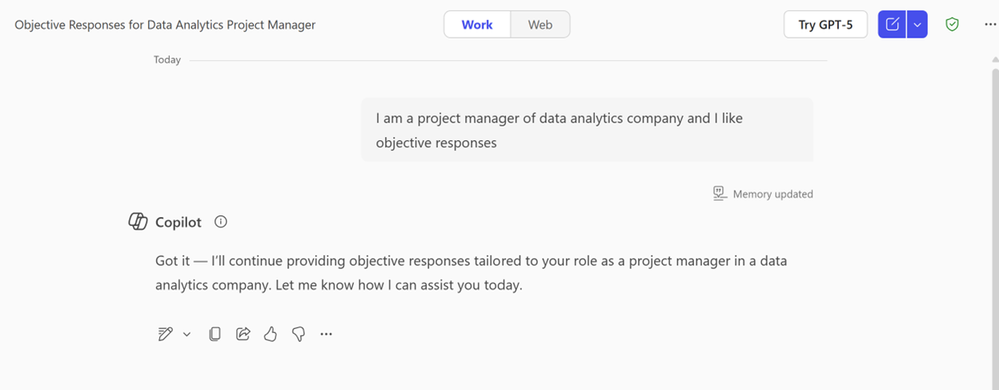
- Tell Copilot what to remember in Chat, such as “I like to use bullet points when I write.”
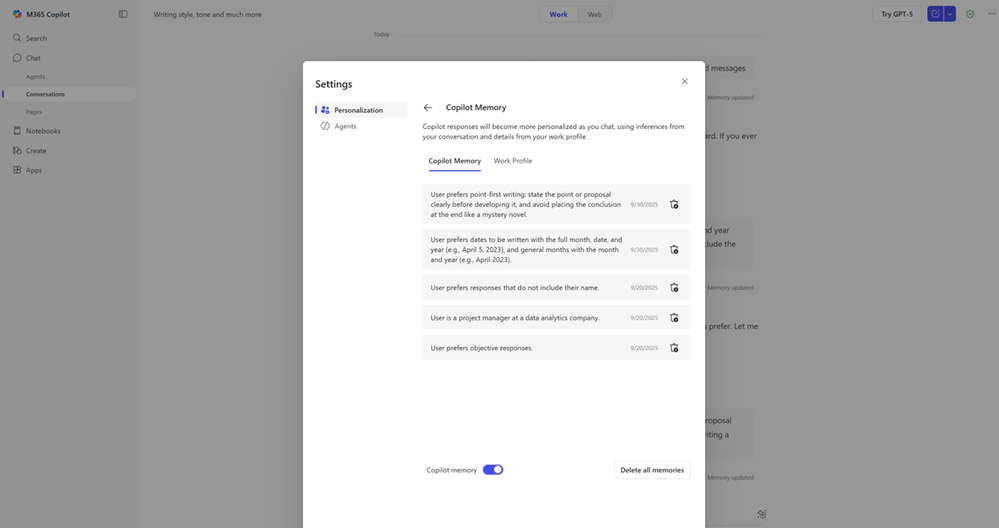
- Review your memories anytime by selecting the … menu in the upper right-hand corner, and then selecting Settings > Personalization > Copilot Memory.
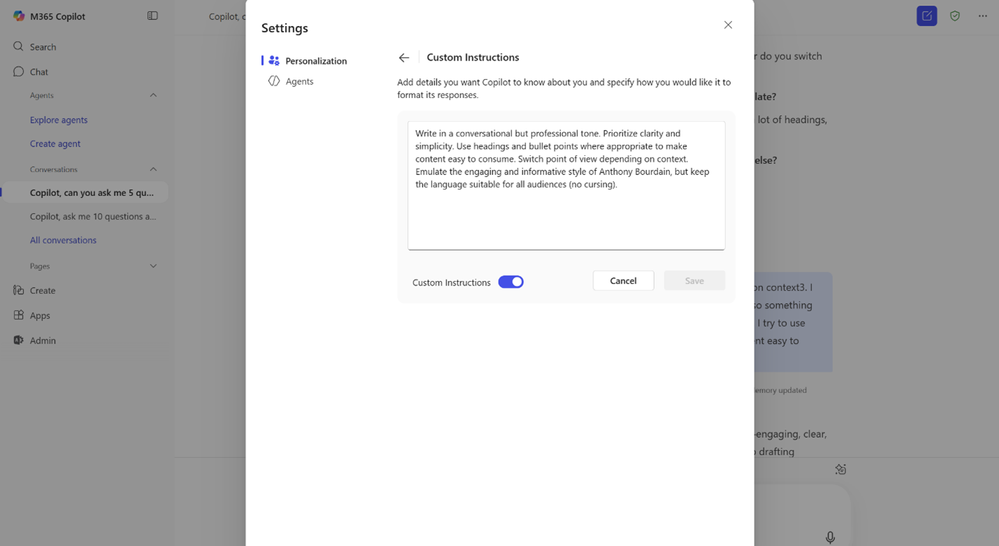
- Set default behavior by explicitly telling Copilot how you’d like it to behave using Custom Instructions under Personalization and writing specific directions, such as “Use a professional tone.”
Tips and tricks
- In Chat, try prompts like, “Ask me 10 questions about myself to get to know me better.” When Copilot remembers something, you’ll see a subtle “Memory updated” signal under your response.
- You are in control: Use the toggle at the bottom of the Personalization menu to turn the Copilot Memory feature on or off anytime.
- Keep your responses simple and explicit. Short, clear statements (style, tone, formats) work best.
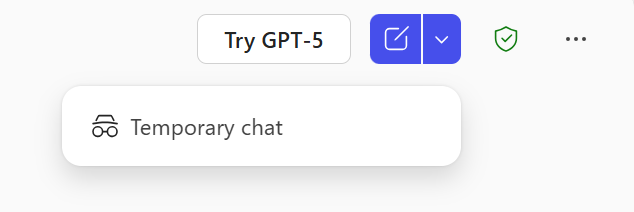
- With the Temporary chat feature, you have more choice and added security. It allows you to choose not to store highly sensitive information in Copilot Memory.
Scenarios to try
- Writing style and structure:
- “Please remember I prefer bulleted lists and clear headings.”
- “Ask me 10 questions to learn more about my writing style.”
- Tone and length:
- “Remember to keep tone professional and friendly.”
- “Keep replies to 5-7 sentences.”
- Citations and links:
- “Remember to include source links at the end of responses when available.”
- Visuals:
- “Remember to generate images in icon size.”
- Follow-up depth:
- “Remember to ask clarifying questions if my prompt is ambiguous.”
Known limitations
- Copilot only saves information when there’s a clear intent to remember. For example, it will remember “I prefer Python for all data science tasks,” but not “Write Python code for k-means clustering.”
- Memory and Custom Instructions are not currently available for Agents.
Availability
Memory is available to all Microsoft 365 Copilot users with an Enterprise Copilot license (learn more about licenses for businesses). It will be available for consumers soon.Memory is on by default and can be disabled by the user anytime. Tenant admins can disable Memory across the organization or for specific users, and Memory data is discoverable through Microsoft Purview eDiscovery when needed.
Feedback
We’d love to hear from you! Select the … menu, then Send feedback to provide your thoughts on this new feature, or select the thumbs up or down buttons in Copilot Chat. Source:

Unlock the power of personalization: Copilot Memory in Microsoft 365
Copilot Memory remembers key facts you choose to share, so Microsoft 365 Copilot can tailor its responses and recommendations to fit your needs.
 techcommunity.microsoft.com