
Excel Blog:
Personalization and workbook rules introduce new ways to set rules for Copilot in Excel
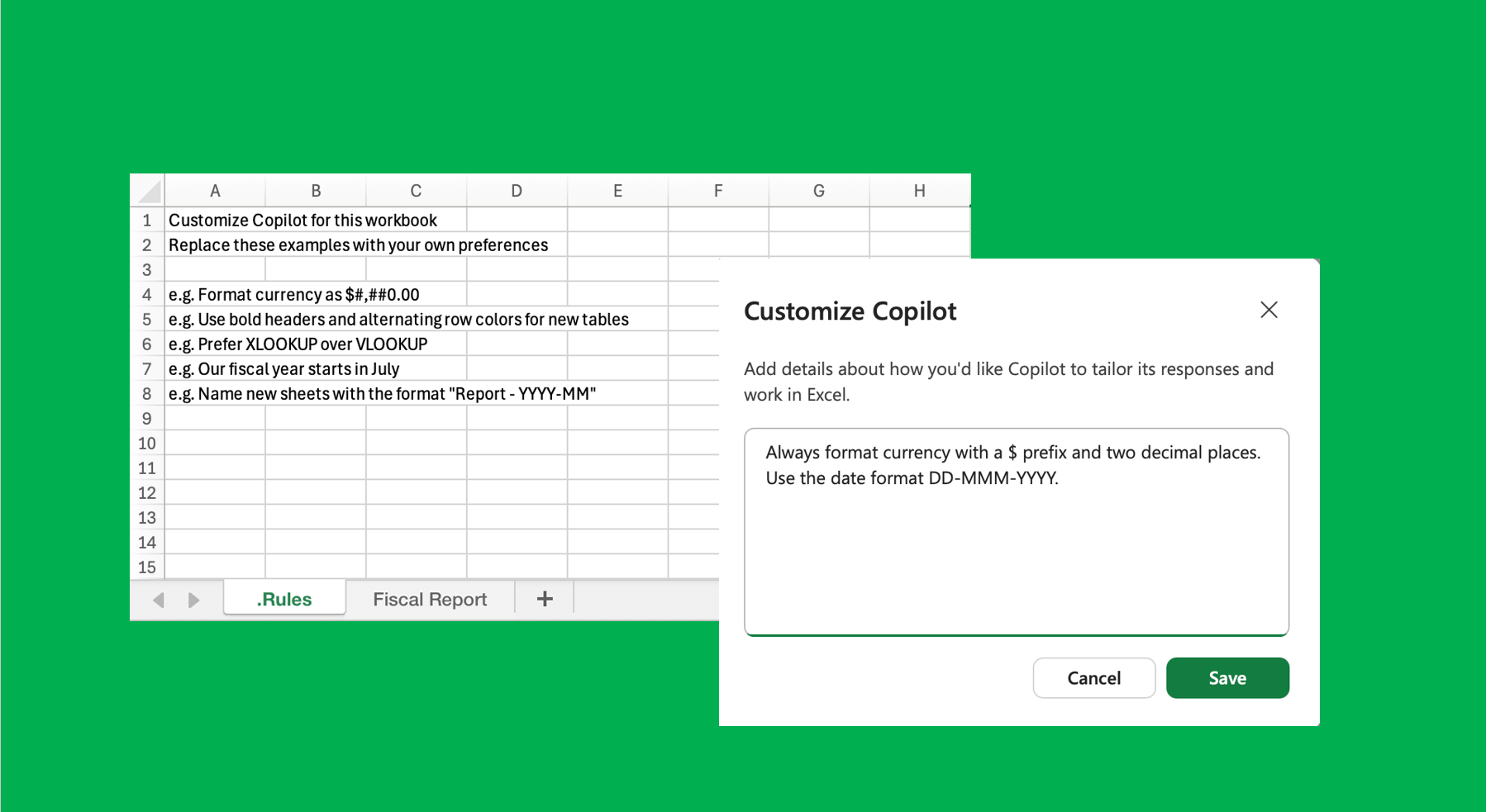
If you’ve ever typed the same formatting and style instructions into your Copilot prompt every single time - don’t merge cells,” “use my header style,” “name the tables this way”- we built two new features for you! These new customization options let you set your rules once and have Copilot follow them automatically. Personalization is now generally available, and workbook rules are rolling out to general availability across Excel for Web, Windows, and Mac.
Personalization: your rules that follow you
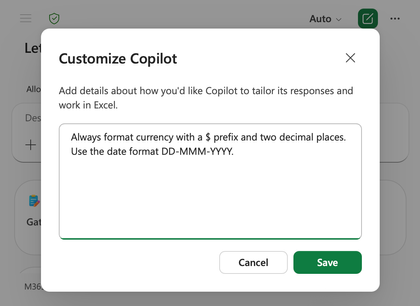
Personalization lets you tell Copilot your standing preferences once, and it follows them across every workbook you touch. No more repeating yourself. Copilot learns your preferences before it starts editing, so the output always reflects the guidance you provide.Set preferences for things like:
- Formatting: “Never merge cells.” “Don’t use red in charts.” “Always format currency in USD with no decimals.”
- Naming conventions: “Name tables with a tbl prefix.” “Use clear, descriptive sheet names.”
- Formulas: “Write formulas with structured table references, not cell ranges.”
- PivotTables & report styles: “Default to my standard summary layout with bold headers and subtotals.”
How to access it
- Open Copilot in Excel.
- Open Settings (...) → Personalization.
- Add your preferences in natural language and save. Copilot applies them every time you prompt it.
Workbook rules: standards that follow the workbook
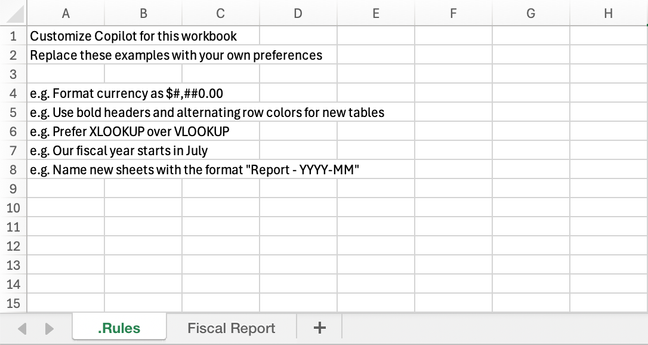
Where Personalization is about you, workbook rules are about a specific workbook. Rules live in the workbook and travel with it when you share it, so teams and organizations can standardize how a file should look and behave, and everyone who uses Copilot to edit it stays consistent. These rules are stored in the workbook as a sheet with the “.Rules” naming convention, which signals to Copilot that they should be followed for all edits made in the workbook, regardless of the user.What makes workbook rules especially powerful is the ability to tap into Excel’s calculation engine, giving you a low-barrier way to leverage the Excel functionality you already know how to use.
Unique ways to leverage workbook rules:
- Point to an exact example: Format a sample range exactly how you want it, then tell Copilot “match this formatting”—an exact example beats a written description.
- Make rules dynamic with formulas: Reference cells, ranges, or other sheets so rules can change based on what’s already in the workbook. For example, applying one instruction when a project is over budget and another when it is on track.
- Use Copilot to build and edit the rules sheet: Start from a blank .Rules sheet or an existing template, then ask Copilot to draft, refine, or update the rules. Aim it at an existing, well-built example sheet and ask it to infer the rules automatically for a fast way to standardize an established template.
- Share for consistency: Because the rules are stored in the workbook, every collaborator and every future version stays on-standard. Share rules sheets with others to bring into their own workbooks for consistency.
How to access it
- Open Copilot in Excel.
- Open + → Create workbook rules. This creates a new template.
- Add rules in plain language, point to an example range, or ask Copilot to generate rules from a sample sheet.
- Rules must be in column A of the sheet, but can reference other areas of the sheet (e.g. example of a formatted table of range).
Try it today:
- Personalization is available to all Copilot in Excel users on Excel for Web, Windows, and Mac. Learn more about Copilot in Excel personalization.
- Workbook rules is available in the Insiders channel for Windows and Mac and rolling out to general availability in the coming weeks. Learn more about Copilot in Excel workbook rules.
Source:
New ways to customize how Copilot edits your workbooks | Microsoft Community Hub
If you’ve ever typed the same formatting and style instructions into your Copilot prompt every single time - don’t merge cells,” “use my header style,” “name...
 techcommunity.microsoft.com




