Windows IT Pro Blog:
IT administrators can now automatically accept SSO permissions on managed Windows devices using a supported registry setting. In this context, SSO, or single sign-on, refers to using the Microsoft credentials from a user’s Windows sign-in to access other Microsoft apps and services without seeing any prompts. This new capability is available beginning with the July 2026 monthly security update (2026—KB5101650) for Windows 11, version 24H2 and 25H2.
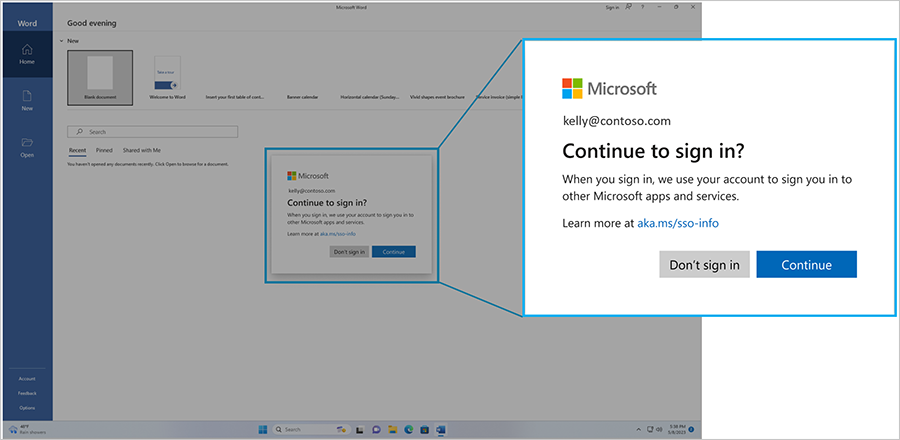
Background: What changed and why
In the European Economic Area (EEA), Microsoft updated the Windows sign-in experience so that users are not automatically signed in to other Microsoft applications and services after signing in to Windows. Instead, Windows asks users whether they want to use the same credentials to sign in to additional apps or services — giving users choice over how their Windows account is used for sign-in.For managed enterprise environments, some organizations wanted additional flexibility to manage the SSO prompt experience on devices where their organizations already manage sign-in policies and trust relationships. To support those scenarios, we’ve developed a registry-based control that lets IT administrators automatically accept SSO permissions on eligible managed Windows devices.
What’s new: Enterprise admin control for sign-in behavior
Starting with the July 2026 monthly security update for Windows 11, version 24H2 and 25H2, IT administrators can deploy the following registry policy to automatically accept SSO permissions on managed devices:Registry Path: HKLM\SOFTWARE\Policies\Microsoft\Windows\AAD
Value: AutoAcceptSsoPermission (DWORD) = 1
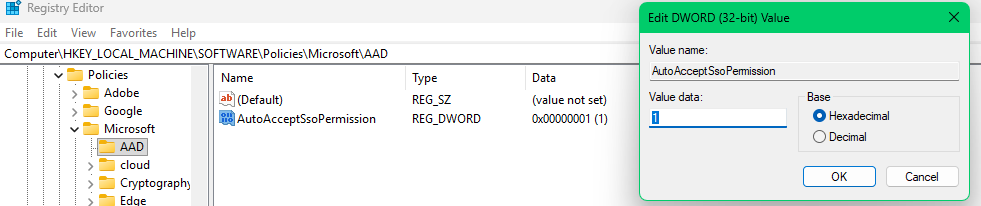
This policy can be deployed via:
- Group Policy (GPO)
- Microsoft Intune or similar mobile device management (MDM) tool
- Microsoft Configuration Manager
- Any management tool that supports registry policy deployment
- Scope: Applies only to managed enterprise devices with Microsoft Entra ID accounts
- Personal accounts: Prompts remain for personal Microsoft accounts (MSA)
- Unmanaged devices: Not affected —prompts remain for non-policy-controlled environments
- Supported OS: Windows 11, version 24H2 and 25H2
Getting started
To get started:- Ensure that your devices are running Windows 11, version 24H2 and 25H2 or later.
- Install the July 2026 monthly security update.
- Deploy the registry policy via GPO, Intune, or your preferred management tool.
- Validate SSO behavior across your managed device fleet.
What’s next
We’re continuing to evaluate additional admin controls and transparency features that will give your organization greater confidence in managing authentication experiences across your device fleet. Source: