

- Local time
- 9:52 AM
- Posts
- 14
- OS
- Windows 11
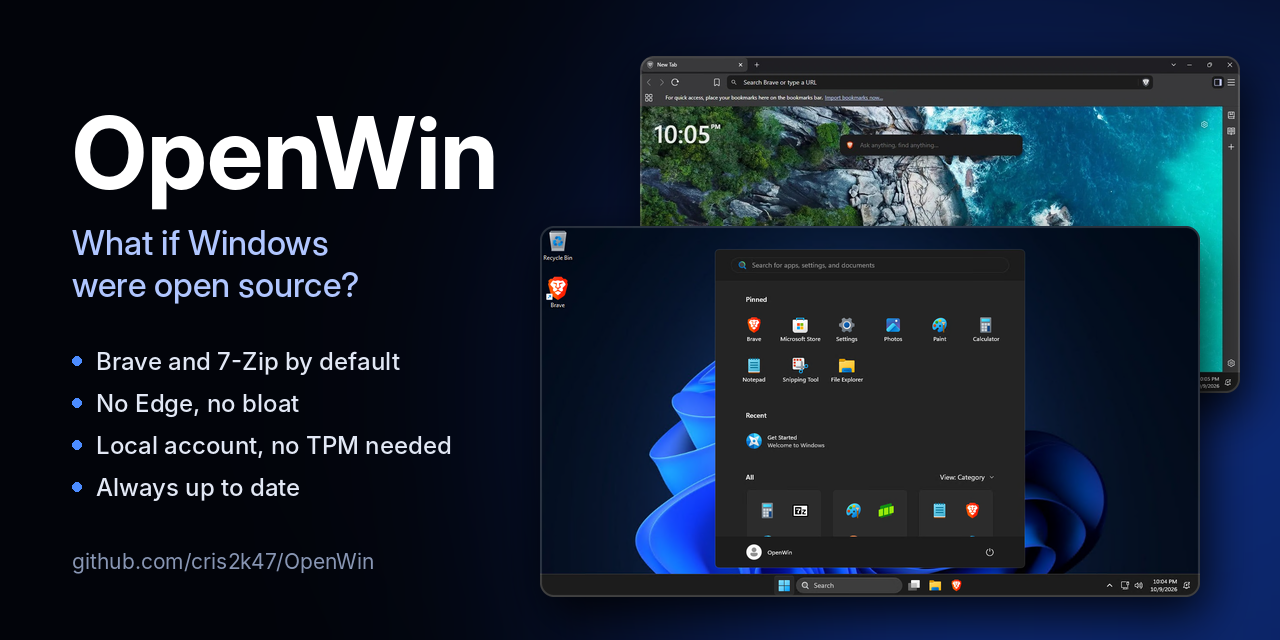
OpenWin is an answer file (autounattend.xml) plus an $OEM$ folder that you add to the official Windows 11 installer from Microsoft. Windows Setup does the rest. It installs Windows 11 with open-source apps by default, without most of the preinstalled apps, and with a local account.
It comes in three editions: with Brave, with Google Chrome, or with Microsoft Edge. The Brave and Chrome editions uninstall Edge.
Downloads
- Brave: OpenWin-Brave.zip for a USB drive, autounattend-Brave.iso for a virtual machine
- Chrome: OpenWin-Chrome.zip for a USB drive, autounattend-Chrome.iso for a virtual machine
- Edge: OpenWin-Edge.zip for a USB drive, autounattend-Edge.iso for a virtual machine
- Source code, instructions and all releases: GitHub - cris2k47/OpenWin: What if Windows were open source? An unattended Windows 11 install with Brave and 7-Zip by default, no Edge, no bloat and a local account. Add autounattend.xml and $OEM$ to the official installer.
What you get
Open-source apps by default
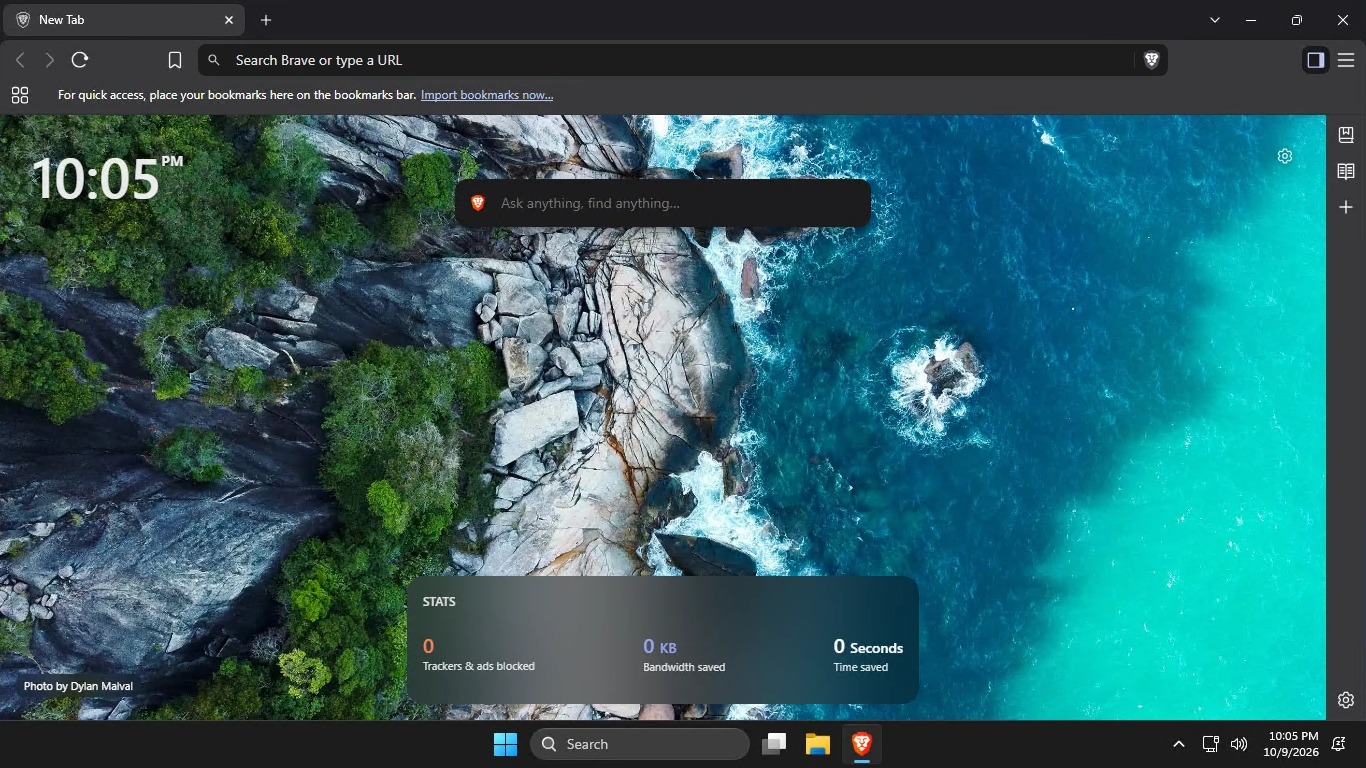
- Brave is the default browser and PDF viewer in the Brave edition. It's pinned to the Start menu and taskbar and follows the Windows display language. New users start without the VPN, Leo AI, Wallet and Rewards buttons, sponsored images, Brave News, the welcome page or P3A usage statistics. Apart from the welcome page, they can turn any of these back on in Brave's settings.
- 7-Zip opens archives and disk images: zip, 7z, rar, tar, gz, xz, zst, iso, cab, wim, vhd(x), dmg and more.
- Google Chrome replaces Brave as the default browser and PDF viewer, in the Start menu and on the taskbar. Chrome itself keeps all its default settings.
- Microsoft Edge stays installed instead of Brave, as Windows ships it, pinned to the Start menu and taskbar. New users start without Edge's welcome screens, its prompt to use the recommended browser settings or the Copilot button, and with the Downloads button always shown. They can show the Copilot button or hide the Downloads button again in Edge's settings.
- Microsoft Edge is uninstalled, except in the Edge edition.
- These preinstalled apps are removed: Clipchamp, Clock, Camera, Copilot, Dev Home, Family, Feedback Hub, Get Help, Microsoft 365 Copilot, Microsoft Bing, News, Outlook (new), Phone Link, Power Automate, Quick Assist, Solitaire Collection, Sound Recorder, Sticky Notes, Teams, To Do, Weather, Widgets and Xbox.
- OneDrive is removed.
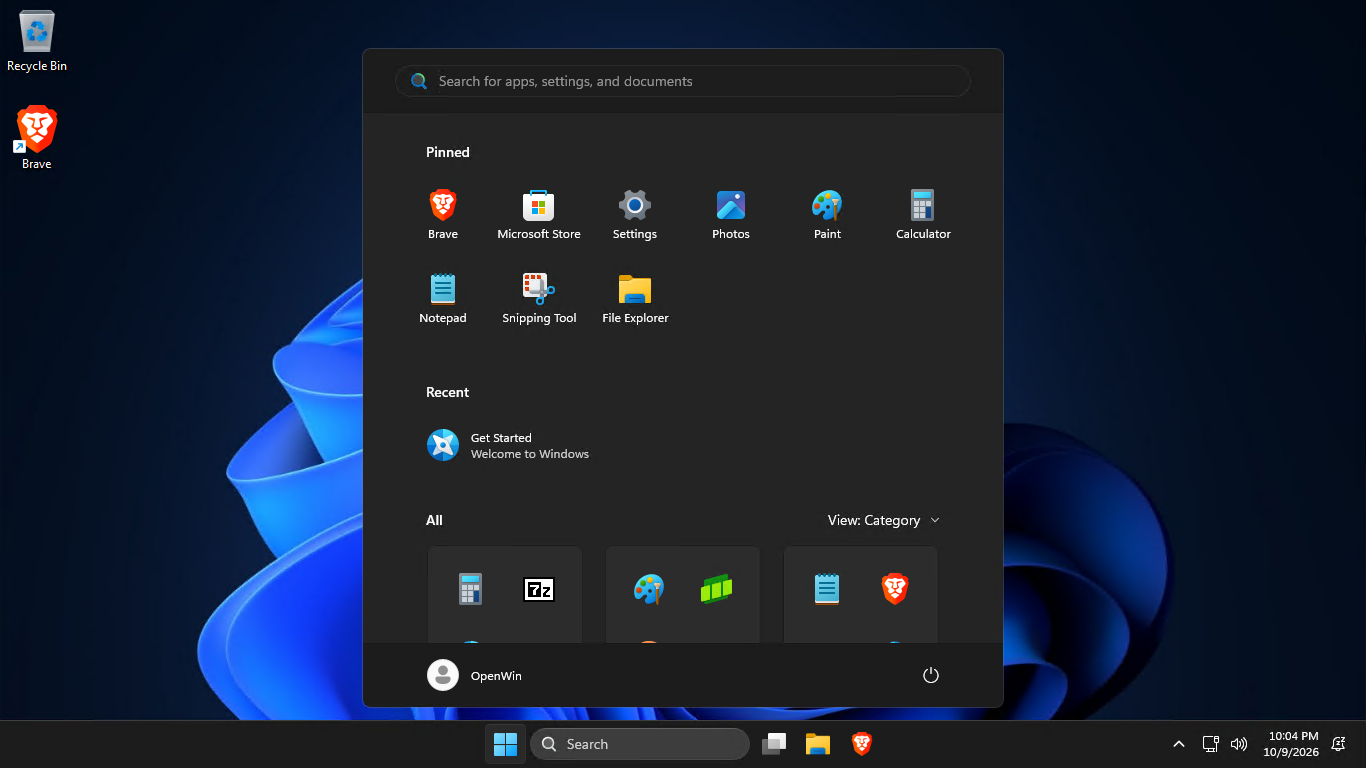
- The Start menu pins only the edition's browser (Brave, Chrome or Edge), Microsoft Store, Settings, Photos, Paint, Calculator, Notepad, Snipping Tool and File Explorer, and the taskbar pins only File Explorer and the browser.
- No web suggestions in Search.
- Dark theme and the classic right-click menu.
- File Explorer opens to This PC and shows file extensions and hidden files.
- Mouse acceleration is off.
- Works on PCs without TPM 2.0, Secure Boot or 4 GB of RAM.
- Lets you choose the edition of Windows 11, such as Home or Pro, without asking for a product key.
- Uses a local account: no Microsoft account and no internet connection needed.
- Skips the privacy settings screen, leaving its optional settings off.
How it works
OpenWin doesn't modify install.wim or boot.wim. It only uses Windows Setup's own unattended features:
- windowsPE: skips the TPM, Secure Boot and RAM checks and the product key page, and has Setup copy $OEM$ to the new installation.
- specialize: removes the provisioned apps and OneDrive with DISM, uninstalls Edge (except in the Edge edition), installs 7-Zip and Brave or Chrome silently, and imports the registry tweaks for the machine and the default user profile.
- oobeSystem: hides the Microsoft account screens and the privacy settings screen.
Always up to date
A GitHub Actions workflow checks for new Brave, Chrome and 7-Zip releases every 5 minutes. When one is out, it verifies the official installer: Brave's against Brave's signed checksums, Chrome's against Google's digital signature (Google doesn't publish checksums), and 7-Zip's against the SHA-256 of its GitHub release. It then commits the update and publishes a new OpenWin release. Older releases are kept. Edge comes with Windows and updates itself.
How to use it
USB drive
- Make a Windows 11 USB drive with the Media Creation Tool.
- Extract OpenWin-Brave.zip, OpenWin-Chrome.zip or OpenWin-Edge.zip and copy autounattend.xml and the $OEM$ folder to the root of the USB drive, next to setup.exe.
- Boot the PC from the USB drive.
- Create the VM with at least 2 CPUs and the Windows 11 ISO from Microsoft as its boot CD/DVD drive.
- Add a second CD/DVD drive with autounattend-Brave.iso, autounattend-Chrome.iso or autounattend-Edge.iso.
- Boot from the Windows 11 ISO. Setup finds autounattend.xml on the second drive by itself.
Setup still asks for your language, time format and keyboard, the edition of Windows 11 (unless the PC has a license in its firmware), the drive to install to, your region and keyboard layout, a Wi-Fi network on PCs without a wired connection (choose I don't have internet to stay offline), and a name and password for your account, plus three security questions if you set a password. Setup can erase the drive you pick, so back up first.
Activation
Setup doesn't ask for a product key. It lets you choose which edition of Windows 11 to install instead. A PC that came with Windows usually has a license in its firmware, and Setup then installs that license's edition without asking. Windows activates on its own once it's online if the PC has a license for the edition installed, either in its firmware or as a digital license from an earlier Windows 10 or 11. Otherwise, enter a product key in Settings. No activators are included.
Feedback, bug reports and suggestions are welcome, here or on GitHub.
OpenWin is under the MIT License. Brave is by Brave Software (MPL 2.0), Google Chrome is by Google (Google Chrome Terms of Service) and 7-Zip is by Igor Pavlov (GNU LGPL with the unRAR restriction). Windows is a trademark of Microsoft. OpenWin isn't affiliated with Microsoft, Brave Software, Google or 7-Zip.
- Windows Build/Version
- Windows 11 26H2
Last edited:
My Computer
At a glance
Windows 11Intel(R) Core(TM) Ultra 9 285K (3.70 GHz)NVIDIA GeForce RTX 5070 (12 GB)
- OS
- Windows 11
- Computer type
- PC/Desktop
- CPU
- Intel(R) Core(TM) Ultra 9 285K (3.70 GHz)
- Motherboard
- ASUS ROG Strix B860-A Gaming WiFi
- Graphics Card(s)
- NVIDIA GeForce RTX 5070 (12 GB)
- Keyboard
- Logitech G PRO X2 RAPID
- Mouse
- Logitech G PRO X3 SUPERSTRIKE
- Browser
- Brave


 Device
 User
User






