Phone Pair Android Phone via Bluetooth with Windows 11 PC


Pair_phone_banner.png

This tutorial will show you how to pair an Android phone via Bluetooth with a Windows 11 PC.

Bluetooth is a short range wireless technology which enables wireless data transmission between two Bluetooth–enabled devices located nearby each other.

You can pair all kinds of Bluetooth devices with your PC—including keyboards, mice, phones, speakers, and a whole lot more.

Once you have paired a device (ex: phone) with Windows 11, it will automatically connect when within range and have Bluetooth turned on.

Starting with Windows 11 build 22631.1906, Microsoft added the ability to join Bluetooth Personal Area networks under the Settings > Bluetooth & devices > Devices. This option will appear for paired devices like Phones that are sharing internet over Bluetooth.

Reference:


It is required to have Bluetooth turned on for both the Windows 11 PC and Android phone to pair.


Contents

  • Option One: Pair Android Phone from Quick Settings on Windows 11 PC
  • Option Two: Pair Android Phone from Settings on Windows 11 PC
  • Option Three: Pair Windows 11 PC from Android Phone


Option One

Pair Android Phone from Quick Settings on Windows 11 PC


1 On the Windows 11 PC, open Quick Settings (Win+A).

2 Click/tap on the Manage Bluetooth devices arrow on the right side of the Bluetooth button. (see screenshot below)

Pair_phone_from_Quick_Settings-1.png

3 Click/tap on your Android phone device (ex: "Shawn's S23+") when discovered. (see screenshot below)

Pair_phone_from_Quick_Settings-2.png

4 Click/tap on Connect. (see screenshot below)

Pair_phone_from_Quick_Settings-3.png

5 On the Android phone, tap on Pair in the notification. (see screenshot below)

Pair_phone_from_Quick_Settings-4.png

6 The phone and PC will now be paired and connected via Bluetooth. (see screenshot below)

Pair_phone_from_Quick_Settings-5.png

7 On the Android phone, tap on Done. (see screenshot below)

Pair_phone_from_Quick_Settings-6.png


Option Two

Pair Android Phone from Settings on Windows 11 PC


1 On the Windows 11 PC, open Settings (Win+I).

2 Click/tap on Bluetooth & devices on the left side, and click/tap on Add device. (see screenshot below)


Pair_phone_from_Settings-1.png

3 Click/tap on Bluetooth in the "Add a device" window. (see screenshot below)

Pair_phone_from_Settings-2.png

4 Click/tap on your Android phone device (ex: "Shawn's S23+") when discovered. (see screenshot below)

Pair_phone_from_Settings-3.png

5 Click/tap on Connect. (see screenshot below)

Pair_phone_from_Settings-4.png

6 On the Android phone, tap on Pair in the notification. (see screenshot below)

Pair_phone_from_Quick_Settings-4.png

7 Click/tap on Done on both the PC and phone. (see screenshots below)

Pair_phone_from_Settings-6.png
Pair_phone_from_Quick_Settings-6.png

8 The phone and PC will now be paired and connected via Bluetooth. You can now close Settings on the PC if you like. (see screenshot below)

Pair_phone_from_Settings-7.png


Option Three

Pair Windows 11 PC from Android Phone


1 On the Android phone, perform the following steps to open Bluetooth settings on your phone: (see screenshot below)
  1. Swipe down from the top of the phone to open Quick Settings.
  2. Press and hold on the Link to Bluetooth button in the Quick Settings menu until Bluetooth settings open.
Pair_phone_to_PC_from_phone-1.jpg

2 Click/tap on your Windows 11 PC (ex: "BRINKW11") when discovered. (see screenshot below)

If you don't see your Windows 11 PC listed, then you can tap on Scan at the top to refresh this list to hopefully detect and have it available afterwards.


Pair_phone_to_PC_from_phone-2.jpg

3 On the Windows 11 PC, click/tap on the Add a device notification. (see screenshot below)

Pair_phone_to_PC_from_phone-3.png

4 On the Windows 11 PC, click/tap on Yes to pair device. (see screenshot below)

Pair_phone_to_PC_from_phone-4.png

5 On the Android phone, tap on Pair in the notification. (see screenshot below)

Pair_phone_to_PC_from_phone-5.jpg

6 On the Windows 11 PC, click/tap on Close when connected and paired. (see screenshot below)

Pair_phone_to_PC_from_phone-6.png

7 The phone and PC will now be paired and connected via Bluetooth. (see screenshot below)

Pair_phone_to_PC_from_phone-7.jpg


That's it,
Shawn Brink


Last edited:
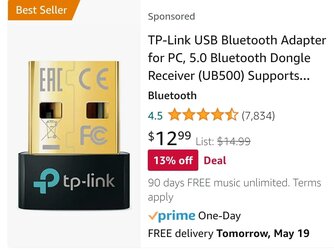
I have two PCs - one notebook and the other a desktop. Neither supports Bluetooth - darn ! What is the best external method to add Bluetooth to a PC?
 

My Computers

System One System Two

  • OS
    Windows 11
    Computer type
    Laptop
    Manufacturer/Model
    H-P
    CPU
    Pentium-G
    Memory
    8 GB
  • Operating System
    Windows 11
    Computer type
    PC/Desktop
    Manufacturer/Model
    Dell
    CPU
    i7
    Motherboard
    Optiplex 9020 SFF
    Memory
    32 GB
I have two PCs - one notebook and the other a desktop. Neither supports Bluetooth - darn ! What is the best external method to add Bluetooth to a PC?
Screenshot_20230518_062423_Chrome.jpg
 

My Computers

System One System Two

  • OS
    Windows 11
    Computer type
    PC/Desktop
    Manufacturer/Model
    Homebuilt
    CPU
    AMD Ryzen 7 3800XT
    Motherboard
    ASUS ROG Crosshair VII Hero (WiFi)
    Memory
    32GB
    Graphics Card(s)
    EVGA GeForce GTX 1080 Ti
  • Operating System
    Windows 11 Education
    Computer type
    Laptop
    Manufacturer/Model
    Dell Inspiron 7773
    CPU
    Intel i7-8550U
    Memory
    32GB
    Graphics card(s)
    Nvidia Geforce MX150
    Sound Card
    Realtek
    Monitor(s) Displays
    17"
    Screen Resolution
    1920 x 1080
    Hard Drives
    Toshiba 512GB NVMe SSD
    SK Hynix 512GB SATA SSD
    Internet Speed
    Fast!
I have two PCs - one notebook and the other a desktop. Neither supports Bluetooth - darn ! What is the best external method to add Bluetooth to a PC?
I hope you don't mind my saying but that is very unusual these days. And the amount of RAM in your computers makes me think they are not ancient.
It would be worth checking your specs for this topic & visiting your computer makers' websites to check if their available drivers include Bluetooth ones [or possibly combined Bluetooth-WiFi ones].


All the best,
Denis
 

My Computer

System One

  • OS
    Windows 11 Home x64 Version 25H2 Build 26200.8037
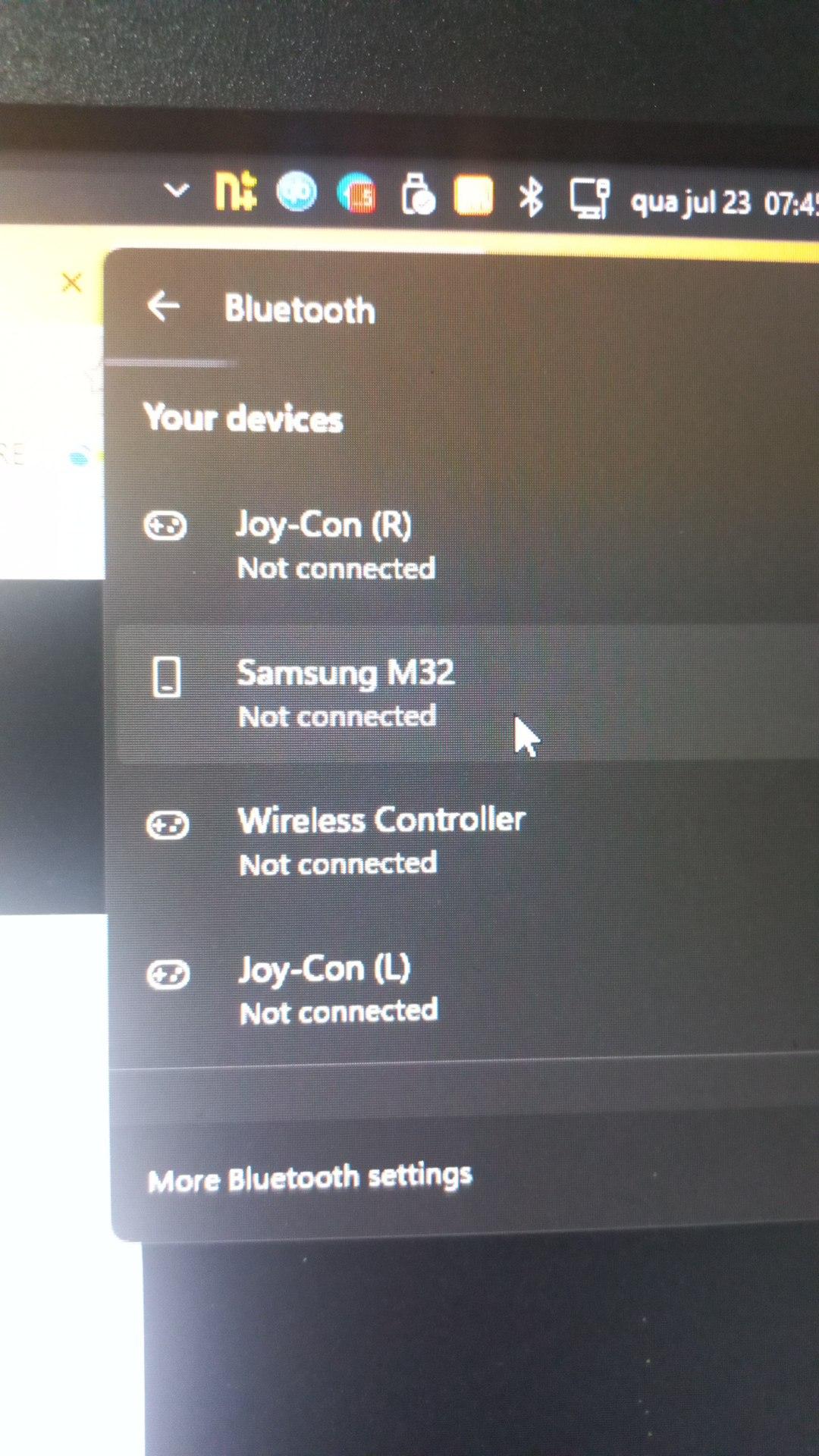
Sorry to bother in such an old thread, but I've just got a BT adapter (by Ugreen). I managed to pair and connect every other device: controllers, headphones etc, but Android devices won't work (Samsung M32 phone. and Lenovo P11 tablet).

It does pair, it even prompts me they're connected, but they disconnect right away.

coS6NXM.jpeg


Is that a way MS found to force people to use the Phone Link app instead? It's no use for me, since it requires me to activate wifi on my phone.
 

My Computer

System One

  • OS
    Windows 11
    Computer type
    PC/Desktop
    CPU
    AMD Ryzen 5600
    Motherboard
    Gigabyte X570 AORUS ELITE
    Memory
    2x 16GB Netac Shadow RGB DDR4-3200
    Graphics Card(s)
    Sapphire Pulse Radeon RX R5700 8GB
    Monitor(s) Displays
    LG 26WQ500-B 25,7" UltraWide - 2560×1080p
    Screen Resolution
    2560x1080
    Hard Drives
    WD Black SN770 2TB M.2 NVMe 4.0
    WD Black SN750 500GB M.2 NVMe 3.0
    WD Black WD6004FZWX 6TB 7200RPM
    WD SATA 3,5´ Green 2TB 5400RPM
    PSU
    Cougar VTC 600W 80 Plus
    Case
    Montech AIR 903 Max
    Cooling
    Thermalright Assassin X 120 REFINED SE WHITE
    Mouse
    Logitech G502X Lightspeed
    Internet Speed
    1Gbps
    Browser
    Microsoft Edge

Latest Support Threads

Back
Top Bottom