Solved Partition options grayed out


ElizabethW

Active member
Local time
8:48 PM
Posts
31
OS
Windows 11
version 24H2

I am trying to set up an external drive for backup purposes.

I select the partition that I want to modify but all the options are greyed out and I cannot therefore assign a drive letter. I am using an administrator account. How do I proceed?
 

My Computer My Computer

At a glance

Windows 1116 GB
OS
Windows 11
Computer type
PC/Desktop
Manufacturer/Model
HP
Memory
16 GB
Hard Drives
SSD
Are you using the built-in Disk Management tool or a 3rd party program?
 

My Computer My Computer

At a glance

Windows 11 Pro
OS
Windows 11 Pro
In Disk Management, select and hold (or right-click) the disk you want to initialize, and then select Initialize Disk. If the disk is listed.

You can if you want to use third-party partition manager.


My Computer My Computer

At a glance

Windows 11AMD Ryzen 7 5700GMicron Technology DDR4-3200 16GBNVIDIA GeForce RTX 3060
OS
Windows 11
Computer type
PC/Desktop
Manufacturer/Model
HP Pavilion
CPU
AMD Ryzen 7 5700G
Motherboard
Erica6
Memory
Micron Technology DDR4-3200 16GB
Graphics Card(s)
NVIDIA GeForce RTX 3060
Sound Card
Realtek ALC671
Monitor(s) Displays
Samsung SyncMaster U28E590
Screen Resolution
3840 x 2160
Hard Drives
SAMSUNG MZVLQ1T0HALB-000H1

My Computer My Computer

At a glance

Windows 1116 GB
OS
Windows 11
Computer type
PC/Desktop
Manufacturer/Model
HP
Memory
16 GB
Hard Drives
SSD
In Disk Management, select and hold (or right-click) the disk you want to initialize, and then select Initialize Disk. If the disk is listed.

You can if you want to use third-party partition manager.

The problem is that "Initialize Disk" and all other options are greyed out and cannot be accessed
 

My Computer My Computer

At a glance

Windows 1116 GB
OS
Windows 11
Computer type
PC/Desktop
Manufacturer/Model
HP
Memory
16 GB
Hard Drives
SSD
1) have you tried to Intialize the disk as @FreeBooter mentioned?

2) if you have and it is still greyed out, can you open Command Prompt as Admin, run

Code:
diskpart
{Enter}
Code:
list disk
{Enter}

and post a screenshot of the output here please?
 

My Computer My Computer

At a glance

Windows 11 Pro
OS
Windows 11 Pro
1) have you tried to Intialize the disk as @FreeBooter mentioned?

2) if you have and it is still greyed out, can you open Command Prompt as Admin, run

Code:
diskpart
{Enter}
Code:
list disk
{Enter}

and post a screenshot of the output here please?
 

My Computer My Computer

At a glance

Windows 1116 GB
OS
Windows 11
Computer type
PC/Desktop
Manufacturer/Model
HP
Memory
16 GB
Hard Drives
SSD
This is the output. Disk 1 is the one that has the greyed-out options
1735850167419.webp
 

My Computer My Computer

At a glance

Windows 1116 GB
OS
Windows 11
Computer type
PC/Desktop
Manufacturer/Model
HP
Memory
16 GB
Hard Drives
SSD
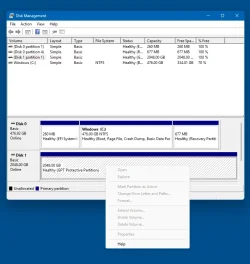
And here is the screen with the greyed-out options

1735850465067.webp
 

My Computer My Computer

At a glance

Windows 1116 GB
OS
Windows 11
Computer type
PC/Desktop
Manufacturer/Model
HP
Memory
16 GB
Hard Drives
SSD
just to verify before providing anymore instructions... is there any data on that drive that you need/want to keep? in your initial post, you had stated "partition", but am wondering if you meant "disk" that you want to use for backups. if you don't have data that you want to keep, i can proceed to provide more instructions.
 

My Computer My Computer

At a glance

Windows 11 Pro
OS
Windows 11 Pro
just to verify before providing anymore instructions... is there any data on that drive that you need/want to keep? in your initial post, you had stated "partition", but am wondering if you meant "disk" that you want to use for backups. if you don't have data that you want to keep, i can proceed to provide more instructions.
No - nothing I want to keep
 

My Computer My Computer

At a glance

Windows 1116 GB
OS
Windows 11
Computer type
PC/Desktop
Manufacturer/Model
HP
Memory
16 GB
Hard Drives
SSD
ok. open command prompt as admin and run the follow commands:

Code:
list disk
select disk #
format fs=ntfs label=Backup
assign letter=D

replace # with number of disk you want here (would be 1 based on your other screenshot)
 

My Computer My Computer

At a glance

Windows 11 Pro
OS
Windows 11 Pro
ok. open command prompt as admin and run the follow commands:

Code:
list disk
select disk #
format fs=ntfs label=Backup
assign letter=D

replace # with number of disk you want here (would be 1 based on your other screenshot)
Here is what happens. Does not format - looking for a volume
1735851291026.webp
 

My Computer My Computer

At a glance

Windows 1116 GB
OS
Windows 11
Computer type
PC/Desktop
Manufacturer/Model
HP
Memory
16 GB
Hard Drives
SSD
try this:

Code:
list disk
sel disk #
list vol
sel vol #
format fs=ntfs label=Backup
assign letter=D
 

My Computer My Computer

At a glance

Windows 11 Pro
OS
Windows 11 Pro
Here is what happens. These volumes are all on disk zero as far as i know. Therefor I did not try the format.

1735852334761.webp
 

My Computer My Computer

At a glance

Windows 1116 GB
OS
Windows 11
Computer type
PC/Desktop
Manufacturer/Model
HP
Memory
16 GB
Hard Drives
SSD
yes, those all appear to be on Disk 0. the disk you attempting to use may be going bad. but lets try this to see if it will recognize the ability to initialize / format it. download and extract Minitool Portable Partition Magic and run the 'partitionwizard.exe' file in the extracted folder.

download links to 32 & 64bit are under step #2


My Computer My Computer

At a glance

Windows 11 Pro
OS
Windows 11 Pro
yes, those all appear to be on Disk 0. the disk you attempting to use may be going bad. but lets try this to see if it will recognize the ability to initialize / format it. download and extract Minitool Portable Partition Magic and run the 'partitionwizard.exe' file in the extracted folder.

download links to 32 & 64bit are under step #2

OK - did that and the create command finished successfully. But No change - partition options still grayed out
 

My Computer My Computer

At a glance

Windows 1116 GB
OS
Windows 11
Computer type
PC/Desktop
Manufacturer/Model
HP
Memory
16 GB
Hard Drives
SSD
parition magic created a partition on the disk and you clicked "apply" and it said successful, but the disk is still not showing properly? did you "rescan disks" in disk management after running partition magic?
 

My Computer My Computer

At a glance

Windows 11 Pro
OS
Windows 11 Pro
parition magic created a partition on the disk and you clicked "apply" and it said successful, but the disk is still not showing properly? did you "rescan disks" in disk management after running partition magic?
Yes - ran disk management again but still not showing properly - still grayed out
 

My Computer My Computer

At a glance

Windows 1116 GB
OS
Windows 11
Computer type
PC/Desktop
Manufacturer/Model
HP
Memory
16 GB
Hard Drives
SSD
Hi,

It is a GPT Protective Partition.
Search what it is and how to get rid off it.
The explanation is on the EaseUS web site.

Ciao, Han
 

My Computers My Computers

  • At a glance

    WIN 11 24H2i7-8550U16 GB lpddr3
    OS
    WIN 11 24H2
    Computer type
    Laptop
    Manufacturer/Model
    Lenovo Thinpad X1 Yoga 3gen
    CPU
    i7-8550U
    Memory
    16 GB lpddr3
    Screen Resolution
    2560x1440
    Hard Drives
    NVME SSD 2TB Samsung PM981
    Mouse
    Logitech M720
    Internet Speed
    350 Mbps down and up from 500 advertised on WiFi
    Browser
    Firefox
    Antivirus
    Windows Security, Malwarebytes
    Other Info
    Acronis TrueImage 2019
  • At a glance

    Win 11 24H2i7-8700T32 GB DDR4
    Operating System
    Win 11 24H2
    Computer type
    PC/Desktop
    Manufacturer/Model
    Lenovo Tiny M920x
    CPU
    i7-8700T
    Memory
    32 GB DDR4
    Sound Card
    MOTU M4
    Monitor(s) Displays
    DELL P2418D
    Screen Resolution
    2560 x 1440
    Hard Drives
    NVME SSD 2TB Samsung PM981a
    NVME SSD 1TB Samsung PM981a
    SSD Sandisk 1T Sata
    Mouse
    Logitech M590
    Browser
    Firefox
    Antivirus
    Windows Security, Malwarebytes
    Other Info
    Acronis TrueImage 2019
Back
Top Bottom