Possible to add one specific context menu entry? I don't want to revert to Win 10, or use tools.


If File Explorer cannot sort your files according to meta-data, put more info on the file name. Otherwise just use your application and avoid File Explorer
 

My Computers

System One System Two

  • OS
    Windows 11 Pro 23H2 (5699), 25H2 (8457)
    Computer type
    Laptop
    Manufacturer/Model
    Acer Extensa 5630EZ
    CPU
    Mobile DualCore Intel Core 2 Duo T7250, 2000 MHz
    Motherboard
    Acer Extensa 5630
    Memory
    4GB
    Graphics Card(s)
    Mobile Intel(R) GMA 4500M (Mobile 4 series)
    Sound Card
    Realtek ALC268 @ Intel 82801IB ICH9 - High Definition Audio Controller
    Monitor(s) Displays
    1
    Screen Resolution
    1280x800
    Hard Drives
    Samsung SSD 850 EVO 250GB SATA Device (250 GB, SATA-III)
    Internet Speed
    VDSL 50 Mbps
    Browser
    MICROSOFT EDGE
    Antivirus
    WINDOWS DEFENDER
    Other Info
    Legacy MBR installation, no TPM, no Secure Boot, no WDDM 2.0 graphics drivers, no SSE4.2, cannot get more unsupported ;) This is only my test laptop. I had installed Windows 11 here before upgrading my main PC. For my main PC I use everyday see my 2nd system specs.
  • Operating System
    Windows 11 Pro v25H2 (build 26200.8457)
    Computer type
    PC/Desktop
    Manufacturer/Model
    Custom-built PC
    CPU
    Intel Core-i7 3770 3.40GHz s1155 (3rd generation)
    Motherboard
    Asus P8H61 s1155 ATX
    Memory
    2x Kingston Hyper-X Blu 8GB DDR3-1600
    Graphics card(s)
    GIGABYTE GeForce RTX 3050 WINDFORCE OC V2 6GB (GV-N3050WF2OCV2-6GD)
    Sound Card
    Realtek HD audio (ALC887)
    Monitor(s) Displays
    Sony Bravia KDL-19L4000 19" LCD TV via VGA
    Screen Resolution
    1440x900 32-bit 60Hz
    Hard Drives
    WD Blue SA510 2.5 1000GB SSD as system disk, Western Digital Caviar Purple 4TB SATA III (WD40PURZ) as second
    PSU
    Thermaltake Litepower RGB 550W Full Wired
    Case
    SUPERCASE MIDI-TOWER
    Cooling
    Deepcool Gamma Archer CPU cooler, 1x 8cm fan at the back
    Keyboard
    Mitsumi 101-key PS/2
    Mouse
    Sunnyline OptiEye PS/2
    Internet Speed
    100Mbps
    Browser
    Microsoft Edge, Mozilla Firefox
    Antivirus
    Microsoft Windows Defender
    Other Info
    Legacy BIOS (MBR) installation, no TPM, no Secure Boot, WDDM 3.0 graphics drivers, WEI score 7.4
Would still like to know more about this pfs:// business :-)
pfs = “Protected File System”, a Windows virtual filesystem layer used when files come from a remote or protected source.

post a screenshot of what is 'missing' for your context entries

EDIT @alan999 :
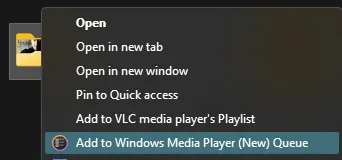
attached exe is compiled from this ahk code that will add "Add to Windows Media Player (New) Queue" to your folder context menu:

Code:
    folder := GetSelectedFolder()
    if (folder = "")
        return

    ; Copy folder path to clipboard
    Clipboard := folder
    Sleep, 100

    ; Open New Media Player
    Run, mswindowsmusic:
    WinWaitActive, ahk_exe Music.UI.exe,, 1

    ; Switch to Play Queue tab in Media Player
    Send, ^q
    Sleep, 200

    ; Open "Add folder" dialog (Ctrl+Shift+D)
    Send, ^+d
    Sleep, 300

    ; Highlight address bar
    Send, ^l
    Sleep, 300

    ; Paste folder path
    Send, ^v
    Sleep, 500

    ; Confirm selection
    Send, {Tab}
    Sleep, 100
    Send, {Enter}
return


GetSelectedFolder() {
    shell := ComObjCreate("Shell.Application")
    for window in shell.Windows {
        try items := window.Document.SelectedItems
        catch
            continue

        for item in items {
            if (item.IsFolder)
                return item.Path
        }
    }
    return ""
}

place the exe in "%UserProfile%\Downloads\Windows Media Player (New) - Add to Playlist Queue\" and run the attached REG:

Code:
Windows Registry Editor Version 5.00

[HKEY_CLASSES_ROOT\Directory\shell\AddToWMPQueue]
"MUIVerb"="Add to Windows Media Player (New) Queue"
"Icon"="%USERPROFILE%\Downloads\Windows Media Player (New) - Add to Playlist Queue\Add_to_New_WinMediaPlayer_Queue.exe"

[HKEY_CLASSES_ROOT\Directory\shell\AddToWMPQueue\command]
@="\"%USERPROFILE%\\Downloads\\Windows Media Player (New) - Add to Playlist Queue\\Add_to_New_WinMediaPlayer_Queue.exe\" \"%1\""


*if you want to place the exe somewhere else, Be sure to edit the paths in the reg file before merging it. You can search the registry for "AddToWMPQueue" and edit the icon path to the exe and the command to execute the correct path to the exe later on as well*

1776034442348.webp
 

Attachments

Last edited:

My Computer

System One

  • OS
    Windows 11 Pro
pfs = “Protected File System”, a Windows virtual filesystem layer used when files come from a remote or protected source.

post a screenshot of what is 'missing' for your context entries
Yay! Thank you!! :-)

Now I can clear up a bit of confusion I seem to have created by adding this issue into my own thread that I started on a slightly different topic!

For reasons I don't know, between my original post and now a "add to play queue" context menu for Media Player made itself apparent (I take no credit. By this I simply mean that various fiddling and settings seems to have enabled this built in option).

The reason my attention has switched to "pfs" is this:

my now working context menus are all fine if, and only if, I'm dealing with content "inside" Windows - by which I mean a mapped, attached or recognised drive or location (directory).

I'm trying to 'work with' files on another machine. This other machine is not hosting an SMB share (that I can tell) it's running music server software.

And I couldn't work out why, despite this served library being completely visible to File Explorer, its contents are treated differently from everything 'inside' Windows. I've checked all the local routing I can, and can not only ping the server via both IP and name, but I can also log onto the web interface remotely via this machine. So there's a level of connectivity.

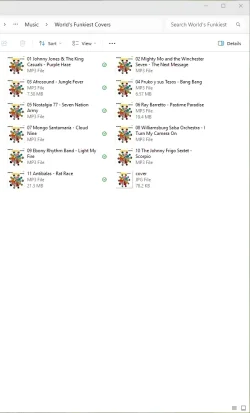
This shot below is how Windows will handle what I will call "internal" audio files. Sort of what one expects...

native.webp

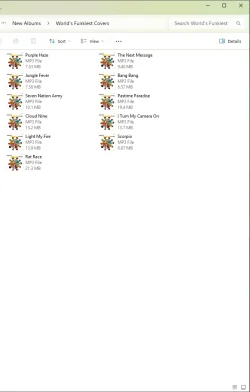
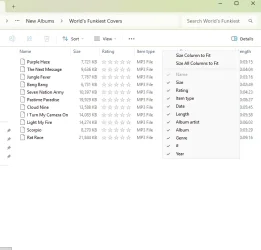
With the exact same view settings, below is how the remote folder is seen. Note that it is not possible to have any other information displayed, despite these are the exaxct same files - same tags obviously.

Not only do I have to "sort by #" each time, otherwise sorting is only alphabetical, but none of the expected options (such as set as default view for folders of this type) can be applied currently.

remote.webp

Now you have given me a starting point, and perhaps a way to unpick this. It matters because:

Almost every other store app for music or network player (not, for those who seem to keep misreading this, not as a server, but as a client) installs fine but if I go to some form of "add source", "add disk", "add location" etc. it won't see the shared/served library.

Therefore if I can unpack this "protected file system" status, I'll have a wide choice of apps beyon the native Media Player, and meaning that issues around context menus will become irrelevant. I've tested quite a few of the other DLNA/UPnP players on the store, and a few of them are excellent, minus this connectivity issue.

It's my hope that by finding a workaround or solution for this pfs status, the remote library can be treated like any other file system.
 

My Computer

System One

  • OS
    Windows 11 Pro
    Computer type
    PC/Desktop
    Manufacturer/Model
    minisforum
    CPU
    Amd Ryzen 7
Not only do I have to "sort by #" each time, otherwise sorting is only alphabetical, but none of the expected options (such as set as default view for folders of this type) can be applied currently.
In the folder at question, is it possible to switch to Details View, right click on a column header, choose More, choose desired Details, OK, then switch back to Content or Tiles View, or whatever you have?

12904.webp
 

My Computers

System One System Two

  • OS
    Windows 11 Pro
    Computer type
    PC/Desktop
    Manufacturer/Model
    ASUS ROG Strix
  • Operating System
    Windows 11 Pro
    Computer type
    Laptop
    Manufacturer/Model
    ASUS VivoBook
In the folder at question, is it possible to switch to Details View, right click on a column header, choose More, choose desired Details, OK, then switch back to Content or Tiles View, or whatever you have?

View attachment 168613

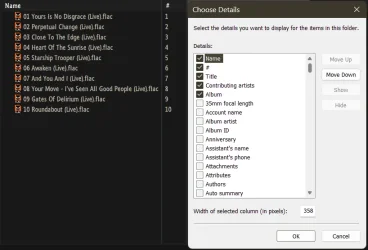
it is yes. And I did. And every box is ticked, as the shot below... and yet this information is not displayed:

Screenshot 2026-04-13 123502.webp
 

My Computer

System One

  • OS
    Windows 11 Pro
    Computer type
    PC/Desktop
    Manufacturer/Model
    minisforum
    CPU
    Amd Ryzen 7

Latest Support Threads

Back
Top Bottom