Solved Random Apps Hanging Issue Over Multiple OS Reinstalls


CntrlAltDel

Well-known member
Local time
9:00 PM
Posts
16
OS
Windows 11
Sup guys,

For the past 3 weeks I’ve been chasing a random “application hang” issue that’s happening across multiple Windows 11 versions.
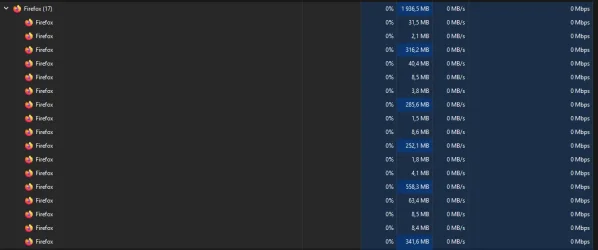
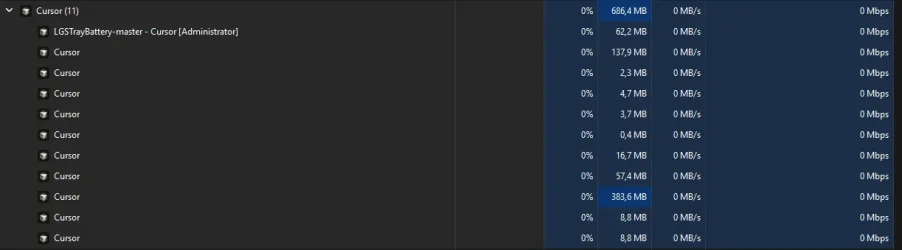
It affects explorer.exe most often, but I’ve also seen it with cursor.exe, firefox.exe, and other apps. I suspect these are all symptoms of the same underlying problem (rather than unrelated per-app hangs) because the behavior is different from a normal “Not Responding” freeze.

Just today alone I spent 12 hours troubleshooting this issue. I've tried just about everything I can think of. It's just so random.

What happens
The app UI becomes unresponsive: I can’t click or interact with it.
The process still shows as running in Task Manager and usually does not show “Not Responding”.
Example: in Firefox, the caret may keep blinking in a textbox, but the window won’t accept input or respond to clicks.
App-specific logs don’t show anything useful and I don’t get crash logs.
To resolve I have to kill the process and start the it again.

What I’m seeing in Event Viewer
Event Viewer only gives generic entries like:
“The program explorer.exe version 10.0.26100.7462 stopped interacting with Windows and was closed.”
I’d love it if this rings a bell for anyone (possible cause), but even if not: what’s the best way to dig deeper?
I’m looking for tools or logging that provide more detail than Event Viewer (for example ETW/WPR, ProcMon, hang dumps, etc).
Not sure what the best starting point is.
XML:
<Event xmlns="http://schemas.microsoft.com/win/2004/08/events/event">
  <System>
    <Provider Name="Application Hang" />
    <EventID>1002</EventID>
    <Level>2</Level>
    <Task>101</Task>
    <TimeCreated SystemTime="2025-12-27T20:24:12.7648545Z" />
    <Channel>Application</Channel>
  </System>
  <EventData>
    <Data Name="AppName">explorer.exe</Data>
    <Data Name="AppVersion">10.0.26100.7462</Data>
    <Data Name="ExeFileName">C:\Windows\explorer.exe</Data>
    <Data Name="HangType">Cross-thread;Cross-process</Data>
  </EventData>
</Event>
XML:
<Event xmlns="http://schemas.microsoft.com/win/2004/08/events/event">
  <System>
    <Provider Name="Application Hang" />
    <EventID>1002</EventID>
    <Version>0</Version>
    <Level>2</Level>
    <Task>101</Task>
    <Opcode>0</Opcode>
    <Keywords>0x8000000000000000</Keywords>
    <TimeCreated SystemTime="2025-12-27T20:24:12.7648545Z" />
    <Channel>Application</Channel>
  </System>

  <EventData>
    <Data Name="AppName">explorer.exe</Data>
    <Data Name="AppVersion">10.0.26100.7462</Data>
    <Data Name="ExeFileName">C:\Windows\explorer.exe</Data>
    <Data Name="HangType">Cross-thread;Cross-process</Data>
  </EventData>
</Event>

Screenshot 2025-12-25 191234.webpScreenshot 2025-12-27 225126.webp

What I’ve tried (different OS versions):
  • Windows 11 Pro 24H2 (26100.7462)
  • Windows 11 Enterprise 25H2 (26200.7462)
  • Windows 11 Enterprise IoT LTSC 2024 (26100.7462)
 
Windows Build/Version
24H2 (26100.7426)

My Computer

System One

  • OS
    Windows 11
    Computer type
    PC/Desktop
    CPU
    Ryzen 7 9800X3D
    Motherboard
    ASUS ROG STRIX X670E-F Gaming WIFI
    Memory
    Corsair Vengeance RGB DDR5-6000 CL36
    Graphics Card(s)
    Sapphire Radeon RX 9070 XT NITRO+
    Monitor(s) Displays
    ASUS XG27WQ
    Screen Resolution
    2560x1440
    Hard Drives
    Crucial T500 1TB PCIe Gen4 NVMe M.2 SSD
    PSU
    Super Flower Leadex Titanium 1000w
    Case
    Montech King Pro 95
    Cooling
    Arctic Liquid Freezer III 360mm AIO
Check hard drive for errors, execute Chkdsk C: /r command.


If you are overclocking (pushing the components beyond their design) you should revert to default at least until the crashing is solved. If you don't know what it is you probably are not overclocking.,


If you recently added hardware to the system, try removing or replacing it. Or check with the manufacturer to see if any patches are available.


Install Windows updates.


Look in Device Manager to see if any devices are marked with an exclamation point (!), which indicates a problem. Review the events log displayed in the properties for any faulting device driver. Try to update the related driver.


Use SpeedFan to monitor temperatures in computers, overheating can cause BSOD.


Use Memtest86+ disc to check system memory's (RAM's) for errors.


Use CrystalDiskInfo to check SMART health report of the hard disk drive (HDD).
 

My Computer

System One

  • OS
    Windows 11
    Computer type
    PC/Desktop
    Manufacturer/Model
    HP Pavilion
    CPU
    AMD Ryzen 7 5700G
    Motherboard
    Erica6
    Memory
    Micron Technology DDR4-3200 16GB
    Graphics Card(s)
    NVIDIA GeForce RTX 3060
    Sound Card
    Realtek ALC671
    Monitor(s) Displays
    Samsung SyncMaster U28E590
    Screen Resolution
    3840 x 2160
    Hard Drives
    SAMSUNG MZVLQ1T0HALB-000H1
Check hard drive for errors, execute Chkdsk C: /r command.
Powershell:
PowerShell 7.5.4
PS C:\Users\<REDACTED>> chkdsk C: /scan /perf
The type of the file system is NTFS.

Stage 1: Examining basic file system structure ...
  983808 file records processed.
File verification completed.
 Phase duration (File record verification): 2.99 seconds.
  15563 large file records processed.
 Phase duration (Orphan file record recovery): 5.01 milliseconds.
  0 bad file records processed.
 Phase duration (Bad file record checking): 0.20 milliseconds.

Stage 2: Examining file name linkage ...
  387 reparse records processed.
  1174826 index entries processed.
Index verification completed.
 Phase duration (Index verification): 7.86 seconds.
  0 unindexed files scanned.
 Phase duration (Orphan reconnection): 644.02 milliseconds.
  0 unindexed files recovered to lost and found.
 Phase duration (Orphan recovery to lost and found): 0.24 milliseconds.
  387 reparse records processed.
 Phase duration (Reparse point and Object ID verification): 2.65 milliseconds.

Stage 3: Examining security descriptors ...
Security descriptor verification completed.
 Phase duration (Security descriptor verification): 44.96 milliseconds.
  95510 data files processed.
 Phase duration (Data attribute verification): 0.24 milliseconds.
CHKDSK is verifying Usn Journal...
  38149008 USN bytes processed.
Usn Journal verification completed.
 Phase duration (USN journal verification): 49.97 milliseconds.

Windows has scanned the file system and found no problems.
No further action is required.

 873583615 KB total disk space.
 395391196 KB in 346316 files.
    239928 KB in 95511 indexes.
         0 KB in bad sectors.
   1117223 KB in use by the system.
     65536 KB occupied by the log file.
 476835268 KB available on disk.

      4096 bytes in each allocation unit.
 218395903 total allocation units on disk.
 119208817 allocation units available on disk.
Total duration: 11.60 seconds (11606 ms).
PS C:\Users\<REDACTED>>

If you are overclocking (pushing the components beyond their design) you should revert to default at least until the crashing is solved. If you don't know what it is you probably are not overclocking.,
I’ve already done this. I also updated my BIOS and reverted all settings to defaults for the duration of my testing. Nothing changed.

If you recently added hardware to the system, try removing or replacing it. Or check with the manufacturer to see if any patches are available.
This issue persisted across three hardware scenarios, each with its own fresh Windows installation:
  1. My rig as normal with the RX 6800 XT installed
  2. The same rig with the RX 6800 XT removed, running on the iGPU
  3. The same rig with the RX 9070 XT installed

Install Windows updates.
I always do.
Screenshot 2025-12-28 000153.webp

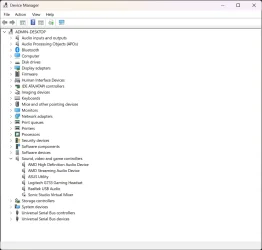
Look in Device Manager to see if any devices are marked with an exclamation point (!), which indicates a problem. Review the events log displayed in the properties for any faulting device driver. Try to update the related driver.
Nothing standing out here.
Screenshot 2025-12-28 000235.webp

Use SpeedFan to monitor temperatures in computers, overheating can cause BSOD.


Use Memtest86+ disc to check system memory's (RAM's) for errors.


Use CrystalDiskInfo to check SMART health report of the hard disk drive (HDD).
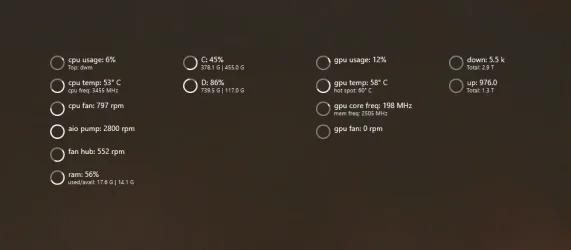
I track my hardware temperatures closely. I also ran DOS MemTest86 twice (I don’t have screenshots of the results), since the issue persisted across Windows reinstalls and I initially suspected a memory problem. You can also see the CrystalDiskInfo results below.
Screenshot 2025-12-28 000455.webpScreenshot 2025-12-28 000803.webp
 

My Computer

System One

  • OS
    Windows 11
    Computer type
    PC/Desktop
    CPU
    Ryzen 7 9800X3D
    Motherboard
    ASUS ROG STRIX X670E-F Gaming WIFI
    Memory
    Corsair Vengeance RGB DDR5-6000 CL36
    Graphics Card(s)
    Sapphire Radeon RX 9070 XT NITRO+
    Monitor(s) Displays
    ASUS XG27WQ
    Screen Resolution
    2560x1440
    Hard Drives
    Crucial T500 1TB PCIe Gen4 NVMe M.2 SSD
    PSU
    Super Flower Leadex Titanium 1000w
    Case
    Montech King Pro 95
    Cooling
    Arctic Liquid Freezer III 360mm AIO
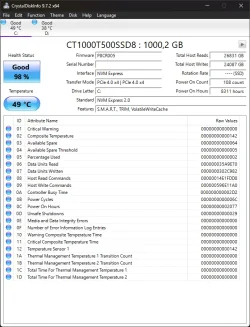
Ideally, I’d like to do more definitive testing, for example using ProcMon (or similar tools), so I can draw clearer conclusions. If another process or application is triggering these hangs, I’m hoping to capture enough detail to pinpoint the exact cause.
 

My Computer

System One

  • OS
    Windows 11
    Computer type
    PC/Desktop
    CPU
    Ryzen 7 9800X3D
    Motherboard
    ASUS ROG STRIX X670E-F Gaming WIFI
    Memory
    Corsair Vengeance RGB DDR5-6000 CL36
    Graphics Card(s)
    Sapphire Radeon RX 9070 XT NITRO+
    Monitor(s) Displays
    ASUS XG27WQ
    Screen Resolution
    2560x1440
    Hard Drives
    Crucial T500 1TB PCIe Gen4 NVMe M.2 SSD
    PSU
    Super Flower Leadex Titanium 1000w
    Case
    Montech King Pro 95
    Cooling
    Arctic Liquid Freezer III 360mm AIO
Why use Chkdsk command if you're not going to repair bad sectors with /r switch.

All i can say is some background app you installed causing the not responding problem, try clean boot.


My Computer

System One

  • OS
    Windows 11
    Computer type
    PC/Desktop
    Manufacturer/Model
    HP Pavilion
    CPU
    AMD Ryzen 7 5700G
    Motherboard
    Erica6
    Memory
    Micron Technology DDR4-3200 16GB
    Graphics Card(s)
    NVIDIA GeForce RTX 3060
    Sound Card
    Realtek ALC671
    Monitor(s) Displays
    Samsung SyncMaster U28E590
    Screen Resolution
    3840 x 2160
    Hard Drives
    SAMSUNG MZVLQ1T0HALB-000H1
Why use Chkdsk command if you're not going to repair bad sectors with /r switch.
These types of scans are mostly relevant to mechanical HDDs.
On NVMe, chkdsk is mainly for NTFS integrity, not repairing bad sectors like an HDD surface scan does. My chkdsk /scan came back clean and CrystalDiskInfo shows good health, so storage corruption or bad sectors don’t seem to be as relevant here.

All i can say is some background app you installed causing the not responding problem, try clean boot.


I’ve already done extensive troubleshooting via elimination and clean boot testing. I agree a background service/driver is likely, but I’m trying to confirm exactly which one via more detailed logging.
 

My Computer

System One

  • OS
    Windows 11
    Computer type
    PC/Desktop
    CPU
    Ryzen 7 9800X3D
    Motherboard
    ASUS ROG STRIX X670E-F Gaming WIFI
    Memory
    Corsair Vengeance RGB DDR5-6000 CL36
    Graphics Card(s)
    Sapphire Radeon RX 9070 XT NITRO+
    Monitor(s) Displays
    ASUS XG27WQ
    Screen Resolution
    2560x1440
    Hard Drives
    Crucial T500 1TB PCIe Gen4 NVMe M.2 SSD
    PSU
    Super Flower Leadex Titanium 1000w
    Case
    Montech King Pro 95
    Cooling
    Arctic Liquid Freezer III 360mm AIO

I think I’m close to isolating the trigger. After a restart, and especially after signing out and back in, the issue disappears. It then returns randomly later and stays until the next restart/sign-out. I’ll call that period the “hang state.”

In the hang state, the hangs seem correlated with actions that should generate Windows toast notifications:
  • Firefox hangs when a new email arrives (toast expected).
  • Logi G Hub hangs when changing DPI (toast expected). The toast doesn’t appear, then explorer.exe restarts.
  • Thunderbird hangs on new mail (toast expected), sometimes freezing both the app and Explorer.
  • Cursor was freezing at the end of a response, which also appears to trigger a notification.

This points to something in the notification/Shell/Explorer path, but it’s confusing since it persists across multiple OS reinstalls.

I’m currently digging through a couple of full ProcDump dumps in WinDbg to find a smoking gun. If anyone knows what to focus on for toast/notification-related hangs (or what WPR trace profile to capture), please let me know.

I also found some recent mentions of what seems to be this exact issue:
Reddit: Issues with windows explorer after
I noticed that WpnUserService was taking up 8 GB of ram only a few minutes after restart, and that shutting it down improved stability. Then, I found a solution here to disable it permanently using registry:
Explorer hangs and taskbar becomes unresponsive when playing game
December 9, 2025—KB5072033 (OS Builds 26200.7462 and 26100.7462)
[File Explorer (known issue)] Fixed: This update addresses an issue where File Explorer briefly flashes white when you navigate between pages. This issue might occur after you install KB5070311.
After the latest updates, explorer.exe might stop responding (leading to the taskbar becoming unresponsive) after certain notifications.

One important point to note is that this issue is present on 25H2 and 24H2, which lines up perfectly with my experience.
 

My Computer

System One

  • OS
    Windows 11
    Computer type
    PC/Desktop
    CPU
    Ryzen 7 9800X3D
    Motherboard
    ASUS ROG STRIX X670E-F Gaming WIFI
    Memory
    Corsair Vengeance RGB DDR5-6000 CL36
    Graphics Card(s)
    Sapphire Radeon RX 9070 XT NITRO+
    Monitor(s) Displays
    ASUS XG27WQ
    Screen Resolution
    2560x1440
    Hard Drives
    Crucial T500 1TB PCIe Gen4 NVMe M.2 SSD
    PSU
    Super Flower Leadex Titanium 1000w
    Case
    Montech King Pro 95
    Cooling
    Arctic Liquid Freezer III 360mm AIO
  • Like
Reactions: OAT
Just a quick update.

Based on anecdotes from users in the articles in my previous post above, it appears the Windows 11 notification service may be the root cause of the issue, particularly on 24H2 and 25H2. Microsoft seems to acknowledge this in their update article: December 9, 2025—KB5072033 (OS Builds 26200.7462 and 26100.7462) but since I'm already on a version later containing the hotfix, the assumption is that this update didn't exactly fix the issue.

With that in mind, my own experience makes a lot more sense. Every app hang I’ve observed seems tied to apps that can generate toast notifications, and they freeze at the exact moment a notification is queued.

Examples
  • Firefox hangs when the Gmail Checker Plus extension receives a new update.
  • Logi G Hub hangs when I change DPI (which triggers a toast notification).
Because of this behavior, I decided to disable the WpnService services entirely. However, I noticed that even when disabled, they sometimes re-enable themselves. To keep them stopped consistently, I created a PowerShell “WpnService watcher” script with a Task Scheduler entry so it can enforce this 24/7.

The Infringing Services
Screenshot 2025-12-31 234434.webp

The WpnService Watcher Script
Powershell:
# Watch-StopWpn.ps1
# Always enforces: stops Windows push notification services whenever they are running.
# Single-instance: exits if another copy is already running.
# Log path is hardcoded.

$IntervalSeconds = 2

# Hardcoded log location
$LogPath = "C:\Logs\wpn_watcher.log"
$LogMaxSizeMB = 10

New-Item -ItemType Directory -Path (Split-Path $LogPath) -Force | Out-Null

# Clear log if it exceeds max size
if (Test-Path $LogPath) {
  $logFile = Get-Item $LogPath -ErrorAction SilentlyContinue
  if ($logFile -and ($logFile.Length / 1MB) -gt $LogMaxSizeMB) {
    Remove-Item $LogPath -Force -ErrorAction SilentlyContinue
    # Write initial entry after clearing
    $clearMsg = "{0} [ENFORCE] Log cleared (exceeded {1}MB limit)" -f (Get-Date -Format "yyyy-MM-dd HH:mm:ss.fff"), $LogMaxSizeMB
    $clearMsg | Out-File -FilePath $LogPath -Encoding utf8
  }
}

function Write-Log {
  param([string]$Message)
  $line = "{0} [ENFORCE] {1}" -f (Get-Date -Format "yyyy-MM-dd HH:mm:ss.fff"), $Message
  $line | Out-File -FilePath $LogPath -Append -Encoding utf8
  Write-Host $line
}

function Get-HostedServicesByPid {
  param([int]$ProcessId)
  try {
    $svcs = Get-CimInstance Win32_Service |
      Where-Object { $_.ProcessId -eq $ProcessId } |
      Select-Object -ExpandProperty Name
    if ($svcs) { return ($svcs -join ", ") }
    return ""
  } catch {
    return ""
  }
}

# Single-instance guard (mutex name derived from script path so it is unique per script)
$createdNew = $false
$mutex = $null
try {
  $idSource = if ($PSCommandPath) { $PSCommandPath } else { "Watch-StopWpn.ps1" }
  $bytes = [Text.Encoding]::UTF8.GetBytes($idSource)
  $hash  = [Security.Cryptography.SHA1]::Create().ComputeHash($bytes)
  $hashHex = ($hash | ForEach-Object { $_.ToString("x2") }) -join ""
  $mutexName = "Global\WatchStopWpn_$hashHex"

  $mutex = New-Object System.Threading.Mutex($true, $mutexName, [ref]$createdNew)
  if (-not $createdNew) {
    Write-Log "Another instance is already running. Exiting."
    exit 0
  }

  # Exit if not elevated (stopping services requires admin)
  $isAdmin = ([Security.Principal.WindowsPrincipal] [Security.Principal.WindowsIdentity]::GetCurrent()
             ).IsInRole([Security.Principal.WindowsBuiltInRole]::Administrator)
  if (-not $isAdmin) {
    Write-Log "Error: not running elevated. Admin rights required. Exiting."
    exit 1
  }

  Write-Log "Watcher started. IntervalSeconds=$IntervalSeconds"

  while ($true) {
    try {
      # Stop all WpnService/WpnUserService* if running
      foreach ($pattern in @("WpnService", "WpnUserService*")) {
        $services = Get-Service -Name $pattern -ErrorAction SilentlyContinue
        if (-not $services) { continue }

        foreach ($svc in $services) {
          if ($svc.Status -eq "Running") {
            $cim = Get-CimInstance Win32_Service -Filter "Name='$($svc.Name)'" -ErrorAction SilentlyContinue
            $svcPid = if ($cim) { [int]$cim.ProcessId } else { 0 }
            $hosted = if ($svcPid -gt 0) { Get-HostedServicesByPid -ProcessId $svcPid } else { "" }

            Write-Log "RUNNING: $($svc.Name) PID=$svcPid HostedServices=[$hosted] Action=STOPPING"

            try {
              Stop-Service -Name $svc.Name -Force -ErrorAction Stop
              Write-Log "STOPPED: $($svc.Name)"
            } catch {
              Write-Log "FAILED_STOP: $($svc.Name) Error=$($_.Exception.Message)"
            }
          }
        }
      }
    } catch {
      Write-Log "Loop error: $($_.Exception.Message)"
    }

    Start-Sleep -Seconds $IntervalSeconds
  }
}
finally {
  if ($mutex) {
    try { $mutex.ReleaseMutex() } catch {}
    $mutex.Dispose()
  }
}

What the Script Does
Pre-check Behavior

  • Checks if wpn_watcher.log is 10MB or larger. If so, it clears the log before continuing.
  • Checks if another instance of the script is already running. If so, it exits.
  • Checks if the script is running elevated. If not, it logs a warning (stopping services may fail without admin).
Watcher Behavior
  • Every 2 seconds, checks whether WpnService or WpnUserService (to match any unique ID) are running, If so, it stops them
  • Logs all actions to "C:\Logs\wpn_watcher.log"

Task Scheduler Configuration
Trigger Settings

  • At startup (boot)
    Every 5 minutes thereafter
Execution Settings
  • Runs as an admin user with stored password
  • “Run with highest privileges” enabled
  • Runs PowerShell 7 with -ExecutionPolicy Bypass
    • Program: "C:\Program Files\PowerShell\7\pwsh.exe"
    • Arguments: -NoLogo -NonInteractive -NoProfile -ExecutionPolicy Bypass -File "\Script living directory\Watch-StopWpn.ps1"
    • Start in: "\Script living directory\"
  • Allows parallel runs (the script’s single-instance guard handles duplicates)
  • No runtime limit (the script is a watcher)
  • “Start the task as soon as possible after a scheduled start is missed” enabled
Result
I haven’t had any explorer.exe issues or app hangs for the last 4-5 days, which is the longest I’ve gone without these problems since I first started seeing them.

Additional note
Any app that requires WpnService as a prerequisite (for example, WhatsApp UWP from the Microsoft Store) will not start if WpnService is being continuously stopped. Because of this, I have a second variant of the script that temporarily starts WpnService before launching WhatsApp, then stops it again afterward and resumes enforcement as the original watcher does.
 

My Computer

System One

  • OS
    Windows 11
    Computer type
    PC/Desktop
    CPU
    Ryzen 7 9800X3D
    Motherboard
    ASUS ROG STRIX X670E-F Gaming WIFI
    Memory
    Corsair Vengeance RGB DDR5-6000 CL36
    Graphics Card(s)
    Sapphire Radeon RX 9070 XT NITRO+
    Monitor(s) Displays
    ASUS XG27WQ
    Screen Resolution
    2560x1440
    Hard Drives
    Crucial T500 1TB PCIe Gen4 NVMe M.2 SSD
    PSU
    Super Flower Leadex Titanium 1000w
    Case
    Montech King Pro 95
    Cooling
    Arctic Liquid Freezer III 360mm AIO
Does anyone have any more recent update about this WpnService/Notification Services issue?
 

My Computer

System One

  • OS
    Windows 11
    Computer type
    PC/Desktop
    CPU
    Ryzen 7 9800X3D
    Motherboard
    ASUS ROG STRIX X670E-F Gaming WIFI
    Memory
    Corsair Vengeance RGB DDR5-6000 CL36
    Graphics Card(s)
    Sapphire Radeon RX 9070 XT NITRO+
    Monitor(s) Displays
    ASUS XG27WQ
    Screen Resolution
    2560x1440
    Hard Drives
    Crucial T500 1TB PCIe Gen4 NVMe M.2 SSD
    PSU
    Super Flower Leadex Titanium 1000w
    Case
    Montech King Pro 95
    Cooling
    Arctic Liquid Freezer III 360mm AIO
I can update here that the problem still exists as I pursue a solution beyond disabling WPNUserService via regedit - at first, I thought it was a hardware issue, but it seems to just be a Windows error.

I have a brand-new PC running a Ryzen 7 9800X3D and an Nvidia RTX 5070 Ti. I have never had an AMD CPU with an Nvidia GPU before; I have always used Intel. Wondering if something here is causing an issue in Windows.

The only solution that works right now is to disable WPNUserService permanently, but it's annoying because it bricks things like the notifications tab, the calendar widget, and some apps that rely on overlays.
 

My Computer

System One

  • OS
    Windows 11
    Computer type
    PC/Desktop
    Manufacturer/Model
    Custom Built
    CPU
    AMD Ryzen 9800X3D
    Memory
    32Gb DDR5
    Graphics Card(s)
    Nvidia RTX 5070TI
Just posting an update here. Since 9 March, I noticed explorer.exe has started restarting again at random times. This is not as severe as when the WPN service was enabled and causing a full lockup now it is usually just a quick 2-4 second Explorer restart.

After spending more time tracking it down, it appears the issue is again tied to the WPN service starting itself back up. This time, the related event references CoreMessagingXP.dll.

I used the log data from the WPN Service Watcher script I posted earlier and compared the timestamps of the Explorer restarts against the timestamps where the service was detected as Running. They match every time.

I also tested this on preview build 26100.8037, and it made no difference. The WPN service issue is still present there as well.

The reason for the above issue was because I wanted "the best of both worlds". Because WPN Service being enabled was a gating condition for apps like WhatsApp to even start, I wanted to be able to Run WhatsApp > which would force WPN Service to start > Once WhatsApp was running > Forcefully kill the WPN Service.

It's very strange that it took 3 months for this issue to surface but I surmise it was most likely a build change/update that resulted in this workaround no longer being ideal.

Conclusion was, I had to resort to totally disabling the WPNService and WpnUserService through:

Code:
sc config WpnService start= disabled
sc config WpnUserService start= disabled
reg add "HKLM\SYSTEM\CurrentControlSet\Services\WpnUserService" /v Start /t REG_DWORD /d 4 /f
reg add "HKLM\SYSTEM\CurrentControlSet\Services\WpnUserService" /v UserServiceFlags /t REG_DWORD /d 0 /f


I can update here that the problem still exists as I pursue a solution beyond disabling WPNUserService via regedit - at first, I thought it was a hardware issue, but it seems to just be a Windows error.

I have a brand-new PC running a Ryzen 7 9800X3D and an Nvidia RTX 5070 Ti. I have never had an AMD CPU with an Nvidia GPU before; I have always used Intel. Wondering if something here is causing an issue in Windows.

The only solution that works right now is to disable WPNUserService permanently, but it's annoying because it bricks things like the notifications tab, the calendar widget, and some apps that rely on overlays.

I also just want to add this anecdote. I noticed every post I've read about this WPN Service issue symptoms being mentioned seem to be coming from users who are running on the AM5 platform. Now this could just be coincidence because of how popular the AM5 platform is during this time period.

Ideally if anyone is running Intel platform and having this issue, please let me know.
 

My Computer

System One

  • OS
    Windows 11
    Computer type
    PC/Desktop
    CPU
    Ryzen 7 9800X3D
    Motherboard
    ASUS ROG STRIX X670E-F Gaming WIFI
    Memory
    Corsair Vengeance RGB DDR5-6000 CL36
    Graphics Card(s)
    Sapphire Radeon RX 9070 XT NITRO+
    Monitor(s) Displays
    ASUS XG27WQ
    Screen Resolution
    2560x1440
    Hard Drives
    Crucial T500 1TB PCIe Gen4 NVMe M.2 SSD
    PSU
    Super Flower Leadex Titanium 1000w
    Case
    Montech King Pro 95
    Cooling
    Arctic Liquid Freezer III 360mm AIO
Hi I created a account just to reply you, I had the same problem as you, After powering on my pc and idling for almost a day the symptom appears. windows menu doesnt work first click will cause the whole taskbar crash and event viewer logged with application crashed, settings app will open but with empty window and just stuck there. Can be solved by a reboot then after some time it will appear again. I am using intel platform with u7 265k.
 

My Computer

System One

  • OS
    Windows 11
    Computer type
    PC/Desktop
    Manufacturer/Model
    Custom Build u7 265k
    CPU
    Ultra 7 265k
    Motherboard
    EX-B860M-V5
    Memory
    Micron Crucial DDR5-5200 32G Single Channel
    Graphics Card(s)
    RTX 3080 12G
    Monitor(s) Displays
    CB342CK
    Screen Resolution
    3440x1440
    Hard Drives
    MP33 PRO 2tb
    PSU
    LEADEX V GOLD PRO 850W
i'm pretty sure this has nothing to do with AMD CPU. I have this problem on a HP Elitebook 840 G8 laptop with Intel i5-1145G7 CPU (so pretty old platform) - it started happening after I installed 24H2 Windows update.
 

My Computer

System One

  • OS
    Windows11
Back
Top Bottom