One of the things that get on my nerves about current Windows is that Microsoft has decided to eliminate the control panel item that was there since Windows 3.1 that allowed you to customize many GUI items, including the text for icons, menus and other things. Winaero kind of solves this problem with a few of the items in the Advanced Appearance Settings section. The problem is that (at least in my experience) you have to change one item, click apply, and even though it gives you two choices, to log out to apply that specific parameter, or log out later, in my experience the latter doesn't work. Meaning, I have tried changing the text size on those items from 9 to 12, and each time I clicked apply, then I chose "I'll do it myself later", and it didn't work. What works is changing one, apply, log off and back in, change the next, and so on.
If this was a one time thing, I wouldn't care. But it seems that every time Microsoft pushes a new update (and sometimes on reboots without updates), the text size defaults to 9, and that annoys the hell out of me, because I'm an old guy, and even with new glasses, I hate forcing my eyes to read tiny text. Setting the text to 12 makes it more even across the whole Windows 11 GUI, which still seems like a work in progress with some new elements that look modern and have a decent text size, and parts that go back to Windows 95.
I know that there's a system-wide text size slider in the settings, but that's useless. It scales up all the text, so you have some things are a normal size and the title and menu bars become gigantic. Typical Microsoft, they can't get it right even when it's something as simple as this.
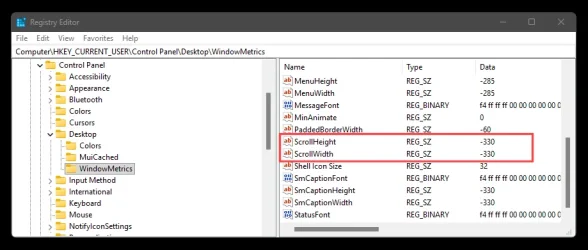
Now, I'm tired of having to open Winaero Tweaker every two weeks or so and go through the same thing over and over. If if was just one log off and on, or just one reboot, I wouldn't care. Or if it was multiple reboots, but it stayed that way forever, fine. So what I want to do is to modify one of those scripts that you save as a .bat file to change just that in the registry. I think I know the parameters that need to be changed, but also in typical Microsoft fashion, they had to make it as difficult as possible, so the entries in the registry for the text size (and font) is not something that most people can understand, but instead this:
ee ff ff ff 00 00 00 00 00 00 00 00 00 00 00 00 90 01 00 00 00 00 00 01 00 00 05 00 53 00 65 00 67 00 6f 00 65 00 20 00 55 00 49 00 00 00 00 00 00 00 00 00 00 00 00 00 00 00 00 00 00 00 00 00 ..
When double clicking on the parameter, we can see this:

From that I can tell it's the Segoe UI font and nothing else. But I suppose that somewhere in there it says that the size is 9, because once I changed it to 12, it shows a slightly different string (I'll paste the size 9 first again and right below the 12 so you can all compare it easier:
ee ff ff ff 00 00 00 00 00 00 00 00 00 00 00 00 90 01 00 00 00 00 00 01 00 00 05 00 53 00 65 00 67 00 6f 00 65 00 20 00 55 00 49 00 00 00 00 00 00 00 00 00 00 00 00 00 00 00 00 00 00 00 00 00 ..
e8 ff ff ff 00 00 00 00 00 00 00 00 00 00 00 00 90 01 00 00 00 00 00 00 00 00 00 00 53 00 65 00 67 00 6f 00 65 00 20 00 55 00 49 00 00 00 00 00 00 00 00 00 00 00 00 00 00 00 00 00 00 00 00 00 ...
As you can see, I underlined the few that are different. But that tells me nothing. I would like to create that script and know without a doubt that when I run it, it's going to change the text size to 12, or to 14 or whatever I want.
Also, I want to change the scroll bar size to 28, also very easy to do with Winaero Tweaker, but it's another element that gets defaulted to a tiny width after an update, or at random.
So I want this script to basically change the the text size in these items from the default of 9 to 12, so if Windows ruins them with an update, I can simply run that .bat file as admin, reboot, and everything is the way it should be. But I also want that script to not screw my Windows installation.

Suggestions, please?
Edition Windows 11 Pro
Version 25H2
Installed on 1/9/2025
OS build 26200.7840
Experience Windows Feature Experience Pack 1000.26100.291.0
If this was a one time thing, I wouldn't care. But it seems that every time Microsoft pushes a new update (and sometimes on reboots without updates), the text size defaults to 9, and that annoys the hell out of me, because I'm an old guy, and even with new glasses, I hate forcing my eyes to read tiny text. Setting the text to 12 makes it more even across the whole Windows 11 GUI, which still seems like a work in progress with some new elements that look modern and have a decent text size, and parts that go back to Windows 95.
I know that there's a system-wide text size slider in the settings, but that's useless. It scales up all the text, so you have some things are a normal size and the title and menu bars become gigantic. Typical Microsoft, they can't get it right even when it's something as simple as this.
Now, I'm tired of having to open Winaero Tweaker every two weeks or so and go through the same thing over and over. If if was just one log off and on, or just one reboot, I wouldn't care. Or if it was multiple reboots, but it stayed that way forever, fine. So what I want to do is to modify one of those scripts that you save as a .bat file to change just that in the registry. I think I know the parameters that need to be changed, but also in typical Microsoft fashion, they had to make it as difficult as possible, so the entries in the registry for the text size (and font) is not something that most people can understand, but instead this:
ee ff ff ff 00 00 00 00 00 00 00 00 00 00 00 00 90 01 00 00 00 00 00 01 00 00 05 00 53 00 65 00 67 00 6f 00 65 00 20 00 55 00 49 00 00 00 00 00 00 00 00 00 00 00 00 00 00 00 00 00 00 00 00 00 ..
When double clicking on the parameter, we can see this:
From that I can tell it's the Segoe UI font and nothing else. But I suppose that somewhere in there it says that the size is 9, because once I changed it to 12, it shows a slightly different string (I'll paste the size 9 first again and right below the 12 so you can all compare it easier:
ee ff ff ff 00 00 00 00 00 00 00 00 00 00 00 00 90 01 00 00 00 00 00 01 00 00 05 00 53 00 65 00 67 00 6f 00 65 00 20 00 55 00 49 00 00 00 00 00 00 00 00 00 00 00 00 00 00 00 00 00 00 00 00 00 ..
e8 ff ff ff 00 00 00 00 00 00 00 00 00 00 00 00 90 01 00 00 00 00 00 00 00 00 00 00 53 00 65 00 67 00 6f 00 65 00 20 00 55 00 49 00 00 00 00 00 00 00 00 00 00 00 00 00 00 00 00 00 00 00 00 00 ...
As you can see, I underlined the few that are different. But that tells me nothing. I would like to create that script and know without a doubt that when I run it, it's going to change the text size to 12, or to 14 or whatever I want.
Also, I want to change the scroll bar size to 28, also very easy to do with Winaero Tweaker, but it's another element that gets defaulted to a tiny width after an update, or at random.
So I want this script to basically change the the text size in these items from the default of 9 to 12, so if Windows ruins them with an update, I can simply run that .bat file as admin, reboot, and everything is the way it should be. But I also want that script to not screw my Windows installation.
Suggestions, please?
Edition Windows 11 Pro
Version 25H2
Installed on 1/9/2025
OS build 26200.7840
Experience Windows Feature Experience Pack 1000.26100.291.0
- Windows Build/Version
- 26200.7840/25H2
My Computer
At a glance
Windows 11 ProIntel® Core™ i9-14900KF New Gaming Desktop Pr...CORSAIR VENGEANCE DDR5 RAM 192GB (4x48GB) 520...Asus Dual GeForce RTX™ 4060 Ti EVO OC Edition...
- OS
- Windows 11 Pro
- Computer type
- PC/Desktop
- Manufacturer/Model
- Alvarez Machines Inc.
- CPU
- Intel® Core™ i9-14900KF New Gaming Desktop Processor 24
- Motherboard
- Asus ROG STRIX Z790-E GAMING WIFI II
- Memory
- CORSAIR VENGEANCE DDR5 RAM 192GB (4x48GB) 5200MHz CL38 Intel XMP iCUE Compatible Computer Memory - Black (CMK192GX5M4B5200C38)
- Graphics Card(s)
- Asus Dual GeForce RTX™ 4060 Ti EVO OC Edition 16GB GDDR6
- Sound Card
- Behringer USB audio interface
- Monitor(s) Displays
- Two Samsung LF32TU87
- Screen Resolution
- 2160p
- Hard Drives
- 1 Samsung 990 Pro, 3 Samsung 990 Evo Plus
- PSU
- Thermaltake GF1 (2024) Fully Modular ATX 850W Power Supply - 80 Plus Gold - Ultra Quiet - Zero RPM, PS-TPD-0850FNFAGU-P
- Case
- Phanteks Enthoo Pro PH-ES614PC_BK
- Cooling
- Thermalright Phantom Spirit 120 EVO CPU Cooler
- Keyboard
- Logitech K270 combo
- Mouse
- Logitech K270 combo
- Internet Speed
- 500 Mbps
- Browser
- Firefox
- Antivirus
- Windows