Post Quantum Crypto Tech Blog:
Securing one of the world’s most important remote-administration protocols against harvest-now, decrypt-later attacks
The Remote Desktop Protocol (RDP) is critical infrastructure for server administration, remote development, help-desk support, and managing systems worldwide.If RDP is unavailable, critical work can stop.
If RDP is compromised, an attacker could gain an administrator-level view, observe privileged activity, or hijack a session. TLS protects RDP connections, and the handshake algorithms are central to that protection.
Today’s classical key establishment algorithms protect against known classical attacks, but a future cryptographically relevant quantum computer (CRQC) can break that crypto.
TLS 1.3 post-quantum hybrid key establishment mitigates the harvest-now, decrypt-later (HNDL) risk by deriving the session keys from both a classical key establishment and a post-quantum key establishment mechanism, so the handshake remains protected if either component remains secure.
… and RDP can take advantage of this today if you need to! However, I am not saying you should take advantage of this today because the PQC TLS settings are system wide.
Treat this as an FYI for the moment.
TL;DR
Yes, you can use a TLS 1.3 post-quantum hybrid key establishment with RDP. It works, and the setup is straightforward!The rest of this post walks through the server and client configuration, verifies the negotiated handshake in Wireshark, confirms it with a purpose-built diagnostic tool, and closes with the email that started the investigation.
Configure the RDP server
Start with Windows Server 2025 and make sure it is fully patched so you get the TLS 1.3 PQC updates. I used a Windows Server 2025 Datacenter Edition VM in Azure to perform the tests.All I did after this was enter the following from an admin console:
Enable-TlsEccCurve -Name SecP384r1_MLKEM1024 -Position 0There is no need to restart the service.
IMPORTANT: The fact that there is no need to restart the service means the TLS ciphersuite and group policy is determined at connection time, not when the TermService service starts.
On my test server using:
Get-TlsEccCurveI see this:
Code:
SecP384r1_MLKEM1024
SecP256r1_MLKEM768
curve25519
NistP384
NistP256
The first two are PQ groups, the bottom three are classic only and there for compatibility. You could drop the bottom three, but you may get regressions until more services adopt PQC.
IMPORTANT: this ordering affects all services on the system, so please be aware of any potential regressions.
Configure the RDP client
The Windows 11 client must also support TLS 1.3 and the same hybrid group, if you have not already done so update the client. On my machine, using Get-TlsEccCurve shows me this:
Code:
SecP384r1_MLKEM1024
SecP256r1_MLKEM768
x25519_mlkem768
curve25519
NistP384
NistP256Connect!
Open the .RDP file that connects to this server and connect. That’s it! You are now connected using TLS 1.3 PQC Hybrid groups.Of course, we need to confirm it!
Verify the connection in Wireshark
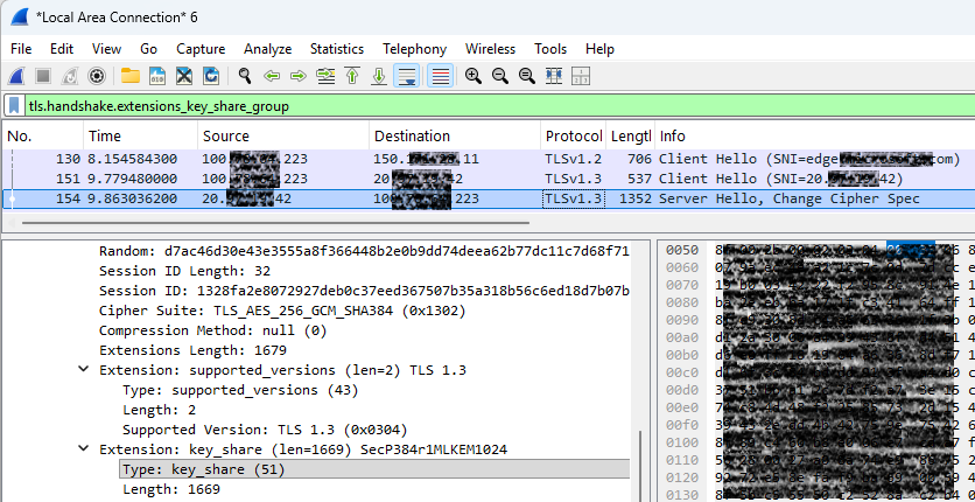
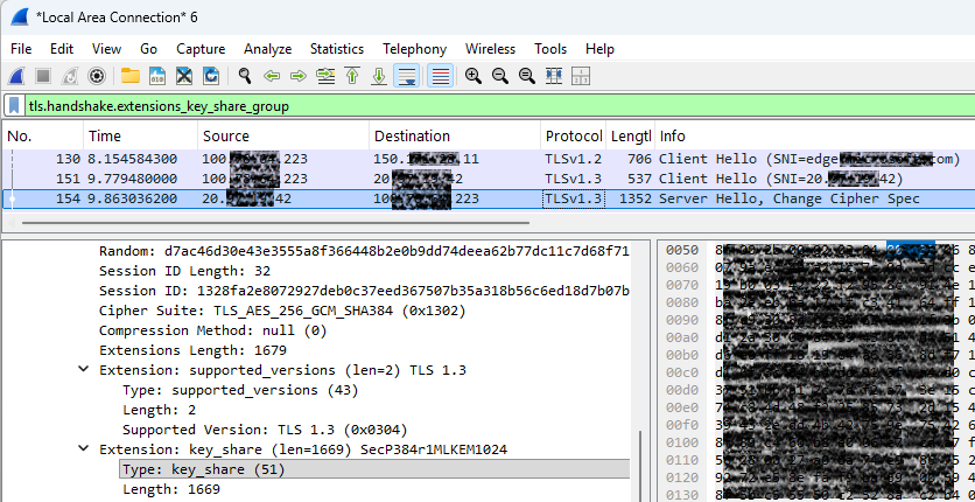
Now we need to verify that the connection is using a TLS 1.3 PQC hybrid group. You can use WireShark for this. All you need to do is run WireShark on the correct network connection and then open the RDP file and go through the connection sequence. Once that is done, filter on the following in Wireshark:tls.handshake.extensions_key_share_group
and look for:
Extension: key_share
As you can see, the key share alg is SecP384r1MLKEM1024! This is what we want, a PQ TLS 1.3 hybrid group.
By hybrid we mean SecP384r1 is an elliptic curve (classic crypto) and MLKEM1024 is a post quantum algorithm.
Verify with Openssl
If you don’t have Wireshark handy, you can use Openssl to perform a lightweight check against the RDP server endpoint, the command is:.\openssl s_client -connect <IP>:3389 -tls1_3 -brief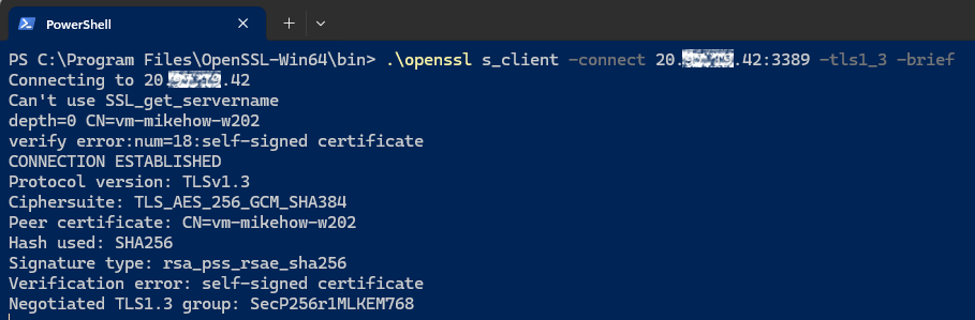
Again, there is the hybrid group at the bottom.
The Curious Case of the Missing Group
This section is totally optional; but I want to spend a moment to explain a group disparity between the RDP client and Openssl. Feel free to just go to the next section!I knew you’d stay!
If you look carefully at the Wireshark packet capture, the group selected by the server is SecP384r1MLKEM1024. But if you look at the bottom line of the Openssl data, the selected group is SecP256r1MLKEM768! Why? It’s the same server, same server TLS group config. Nothing changed.
The reason is because OpenSSL has its own ciphersuite ordering and group ordering, it does NOT use the ordering in Windows schannel. You can verify this:
Code:
\openssl list -tls-groups
secp256r1:secp384r1:secp521r1:x25519:x448:brainpoolP256r1tls13:brainpoolP384r1tls13:brainpoolP512r1tls13:
curveSM2:ffdhe2048:ffdhe3072:ffdhe4096:ffdhe6144:ffdhe8192:MLKEM512:MLKEM768:MLKEM1024:
SecP256r1MLKEM768:X25519MLKEM768:SecP384r1MLKEM1024:curveSM2MLKEM768
This bears zero resemblance to the priorities laid out for schannel!
In fact, if you look at the Wireshark sniff of this interaction, look at what is missing from the list of supported groups sent in the ClientHello message:
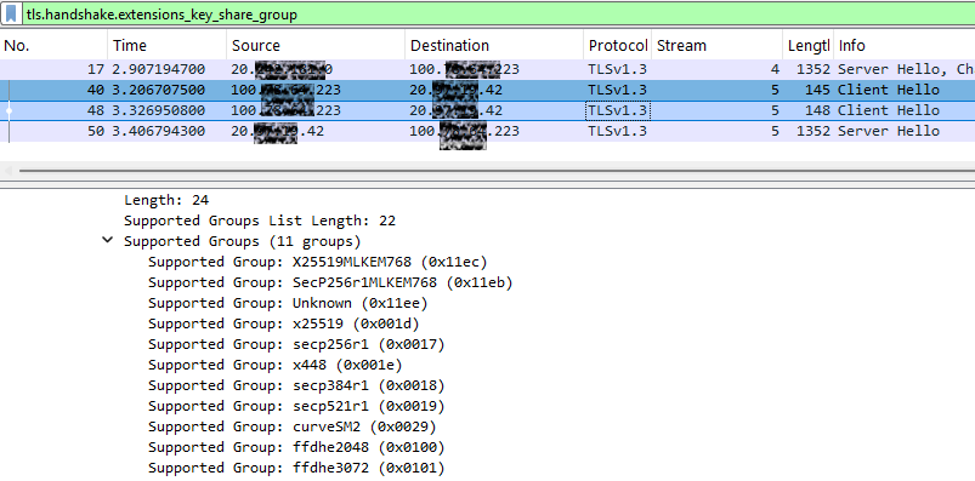
There is no SecP384r1MLKEM1024 sent by OpenSSL, so the RDP server thinks the client does not support it, and so it dutifully replies with:
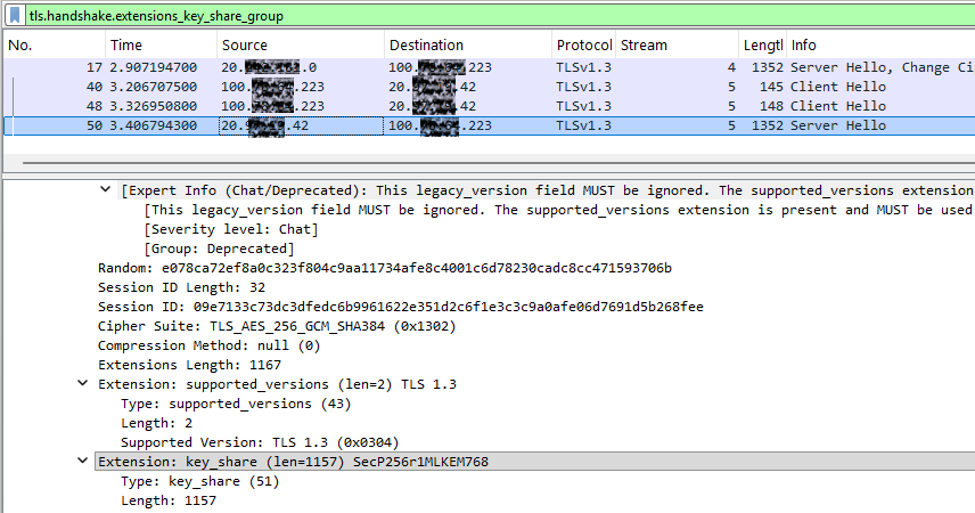
The good news is OpenSSL is so incredibly flexible, you can force it to use specific groups using:
.\openssl s_client -connect <IP>:3389 -tls1_3 -brief -groups SecP384r1MLKEM1024:SecP256r1MLKEM768And this is what we see:
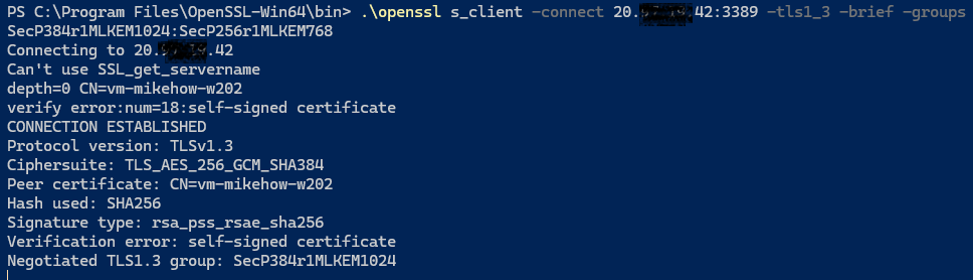
And there is our missing SecP384r1MLKEM1024 group!
Hot-Tip: Streams in Wireshark
If you look at the previous two Wireshark screen shots, you will notice a new column; Stream. I added this because there were many clients on my machine performing TLS handshakes at the time I snagged the traffic. You can disambiguate the streams by going to Edit | Preferences | Appearance | Columns, then click on + and add a new, blank column. Set the following:- Title: Stream
- Type: Custom
- Custom Expression: tcp.stream
Lesson Learned
The biggest lesson learned from this test is to leave TLS policy to the OS or to a configuration file. If the RDP team had hard-coded TLS settings or made assumptions about the protocol in either their client or server, PQ support for TLS connections would be available at a later date, but instead, it’s available now!The outcome was precisely what we want from a cryptographic transition: RDP still behaves like RDP, while the TLS 1.3 key establishment gains hybrid post-quantum crypto protection.
Thanks
As always, huge thanks to the following for all they did to make this post a reality:Klaas Langhout - Microsoft Discovery & Quantum
Philemon Orphee Favrod – Windows Remote Desktop
Andrei Popov – Windows Security
Sergey Kuzin - Windows Remote Desktop
Raul Garcia – Microsoft Crypto Board
Source:
Remote Desktop Protocol and PQC TLS 1.3 Hybrid | Microsoft Community Hub
The Remote Desktop Protocol (RDP) is critical infrastructure for server administration, remote development, help-desk support, and managing systems...
 techcommunity.microsoft.com