This tutorial will show you how to manually save information to Copilot memory for your Microsoft account.
The Microsoft Copilot app is an AI here to give advice, inspiration, and help when you need a hand. You can start a conversation to get clear answers to tough questions, turn ideas into images, or polish your writing until it shines.
Signing into Copilot using your personal Microsoft Account gives you access to your chat history, image creation, longer conversations, voice interactions, and other Copilot features.
Microsoft Copilot offers you tailored experiences by remembering key details and preferences from your conversations with Microsoft Copilot Chat using Copilot Memory. Over time, it can recall useful information like your communication style, favorite topics, work goals, and recurring tasks to make conversations straightforward and more relevant. If the user has Copilot memory enabled, Copilot can provided personalized recommendations by using Copilot Chat conversations and usage data, Microsoft 365 work data, usage signals, and profile information.
If Copilot comes across information that seems important to remember, it will ask you if you would like to save that information for future chats.
You can also tell Copilot to remember specific information in Copilot Chat.
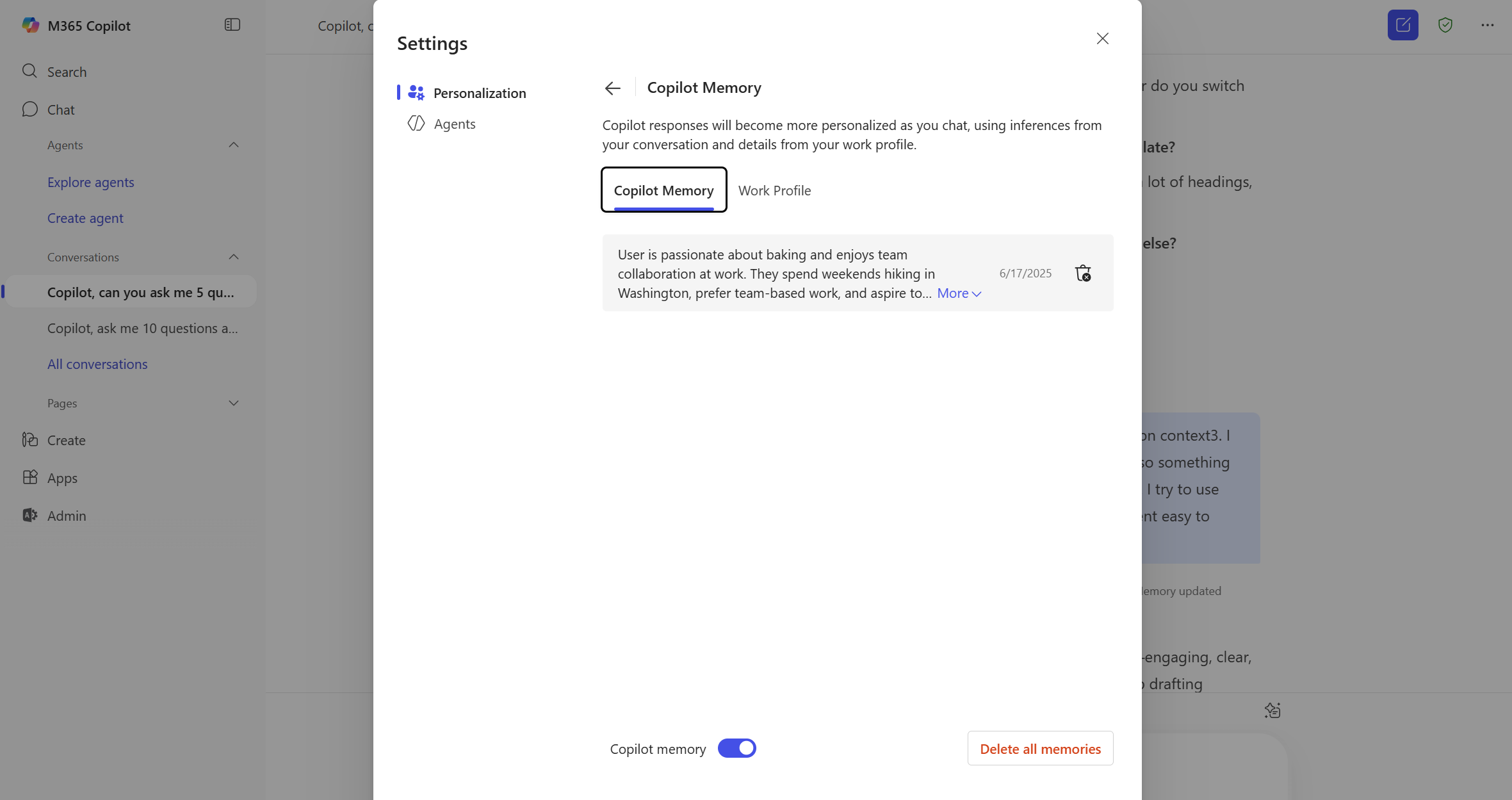
Once Copilot has saved memories, you can manage those memories and even delete them from Copilot Memory.
References:
Introducing Copilot Memory: A More Productive and Personalized AI for the Way You Work | Microsoft Community Hub
At Microsoft, we believe AI should work for you—not the other way around. That’s why we’re introducing memory in Copilot, a new capability that makes your...
 techcommunity.microsoft.com

Manage Copilot personalization and memory
This article details how to use the personalization and memory settings in Microsoft Copilot
learn.microsoft.com
Manage Copilot Memory in Microsoft Copilot | Microsoft Support
Learn how to manage and delete saved memories from Copilot Memory in Microsoft Copilot
 support.microsoft.com
Personalize what Microsoft Copilot remembers | Microsoft Support
Learn how to personalize what Microsoft Copilot remembers about you and your preferences
support.microsoft.com
Microsoft Copilot privacy controls | Microsoft Support
Learn about privacy controls available in Microsoft Copilot.
support.microsoft.com
Here's How:
1 Open either the Copilot app in Windows 11, click/tap on the Copilot Chat icon in Microsoft Edge, or open the copilot.microsoft.com site.
2 Sign in to Copilot or sign in to Microsoft Edge with your Microsoft account if not already.
3 While having a conversation (chat) with Copilot, tell Copilot to remember a piece of information in the Copilot Chat compose box, and press Enter or click/tap on the Submit message button. (see screenshots below)
4 Copilot Chat will show a notice to let you know that the information is now saved. (see screenshot below)
That's it,
Shawn Brink
Last edited: