Skip the Download and Install part of Windows 11 Clean install?


win11freak

Well-known member
Member
Local time
4:55 AM
Posts
211
OS
Windows 11 Pro 22H2
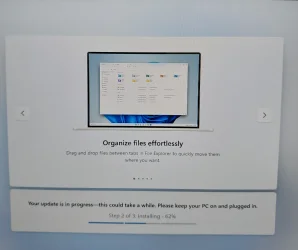
How can I skip this part of the clean install of Windows 11?

My internet connection is not that great.

Jut need to skip this part and perform the updates once I am booted into Windows.

Is there a way?
 

Attachments

  • 20250803_074829.webp
    20250803_074829.webp
    288.2 KB · Views: 2

My Computer

System One

  • OS
    Windows 11 Pro 22H2
i don't know how you are connected to the internet WiFi or cable.
if cable just disconnect the cable from the computer
in WiFi just click at the install window 'i don't have internet'

then the install will continue without any internet connection
and no updates will install while installing Windows.
best of luck, Steve ..
 

My Computers

System One System Two

  • OS
    Windows 11 Home
    Computer type
    PC/Desktop
    Manufacturer/Model
    HP 24" AiO
    CPU
    Ryzen 7 5825u
    Motherboard
    HP
    Memory
    64GB DDR4 3200
    Graphics Card(s)
    Ryzen 7 5825u
    Sound Card
    RealTek
    Monitor(s) Displays
    24" HP AiO
    Screen Resolution
    1920 x 1080 @60 Hz
    Hard Drives
    1TB WD Blue SN580 M2 SSD Partitioned.
    2x 1TB USB HDD External Backup/Storage.
    PSU
    90W external power brick
    Case
    24" All in One
    Cooling
    Default Air Cooling
    Keyboard
    HP WiFi UK extended
    Mouse
    HP WiFi 3 Button
    Internet Speed
    1GB full fibre
    Browser
    Edge & Firefox
    Antivirus
    AVG Internet Security/Windows Defender
    Other Info
    Mainly Open Source Software
  • Operating System
    Ubuntu 22.04.5 LTS
    Computer type
    Laptop
    Manufacturer/Model
    Dell 13" Latitude 2017
    CPU
    i5 7200u
    Motherboard
    Dell
    Memory
    16GB DDR4
    Graphics card(s)
    Intel
    Sound Card
    Intel
    Monitor(s) Displays
    13" Dell Laptop
    Hard Drives
    250GB Crucial 2.5" SSD
    Mouse
    Generic WiFi 3 button
    Internet Speed
    WiFi only
    Browser
    Firefox
    Antivirus
    ClamAV TK
    Other Info
    Mainly Open Source Software
Use an unattended file, and add a RunSynchronous command in the specialize pass:
Code:
...
        <settings pass="specialize">
                <component name="Microsoft-Windows-Setup" processorArchitecture="amd64" publicKeyToken="31bf3856ad364e35" language="neutral" versionScope="nonSxS" xmlns:wcm="http://schemas.microsoft.com/WMIConfig/2002/State" xmlns:xsi="http://www.w3.org/2001/XMLSchema-instance">
                        <RunSynchronous>
                                <RunSynchronousCommand wcm:action="add">
                                        <Order>1</Order>
                                        <Path>reg add HKEY_LOCAL_MACHINE\SOFTWARE\Policies\Microsoft\Windows\CloudContent /v DisableCloudOptimizedContent /t REG_DWORD /d 1 /f</Path>
                                </RunSynchronousCommand>
                        </RunSynchronous>
                </component>
        </settings>
...

If you don't know how to create one, then customize this existing profile:
https://schneegans.de/windows/unattend-generator/?LanguageMode=Unattended&UILanguage=en-US&Locale=en-US&Keyboard=00000409&GeoLocation=244&ProcessorArchitecture=amd64&ComputerNameMode=Random&CompactOsMode=Default&TimeZoneMode=Implicit&PartitionMode=Interactive&DiskAssertionMode=Skip&WindowsEditionMode=Generic&WindowsEdition=pro&InstallFromMode=Automatic&PEMode=Default&UserAccountMode=InteractiveLocal&PasswordExpirationMode=Unlimited&LockoutMode=Default&HideFiles=Hidden&TaskbarSearch=Box&TaskbarIconsMode=Default&StartTilesMode=Default&StartPinsMode=Default&EffectsMode=Default&DesktopIconsMode=Default&StartFoldersMode=Default&WifiMode=Interactive&ExpressSettings=DisableAll&KeysMode=Skip&StickyKeysMode=Default&ColorMode=Default&WallpaperMode=Default&LockScreenMode=Default&SystemScript2=Windows+Registry+Editor+Version+5.00 [HKEY_LOCAL_MACHINE\SOFTWARE\Policies\Microsoft\Windows\CloudContent] "DisableCloudOptimizedContent"=dword:00000001 &SystemScriptType2=Reg&WdacMode=Skip

Another workaround is to block sdx.microsoft.com in DNS, with a different RunSynchronous command:
Code:
echo 127.0.0.1 sdx.microsoft.com >> C:\Windows\System32\drivers\etc\HOSTS
 

My Computer

System One

  • OS
    Windows 7
I wonder if the OP knows how or if that's all Computerese to them?
 

My Computers

System One System Two

  • OS
    Windows 11 Pro 25H2
    Computer type
    PC/Desktop
    Manufacturer/Model
    PowerSpec B746
    CPU
    Intel Core i7-10700K
    Motherboard
    ASRock Z490 Phantom Gaming 4/ax
    Memory
    16GB (8GB PC4-19200 DDR4 SDRAM x2)
    Graphics Card(s)
    NVIDIA GeForce GTX 1050 TI
    Sound Card
    Realtek Audio
    Monitor(s) Displays
    #1. LG ULTRAWIDE 34" #2. AOC Q32G2WG3 32"
    Screen Resolution
    #1. 3440 X 1440 #2. 1920 x 1080
    Hard Drives
    NVMe WDC WDS100T2B0C-00PXH0 1TB
    Samsung SSD 860 EVO 1TB
    PSU
    750 Watts (62.5A)
    Case
    PowerSpec/Lian Li ATX 205
    Keyboard
    Logitech K270
    Mouse
    Logitech M185
    Browser
    Microsoft Edge and Firefox
    Antivirus
    Webroot SecureAnywhere CE 26.1
  • Operating System
    Windows 11 Canary Channel
    Computer type
    PC/Desktop
    Manufacturer/Model
    PowerSpec G156
    CPU
    Intel Core i5-8400 CPU @ 2.80GHz
    Motherboard
    AsusTeK Prime B360M-A
    Memory
    16 MB DDR 4-2666
    Monitor(s) Displays
    23" Speptre HDMI 75Hz
    Screen Resolution
    1920x1080
    Hard Drives
    Samsung 970 EVO 500GB NVMe
    Keyboard
    Logitek K270
    Mouse
    Logitek M185
    Browser
    Firefox, Edge and Edge Canary
    Antivirus
    Windows Defender
You can unplug the network cable too. But if you wanted a clean hands-free workaround you end up in Computerese. 🤷‍♂️
 

My Computer

System One

  • OS
    Windows 7

Latest Support Threads

Back
Top Bottom




