My Computer
At a glance
Windows 11
- OS
- Windows 11
- Computer type
- Laptop
Follow along with the video below to see how to install our site as a web app on your home screen.
Note: This feature may not be available in some browsers.
www.elevenforum.com
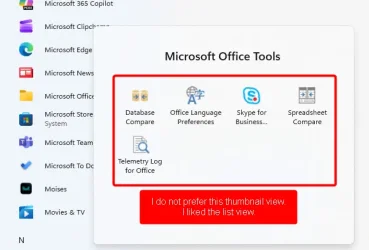
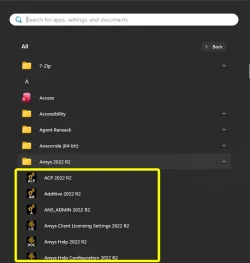
My apologies, but I think you misunderstood the question. My question is about changing the thumbnail view to a list view. Here is an image from an older version of Win11 Pro. It shows the folder items as a list, which is what I prefer. Is there a setting that controls this somewhere?Hello,
These would be shortcuts in a folder listed in your Start Menu all apps list.
You can drag and drop these shortcuts out of the "Microsoft Office Tools" folder into the Start Menu "Programs" folder using an available option in the tutorial below so they show separately in the All apps list, then delete the empty "Microsoft Office Tools" folder.
![]()
Add or Remove Items in All apps in Windows 11 Start menu
This tutorial will show you how to add or remove items listed in All apps on the Start menu for your account, new accounts, or all accounts in Windows 11. The Start menu in Windows 11 is comprised of three sections: Pinned, Recent, and All apps. The All apps section on the Start menu shows all...www.elevenforum.com

My apologies, but I think you misunderstood the question. My question is about changing the thumbnail view to a list view. Here is an image from an older version of Win11 Pro. It shows the folder items as a list, which is what I prefer. Is there a setting that controls this somewhere?
View attachment 184213
You can change the VIEW of the Start Menu items. It doesn't show in your screenshot because you have the "< Back" button exactly where the View menu should appear.My apologies, but I think you misunderstood the question. My question is about changing the thumbnail view to a list view. Here is an image from an older version of Win11 Pro. It shows the folder items as a list, which is what I prefer. Is there a setting that controls this somewhere?
View attachment 184213

No, that doesn't seem to work. List, nor Category, nor Grid get the outcome that I'm looking for.You can change the VIEW of the Start Menu items. It doesn't show in your screenshot because you have the "< Back" button exactly where the View menu should appear.
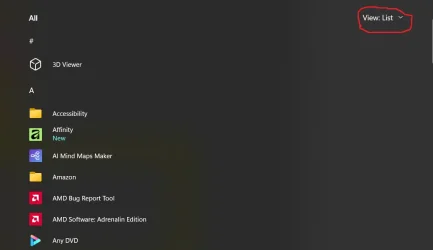
To reach the View Menu, click on the Start Menu button and start scrolling down using the middle mouse button. You should get something like this:
View attachment 184224
The View Menu is circled in red in my screenshot, over on top right corner. Click on it, and select between List, Grid and Category.
Hope that helps.
I was worried that was my only option. I'll check out 3rd party apps. I've used Classic Shell in the past, so maybe it will work here.Not natively. You would have to use some 3rd party Start Menu app that may have that as a feature.