Strange red line in Macrium Reflect


p5200

Well-known member
Member
Local time
10:35 AM
Posts
427
OS
Windows 11 pro
Anyone know why this partition is showing in red?
 

Attachments

  • Screenshot 2025-07-08 212940.webp
    Screenshot 2025-07-08 212940.webp
    66.6 KB · Views: 5

My Computer

System One

  • OS
    Windows 11 pro
    Computer type
    PC/Desktop
    Manufacturer/Model
    custom build
    CPU
    AMD Ryzen 7 5700X
    Motherboard
    AMD ROG STRIX B550-F
    Memory
    G.SKILL Ripjaws V Series (Intel XMP) DDR4 RAM 32GB (2x16GB)
    Graphics Card(s)
    ASUS Dual GeForce RTX™ 4060 White Edition
    Sound Card
    on-board
    Monitor(s) Displays
    SAMSUNG 32-Inch Odyssey G50D Series
    Screen Resolution
    2560 x 1440
    Hard Drives
    Samsung 990 EVO Plus 1TB, ssd INTEL SSD 730 series 240 GB, and Samsung 840 Evo ssd 500 GB.
    PSU
    CORSAIR - RMe Series 1000W 80 PLUS Gold Fully Modular ATX Power Supply
    Case
    Antec 900 Nine Hundred ATX Mid Tower Computer Gaming Case
    Cooling
    ID-COOLING SE-214-XT Black CPU Cooler All-Black Layout
    Keyboard
    Logitech 520
    Mouse
    Logitech 310
    Browser
    Google Chrome
    Antivirus
    Windows Defender
It's the Recovery partition and is showing almost full. I'm not sure how MR determines what is considered full however. You can use a Utility like Minitool Partition Wizard to resize it a make it larger.
 

My Computer

System One

  • OS
    Win 7/10/11
    Computer type
    PC/Desktop
    Other Info
    I'm a computer enthusiast so have quite a few systems that I run. More like an advanced hobby.
What does it store in that partition?
 

My Computer

System One

  • OS
    Windows 11 pro
    Computer type
    PC/Desktop
    Manufacturer/Model
    custom build
    CPU
    AMD Ryzen 7 5700X
    Motherboard
    AMD ROG STRIX B550-F
    Memory
    G.SKILL Ripjaws V Series (Intel XMP) DDR4 RAM 32GB (2x16GB)
    Graphics Card(s)
    ASUS Dual GeForce RTX™ 4060 White Edition
    Sound Card
    on-board
    Monitor(s) Displays
    SAMSUNG 32-Inch Odyssey G50D Series
    Screen Resolution
    2560 x 1440
    Hard Drives
    Samsung 990 EVO Plus 1TB, ssd INTEL SSD 730 series 240 GB, and Samsung 840 Evo ssd 500 GB.
    PSU
    CORSAIR - RMe Series 1000W 80 PLUS Gold Fully Modular ATX Power Supply
    Case
    Antec 900 Nine Hundred ATX Mid Tower Computer Gaming Case
    Cooling
    ID-COOLING SE-214-XT Black CPU Cooler All-Black Layout
    Keyboard
    Logitech 520
    Mouse
    Logitech 310
    Browser
    Google Chrome
    Antivirus
    Windows Defender
What does it store in that partition?
The Windows recovery partition contains the Windows Recovery Environment (WinRE) and files needed to restore your operating system to its factory settings or troubleshoot startup issues. It's a separate partition on your hard drive, distinct from your main Windows partition.

Here's a more detailed breakdown:
  • Windows Recovery Environment (WinRE):
    .
    This is a special environment that provides tools for diagnosing and fixing problems with your Windows installation.

  • System Restore files:
    .

    These files allow you to revert your system to a previous state, potentially undoing changes that are causing problems.

  • Factory Image:
    .

    In some cases, the recovery partition may contain a compressed image of the original operating system as it was when you first purchased the computer. This allows you to restore your system to its original state.

  • Drivers and other necessary files:
    .

    The recovery partition may also include drivers for your hardware and other files needed for a clean reinstallation of Windows.
Why is it important?
  • Troubleshooting:
    The recovery partition is crucial for troubleshooting startup issues, repairing corrupted files, and restoring your system to a working state.

  • System Reset:
    It provides a way to reset your PC to its factory settings, which can be helpful when you're having major problems with your operating system.

  • Boot Issues:
    If your computer is unable to boot into Windows, the recovery partition can provide access to tools that may help you resolve the problem.
What happens if it's deleted?
  • Loss of recovery options:
    Deleting the recovery partition means you lose the ability to restore your system to its original state using the built-in recovery tools.

  • Troubleshooting difficulties:
    Troubleshooting startup issues and repairing corrupted files may become more difficult.

  • Inability to reset to factory settings:
    You may not be able to reset your PC to its original state if you encounter major problems.
In summary, the recovery partition is a valuable part of your Windows installation that provides tools and files for troubleshooting and restoring your system. It's generally recommended to keep it intact, as its deletion can lead to significant limitations if you encounter problems with your operating system
 

My Computers

System One System Two

  • OS
    Windows 11 Pro
    Computer type
    PC/Desktop
    Manufacturer/Model
    Dell 8940 XPS
    CPU
    10th Gen Intel(R) Core(TM) i7-10700, 2.90GHz
    Motherboard
    Dell 0KV3RP (U3E1)
    Memory
    32GB, 2x16GB, DDR4, 2933Mhz
    Graphics Card(s)
    NVIDIA(R) GeForce(R) RTX 2060 SUPER(TM) 8GB GDDR6
    Sound Card
    Onboard, Realtek Codec, NVIDIA Hi Def Audio, Intel Display Audio
    Monitor(s) Displays
    Dell UltraSharp U3415W
    Screen Resolution
    3440x1440
    Hard Drives
    2TB M.2 PCIe NVMe SSD; 2TB Samsung SSD 860 EVO; 2TB Samsung SSD 860 EVO 2
    PSU
    500 W Dell
    Case
    Night Sky Bezel Chassis
    Cooling
    Dell
    Keyboard
    Logi Wireless
    Mouse
    Logi Wireless
    Internet Speed
    111 Mbps Download, 132 Mbps Upload
    Browser
    Edge, Chrome
    Antivirus
    Windows Defender, MalwareBytes
  • Operating System
    Windows 11 Pro
    Computer type
    PC/Desktop
    Manufacturer/Model
    Falcon Northwest Talon
    CPU
    Intel 13900K Core I9 24 Core LGA 1700
    Motherboard
    Asus ROG Z970 Maximus Hero
    Memory
    32GB (2x16) Kingston Fury Beast 6000MHZ DDR5
    Graphics card(s)
    nVidia 4090 Founders Edition
    Sound Card
    Motherboard
    Monitor(s) Displays
    Alienware 34” Curved OLED
    Screen Resolution
    4K
    Hard Drives
    SSD M.2 Kingston Renegade Fury 4 TB x 2; Western Digital Red Pro 8 TB SATA III
    PSU
    1000W ECGA Platinum Modular ATX
    Case
    Falcon NW Custom
    Cooling
    AIO Falcon NW 280mm Liquid Cooler
    Keyboard
    Logitech Pro Gamer
    Mouse
    Logitech G502
    Internet Speed
    111 Mbps Download, 132 Mbps Upload
    Browser
    Edge, Chrome
    Antivirus
    Windows Defender, MalwareBytes
    Other Info
    Noise Blocker Fans
I used MinniTool Partition and extended it. Thanks for the help folks!
 

My Computer

System One

  • OS
    Windows 11 pro
    Computer type
    PC/Desktop
    Manufacturer/Model
    custom build
    CPU
    AMD Ryzen 7 5700X
    Motherboard
    AMD ROG STRIX B550-F
    Memory
    G.SKILL Ripjaws V Series (Intel XMP) DDR4 RAM 32GB (2x16GB)
    Graphics Card(s)
    ASUS Dual GeForce RTX™ 4060 White Edition
    Sound Card
    on-board
    Monitor(s) Displays
    SAMSUNG 32-Inch Odyssey G50D Series
    Screen Resolution
    2560 x 1440
    Hard Drives
    Samsung 990 EVO Plus 1TB, ssd INTEL SSD 730 series 240 GB, and Samsung 840 Evo ssd 500 GB.
    PSU
    CORSAIR - RMe Series 1000W 80 PLUS Gold Fully Modular ATX Power Supply
    Case
    Antec 900 Nine Hundred ATX Mid Tower Computer Gaming Case
    Cooling
    ID-COOLING SE-214-XT Black CPU Cooler All-Black Layout
    Keyboard
    Logitech 520
    Mouse
    Logitech 310
    Browser
    Google Chrome
    Antivirus
    Windows Defender
Funny thing about this post. It appears to be happening to several of my Win11 systems running the last free version of MR. Also my daily driver running Macrium Home v8. There was an issue with Win10 many months ago about this specific oddity. I run multiple systems both with Win10 and Win11. Generally speaking the Win11 systems did not have this issue as it seems it was only Win10. I ran Minitool Partition Wizard on all those Win10 machines to increase the size of the RE partition.
Now my Daily Driver, which is a fairly new build, is now showing the same RED on the RE partition. And also multiple other Win11 systems are doing the same thing.
 

My Computer

System One

  • OS
    Win 7/10/11
    Computer type
    PC/Desktop
    Other Info
    I'm a computer enthusiast so have quite a few systems that I run. More like an advanced hobby.
Funny thing about this post. It appears to be happening to several of my Win11 systems running the last free version of MR. Also my daily driver running Macrium Home v8. There was an issue with Win10 many months ago about this specific oddity. I run multiple systems both with Win10 and Win11. Generally speaking the Win11 systems did not have this issue as it seems it was only Win10. I ran Minitool Partition Wizard on all those Win10 machines to increase the size of the RE partition.
Now my Daily Driver, which is a fairly new build, is now showing the same RED on the RE partition. And also multiple other Win11 systems are doing the same thing.

WinRE,wim in the partition gets updated every new Windows update, and the file tends to grow in size over time. Perhaps your has grown in size past the threshold that Macrium has set to flag with red that the partition is near full.

I believe WIndows used to automatically increase the size of this partition by reducing the size of the C: partition. They no longer do this,
 

My Computers

System One System Two

  • OS
    Windows 11 Pro x64
    Computer type
    PC/Desktop
    Manufacturer/Model
    📷🔈🎧 🪛 DIY Photoshop/Audio/Game/tinker
    CPU
    i9 14900K P/E 5.8/4.5 GHz, cache 5.0 GHz
    Motherboard
    Asus ROG Maximus Z790 Dark Hero
    Memory
    🐏 96GB (2x48) G.skill Ripjaws 6800 MT/s
    Graphics Card(s)
    Asus ROG Strix 4070 Ti OC
    Sound Card
    🔊Bowers & Wilkins 606 S3 speakers; Audiolabs 7000a integrated amp; RSL 10S Mk2 sub; Creative Pebble Pro Minimilist
    Monitor(s) Displays
    🖥️🖥️ Eizo CG2730 ColorEdge, ViewSonic VP2768
    Screen Resolution
    🖥️🖥️ 2560 x 1440p x 2
    Hard Drives
    💾 WDC SN850X 4TB nvme, SN850 1TB nvme, SK-Hynix 2 TB P41 nvme,. Sabrent USB-C DS-SC5B 5-bay docking station: 6TB WDC Black, 6TB Ironwolf Pro; 2x 2TB WDC Black HDD
    PSU
    ⚡️ 850W Seasonic Vertex PX-850 ATX 3.0/PCI-E 5.0
    Case
    Fractal Design North XL Mesh, Black Walnut
    Cooling
    ❄️ EK Nucleus black 360 AIO w/Phanteks T30-120 fans, 2 Noctua NF-A14 Chromax case fan, 1 T30-120 fan cooling memory
    Keyboard
    ⌨️ Keychron Q3 Max TKL with custom GMK Redsuns Red Samuri keycaps, TX Stabs
    Mouse
    🖱️ Logitech G305 wireless gaming
    Internet Speed
    ⬇️ 500 Mb/s ⬆️ 12 Mb/s
    Browser
    🔥🦊 Firefox
    Antivirus
    🦺 Defender, Macrium Reflect X 🏆
    Other Info
    Phangkey Amaterasu V2 Desk Mat
  • Computer type
    Laptop
    Manufacturer/Model
    💻 Apple 13" Macbook Pro 2020 (m1)
    CPU
    Apple M1
    Screen Resolution
    2560x1600
    Browser
    Firefox
WinRE,wim in the partition gets updated every new Windows update, and the file tends to grow in size over time. Perhaps your has grown in size past the threshold that Macrium has set to flag with red that the partition is near full.

I believe WIndows used to automatically increase the size of this partition by reducing the size of the C: partition. They no longer do this,
Yeah I get all that but as I mentioned I just built this system only a few months ago so it has a fresh install so only a few months worth of updates from MS. The default RE partition on this drive was 644.0 MBs showing 580.0 used. So I'd imagine many others using default Win11 partitions and MR might be similarly RED. Not sure how Macrium X is handling this.
Just look at all the "Similar threads" being displayed from the previous problem.
 

My Computer

System One

  • OS
    Win 7/10/11
    Computer type
    PC/Desktop
    Other Info
    I'm a computer enthusiast so have quite a few systems that I run. More like an advanced hobby.
Anyone know why this partition is showing in red?
I have just now this same issue, Macrium Reflect Free shows the recovery partition as almost full, saying that 628.6 MB is used out of 696.0 MB. At the same time, W11's built-in Disk Management tool (inside Computer Management) shows the recovery partition as 100% free!

Does anyone know what is going on here?
Is it a Schrödinger type of thing, both full and empty at the same time? :-)
// Jocke
 

My Computer

System One

  • OS
    W10, W11
    Computer type
    PC/Desktop
    Manufacturer/Model
    built@home
    CPU
    AMD Ryzen 5 7600x
    Motherboard
    Asus Prime B650M-A II
    Memory
    32 GB DDR5 G.Skill
    Graphics Card(s)
    AMD Radeon
    Sound Card
    Lexicon Lambda
    Hard Drives
    Samsung EVO, Corsair M700 Pro
    Case
    Antec
    Cooling
    Thermalright Phantom Spirit 120
Macrium Reflect Free shows the recovery partition as almost full, saying that 628.6 MB is used out of 696.0 MB. At the same time, W11's built-in Disk Management tool (inside Computer Management) shows the recovery partition as 100% free!

....Is it a Schrödinger type of thing, both full and empty at the same time? :-)
No, it's a permissions type of thing.

When you run Disk Management it is running with User level permissions, it doesn't have sufficient permission to see what is in the recovery partition.

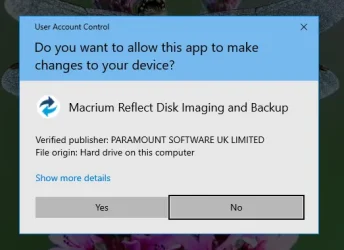
Remember the UAC prompt when you start Reflect? By clicking 'Yes' you are allowing it to run at the highest permission level.

1762600754283.webp
 

My Computers

System One System Two

  • OS
    Windows 11 Home
    Computer type
    Laptop
    Manufacturer/Model
    Acer Aspire 3 A315-23-R9VY
    CPU
    AMD Athlon Silver 3050U
    Memory
    8GB
    Graphics Card(s)
    Radeon Graphics
    Monitor(s) Displays
    laptop screen
    Screen Resolution
    1366x768 native resolution, up to 2560x1440 with Radeon Virtual Super Resolution
    Hard Drives
    1TB Samsung EVO 870 SSD (from April 2026: 250GB EVO 850)
    Internet Speed
    150 Mbps
    Browser
    Edge, Firefox
    Antivirus
    Defender
    Other Info
    fully 'Windows 11 ready' laptop. Windows 10 C: partition migrated from my old unsupported 'main machine' then upgraded to 11. A test migration ran Insider builds for 2 months. When 11 was released on 5th October 2021 it was re-imaged back to 10 and was offered the upgrade in Windows Update on 20th October. Windows Update offered the 22H2 Feature Update on 20th September 2022. It got the 23H2 Feature Update on 4th November 2023 through Windows Update, 24H2 on 3rd October 2024 through Windows Update by setting the Target Release Version for 24H2, and 25H2 on 30th September 2025 through Windows Update by setting the Target Release Version for 25H2.

    UPDATE - 11 April 2026: due to mechanical deterioration this PC has been retired from active duty. The OS with all software and files has been migrated to my System Seven below to carry on as my general purpose 'main machine'.

    My SYSTEM THREE is a Dell Latitude 5410, i7-10610U, 32GB RAM, 512GB NVMe ssd, supported device running Windows 11 Pro.

    My SYSTEM FOUR is a 2-in-1 convertible Lenovo Yoga 11e 20DA, Celeron N2930, 8GB RAM, 256GB ssd. Unsupported device: currently running Win10 Pro, plus Win11 Pro RTM and Insider Dev, Beta, and RP 24H2 as native boot vhdx.

    My SYSTEM FIVE is a Dell Latitude 3190 2-in-1, Pentium Silver N5030, 8GB RAM, 1TB NVMe ssd, supported device running Windows 11 Pro, plus Insider Beta, Dev, and Canary builds (and a few others) as a native boot .vhdx.

    My SYSTEM SIX is a Dell Latitude 5550, Core Ultra 7 165H, 64GB RAM, 1TB NVMe SSD, supported device, Windows 11 Pro 24H2, Hyper-V host machine. Updated to 25H2 on 30th September 2025.

    My SYSTEM SEVEN is a Lenovo Thinkpad T580, Intel Core i7-8650U, 16GB RAM, 512GB NVMe SSD + 2nd 512GB NVMe SSD, a supported device for Windows 11. This is my current general purpose 'main machine'. The installed Windows 11 Home from my System One has been migrated to this machine.
  • Operating System
    Windows 11 Pro
    Computer type
    Laptop
    Manufacturer/Model
    Dell Latitude E4310
    CPU
    Intel® Core™ i5-520M
    Motherboard
    0T6M8G
    Memory
    8GB
    Graphics card(s)
    (integrated graphics) Intel HD Graphics
    Screen Resolution
    1366x768
    Hard Drives
    500GB Crucial MX500 SSD
    Browser
    Firefox, Edge
    Antivirus
    Defender
    Other Info
    unsupported machine: Legacy bios, MBR, TPM 1.2, upgraded from W10 to W11 using W10/W11 hybrid install media workaround. In-place upgrade to 22H2 using ISO and a workaround. Feature Update to 23H2 by manually installing the Enablement Package. In-place upgrade to 24H2 using hybrid 23H2/24H2 install media. Upgraded to 25H2 by Enablement Package. Also running Insider Dev, and Canary builds and Windows 10 as native boot .vhdx.

    My SYSTEM THREE is a Dell Latitude 5410, i7-10610U, 32GB RAM, 512GB NVMe ssd, supported device running Windows 11 Pro.

    My SYSTEM FOUR is a 2-in-1 convertible Lenovo Yoga 11e 20DA, Celeron N2930, 8GB RAM, 256GB ssd. Unsupported device: currently running Win10 Pro, plus Win11 Pro RTM and Insider Dev, Beta, and RP 24H2 as native boot vhdx.

    My SYSTEM FIVE is a Dell Latitude 3190 2-in-1, Pentium Silver N5030, 8GB RAM, 1TB NVMe ssd, supported device running Windows 11 Pro, plus Insider Beta, Dev, and Canary builds (and a few others) as a native boot .vhdx.

    My SYSTEM SIX is a Dell Latitude 5550, Core Ultra 7 165H, 64GB RAM, 1TB NVMe SSD, supported device, Windows 11 Pro 24H2, Hyper-V host machine. Updated to 25H2 on 30th September 2025.

    My SYSTEM SEVEN is a Lenovo Thinkpad T580, Intel Core i7-8650U, 16GB RAM, 512GB NVMe SSD + 2nd 512GB NVMe SSD, a supported device for Windows 11. This is my current general purpose 'main machine'. The installed Windows 11 Home from my System One has been migrated to this machine.

Latest Support Threads

Back
Top Bottom