Thunderbird 115: CSS Customization


Slightly better. Change the general body color everywhere, then revert it back to original in all the about: tabs (that appears to catch all tabs; only right hand panel of Account Settings tab needs a color to be specified).

Code:
/* userContent.css                                */
/* Change background in messages viewed as "text" */

/* background for general body everywhere */
body  {
   background-color: #ffffe0 ;
}

/* background revert in all about: pages like Settings, Advanced Preferences &c */
/* appears to work on all tabs except right hand panel of "Account Settings"    */
/* tab where it stays as specified above (eg: #ffffe0 )                         */

@-moz-document regexp("about.*") {
   body { 
        background-color: revert ;
   }
}

/* force a background color in right hand side panel of "Account Settings"tab */
#containerBox {
  background-color: #ffffff ;
}

tested: v 143
 

My Computer

System One

  • OS
    Win 11 25H2
    Computer type
    PC/Desktop
    Manufacturer/Model
    custom
    CPU
    intel i7-8700
    Motherboard
    Asus Z370 TUF Gaming
    Memory
    32Gb
    Graphics Card(s)
    Intel iGPU
    Sound Card
    Realtek
    Hard Drives
    Samsung
    PSU
    Corsair
    Cooling
    Fans
Nice. I appreciate you taking the time to bring back soemthing the Mozilla developers should have well enough left alone.
 

My Computer

System One

  • OS
    Windows 11
    Computer type
    Laptop
    Manufacturer/Model
    Thinkpad L460
    CPU
    Skylake Gen 6
Please, help.
I’m trying to create a semi-dark setup by customizing the standard dark theme using userChrome.css. My goal is to have dark menus and folder lists, but keep the message list, message preview pane, and compose window light.

I’ve managed to adjust everything except the message compose window — it stays dark no matter what I try.
 

My Computer

System One

  • OS
    Windows 10
I presume you are referring to the Message Editor area of the Compose Window (bounded in RED below)? If so, I haven't come across any method of accessing that area through userChrome.css. Perhaps there is some way to do it through a javascript extension - I don't know.Tbird Message Editor.webp
 

My Computer

System One

  • OS
    Win 11 25H2
    Computer type
    PC/Desktop
    Manufacturer/Model
    custom
    CPU
    intel i7-8700
    Motherboard
    Asus Z370 TUF Gaming
    Memory
    32Gb
    Graphics Card(s)
    Intel iGPU
    Sound Card
    Realtek
    Hard Drives
    Samsung
    PSU
    Corsair
    Cooling
    Fans
I presume you are referring to the Message Editor area of the Compose Window (bounded in RED below)? If so, I haven't come across any method of accessing that area through userChrome.css. Perhaps there is some way to do it through a javascript extension - I don't know.

Yes, I'm speaking about this area.

Thank you!
 
Last edited:

My Computer

System One

  • OS
    Windows 10
Try this in a userContent.css file (in the same folder as where userChrome.css is).
(Note that with a Dark theme, if you set a light background, then you also need to set a dark color for text as shown in the example.)

userContent.css
Code:
@-moz-document url("about:blank?compose") {
  body {
      background-color: #fffffc  !important;
      color:            #000000  !important;
      } 
}

Tbird Message Editor 2.webp
 
Last edited:

My Computer

System One

  • OS
    Win 11 25H2
    Computer type
    PC/Desktop
    Manufacturer/Model
    custom
    CPU
    intel i7-8700
    Motherboard
    Asus Z370 TUF Gaming
    Memory
    32Gb
    Graphics Card(s)
    Intel iGPU
    Sound Card
    Realtek
    Hard Drives
    Samsung
    PSU
    Corsair
    Cooling
    Fans
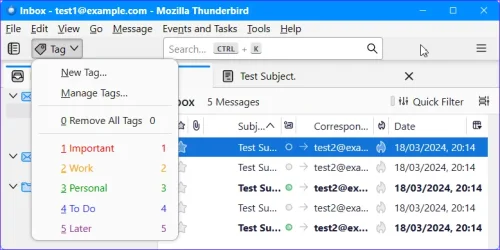
I'm not sure if this is proper thread to ask my question but it does have to do with vers 115 customization.

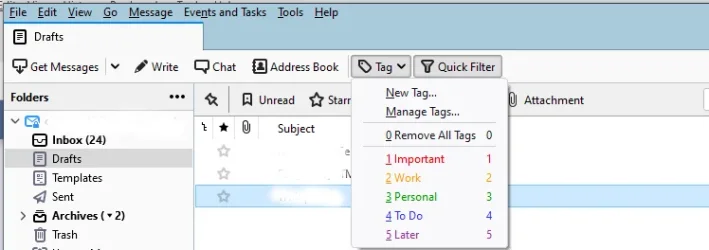
I recently tried vers 115 but it does not have a Tag with a drop down menu function as shown in this example. This lets you quickly select the importance/color of a message. I tried to customize the Mail Toolbar but was not successful. Not sure which version is shown but you can see the item I'm asking about.

Any suggestions would be appreciated.
Thanks
1760870330940.webp
 

My Computer

System One

  • OS
    Windows 11 Pro 25H2
    Computer type
    PC/Desktop
    Manufacturer/Model
    ASRock B760M Pro RS/D4 motherboard
    CPU
    Intel i5-14500
    Motherboard
    ASRock
    Memory
    16 GB
    Graphics Card(s)
    Intel
    Hard Drives
    1 TB Samsung M.2 SSD
    1 TB WD HDD
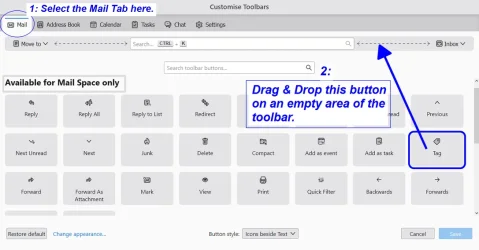
When you right click the tabs bar to customize the toolbar, do you not have this icon in the "Available for Mail Space only" section?

T-tag.webp

pn: make sure the first tab (called Mail), is selected so you can see the list of the icons/buttons available for the Main Mail Tab.
 

My Computer

System One

  • OS
    Win 11 25H2
    Computer type
    PC/Desktop
    Manufacturer/Model
    custom
    CPU
    intel i7-8700
    Motherboard
    Asus Z370 TUF Gaming
    Memory
    32Gb
    Graphics Card(s)
    Intel iGPU
    Sound Card
    Realtek
    Hard Drives
    Samsung
    PSU
    Corsair
    Cooling
    Fans
I sure thought I did as you explained & the Tag icon did display on right side of the dotted line that the blue arrow is pointing to. But the icon did not show on the Mail Toolbar.

I thought maybe it was not working because there is a Tag icon already displayed as shown in the example below. Clicking on that displays only messages that have already been tagged.

I’ll have to try it again.

But this makes me wonder, what is the function of the Tag icon that is available for customization? Is it going to duplicate what the existing icon does? Or is it going to also provide a drop down menu?

1760886371179.webp
 

My Computer

System One

  • OS
    Windows 11 Pro 25H2
    Computer type
    PC/Desktop
    Manufacturer/Model
    ASRock B760M Pro RS/D4 motherboard
    CPU
    Intel i5-14500
    Motherboard
    ASRock
    Memory
    16 GB
    Graphics Card(s)
    Intel
    Hard Drives
    1 TB Samsung M.2 SSD
    1 TB WD HDD
The tag icon you have highlighted in your image, is, as its tooltip suggests to enable you to Filter and "Show only messages with tags on them".
eg: To show all messages which have the Important tag, I would just click on that Tag button (as shown in your image), and then click on the "Any of" dropdown to the left and select the Important button. This is just a simple example of that filter dialog.

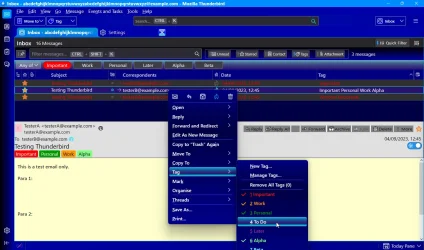
The Tag button on the main toolbar is one of the methods to enable you to tag messages (you could also just right click the message of interest & use the tag selector in the context menu, or even go through to the "More" button in the message header & use the Tag selector from there).

tags.webp
 

My Computer

System One

  • OS
    Win 11 25H2
    Computer type
    PC/Desktop
    Manufacturer/Model
    custom
    CPU
    intel i7-8700
    Motherboard
    Asus Z370 TUF Gaming
    Memory
    32Gb
    Graphics Card(s)
    Intel iGPU
    Sound Card
    Realtek
    Hard Drives
    Samsung
    PSU
    Corsair
    Cooling
    Fans
I know there is a difference between the two. I know I can right click on the message or use the drop down menu from the Message header.

But I would like to be able to have access from the Mail Toolbar as shown. From screenshots I have seen of newer versions this does not exist anymore.
Can this be configured in vers 115 and later?

1760889440444.webp
 

My Computer

System One

  • OS
    Windows 11 Pro 25H2
    Computer type
    PC/Desktop
    Manufacturer/Model
    ASRock B760M Pro RS/D4 motherboard
    CPU
    Intel i5-14500
    Motherboard
    ASRock
    Memory
    16 GB
    Graphics Card(s)
    Intel
    Hard Drives
    1 TB Samsung M.2 SSD
    1 TB WD HDD
@Chuck99

You have to quote das10, or add an @ symbol before his account name to light up his notification bell.


Here's some things that you may find useful...


And here's ten points for filling out your computer specs. :-)
 

My Computers

System One System Two

  • OS
    Win 11 Home ♦♦♦26200.8457 ♦♦♦♦♦♦♦25H2
    Computer type
    PC/Desktop
    Manufacturer/Model
    Built by Ghot® [May 2020]
    CPU
    AMD Ryzen 7 3700X
    Motherboard
    Asus Pro WS X570-ACE (BIOS 5302)
    Memory
    G.Skill (F4-3200C14D-16GTZKW)
    Graphics Card(s)
    EVGA RTX 2070 (08G-P4-2171-KR)
    Sound Card
    Realtek ALC1220P / ALC S1220A
    Monitor(s) Displays
    Dell U3011 30"
    Screen Resolution
    2560 x 1600
    Hard Drives
    2x Samsung 860 EVO 500GB,
    WD 4TB Black FZBX - SATA III,
    WD 8TB Black FZBX - SATA III,
    DRW-24B1ST CD/DVD Burner
    PSU
    PC Power & Cooling 750W Quad EPS12V
    Case
    Cooler Master ATCS 840 Tower
    Cooling
    CM Hyper 212 EVO (push/pull)
    Keyboard
    Ducky DK9008 Shine II Blue LED
    Mouse
    Logitech Optical M-100
    Internet Speed
    300/300
    Browser
    Firefox (latest)
    Antivirus
    Bitdefender Total Security
    Other Info
    Speakers: Klipsch Pro Media 2.1
  • Operating System
    Windows XP Pro 32bit w/SP3
    Computer type
    PC/Desktop
    Manufacturer/Model
    Built by Ghot® (not in use)
    CPU
    AMD Athlon 64 X2 5000+ (OC'd @ 3.2Ghz)
    Motherboard
    ASUS M2N32-SLI Deluxe Wireless Edition
    Memory
    TWIN2X2048-6400C4DHX (2 x 1GB, DDR2 800)
    Graphics card(s)
    EVGA 256-P2-N758-TR GeForce 8600GT SSC
    Sound Card
    Onboard
    Monitor(s) Displays
    ViewSonic G90FB Black 19" Professional (CRT)
    Screen Resolution
    up to 2048 x 1536
    Hard Drives
    WD 36GB 10,000rpm Raptor SATA
    Seagate 80GB 7200rpm SATA
    Lite-On LTR-52246S CD/RW
    Lite-On LH-18A1P CD/DVD Burner
    PSU
    PC Power & Cooling Silencer 750 Quad EPS12V
    Case
    Generic Beige case, 80mm fans
    Cooling
    ZALMAN 9500A 92mm CPU Cooler
    Keyboard
    Logitech Classic Keybooard 200
    Mouse
    Logitech Optical M-BT96a
    Internet Speed
    300/300
    Browser
    Firefox 3.x ??
    Antivirus
    Symantec (Norton)
    Other Info
    Still assembled, still runs. Haven't turned it on for 15 years?
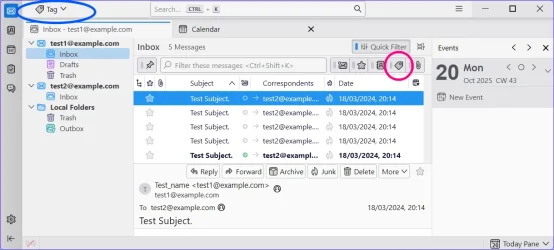
I just checked version 115, and the Tags toolbar icon is there (has been there at least from Version 115 to the current version 144 which I showed above). I don't know why it is not appearing for you.

eg: Version 115.8.1
115Tag.webp

When customizing the toolbar, try placing that icon on the far left of the toolbar to see if it makes any difference.
 

My Computer

System One

  • OS
    Win 11 25H2
    Computer type
    PC/Desktop
    Manufacturer/Model
    custom
    CPU
    intel i7-8700
    Motherboard
    Asus Z370 TUF Gaming
    Memory
    32Gb
    Graphics Card(s)
    Intel iGPU
    Sound Card
    Realtek
    Hard Drives
    Samsung
    PSU
    Corsair
    Cooling
    Fans

My Computer

System One

  • OS
    Windows 11 Pro 25H2
    Computer type
    PC/Desktop
    Manufacturer/Model
    ASRock B760M Pro RS/D4 motherboard
    CPU
    Intel i5-14500
    Motherboard
    ASRock
    Memory
    16 GB
    Graphics Card(s)
    Intel
    Hard Drives
    1 TB Samsung M.2 SSD
    1 TB WD HDD
That does look like the same Version 115 I posted the image of, with some Settings changes (eg: If, I "Hide system window titlebar", "hide menubar", select "light theme", and show "Events for the Day-Today Pane").

(Updated image to show the 2 different Tag icons).

T115-tags.webp
 
Last edited:

My Computer

System One

  • OS
    Win 11 25H2
    Computer type
    PC/Desktop
    Manufacturer/Model
    custom
    CPU
    intel i7-8700
    Motherboard
    Asus Z370 TUF Gaming
    Memory
    32Gb
    Graphics Card(s)
    Intel iGPU
    Sound Card
    Realtek
    Hard Drives
    Samsung
    PSU
    Corsair
    Cooling
    Fans
@das10
Where is the Tags toolbar icon in the vers 115 example I provided? What am I missing?
 

My Computer

System One

  • OS
    Windows 11 Pro 25H2
    Computer type
    PC/Desktop
    Manufacturer/Model
    ASRock B760M Pro RS/D4 motherboard
    CPU
    Intel i5-14500
    Motherboard
    ASRock
    Memory
    16 GB
    Graphics Card(s)
    Intel
    Hard Drives
    1 TB Samsung M.2 SSD
    1 TB WD HDD
In message #549, you posted an image of Thunderbird. Was that of your own installed version? If so, the tag icon is on the far right of the main toolbar just 'above' the red circle.
 

My Computer

System One

  • OS
    Win 11 25H2
    Computer type
    PC/Desktop
    Manufacturer/Model
    custom
    CPU
    intel i7-8700
    Motherboard
    Asus Z370 TUF Gaming
    Memory
    32Gb
    Graphics Card(s)
    Intel iGPU
    Sound Card
    Realtek
    Hard Drives
    Samsung
    PSU
    Corsair
    Cooling
    Fans
@das10

That is not my Thunderbird. I just wanted to show my TB had this icon & it was in a cluster with other icons. Clicking on this icon displays messages that have been tagged.

"But this makes me wonder, what is the function of the Tag icon that is available for customization? Is it going to duplicate what the existing icon does? Or is it going to also provide a drop down menu?"

IOW if I'm able to drag & drop the custom Tag icon onto a menu bar, will it give me a drop down menu or just display tagged messages? I don't see an arrow associated with the Custom Tag icon so it makes me question what it does.

I've already restored back to an earlier version of TB & do not have vers 115 currently installed.

That said, the image posted in message #554 is of vers 115 as per the blog link mentioned. It doesn't appear to show a Tag icon with an arrow. That is what I recall mine looked like.
 

My Computer

System One

  • OS
    Windows 11 Pro 25H2
    Computer type
    PC/Desktop
    Manufacturer/Model
    ASRock B760M Pro RS/D4 motherboard
    CPU
    Intel i5-14500
    Motherboard
    ASRock
    Memory
    16 GB
    Graphics Card(s)
    Intel
    Hard Drives
    1 TB Samsung M.2 SSD
    1 TB WD HDD
The icon on the main toolbar gives you the dropdown as shown in my message #553 so it is not a duplicate of the icon shown in the "Quick Filter" bar.
 

My Computer

System One

  • OS
    Win 11 25H2
    Computer type
    PC/Desktop
    Manufacturer/Model
    custom
    CPU
    intel i7-8700
    Motherboard
    Asus Z370 TUF Gaming
    Memory
    32Gb
    Graphics Card(s)
    Intel iGPU
    Sound Card
    Realtek
    Hard Drives
    Samsung
    PSU
    Corsair
    Cooling
    Fans
The icon on the main toolbar gives you the dropdown as shown in my message #553 so it is not a duplicate of the icon shown in the "Quick Filter" bar.
Where is that icon shown in message #554?
 

My Computer

System One

  • OS
    Windows 11 Pro 25H2
    Computer type
    PC/Desktop
    Manufacturer/Model
    ASRock B760M Pro RS/D4 motherboard
    CPU
    Intel i5-14500
    Motherboard
    ASRock
    Memory
    16 GB
    Graphics Card(s)
    Intel
    Hard Drives
    1 TB Samsung M.2 SSD
    1 TB WD HDD
Back
Top Bottom