This tutorial will show you how to turn on or off using a high contrast theme for your account in Windows 11.
Text with low contrast can be difficult to read for people with low vision. There are web sites that have, for example, poor color combinations such as blue links on black backgrounds. They aren’t easy to read even for people with unimpaired vision and can be virtually impossible for people with vision disabilities. Strongly contrasting colors can make it quicker and easier to read from your PC.
High contrast themes use more distinct colors to make text and apps easier to see.
Starting with Windows 11 build 26310.9502 (Experimental 26H2) for Insiders, Microsoft is introducing a new contrast theme toggle in Magnifier.
- A new contrast theme toggle for a lower-glare screen. If bright screens are uncomfortable, many people use color inversion to reduce glare. However, inversion changes everything on screen, including photos, charts, and videos. With this update, we're introducing a new contrast theme toggle in Magnifier.
- Reduce glare with a single toggle. Turn on a contrast theme directly from the Magnifier toolbar for a more comfortable viewing experience.
- Choose the contrast theme that works best for you. The dark theme is applied by default, and you can choose which contrast theme the toggle uses under Settings > Accessibility > Magnifier.
- Photos, videos, and charts keep their original colors. Unlike color inversion, the contrast theme recolors the interface without touching your photos, charts, or videos, so they keep their real colors.
- Color inversion is still here. This isn't a replacement. If you use inversion today, it works exactly as it always has. The contrast theme is a separate, purpose-built option to reduce glare when you want a darker interface without inverting colors.
Turn high contrast mode on or off in Windows - Microsoft Support
Use the Settings app in Windows to turn high contrast mode or contrast themes on or off.
 support.microsoft.com
Change color contrast in Windows | Microsoft Support
Learn how to make objects on the screen easier to see by setting up and using a high-contrast color scheme.
support.microsoft.com
It is required to activate Windows 11 before you can use contrast themes to personalize your PC.
When high contrast mode is turned on, the desktop background is automatically set to a solid color by default, but you can still set the desktop background to a picture or slideshow if wanted.
Contents
- Option One: Turn On or Off Contrast Theme using Keyboard Shortcut
- Option Two: Turn On or Off Contrast Theme from Sign-in Screen
- Option Three: Turn On or Off Contrast Theme in Control Panel
- Option Four: Turn On or Off Contrast Theme in "Contrast themes" Settings
- Option Five: Turn On or Off Contrast Theme from Magnifier Toolbar
- Option Six: Turn On or Off Contrast Theme in "Magnifier" Settings
EXAMPLE: Navigate the color and contrast settings
1 While signed in to Windows 11, press the left Alt + left Shift + Print Screen keys to toggle high contrast on and off.
2 If turning on high contrast, click/tap on Yes to confirm. (see screenshot below)
1 While on the sign-in screen, select your account.
2 Click/tap on the Accessibility button in the lower-right corner, and turn On or Off (default) Contrast themes for what you want. (see screenshot below)
3 You can now sign in to Windows 11.
1 Open Run (Win+R).
2 Copy and paste the
shell:::{ED834ED6-4B5A-4bfe-8F11-A626DCB6A921} command into Run, and click/tap on OK to open Personalization in the Control Panel.3 Click/tap on a theme you want to apply under My Themes (off), Windows Default Themes (off), or High Contrast Themes (on). (see screenshot below)
4 When finished, you can close the Control Panel if you like.
1 Open Settings (Win+I).
2 Click/tap on Accessibility on the left side, and click/tap on Contrast themes on the right side. (see screenshot below)
3 Select None (off) or the Aquatic, Desert, Dusk, or Night sky contrast theme (on) you want in the drop menu, and click/tap on Apply. (see screenshot below)
You can click/tap on the Edit button to customize the colors of items for the selected contrast theme to Save as a new theme.
4 You can now close Settings if you like.
This option is only available starting with Windows 11 build 26310.9502 (Experimental 26H2) for Insiders.
1 Open Magnifier (
 + Plus).
2 Click/tap on the Settings (gear) button on the Magnifier toolbar. (see screenshot below)
3 Turn on or off (default) Contrast theme for what you want.
This option is only available starting with Windows 11 build 26310.9502 (Experimental 26H2) for Insiders.
1 Open Settings (Win+I).
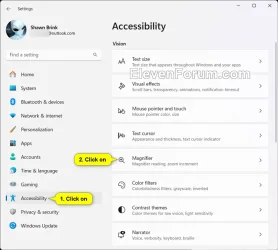
2 Click/tap on Accessibility on the left side, and click/tap on Magnifier on the right side. (see screenshot below)
3 Under the Appearance section, turn on (default) of off Contrast theme for what you want. (see screenshot below)
4 If you want to change the contrast theme, then perform the steps below: (see screenshot below)
- Click/tap on Contrast theme to expand it open.
- Select Aquatic (default), Desert, Dusk, or Night sky for which contrast theme you want to use in the Selected theme drop menu.
5 You can now close Settings if you like.
That's it,
Shawn Brink
Attachments
Last edited: